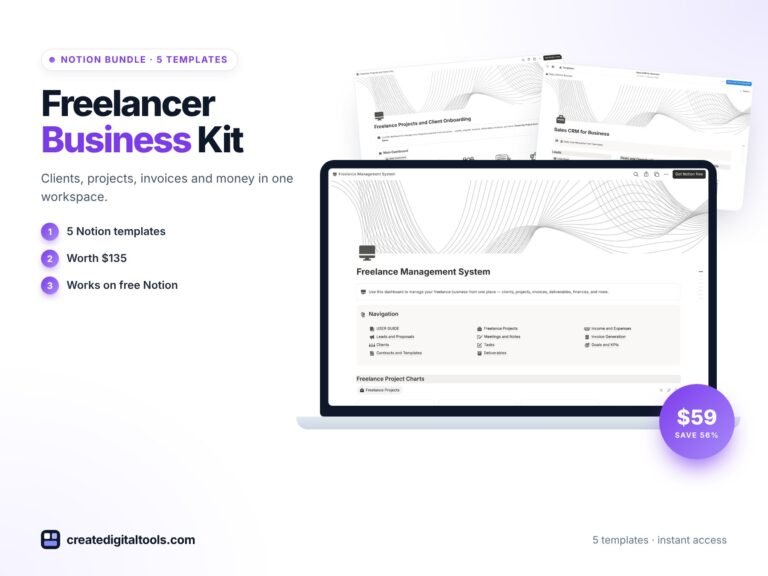
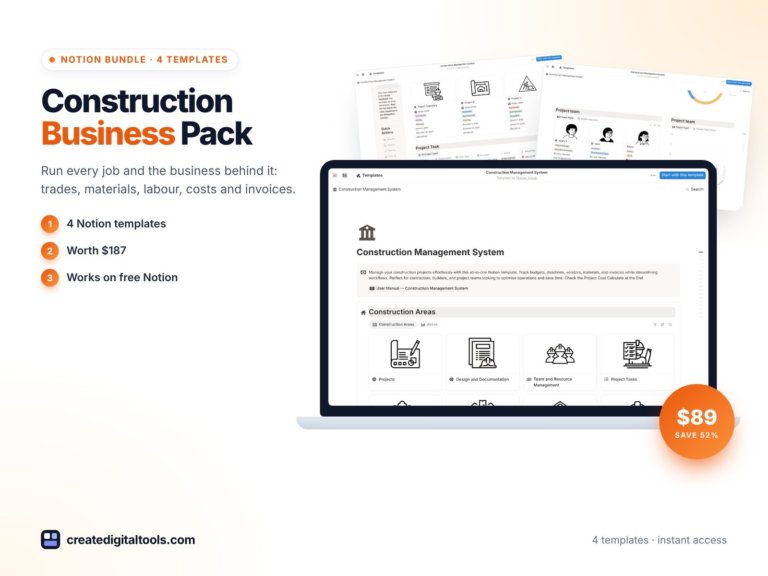
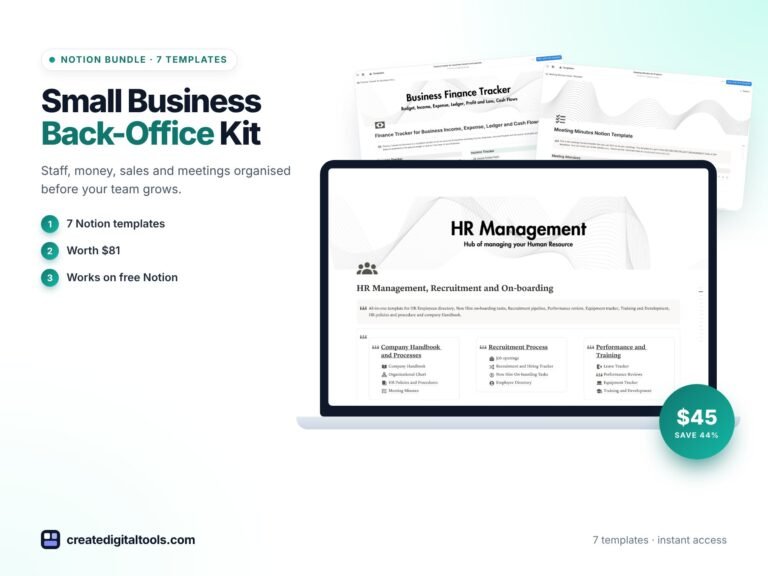
Notion Templates for Project Managers: 7-Template Toolkit
Picture a project manager who has just taken over a website rebuild halfway through. The requirements are in a document from three months ago, the budget is in finance’s spreadsheet, standup notes are in a chat thread, and the risk log is “somewhere”. Before any real work can happen, they spend a week piecing together what has already been decided. Good Notion templates for project managers prevent this by giving each part of the project lifecycle a consistent, linked place. The scenario is illustrative, but the problem is one most project managers know well.
This guide looks at why project information scatters, how to structure a project workspace yourself, and what is inside the Project Manager Toolkit.
Get the Project Manager Toolkit →
Why project information ends up scattered
Projects generate many kinds of information: requirements, plans, costs, people, daily updates, meeting decisions, risks and lessons learned. Most teams store each kind in whatever tool was handy at the time.
- Documents hold requirements and charters but go stale once the project moves on.
- Task tools track to-dos well but rarely hold budgets, risks or stakeholder details.
- Chat threads capture standups and decisions, then bury them within days.
- Spreadsheets handle cost and resourcing but sit apart from the work itself.
Handover makes it worse. When a project manager moves on, or a new team member joins midway, the context lives in places only the original people know about. A consistent structure across projects means anyone can open the workspace and find the requirements, budget and risk log in the same place every time. Each tool works on its own. The trouble is the joins: a scope change never reaches the budget, or an action from a meeting never becomes a task.
How to structure a project workspace in Notion
You can build a solid project workspace with these steps, whether or not you use a template.
- Write the requirements first. A business requirements document with scope, objectives, functional and non-functional requirements, and sign-off. Everything downstream should trace back to it.
- Create a project charter and task board. The charter states purpose, stakeholders and success criteria. The task board, with status and owner properties, tracks delivery.
- Add a timeline view. Notion’s timeline view on the tasks database shows milestones and dependencies without a separate tool.
- Track costs as planned versus actual. One row per cost category, with planned and actual amounts and a formula for the variance.
- Map your people. A team database with skills and allocation shows who is overloaded and who has capacity.
- Log standups and meetings in databases, not chat. A daily standup entry per person and meeting minutes with owned action items keep decisions findable.
- Keep a risk register and a lessons-learned page. Review risks weekly; write lessons as you go, not only at the end.
Tip: link meeting action items to the task database. When an action is agreed, it becomes a task with an owner rather than a line in the minutes.
Matching the template to the size of the project
Not every project needs the full set of documents. A useful rule of thumb:
- Small, short projects (a few weeks, a handful of people): a short requirements note, a task board, a cost tracker and meeting minutes are usually enough.
- Medium projects (several months, more stakeholders): add a proper charter, a timeline, a risk log and a weekly standup record.
- Large or high-stakes projects: use a full lifecycle structure with phase gates, formal sign-off, resource planning and lessons learned at each phase.
Choosing the right weight up front saves the team from either drowning in paperwork or flying blind.
Mistakes to avoid
- Writing requirements after the work starts. Even a rough BRD before kickoff prevents most scope disputes.
- Tracking costs only at the end. Update actual costs at least monthly so overruns show up while you can still act.
- Standups that become status reports. Keep them to what was done, what is next and what is blocked. Blockers are the reason to hold them.
- Ignoring allocation. If one specialist is on four projects, at least one of them is going to slip. A skills and allocation view makes that visible early.
Inside the Notion templates for project managers toolkit
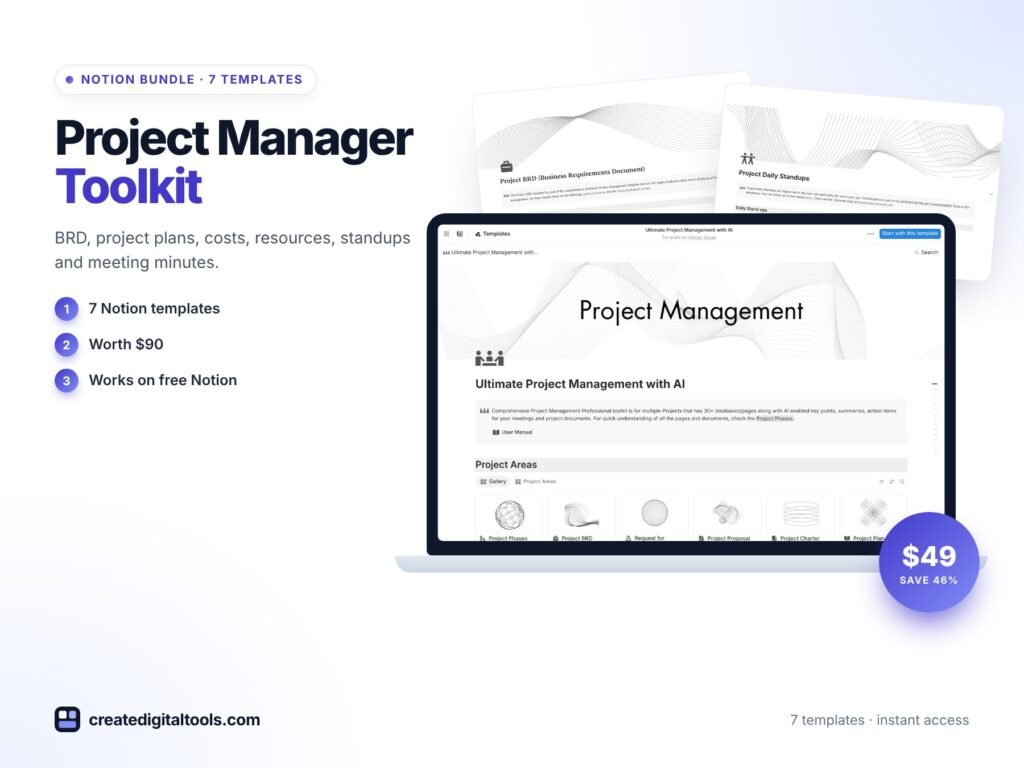
The Project Manager Toolkit bundles seven Notion templates from Create Digital Tools. Each comes with a User Manual page and sample data you delete before adding real entries.
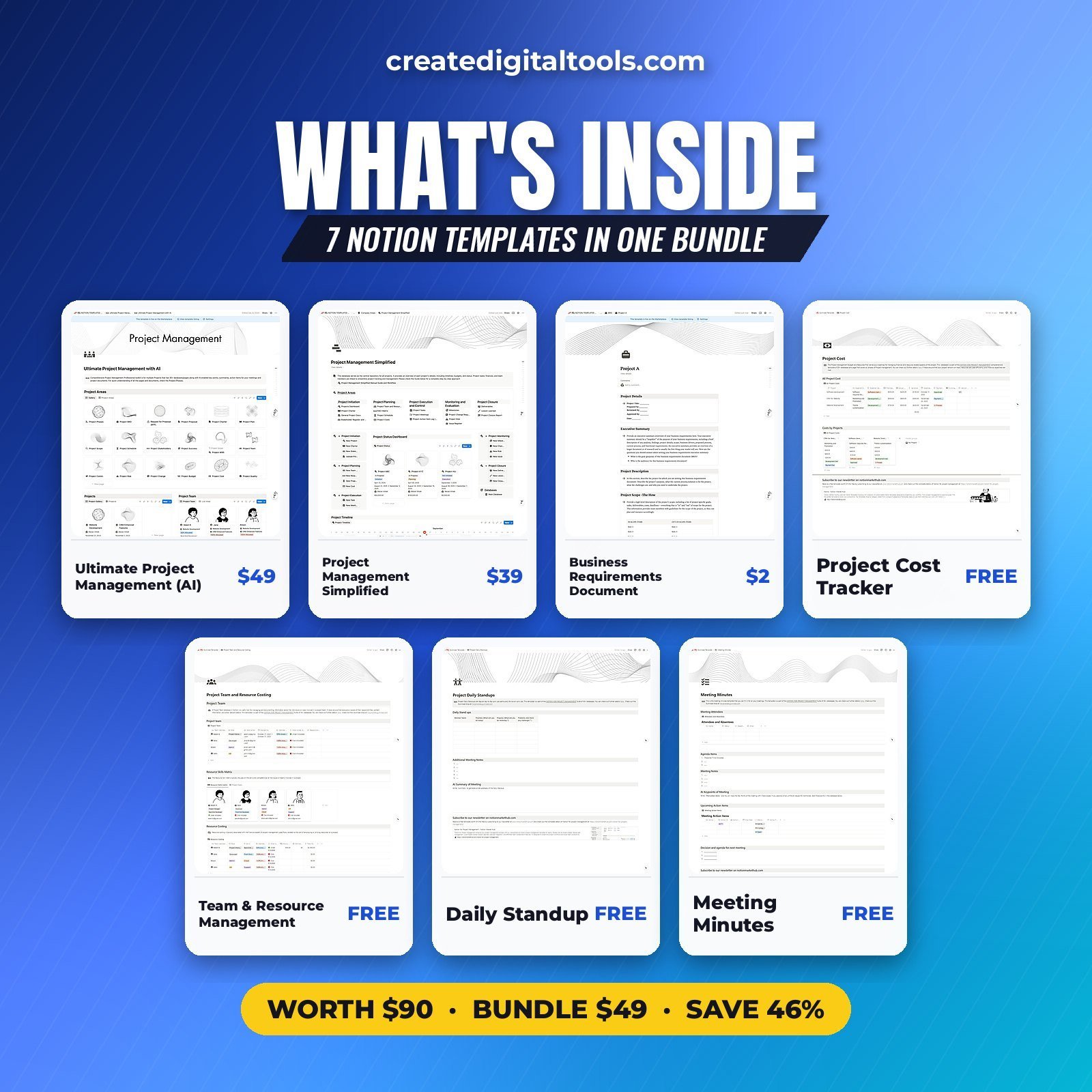
Ultimate Project Management (with AI)
The largest template in the toolkit: 30+ pages covering every project phase, with AI prompts built in. Use it for complex projects that need the full lifecycle from initiation to closure.
Project Management Simplified
A lighter option with a charter, task board, timeline, risks and lessons learned. Good for smaller projects where the full lifecycle template would be more than you need.
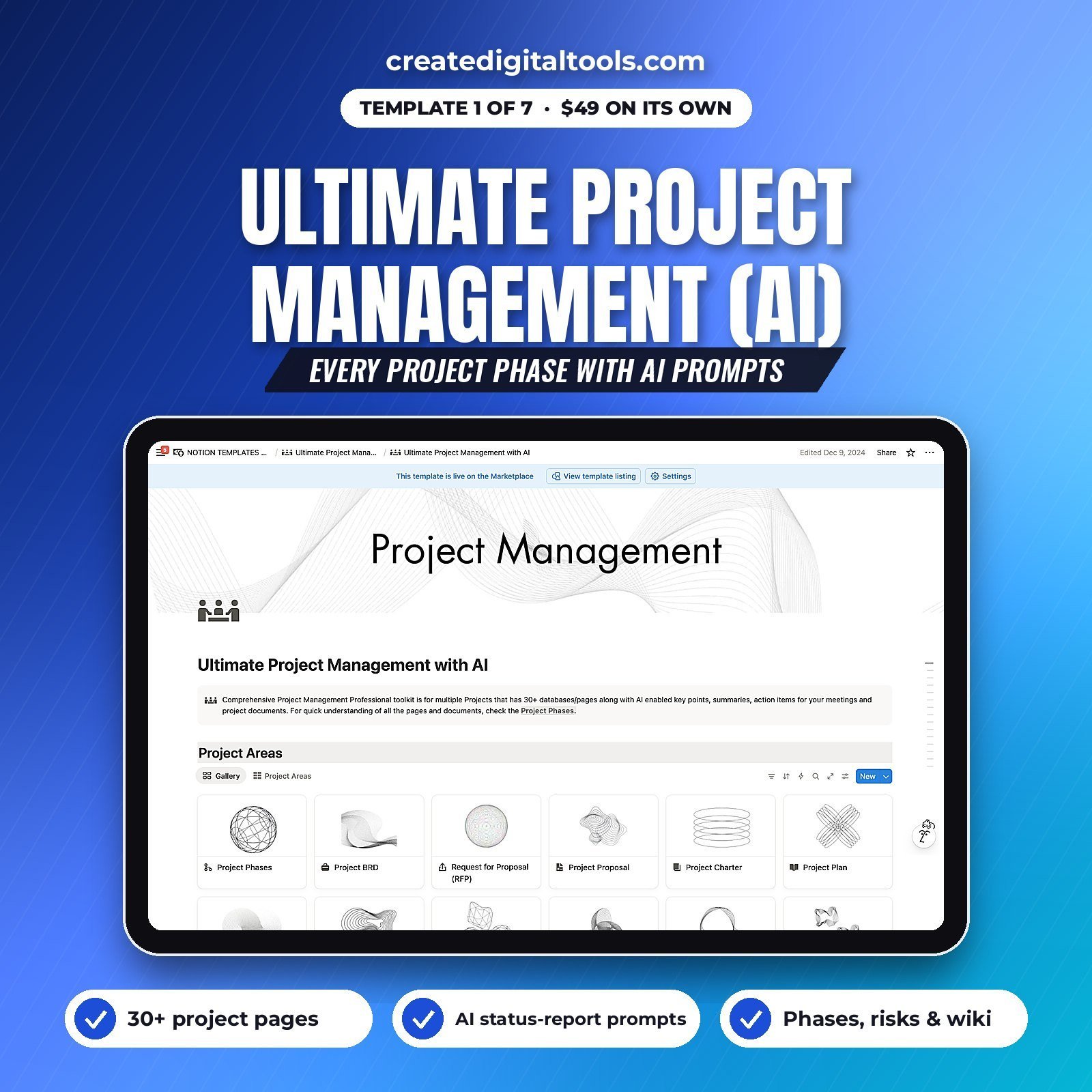
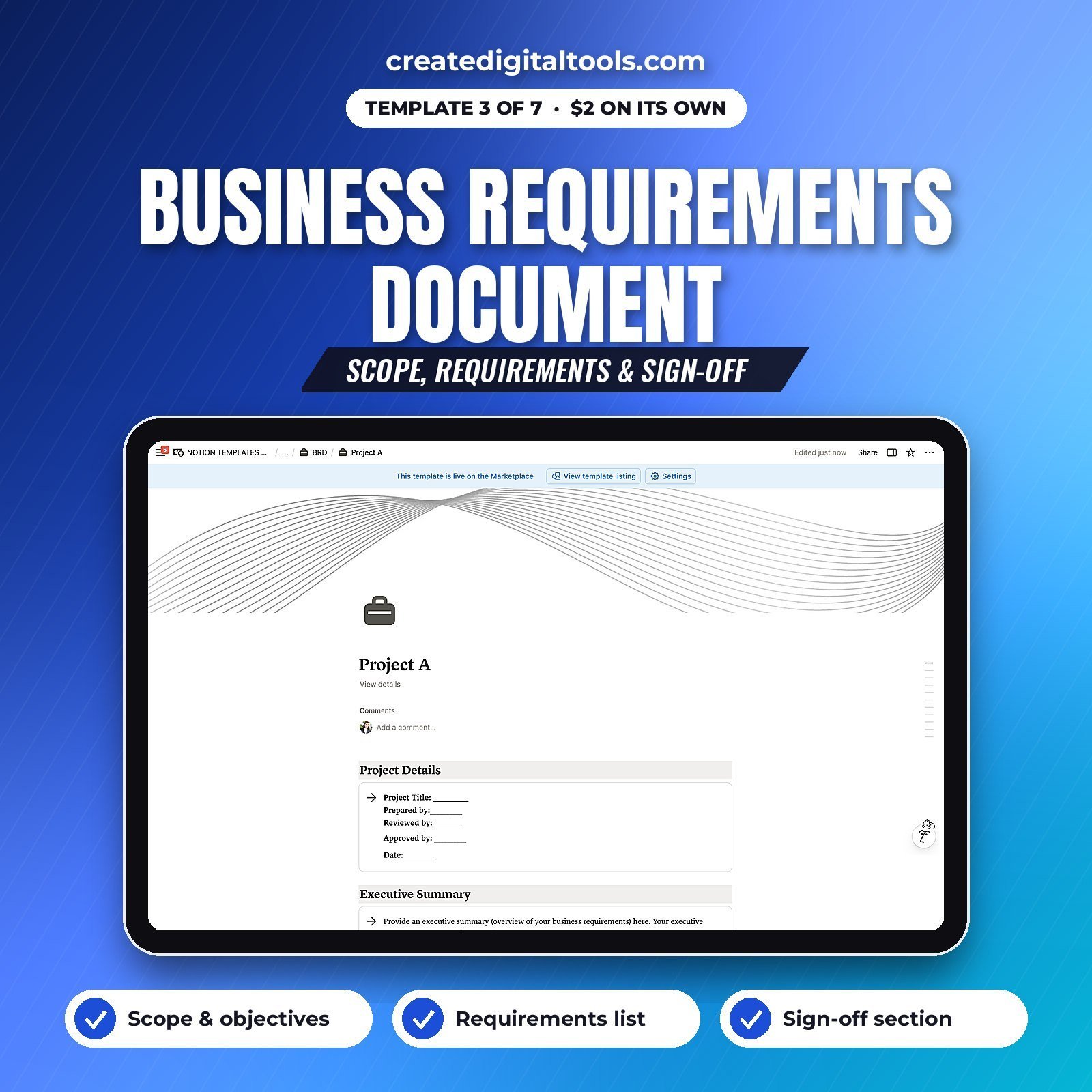
Business Requirements Document (BRD)
Scope, objectives, requirements and sign-off. Start every project here so the team agrees on what is being built before work begins.
Project Cost Tracker
Planned versus actual costs by category, so budget conversations are based on figures rather than impressions.
Team & Resource Management
A skills matrix, allocation and resource costing. Use it when planning who works on what and what that time costs.
Daily Standup
Updates and blockers per team member. A structured standup log makes it easy to spot recurring blockers.
Meeting Minutes
Agenda, decisions and action items with owners, so every meeting ends with clear next steps.
Delivery
You buy through Gumroad and the templates appear in your Gumroad library. Then duplicate each one into your Notion workspace. The product page says the toolkit works on Notion’s free plan, with lifetime access and no subscription.
Who it’s for, and who it isn’t for
A good fit for:
- Project managers, project coordinators and team leads who want structured templates for each project phase.
- Small agencies and in-house teams running several projects that need a consistent setup.
- Anyone moving project work into Notion who would rather not design every database from scratch.
Not a good fit for:
- Teams that need advanced scheduling such as critical path calculation or resource levelling.
- Organisations required to use a specific enterprise PM platform.
If you want to try the format first, the free Daily Standup for Project Teams template is a good taster. You can also browse more bundles or all Notion templates.
FAQ
What format is the Project Manager Toolkit?
Seven Notion templates that you duplicate into your own Notion workspace.
Does it work on the free Notion plan?
Yes, according to the product page. Notion AI is optional; the AI prompts in the larger template can be used with whichever AI tool you prefer.
When do I get the templates?
Immediately after checkout on Gumroad. They appear in your Gumroad library, ready to duplicate.
Can I use the templates for client projects?
Yes. Duplicate a template per project or per client and share it with the people involved, within your Notion plan’s sharing limits.
Can I change the phases, statuses and fields?
Yes. Everything is editable once duplicated, so you can match your own methodology and terminology.
Get the Project Manager Toolkit →
Notion is a trademark of Notion Labs, Inc. This is an independent template, not affiliated with or endorsed by Notion.
Notion systems, spreadsheets and planners with a setup guide. Instant download.