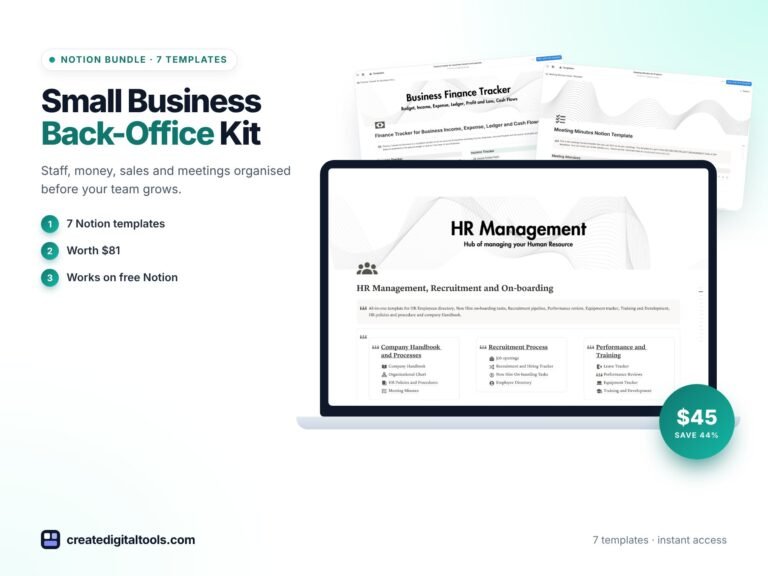
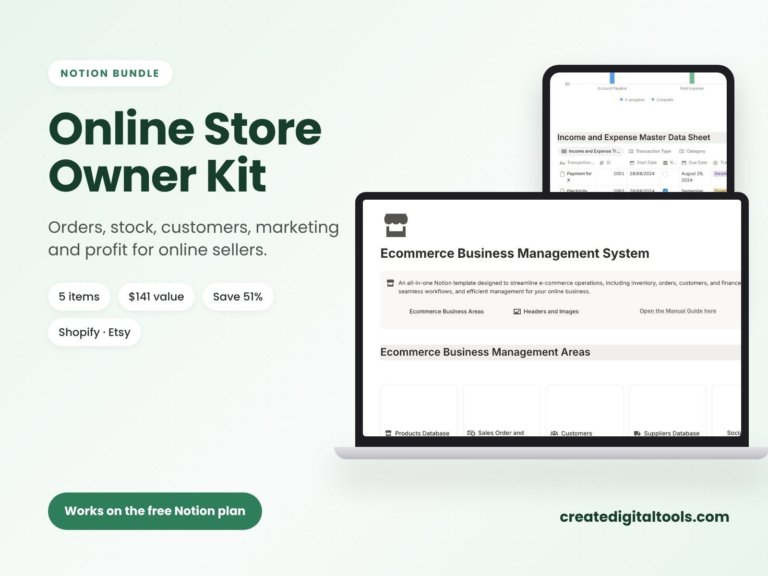
Construction Notion Template Pack for Contractors
Picture a small building contractor running three jobs at once: a kitchen refit, a loft conversion and a garage extension. Materials orders are on paper delivery notes, subcontractor hours are texted at the end of each day, and invoices are typed up whenever there is a free evening. By the time a job finishes, nobody is quite sure whether it made money. A construction Notion template set gives each job, trade, supplier and invoice a structured home, so you can see where things stand while the work is still happening. This is an illustrative scenario, but most small contractors will recognise it.
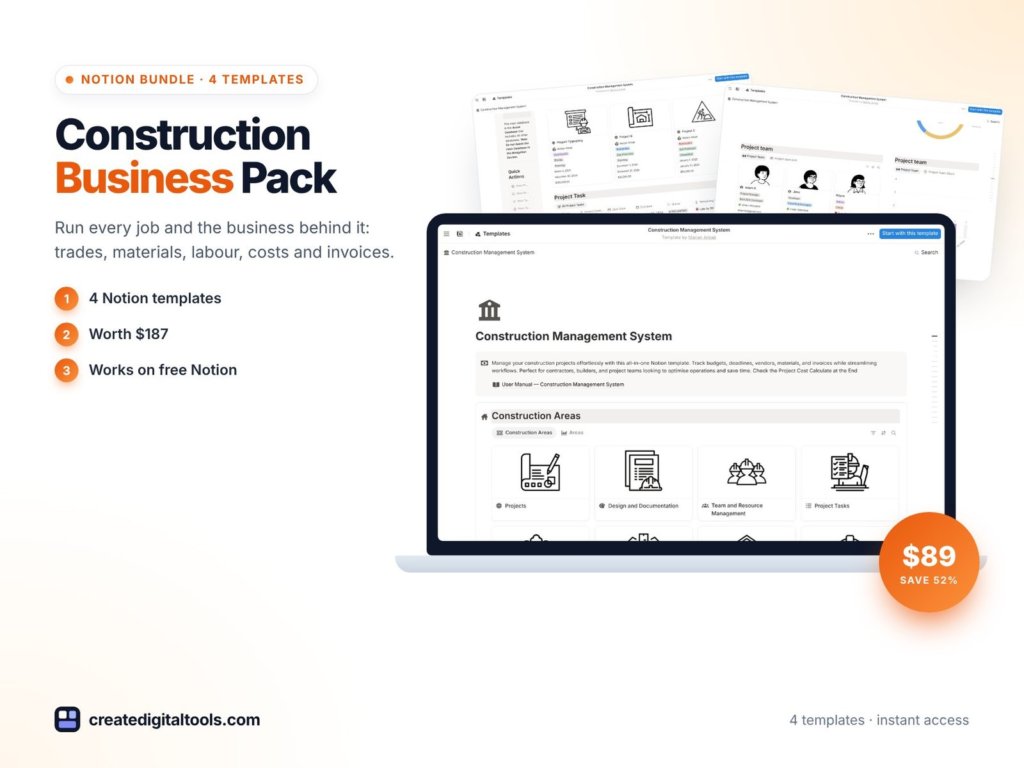
Here is why job admin gets out of hand, how to organise it in Notion yourself, and what is inside the Construction Business Pack.
Get the Construction Business Pack →
Why contractors lose track of jobs and costs
Construction admin has more moving parts than most small businesses: several sites, several trades, materials from different suppliers, labour that changes daily and invoices that depend on stage completion. The usual fixes struggle:
- Paper and photos of paper capture information but can’t be searched or totalled.
- A single spreadsheet per job works until you need to compare jobs or see all open invoices at once.
- Full construction software is often priced and designed for larger firms, with more setup than a small team has time for.
- Memory is what fills the gaps, and it is the first thing to go when you are busy.
There is a cash flow side too. Stage payments, retentions and supplier credit terms all affect when money arrives and leaves. When those dates aren’t recorded anywhere, a profitable business can still find itself short at the end of the month. The cost of this is not just stress. Without planned-versus-actual figures, it is hard to quote the next job accurately.
How to set up construction job tracking in Notion
These steps work whether you build from scratch or adapt a template.
- Create a projects database. One entry per job with client, address reference, start date, target finish and status. This is the hub every other database links to.
- Add trades and labour. Log which trades are on each job and record labour entries against the project. A rollup gives you labour totals per job.
- Track materials and vendors. A materials database linked to both projects and suppliers shows what was ordered, from whom and for which job.
- Record invoices against projects. Each invoice relates to a job, with amount, due date and paid status. A filtered view of unpaid invoices tells you who to chase.
- Set a budget per category. Planned amounts for materials, labour, plant hire and so on, then compare them with actual spend as the job progresses.
- Keep business-level money separate. Overheads like insurance, vehicles and tools don’t belong to one job. A business finance tracker handles those.
- Check in weekly. Ten minutes reviewing open jobs, overdue invoices and budget overruns catches problems early.
Tip: use the Notion mobile app on site to log materials and hours as they happen. Entering data the same day is far more accurate than reconstructing it on Friday.
Common mistakes when tracking construction jobs
- Mixing job costs with overheads. If van fuel and insurance go into job budgets, every job looks less profitable than it is, and you can’t see which jobs are actually costing you. Keep overheads in the business ledger.
- Logging materials only when invoices arrive. Supplier invoices can lag by weeks. Record materials when they are ordered or delivered, then mark them invoiced later.
- No variation records. When a client asks for extra work mid-job, log it against the project with the agreed price. Undocumented variations are one of the most common reasons final invoices get disputed.
- Too many statuses. “Quoted, booked, in progress, snagging, complete, invoiced, paid” is plenty. More than that and nobody keeps them current.
- Skipping the post-job review. Once a job closes, spend fifteen minutes comparing the budget with what was spent. Write one or two notes on what to price differently next time. Over a year, those notes make your quotes noticeably sharper.
A simple weekly routine
Monday: check which trades are booked for which sites this week and confirm materials deliveries. Wednesday: log mid-week labour and any variations. Friday: update job budgets, send any stage invoices that are due and chase anything overdue. Keeping to a short, fixed routine matters more than having a perfect setup.
Inside the Construction Business Pack: a construction Notion template set
The pack contains four Notion templates from Create Digital Tools. Each comes with a User Manual page and sample data you delete before adding your own.
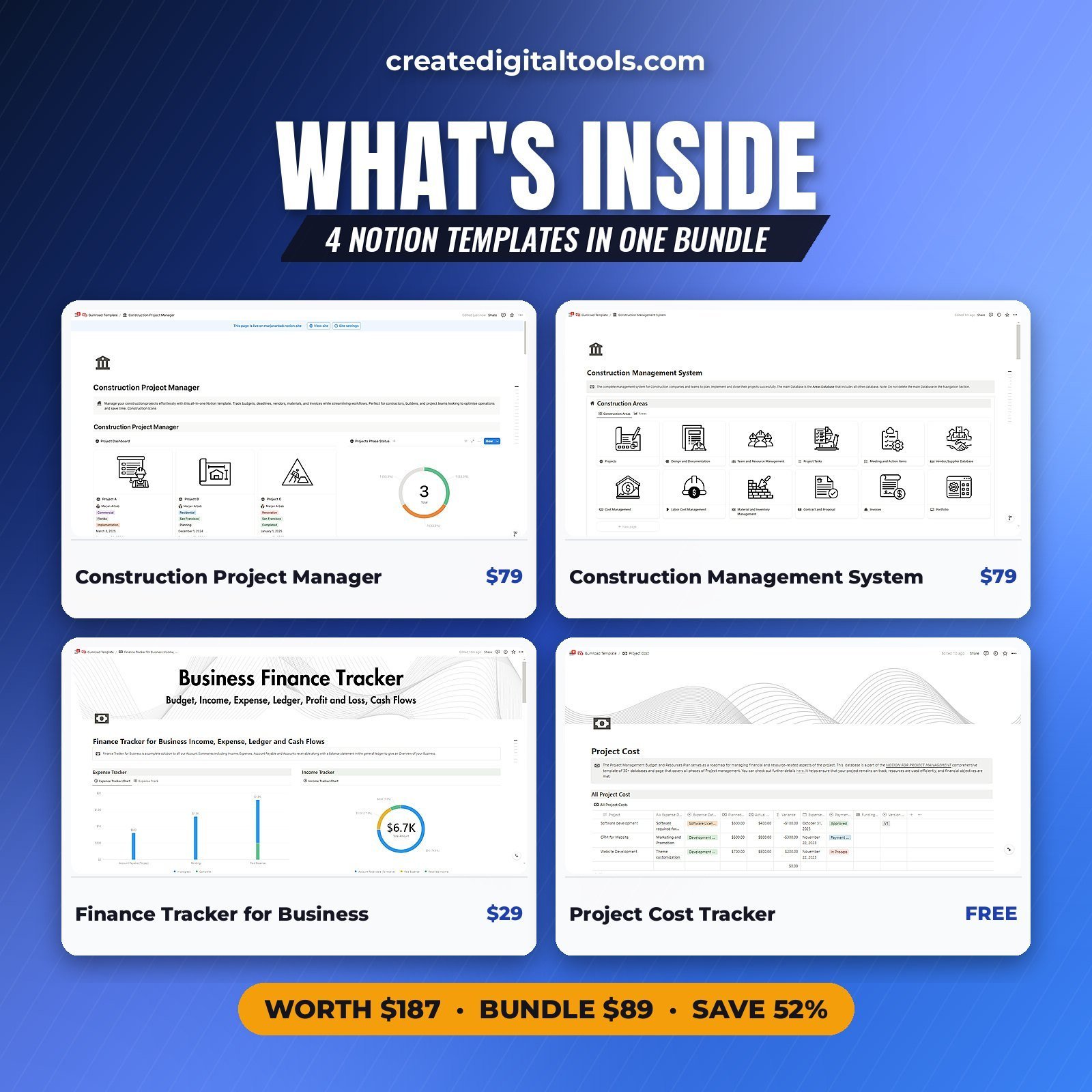
Construction Project Manager
Built around 11 linked databases covering trades, materials, labour and invoices. This is where you run individual jobs: who is working, what has been ordered and what has been billed. It is also sold separately as the Construction Project Manager.
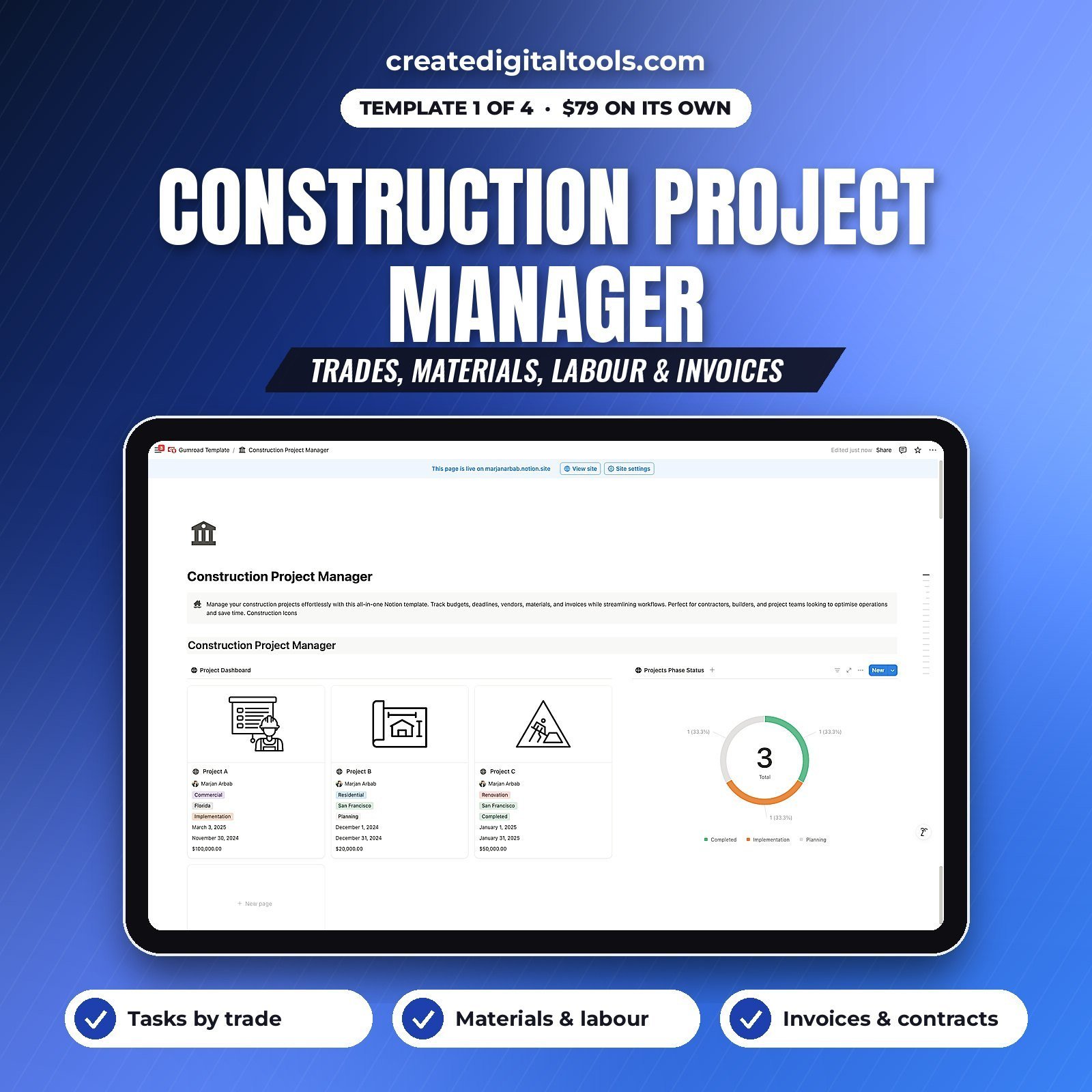
Construction Management System
Multi-site dashboards, inventory, vendors and contracts. Where the project manager focuses on each job, this template gives you the wider view across sites, along with the stock and vendor relationships that span several jobs.
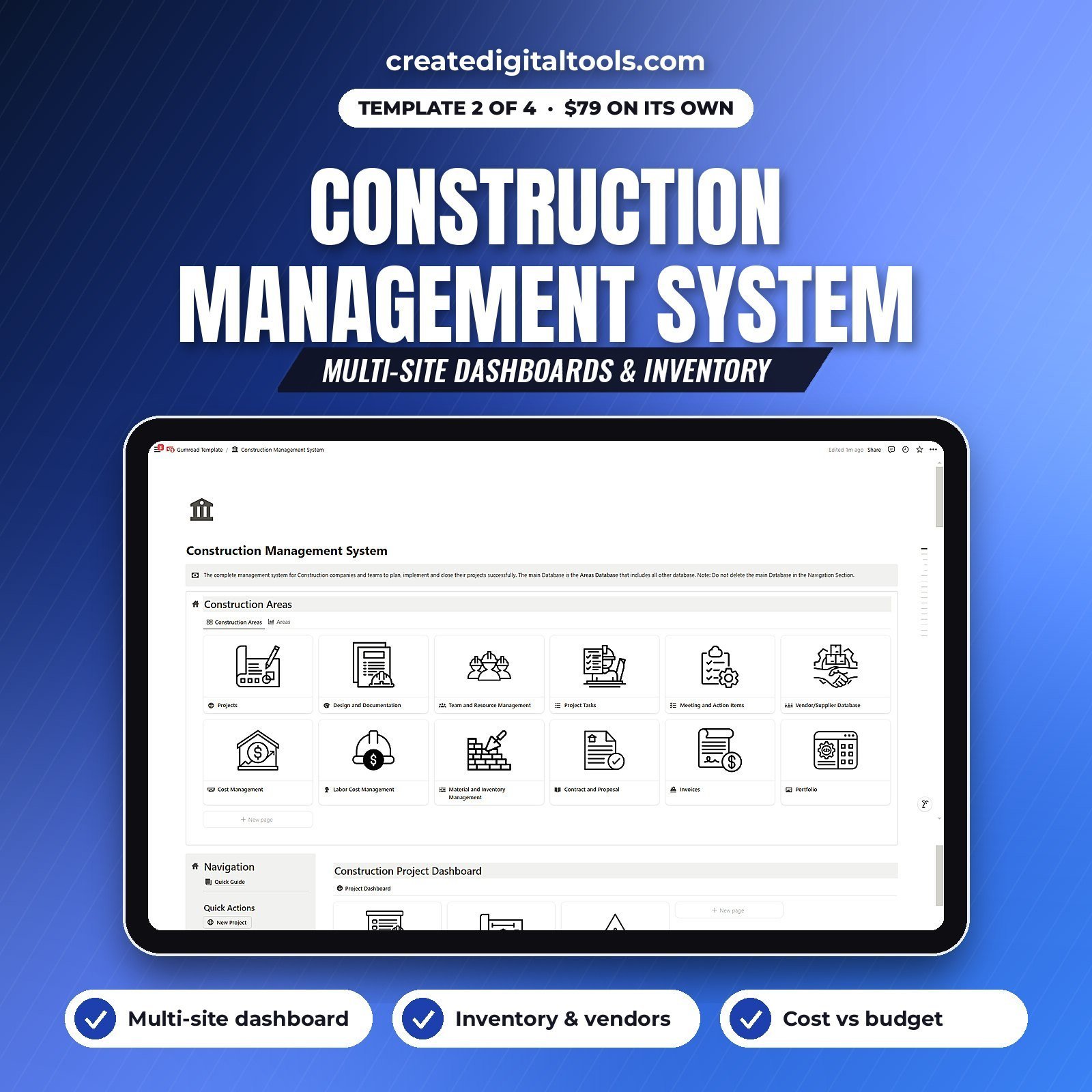
Finance Tracker for Business
Income by source, expenses, a ledger and cash flow. Use it for business-level money: overheads, tools, vehicles and the overall cash position, alongside the job-level figures.
Project Cost Tracker
Planned versus actual costs by category. It is a straightforward way to see whether a job is on budget and, after it ends, to learn what to adjust in your next quote.
Delivery
Checkout is through Gumroad. The templates appear in your Gumroad library, and you duplicate each one into Notion. The product page says the pack works on Notion’s free plan and includes lifetime access with no subscription.
Who it’s for, and who it isn’t for
A good fit for:
- Small contractors, builders and renovation businesses running several jobs at once.
- Trades businesses that want job costs, materials and invoices linked together.
- Office managers in construction firms who already use Notion or want to start.
Not a good fit for:
- Firms that need estimating software with built-in pricing databases, CAD integration or scheduling engines.
- Anyone looking for a tool that files tax returns or runs payroll. These templates organise information only.
If you only need the budgeting piece, the free Project Cost Template is a good place to start. You can also browse other bundles and Notion templates.
FAQ
What format is the Construction Business Pack?
Four Notion templates. You duplicate them into your own Notion workspace and edit them there.
Do I need a paid Notion plan?
No. The product page states that the pack works on Notion’s free plan.
Can I use it on site from my phone?
Notion has mobile apps, so you can open and update the templates from a phone or tablet. Larger dashboards are easier to read on a desktop.
Is it an instant download?
After buying through Gumroad, the templates appear in your Gumroad library straight away, ready to duplicate into Notion.
Can I add my own trades and cost categories?
Yes. All properties, select options and views are editable, so you can match the templates to the trades and categories you actually use.
Get the Construction Business Pack →
This is an organising tool, not legal, tax or financial advice.
Notion is a trademark of Notion Labs, Inc. This is an independent template, not affiliated with or endorsed by Notion.
Notion systems, spreadsheets and planners with a setup guide. Instant download.