Team Project Management Spreadsheet (Excel & Google Sheets)
Picture a team lead at a small company who manages five people across three projects. On Monday she updates a task list, on Tuesday she redraws the timeline for a status meeting, and by Thursday someone is overloaded because nobody checked capacity. Each tool shows a slice of the picture, and keeping them in sync has become a job in itself. That scenario is illustrative, but it describes why many teams go looking for a team project management spreadsheet: a single workbook where tasks, timelines and workload all come from the same data.
This post explains what makes team project tracking hard, how to set up a solid spreadsheet workflow yourself, and what you get in the Team Project Manager Spreadsheet for Excel and Google Sheets.
Get the Team Project Manager Spreadsheet →
Why team project tracking gets messy
Most teams do not lack tools. They have too many partial ones:
- A task list that shows what needs doing but not when, or by whom relative to their capacity.
- A timeline drawn separately for meetings, which goes stale as soon as a date moves.
- A board in yet another app, updated by some people and ignored by others.
- Meeting notes in documents, where decisions and actions are hard to find later.
The friction comes from re-entering the same information in several places. When a task’s date changes, it should change everywhere at once. Spreadsheets are good at exactly that, as long as the structure is right.
How to set up a team project management spreadsheet
These steps work whether you build from scratch or start from a template.
1. Set up your reference lists
Create a setup area with your projects, team members, each person’s weekly capacity in hours, and the phases you use. Every other tab should pull from these lists with dropdowns.
2. Keep one master task table
Each row is a task with a project, owner, status, priority, start date, due date and estimated hours. Every view (board, timeline, calendar) should read from this table rather than storing its own copy.
3. Handle repeating work with rules
Weekly reports, monthly reviews and regular check-ins should not be typed in by hand each time. Set a rule once (what, who, how often) and let formulas generate the dates.
4. Build views, not duplicates
A Kanban board grouped by status, a Gantt timeline, a monthly calendar and a “what’s next” focus list can all be formula-driven from the master table.
5. Compare workload with capacity
Sum estimated hours per person per week and compare them with capacity. This is the view that prevents burnout and missed deadlines.
6. Track risks and decisions
Score risks by likelihood and impact, and keep meeting decisions and action items next to the project data so they do not get lost in a separate document.
7. Use a dashboard for the weekly check-in
A few KPIs and charts give the team a shared view of progress and health without anyone preparing slides.
Inside the Team Project Manager Spreadsheet
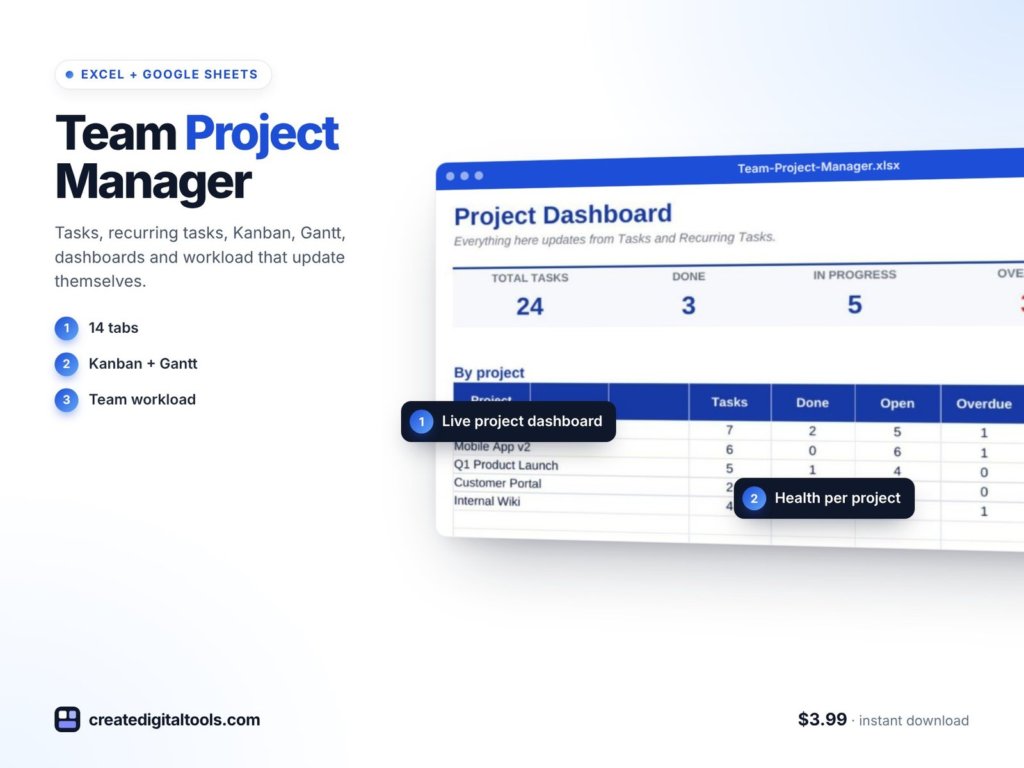
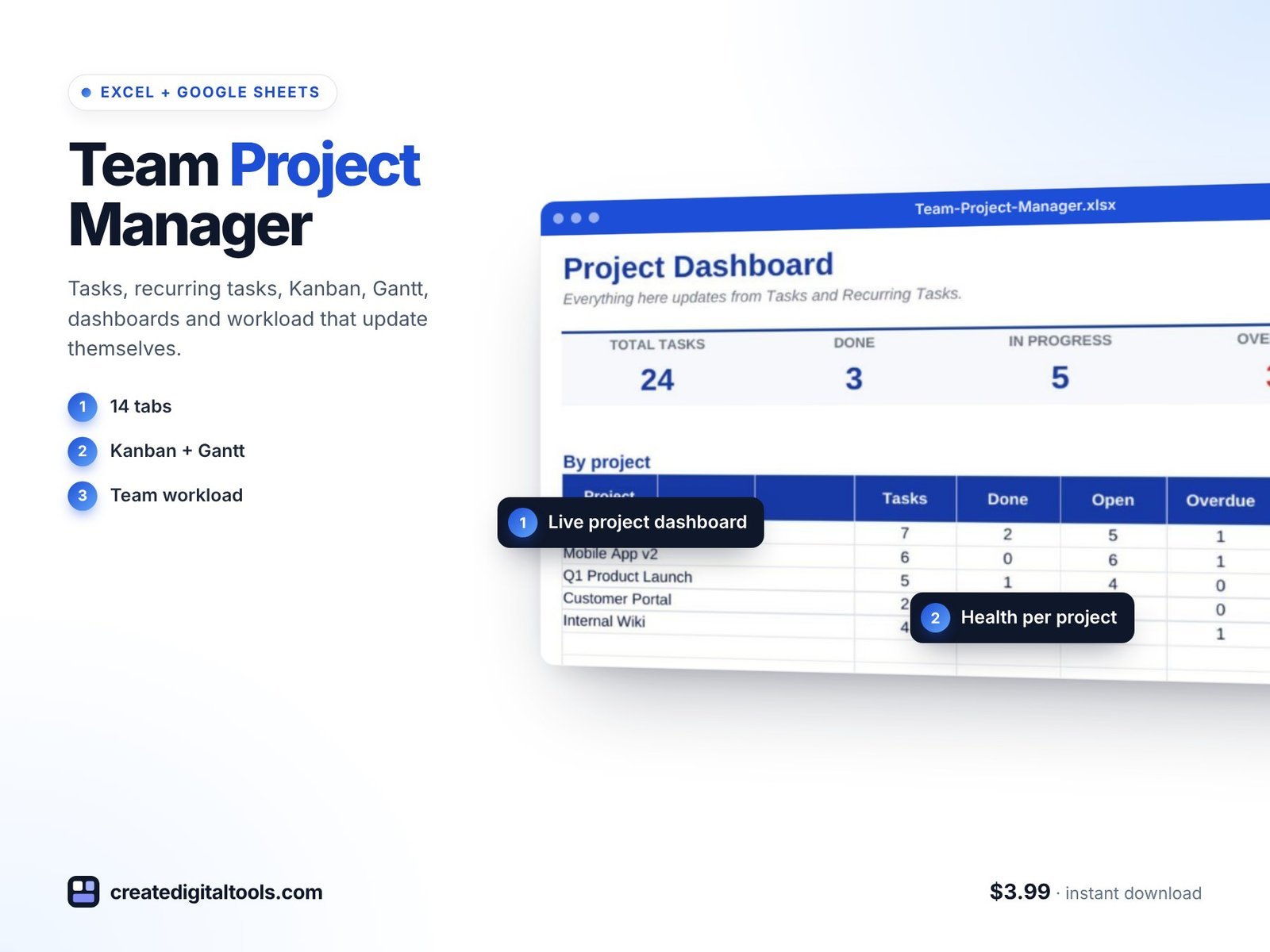
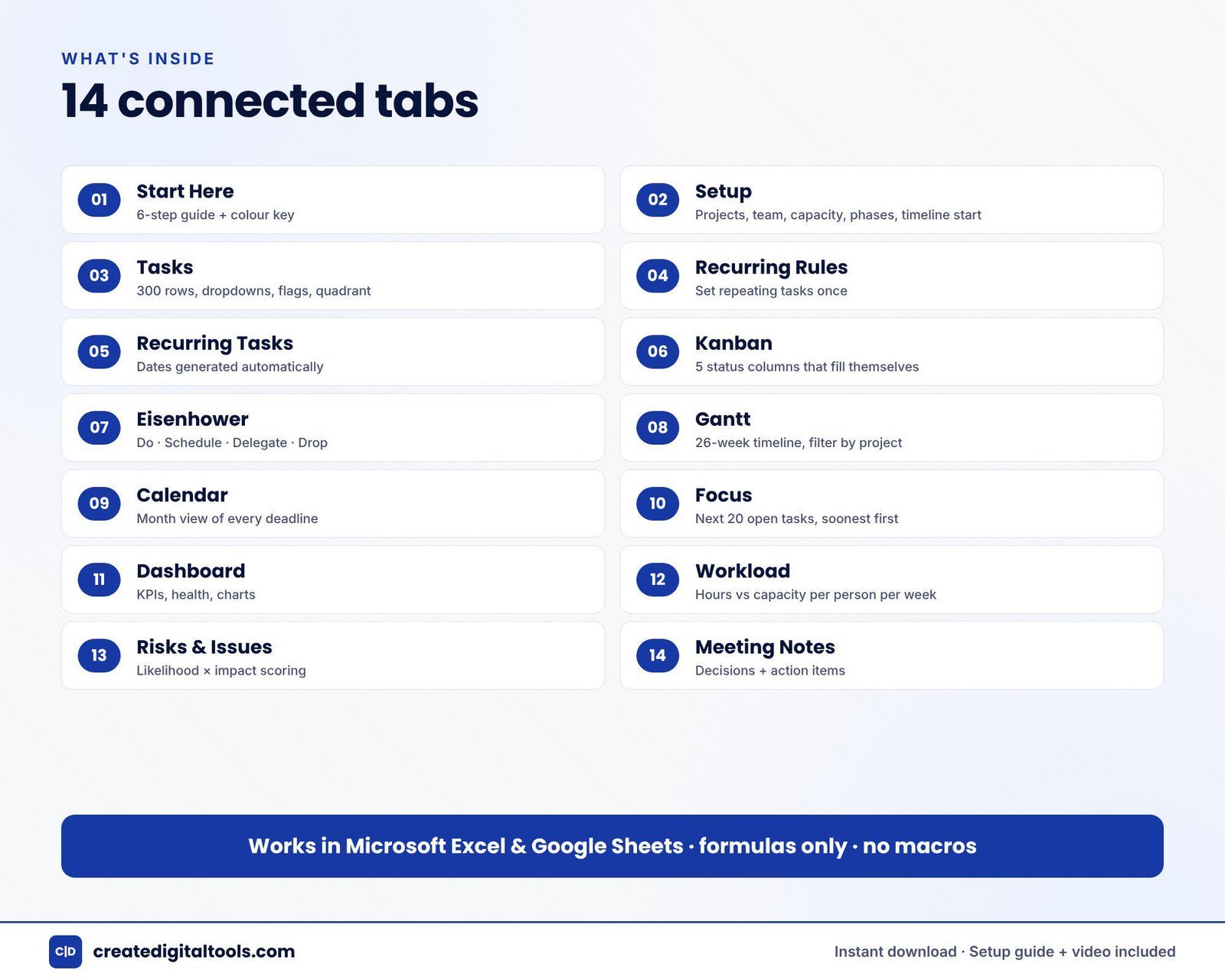
The Team Project Manager Spreadsheet is a workbook of 14 connected tabs. Once you enter projects, team and tasks, the Kanban board, Gantt chart, Eisenhower matrix, calendar, dashboard and workload view update on their own. It works in Excel 2016 or later, Microsoft 365 and Google Sheets, with formulas only: no macros, add-ons or subscription.
Start Here and Setup
A 6-step guide plus a colour key gets you oriented. The Setup tab holds projects, team, capacity and phases.
Tasks
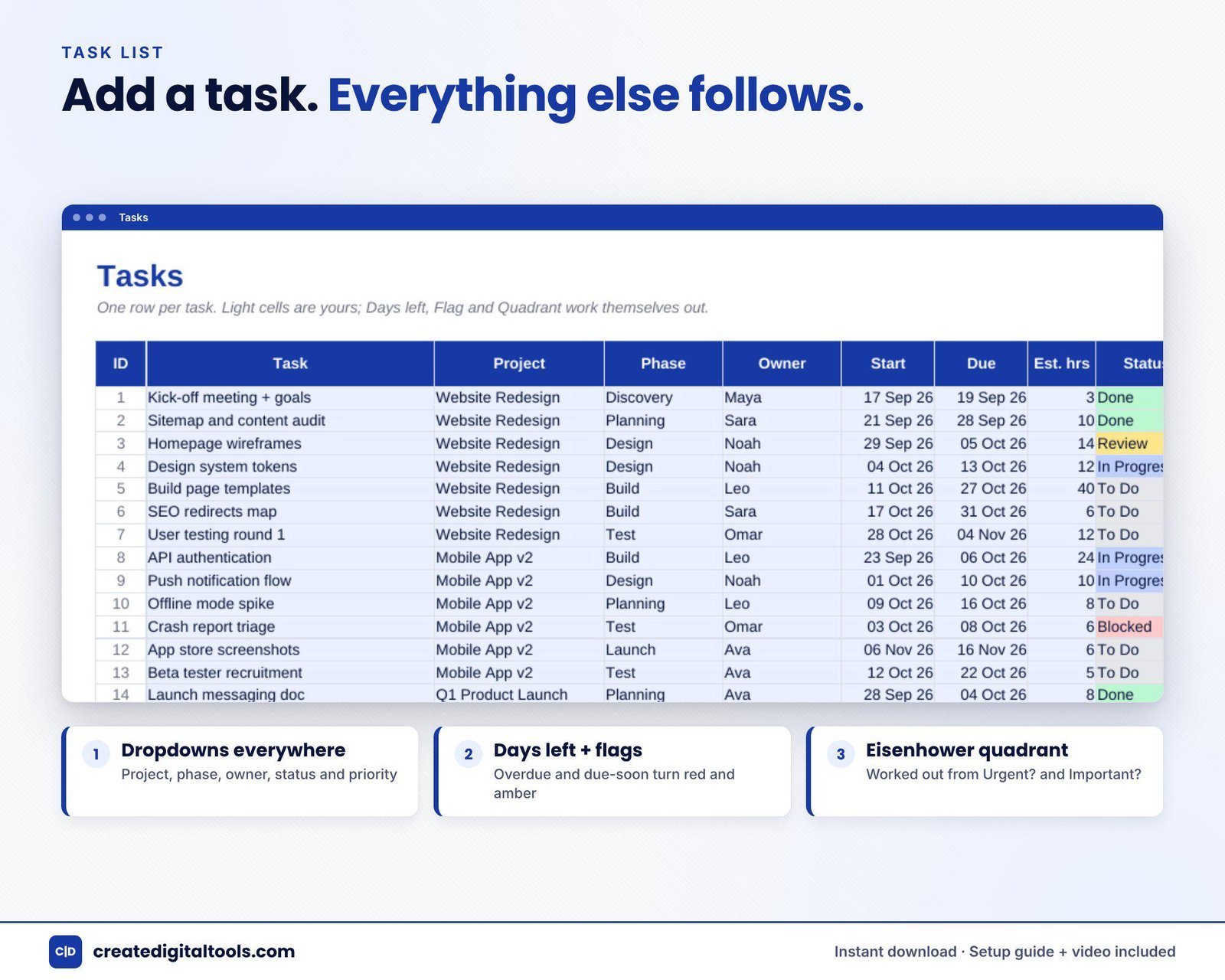
300 rows with dropdowns, flags and an Eisenhower quadrant for each task.
Recurring Rules and Recurring Tasks
Set repeating tasks once and their dates are generated automatically.
Kanban, Eisenhower, Gantt and Calendar
The Kanban has 5 status columns that fill themselves. The Eisenhower tab sorts work into Do, Schedule, Delegate and Drop. The Gantt shows a 26-week timeline you can filter by project, and the Calendar gives a month view of every deadline.
Focus and Dashboard
Focus lists the next 20 open tasks, soonest first. The Dashboard shows KPIs, project health and charts.
Workload
See hours compared with capacity for each person, each week.
Risks and Issues, Meeting Notes
Score risks by likelihood times impact, and record meeting decisions and action items.
The download includes a Setup Guide PDF and a product and setup video.
Getting started in your first week
Rolling out any new tracker works best when you keep the first week simple.
- Day one: read the Start Here tab, then fill in Setup with your projects, team members, weekly capacity per person and the phases you use.
- Day two: enter the open tasks for the next few weeks only, with an owner, due date and estimated hours. Resist the urge to plan the whole quarter.
- Day three: add recurring rules for regular work such as weekly reports or monthly reviews.
- Day four: check the Workload tab. If someone is over capacity, move dates or reassign before the week starts, not after.
- Day five: run your first team check-in from the Dashboard and Gantt, and capture decisions in Meeting Notes.
After that, the rhythm is straightforward: people update their own task status during the week, and the lead reviews the Dashboard, Workload and Risks tabs once a week. Because every view is driven by the same task table, nobody has to redraw the timeline or rebuild the board. If you share the file in Google Sheets, agree a simple rule such as “only change your own tasks” so edits do not overlap. Small habits like that keep a shared spreadsheet tidy for the whole year.
Watch the spreadsheet in action
Here is a tour of the Kanban, Gantt and workload views:
Who it is for, and who it is not for
A good fit if you are:
- A team lead or project manager running several projects with a small team
- A business that prefers spreadsheets over yet another project app subscription
- Someone who needs a Gantt chart and a Kanban board without learning new software
- A team that wants to see workload against capacity before committing to deadlines
Probably not the right fit if you:
- Need more than 300 tasks live at once in a single file
- Want automated notifications, integrations or a mobile app
- Run client projects where you need time logs and approvals (the agency version covers that)
Frequently asked questions
Which apps does it work in?
Excel 2016 or later, Microsoft 365 and Google Sheets.
Are there macros or add-ons?
No. It is formulas only, with no macros, no add-ons and no subscription.
Can the whole team use it?
Yes, with normal file sharing. In Google Sheets, share the file with your team. In Excel, keep it in a shared location such as OneDrive or SharePoint.
Is delivery instant?
Yes. It is an instant download that comes with a Setup Guide PDF and a setup video.
Can I use my own projects, phases and team names?
Phases, projects and team are set on the Setup tab. For deeper changes to formula columns, keep a backup copy first.
If your team works in sprints, take a look at the Agile Sprint Tracker Spreadsheet as well. You can browse more Excel and Google Sheets spreadsheets in the store.
Get the Team Project Manager Spreadsheet →
Microsoft Excel, OneDrive and SharePoint are trademarks of Microsoft Corporation, and Google Sheets is a trademark of Google LLC. This is an independent template, not affiliated with or endorsed by Microsoft or Google.
Notion systems, spreadsheets and planners with a setup guide. Instant download.