Colorful Digital Planner 2027: Colour-Coded Months, Budget
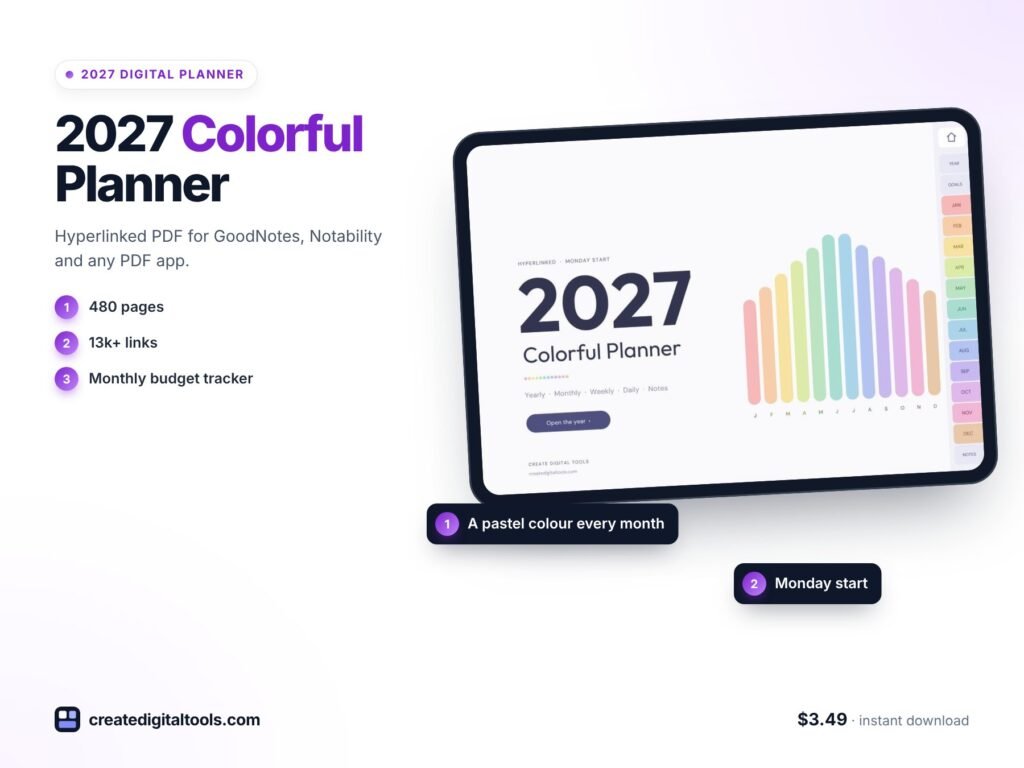
Picture someone who loves the idea of planning but drifts away from every planner by February. The pages all look the same, the months blur together, and there is nowhere to keep track of spending, so that lives in a separate app nobody opens. This is an illustrative scenario, but it is a common one. A colorful digital planner for 2027 tackles it in a simple way: each month gets its own colour, so you always know where you are, and budgeting, habits and daily plans sit side by side in a hyperlinked PDF on your tablet.
In this guide you will find a practical approach to colour-coded planning, tips for pairing habits and money with your daily pages, and a full tour of the 2027 Colorful Digital Planner in pastel rainbow.
Get the 2027 Colorful Digital Planner →
Why planners get abandoned
People rarely stop planning because they run out of things to plan. They stop because the planner feels like a chore. A few common reasons:
- Every page looks identical, so flicking back to March or forward to September feels like reading a phone book.
- Money lives elsewhere, in a banking app or a spreadsheet, so spending decisions are disconnected from daily plans.
- Habit trackers are hidden at the back of the planner, out of sight and out of mind.
- Navigation is slow, especially in a long PDF with no links.
Colour is not just decoration. It is a navigation aid and a small reward each time you open the planner. When the tab, calendar, weeks and days for a month share a colour, you know instantly which part of the year you are in.
Budget pages inside a planner are not a replacement for a banking app or accounting software. They are a simple way to see where money is going in the same place you plan your days, which makes small adjustments easier to notice and act on during the month.
How to set up colour-coded planning that sticks
You can use these ideas with any planner, digital or paper.
1. Give each month a colour
Assign a colour to every month and use it consistently on the calendar, weekly and daily pages. Your brain starts linking the colour to the season, which makes reviewing past months faster.
2. Keep a short habit list for each month
Choose habits at the start of each month rather than once a year. Fewer habits, chosen fresh, are easier to keep. Drop the ones that do not fit the season.
3. Put the monthly budget next to your goals
List income, expected expenses by category, bills and subscriptions, and one savings goal. Reviewing the budget alongside your monthly goals makes trade-offs visible.
4. Log spending on the daily page
A small spending log on each daily page takes seconds to fill and gives you real numbers for the month-end review.
5. Use a top 3 every day
Choose three things that matter today. Everything else goes on the to-do list. This keeps the day realistic.
6. Track the small wins
A water tracker or a ticked habit is a tiny visual reward that keeps you coming back to the planner.
Inside the 2027 Colorful Digital Planner (Pastel Rainbow)
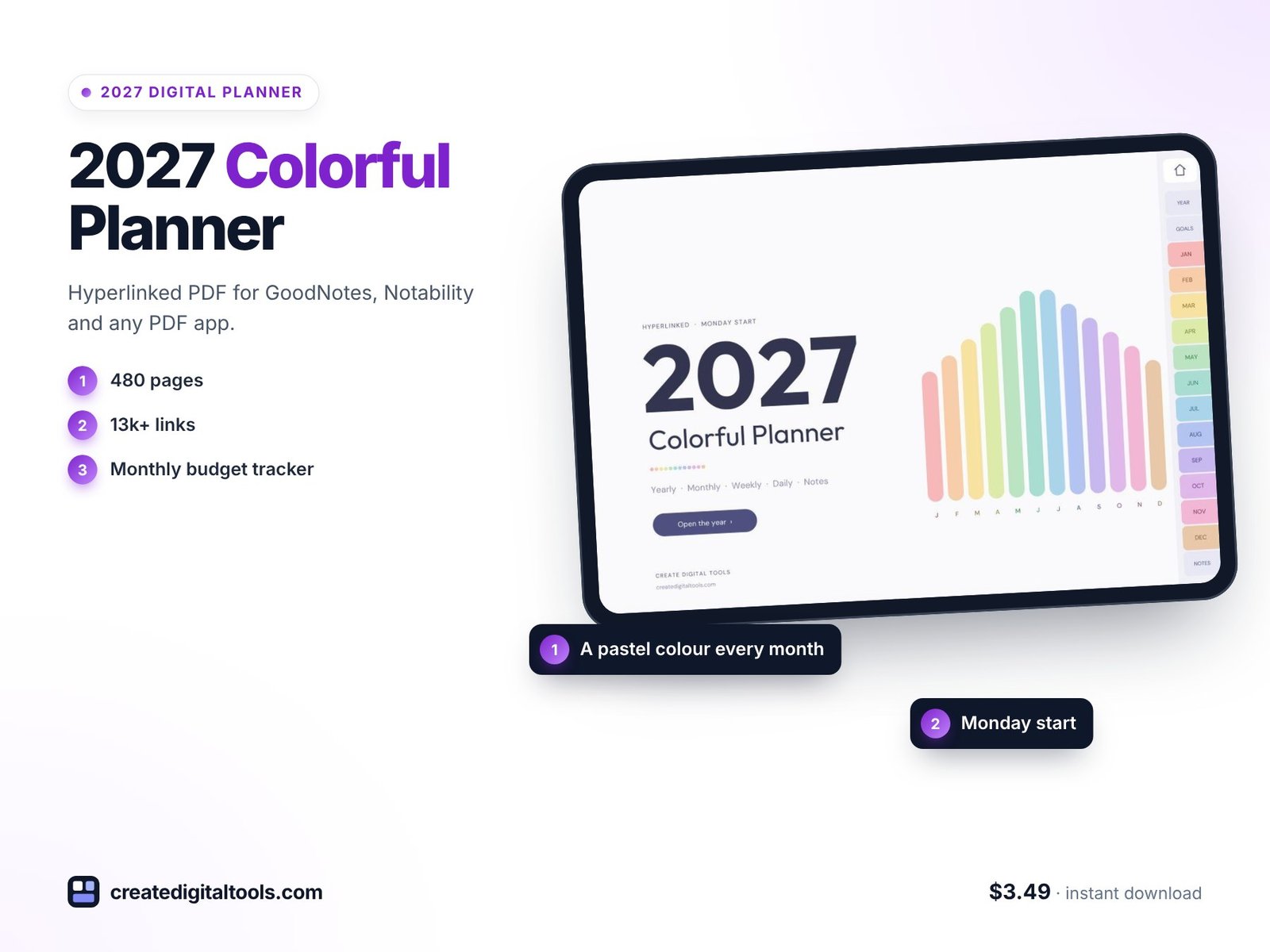
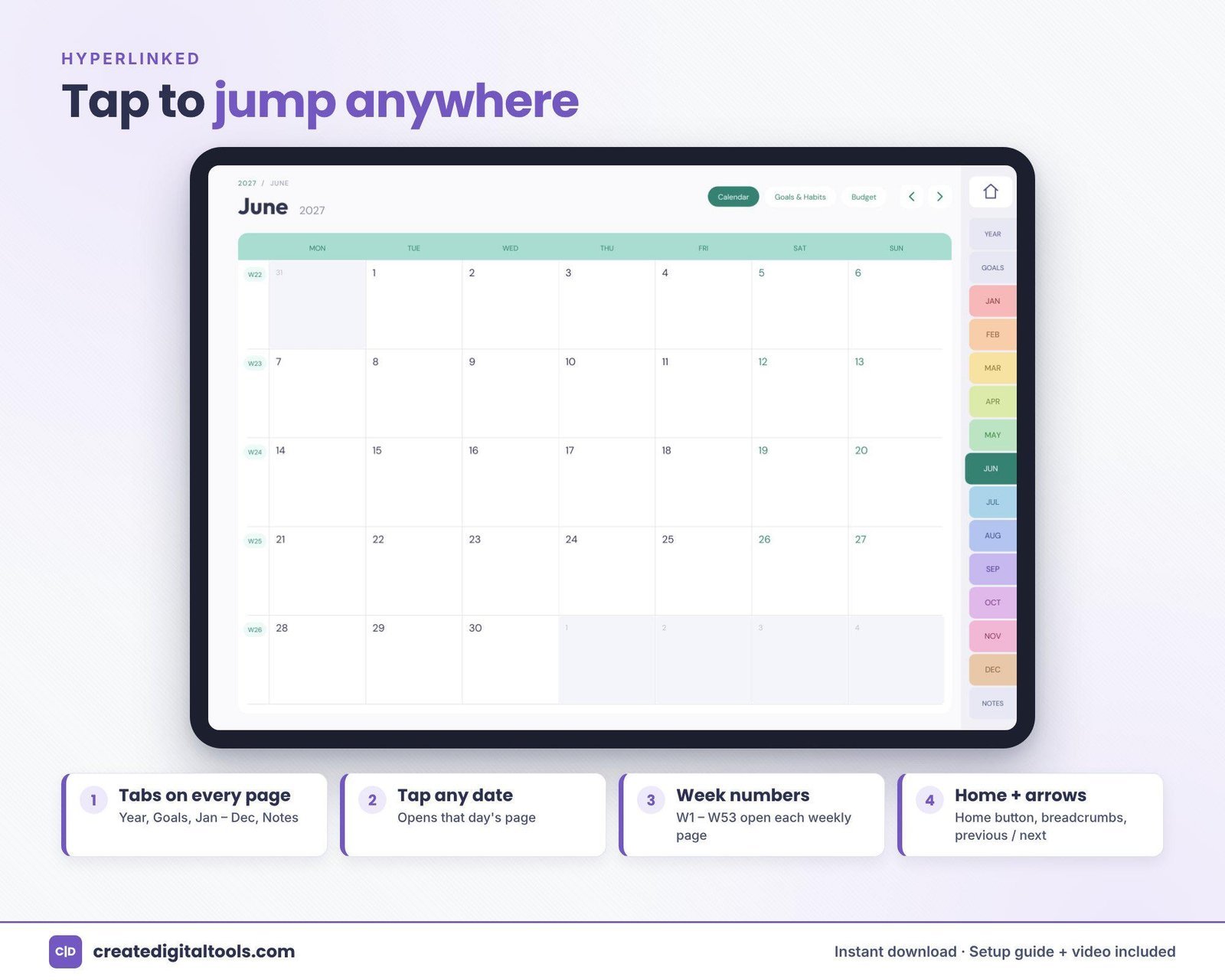
The 2027 Colorful Digital Planner is a 480-page hyperlinked PDF. Each month has its own pastel colour, and the tab, calendar, weeks and days match. You tap a tab, month, week or day to go straight there, and every date on the monthly calendars links to its daily page. It works in GoodNotes, Notability, Noteshelf, Xodo and other PDF apps that support internal links, on iPad or Android tablets.
Yearly pages
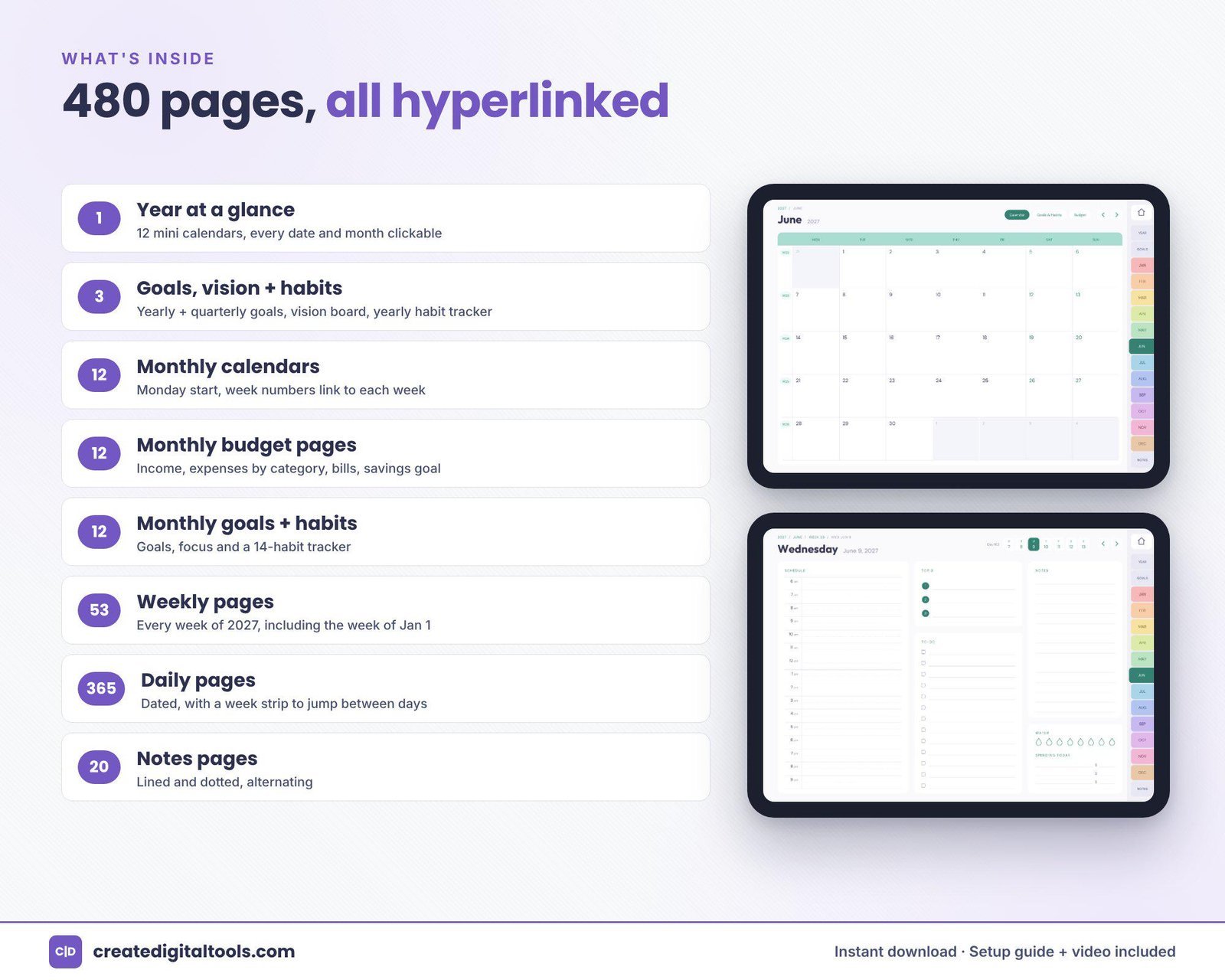
2027 year at a glance, goals, a vision page and a yearly habit tracker.
Monthly calendars
12 monthly calendars with a Monday start, each in its month’s colour.
Monthly Goals and Habits
12 pages, each with a 14-habit tracker.
Monthly budget
12 pages with income, expenses by category, bills and subscriptions, and a savings goal tracker.
Weekly pages
53 weekly pages in the month’s colour.
Daily pages
365 dated pages with a schedule from 6am to 9pm, a top 3, a to-do list, notes, a water tracker and a spending log.
Notes
20 notes pages in lined and dotted styles.
The download includes the planner PDF, a Setup Guide PDF and a setup video.
Getting started with your colourful planner
Here is a gentle way to set up your first month without feeling overwhelmed:
- Import and explore: follow the Setup Guide to open the PDF in your app, then tap through a few tabs and dates so the navigation feels familiar.
- Fill in the year pages: write a handful of goals and add a few words or sketches to the vision page.
- Choose this month’s habits: the tracker has room for 14, but starting with four or five is easier to keep up.
- Set up the budget page: list expected income, regular bills and subscriptions, and one savings goal for the month.
- Use the daily pages lightly: top 3, a few to-dos and any spending. Skip what you do not need that day.
- Review at month end: compare the budget with your daily spending logs and see which habits stuck.
Because every month has its own colour, you will notice the shift each time a new month begins. Many people find that is a natural moment to reset habits and goals. Stickers and highlighters in your note-taking app can add to the fun, but the planner works well with nothing more than a pen tool and a couple of favourite colours.
Take the full tour
This video shows the setup and a full tour of the pastel rainbow planner:
Who it is for, and who it is not for
A good fit if you:
- Enjoy bright, cheerful pages and find colour motivating
- Want monthly budgeting and a daily spending log inside your planner
- Like tracking habits month by month
- Plan by hand on an iPad or Android tablet
Probably not the right fit if you:
- Prefer a minimal or dark look (there are calmer designs in the store)
- Need detailed meeting and project pages for work
- Want a full accounting or budgeting tool rather than planner pages
- Need a printed planner (this is a digital download only)
Frequently asked questions
What apps does it work with?
GoodNotes, Notability, Noteshelf, Xodo and other PDF apps that support internal links, on iPad or Android tablets.
Does the week start on Monday or Sunday?
The monthly calendars start on Monday.
How do I get the planner?
It is an instant digital download with no physical item. You get the 480-page PDF and a Setup Guide PDF, and a setup video is linked.
Can I add my own pages or stickers?
Most PDF note-taking apps let you add pages and images to a document. Check your app’s own features; the setup guide covers importing the planner.
Can I share it with a friend?
The planner is for personal use only, so each person needs their own copy.
If you like colour but want bolder tones, see the 2027 Color Block Digital Planner in Bold Brights. You can browse every digital planner for GoodNotes and iPad in the store.
Get the 2027 Colorful Digital Planner →
GoodNotes, Notability, Noteshelf, Xodo and iPad are trademarks of their respective owners. This is an independent planner, not affiliated with or endorsed by any of them.
Notion systems, spreadsheets and planners with a setup guide. Instant download.