2027 Work Planner for iPad: Time Blocks, Meetings, Projects
Picture an operations manager whose calendar is a wall of meetings. Between calls she tracks four projects, jots action items in whatever app is open, and plans the week on a sticky note that never survives Wednesday. She does not need more motivation; she needs a planner that is built around how office work actually happens, in time blocks, meetings and projects. That scenario is illustrative, and it is exactly the gap a 2027 work planner for iPad is designed to fill: a structured, hyperlinked planner you write in with a stylus, focused on work rather than lifestyle.
This guide covers how to plan a working year with time blocking, how to organise meetings and projects on a tablet, and what is inside the 2027 Professional Work Planner in navy.
Get the 2027 Professional Work Planner →
Why most planners do not suit a working week
Many digital planners are designed for personal life: habit trackers, mood logs, meal plans. Useful, but not what a busy professional reaches for at 8:55 before the first meeting. On the other side, calendar apps tell you where you need to be but leave no room for thinking, priorities or notes. The common workarounds fall short:
- Calendar apps show appointments but not the focused work between them.
- Note apps collect meeting notes in a long scroll with no link back to the day or project.
- Paper notebooks are pleasant to write in but impossible to search or navigate quickly.
- Lifestyle planners fill space with sections that have nothing to do with work.
A work planner should give you the hours of the day, your priorities, your meetings and your projects, and let you jump between them in a tap.
How to plan your work year with time blocking
Time blocking means giving every important task a slot on the clock, rather than keeping it on an open-ended list. Here is a practical way to use it across a year, whatever planner you use.
1. Set objectives for the year, then for each month
Write a handful of yearly work goals. At the start of each month, break them into objectives with measurable key results and deadlines. At month end, review what moved.
2. Give each project a dedicated space
List milestones, open tasks and notes for each major project. When a task comes up in a meeting, it goes straight to the project’s page.
3. Plan the week on an hourly grid
On Sunday evening or Monday morning, block in fixed meetings first, then protect blocks for deep work on your priorities. Leave buffer time; meetings overrun.
4. Refine each day in the morning
Pick your top priorities, check the meetings and calls, and adjust blocks to fit reality. Keep the list short.
5. Capture meeting notes with decisions and actions
Every meeting note should end with what was decided and who is doing what. Those two lines are what you will look for later.
6. Close the day with a short review
Two minutes at the end of the day to note what got done and what moves to tomorrow keeps the next morning calm.
Inside the navy 2027 work planner for iPad
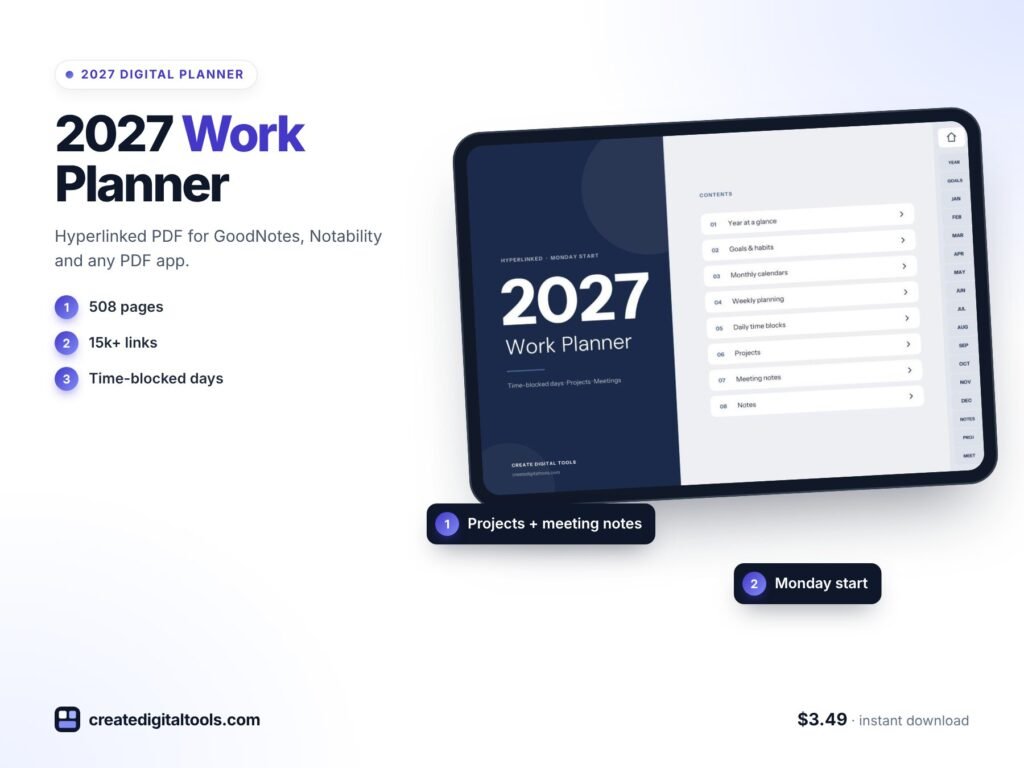
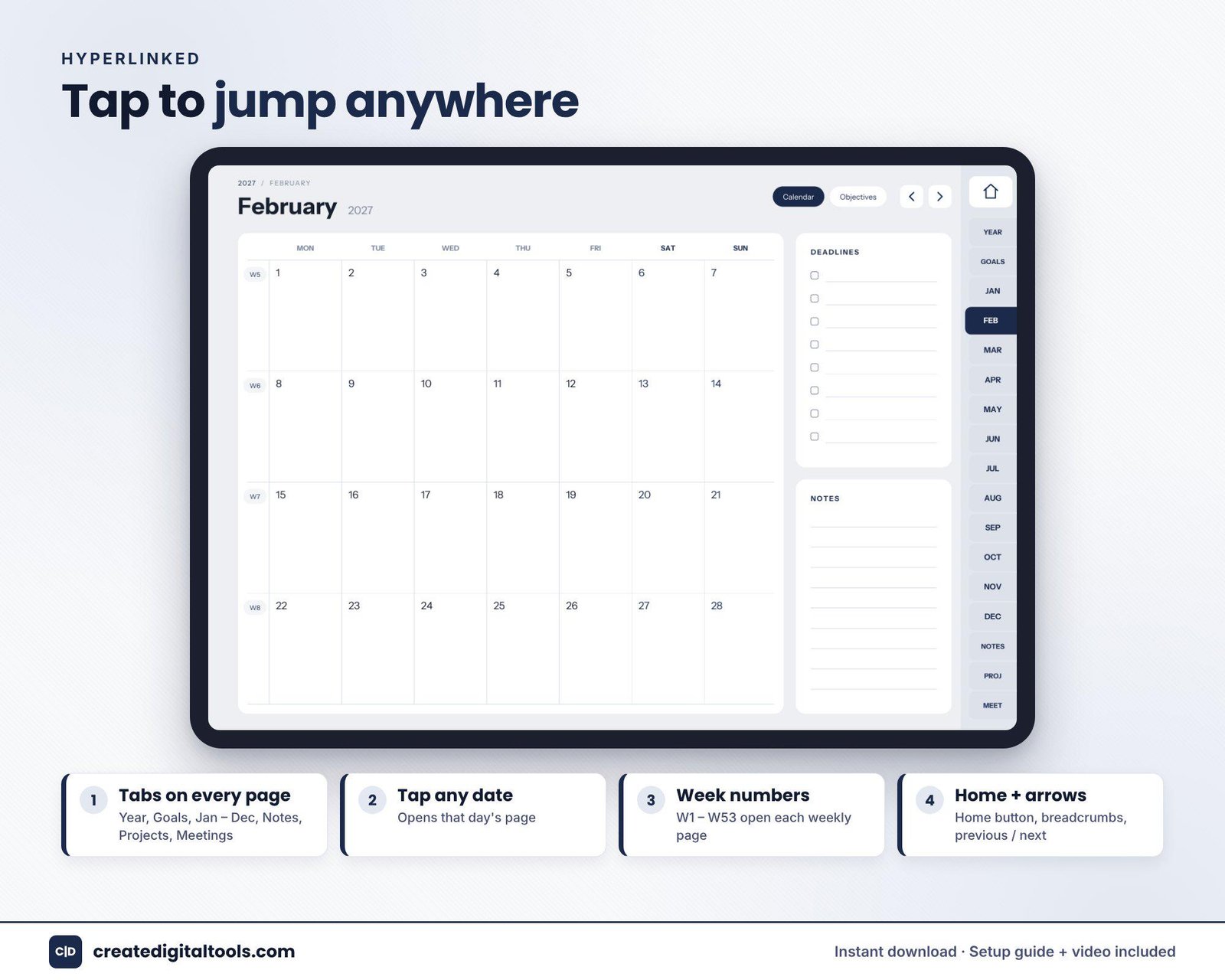
The 2027 Professional Work Planner is a 508-page hyperlinked PDF in navy and grey. It is built for work, with time-blocked days, hourly weekly grids and built-in project and meeting pages. Everything is hyperlinked, so tabs, months, weeks and days link straight to their pages. It works in GoodNotes, Notability, Noteshelf, Xodo and other PDF apps that support internal links, on iPad or Android tablets.
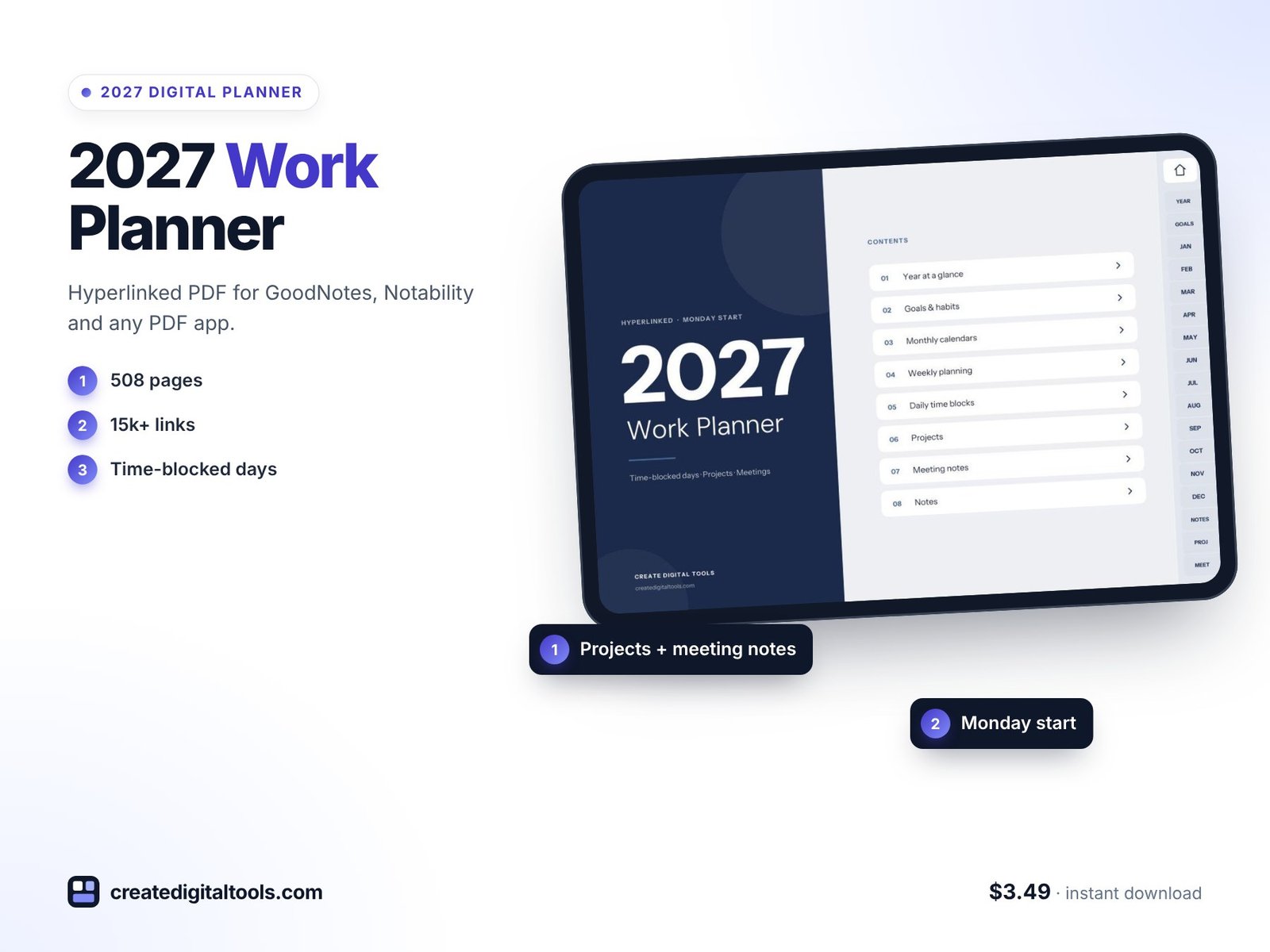
Year overview
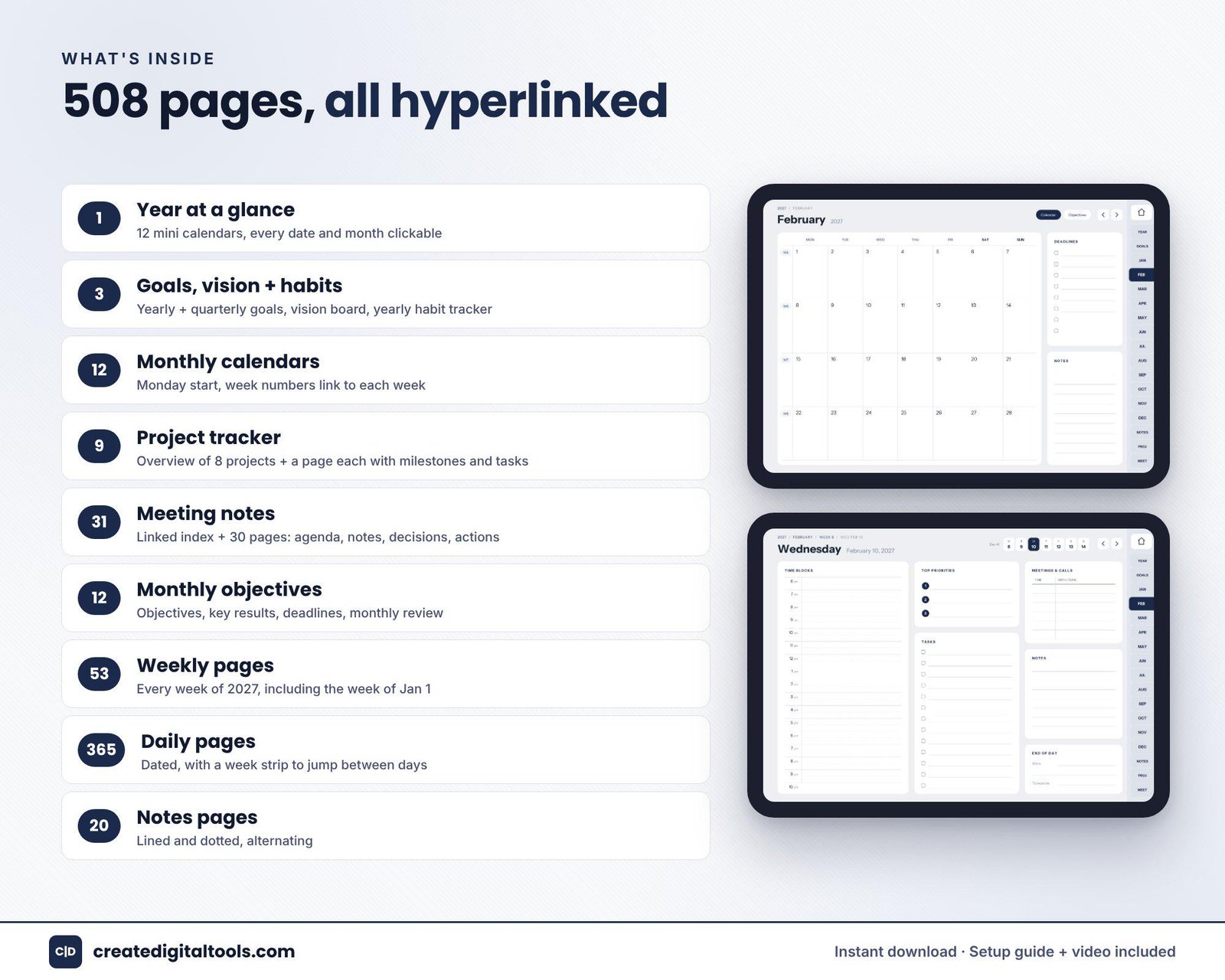
2027 at a glance, a goals page, a vision page and a yearly habit tracker.
Monthly calendars and Monthly Objectives
12 monthly calendars with a Monday start, where each date links to its daily page. 12 Monthly Objectives pages cover objectives, key results, deadlines and a review.
Project tracker
Space for 8 projects, each with its own pages for milestones, tasks and notes.
Meeting notes
A linked index plus 30 meeting pages with space for decisions and action items.
Weekly pages
53 time-blocked weekly pages with a 7am to 9pm hourly grid, priorities and meetings.
Daily pages
365 dated pages with 6am to 10pm time blocks, top priorities, tasks, meetings and calls, and an end-of-day review.
You also get a Setup Guide PDF and a setup video.
Getting started with your work planner
A planner works best when it fits into your existing routine rather than adding a new one. A simple first week might look like this:
- Before Monday: import the PDF using the Setup Guide, then fill in the year goals and your first Monthly Objectives page.
- Set up projects: give each active project its own tracker page with milestones and the next few tasks. You have space for 8, so start with the ones that matter most.
- Plan the week: on the weekly hourly grid, block in fixed meetings first, then mark protected blocks for focused work.
- Each morning: open the daily page, write top priorities and adjust your time blocks to match the day.
- In meetings: open the meeting notes index, pick the next page and end every note with decisions and action items.
- Each evening: spend two minutes on the end-of-day review and move unfinished tasks forward.
Keep the planner open beside your laptop or on a stand during the working day so it becomes your default place to write things down. The more often you capture tasks and notes in it, the more useful the links between days, meetings and projects become. At the end of each month, the Monthly Objectives review shows what moved and what needs a different approach.
Watch the tour and setup
This video walks through the planner and how to set it up in your app:
Who it is for, and who it is not for
A good fit if you are:
- A manager, consultant, analyst or anyone with a meeting-heavy week
- Someone who likes handwriting plans on a tablet but wants a professional, low-key look
- A person who wants time blocking, meeting notes and project tracking in one planner file
- Anyone who prefers a Monday-start week
Probably not the right fit if you:
- Want a colourful or decorative planner with stickers
- Need to manage a shared team project (a spreadsheet tool is better for that)
- Do not use a tablet with a PDF annotation app
- Need a printed, physical planner (this is a digital download only)
Frequently asked questions
Which apps can I use?
GoodNotes, Notability, Noteshelf, Xodo and other PDF apps that support internal links, on iPad or Android tablets.
Do the links work in every app?
The links work in PDF apps that support internal links. The setup guide and video show how to import the file so the links stay active.
Is it an instant download?
Yes. It is a digital download with no physical item. You receive the planner PDF and the Setup Guide PDF.
Does the week start on Monday?
Yes, the monthly calendars use a Monday start.
Can I use it for my business or resell it?
The planner is for personal use only.
Want several looks to choose from? The 2027 Digital Planner Bundle includes 10 hyperlinked planners plus stickers. You can also browse all digital planners for GoodNotes and iPad.
Get the 2027 Professional Work Planner →
GoodNotes, Notability, Noteshelf, Xodo and iPad are trademarks of their respective owners. This is an independent planner, not affiliated with or endorsed by any of them.
Notion systems, spreadsheets and planners with a setup guide. Instant download.