Marketing Campaign Planner Spreadsheet: Plan to ROI
Picture a two-person marketing team planning a spring launch. The campaign brief is in a doc, tasks are in a chat thread, the content schedule is on a whiteboard photo, ad spend is in someone’s expense report, and the results arrive weeks later as a screenshot from an ads dashboard. Nobody can say, in one sentence, whether the campaign paid for itself. This illustrative scene is exactly what a marketing campaign planner spreadsheet is meant to fix: plan the work, schedule the content, log the spend and read the results in the same workbook.
Below you will find a practical way to plan a campaign in a spreadsheet, the metrics worth tracking, and a tour of our Marketing Campaign Planner for Excel and Google Sheets.
Get the Marketing Campaign Planner →
Why campaign planning falls apart
A campaign has three sides that rarely live together: the work (tasks, owners, deadlines), the content (what goes out, where and when) and the money (what you spent and what came back). Project tools handle the first, content calendars handle the second, and finance tools handle the third. Joining them up is left to whoever has time at the end of the month.
The result is predictable. Tasks slip because nobody sees the whole timeline. Posts go out on channels nobody is tracking. Spend is recorded, but never compared with leads or revenue, so the next campaign repeats the same choices.
For small teams, freelancers and in-house marketers, a well-structured spreadsheet is often all that is needed. It is cheap, flexible and easy to share.
How to plan a marketing campaign in a spreadsheet
1. List campaigns and owners first
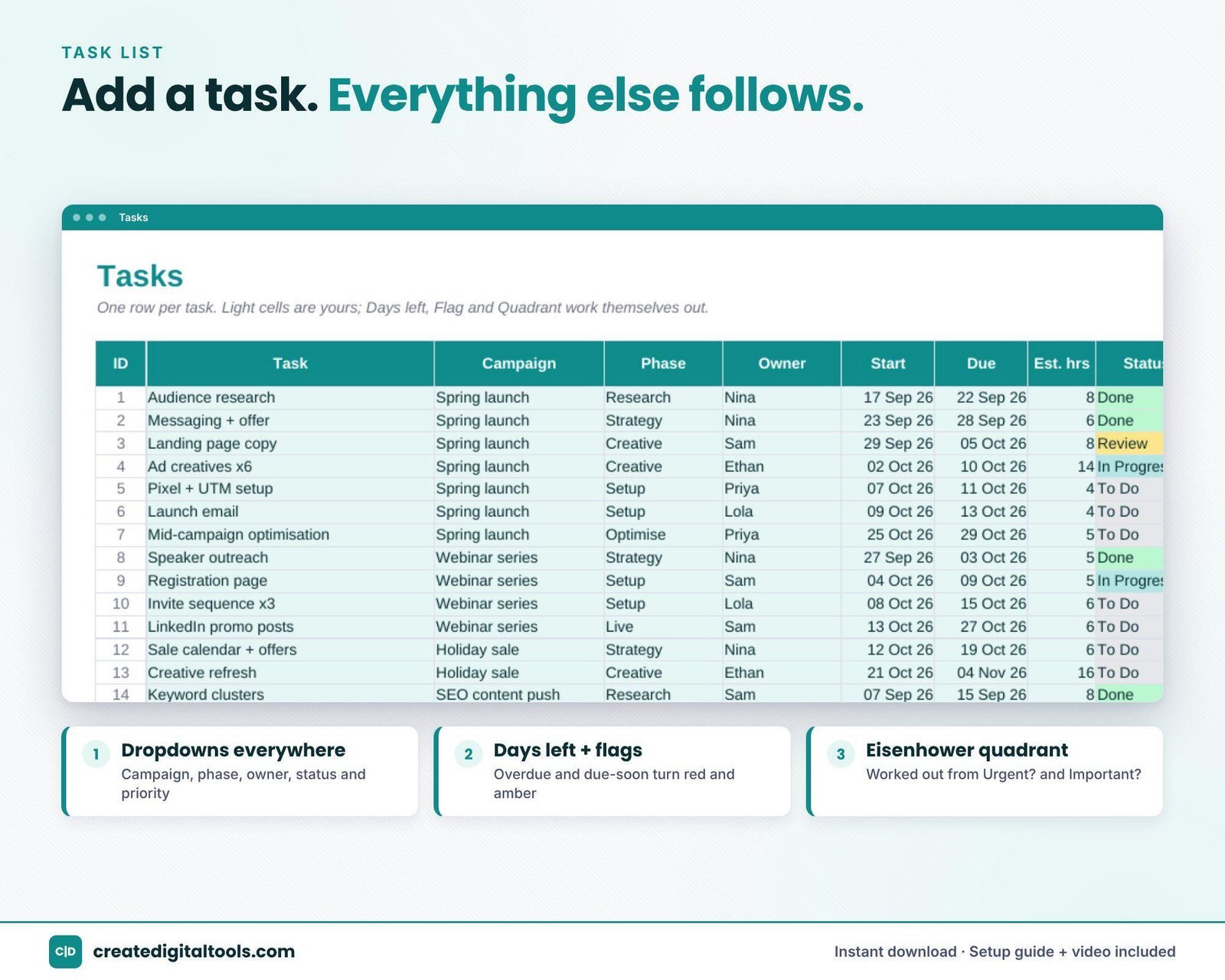
Create a short list of campaigns with a start date, end date, goal and budget, and a list of team members. Use them as dropdowns everywhere else, so every task and cost is linked to a campaign.
2. Break each campaign into tasks
One row per task: campaign, owner, start date, due date, priority, status. Add recurring tasks (weekly reports, newsletter sends) separately so they are not forgotten.
3. View the timeline
A simple Gantt view, built with conditional formatting across a date row, shows overlaps and crunch weeks before they happen.
4. Prioritise with urgency and importance
Sort tasks into an Eisenhower grid (urgent and important, important not urgent, and so on). It makes trade-offs visible when the team is stretched.
5. Keep a content calendar
Every post, email and ad goes in with its date, channel and status. Linking each row to a campaign tells you later which content belonged to which push.
6. Log every cost
A spend log with date, campaign, channel and amount. Small costs add up, so record them all.
7. Measure the right numbers
For each campaign, track impressions, clicks, leads, conversions and revenue. From those you can calculate click-through rate (clicks divided by impressions), cost per lead (spend divided by leads), conversion rate and return on investment ((revenue minus spend) divided by spend).
A campaign rhythm for small teams
- Kick-off: agree the goal, budget, dates and one main metric for the campaign. Write them on the campaign row.
- Planning week: break the work into tasks with owners and due dates, and draft the content calendar.
- Weekly check-in: look at the workload view to spot anyone overloaded, and the Gantt view to spot slipping tasks.
- During the campaign: log every cost as it happens, and update content status as items go out.
- Wrap-up: enter final results, compare cost per lead and ROI with your other campaigns, and write down one thing to repeat and one to change.
Mistakes worth avoiding
- No single goal. A campaign aimed at awareness, leads and sales all at once is hard to judge. Pick one primary measure.
- Untracked small spend. Boosted posts, stock images and tools add up. Log them all.
- Judging too early. Some channels take time. Agree in advance when you will review results.
Why a spreadsheet, not another app?
Spreadsheets have real strengths for campaign planning. Everyone on a team already knows how to open one. You can add a column for something specific to your business in seconds. Sharing with a client or manager needs no new login. And because the data is yours, you can keep a history of every campaign and compare them year on year. For small teams, those benefits often outweigh the extra features of dedicated marketing software.
Inside the Marketing Campaign Planner
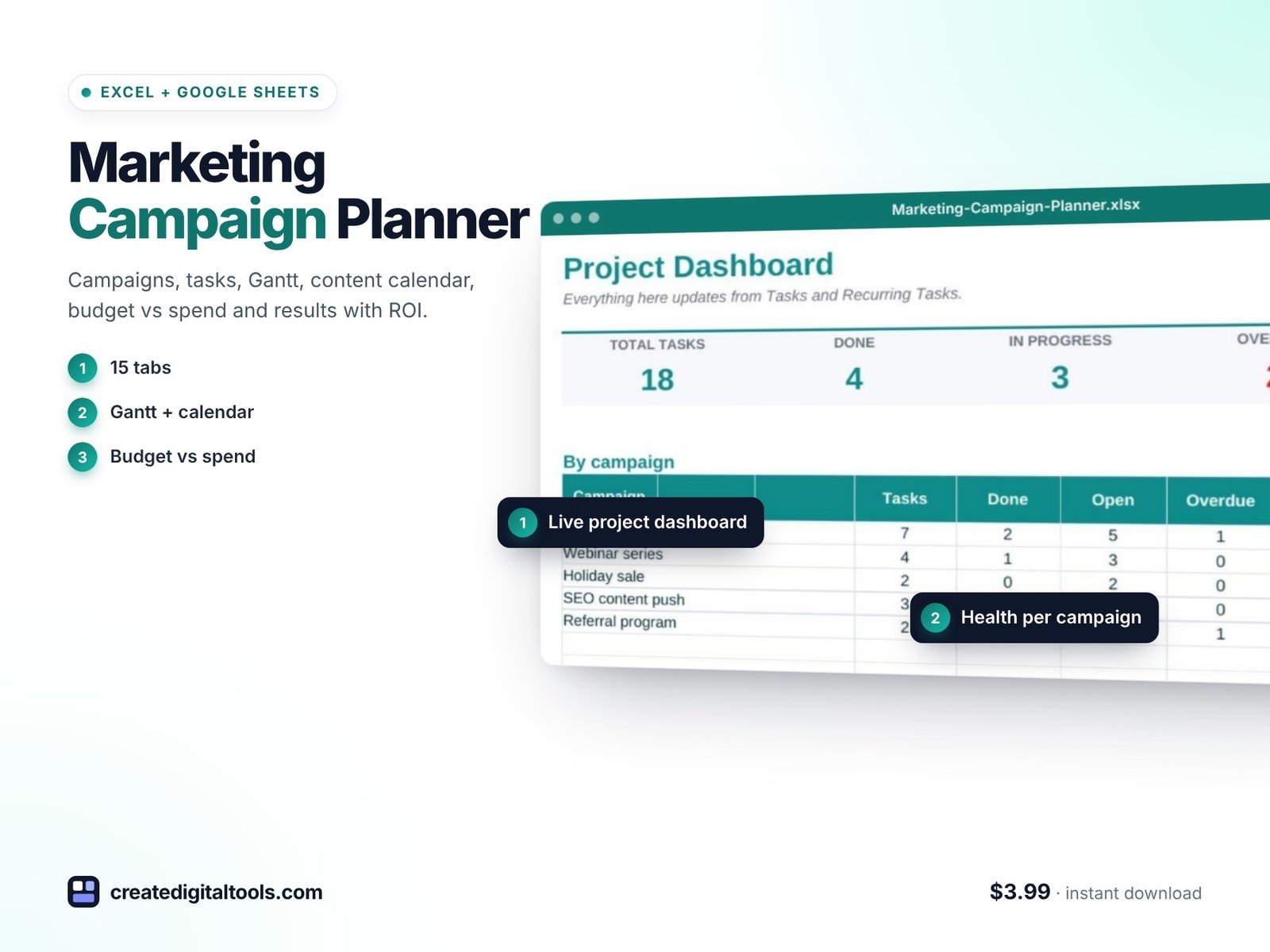
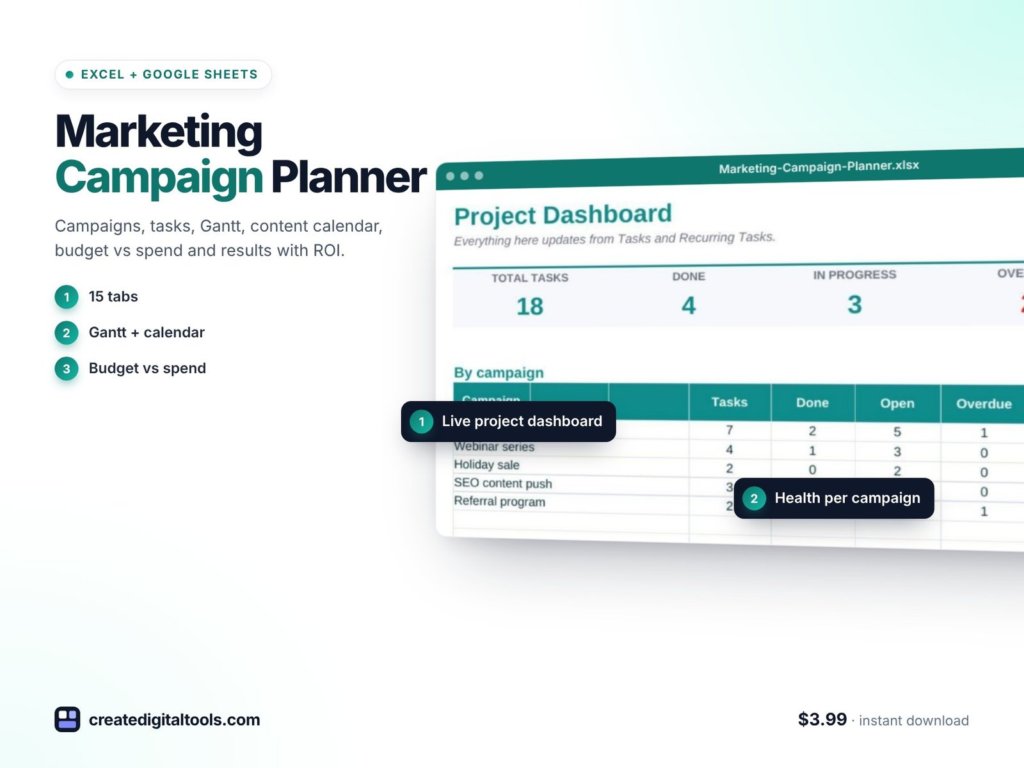
The Marketing Campaign Planner is a ready-to-use spreadsheet for Microsoft Excel and Google Sheets with 15 connected tabs. You enter campaigns, team members and tasks once, and the other views update automatically. It uses formulas only, with no macros, no add-ons and no subscription, and works in Excel 2016 or later, Microsoft 365 and Google Sheets.
Task and planning views
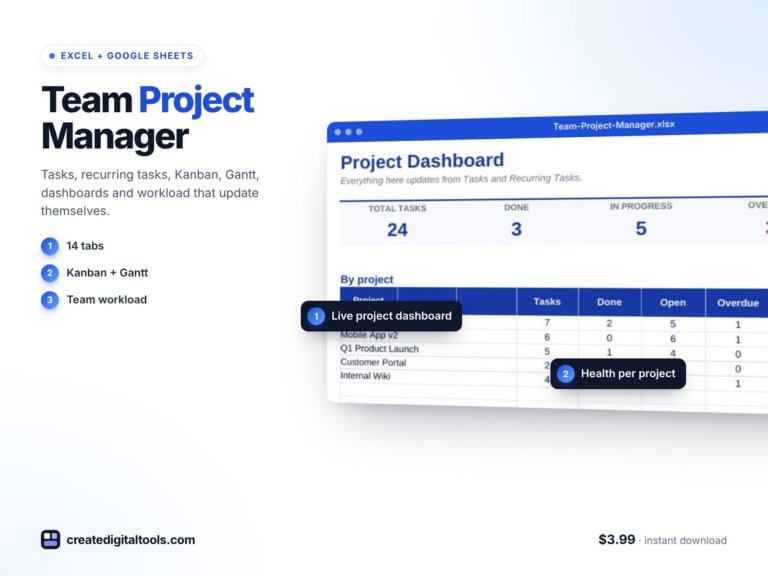
The workbook includes tasks, recurring tasks, a Kanban board, an Eisenhower matrix, a Gantt chart, a calendar, a focus view, a dashboard and a workload view. Because they all read from the same entries, you can switch between a timeline, a priority grid or a board without retyping anything.
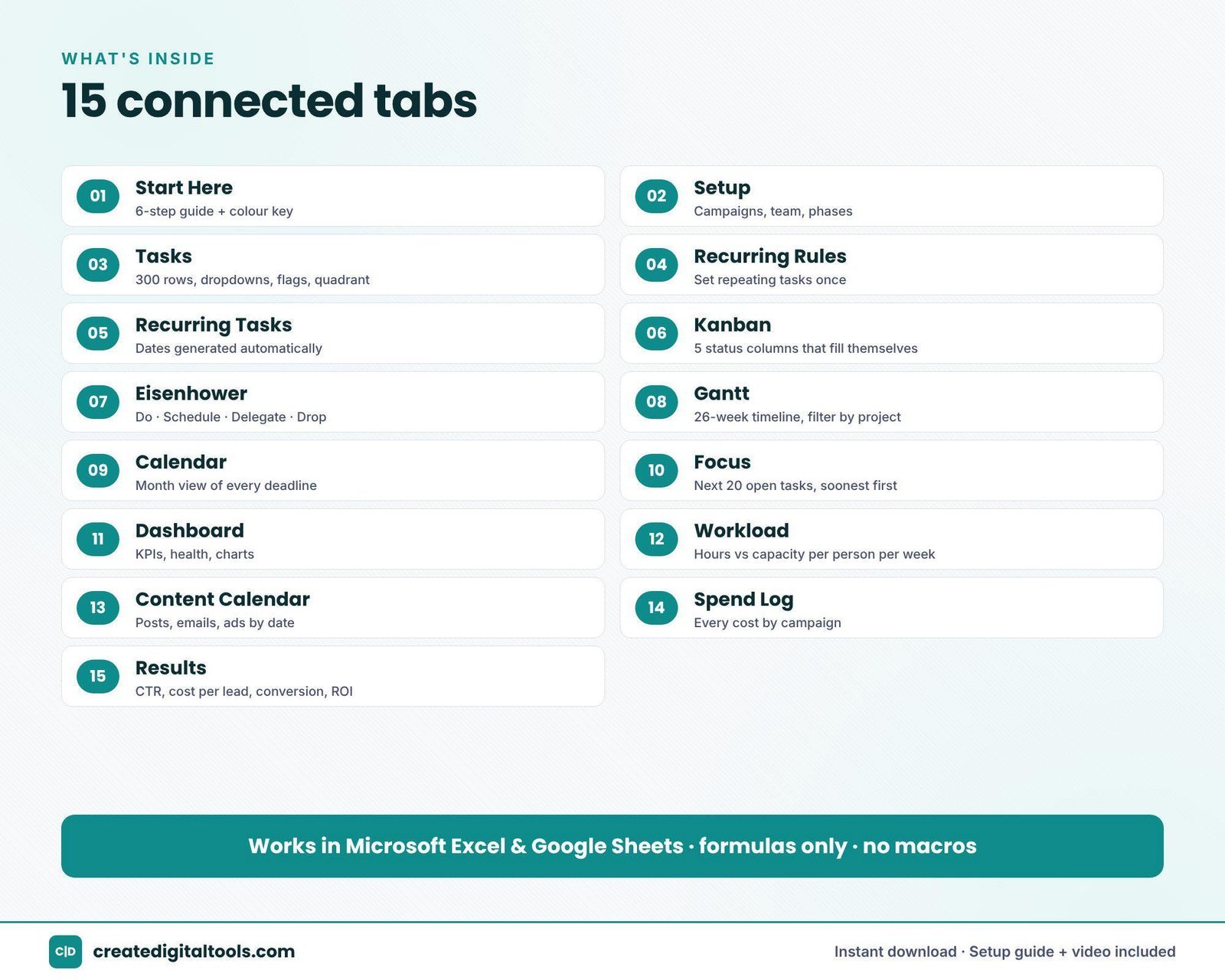
Content Calendar
Tracks posts, emails and ads by date, channel and status.
Spend Log
Records every cost by campaign and channel.
Results
Shows CTR, cost per lead, conversion rate and ROI, with a spend vs revenue chart, so you can see which campaigns earned their budget.
A Setup Guide PDF and a product and setup video are included.
Watch the tour and setup
This video covers the content calendar, spend log and ROI results:
Who it is for, and who it is not for
A good fit if you:
- Plan campaigns as a freelancer, small agency or in-house team.
- Want tasks, content, spend and results connected in a single workbook.
- Prefer Excel or Google Sheets to another monthly project tool.
Probably not for you if you:
- Need live data pulled automatically from ad platforms. You enter results yourself.
- Run large teams that need permissions, approvals and integrations.
If social content is the main part of your plan, the Content Planner 2027 goes deeper on posting streaks, pillars and feed previews. More workbooks are in our spreadsheets collection.
Frequently asked questions
Does it work in Excel and Google Sheets?
Yes. It works in Excel 2016 or later, Microsoft 365 and Google Sheets.
Are there macros or add-ons?
No. It uses formulas only, with no macros, no add-ons and no subscription.
Is it an instant download?
Yes. You download the spreadsheet and Setup Guide PDF straight after purchase.
Do I need to enter tasks in every view?
No. You enter campaigns, team members and tasks once, and the Kanban, Gantt, Eisenhower, calendar, dashboard and workload views update automatically.
Which metrics does it calculate?
CTR, cost per lead, conversion rate and ROI, with a spend vs revenue chart.
When the plan, the content and the money sit side by side, the question “did this campaign work?” finally has a clear answer. And each campaign you log makes the next plan a little easier to get right, because you can look back at what you actually spent and what it brought in.
Get the Marketing Campaign Planner →
Microsoft Excel and Microsoft 365 are trademarks of Microsoft Corporation and Google Sheets is a trademark of Google LLC. This is an independent template, not affiliated with or endorsed by Microsoft or Google.
Notion systems, spreadsheets and planners with a setup guide. Instant download.