Event Planner Notion Template: Budget, Run of Show, RSVPs
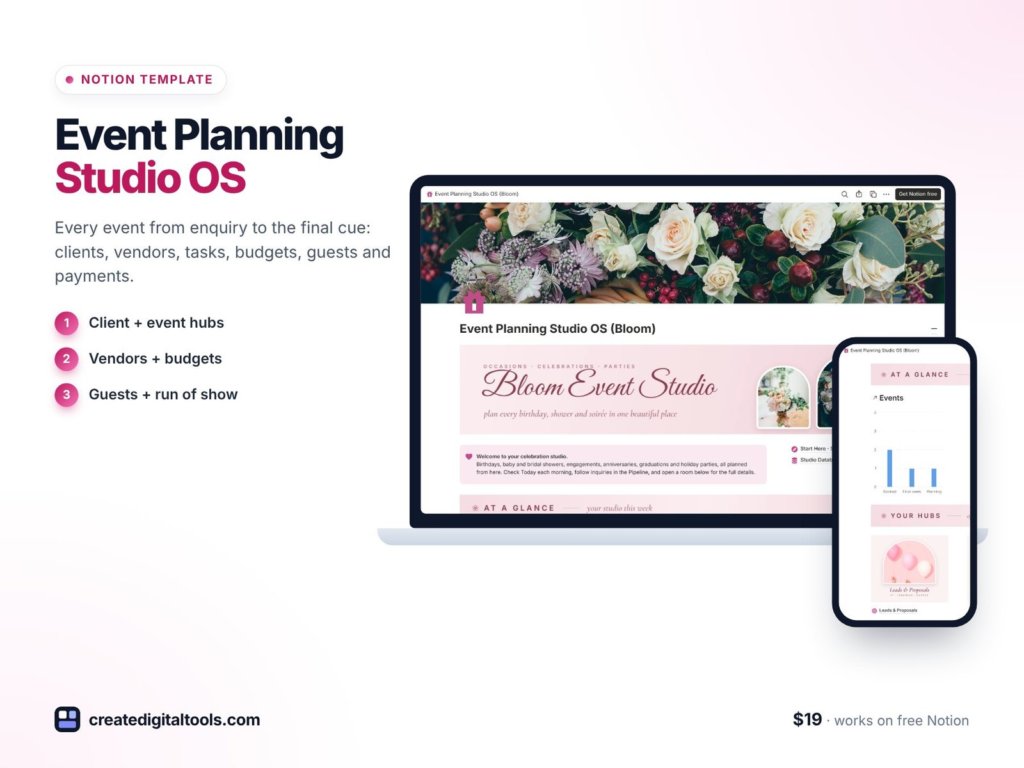
Picture an event coordinator three weeks out from a company offsite, with a product launch and a milestone birthday also on the calendar. Each event has its own vendors, budget lines, guest list with meal choices, deposit schedule and a run of show that changes daily. The details live in email threads, a budget spreadsheet and a shared doc. An event planner Notion template gives every event its own hub page where the run of show, tasks, budget, guests and payments sit together, and a studio dashboard that shows what is coming up across all of them.
This guide explains how to set up event planning in Notion, step by step, then walks through Event Planning Studio OS, a workspace for event planners, coordinators and venue teams who run several events at once.
Get the Event Planning Studio OS →
Why event planning breaks in scattered tools
Every event is a small project with a fixed deadline that cannot move. When the information is split up, problems surface late:
- The budget drifts. Planned costs sit in one sheet, actual invoices in another, and nobody notices a category going over until the final bill.
- The run of show is out of date. Timings change and the version the team has on the day is not the latest one.
- Guest details are incomplete. Meal choices and table numbers get collected late, and RSVP counts are tallied by hand.
- Payments are hard to follow. Deposits, instalments and final balances for several clients overlap.
- Vendor knowledge stays in your head. Which caterer was great, which AV company was late: without a directory, you start from scratch.
The fix is to make the event itself the centre of everything. When tasks, cues, budget lines, guests and payments all link back to one event record, you can open that event and see its full picture, and you can still step back to see every event side by side.
How to build an event planner Notion template yourself
- Create an Events database as the hub. Each event gets a page with date, client, venue, planned budget and fee. Add a countdown formula (days until the event).
- Relate tasks to events. Tasks have a phase (for example, early planning, final month, event week), a due date and an owner. A rollup of done versus total tasks gives a prep progress bar on the event.
- Build a run of show database. Each cue has a clock time, an owner and notes, related to the event. Sort by time to get the day’s schedule.
- Track budget lines. Each line has a category, a planned amount and an actual amount. A variance formula and an over-budget flag catch problems early, and a rollup gives budget health on the event.
- Record client fees and payments. Deposit, instalments, balance due and paid status, related to the event.
- Keep a vendor directory. Category, contact details, a rating and the events each vendor has worked on.
- Manage guests and RSVPs. Guests related to an event, with RSVP status, meal choice and table number. Roll up confirmed RSVPs to the event.
- Build a studio dashboard. Linked views of upcoming events, open tasks, fees to collect and spend by category.
Tip: put linked views of tasks, run of show, budget, guests and payments, each filtered to the current event, inside the Events database’s page template. Every new event then opens as a ready-made hub.
One more habit that pays off: a short debrief after each event. Note which vendors you would book again, which budget lines went over and why, and which tasks should have started earlier. Add that to the vendor ratings and to your event page template, and each new event starts from what you learned last time.
Inside Event Planning Studio OS
Event Planning Studio OS ($19) is a Notion template for event planners and coordinators, corporate, party and wedding planners, and venue and hospitality teams. You get a template link (PDF) to duplicate into your workspace, a Setup Guide PDF with step-by-step instructions and a video walkthrough. Linked databases with relations, rollups and formulas include sample data and a Start Here guide.
Studio dashboard
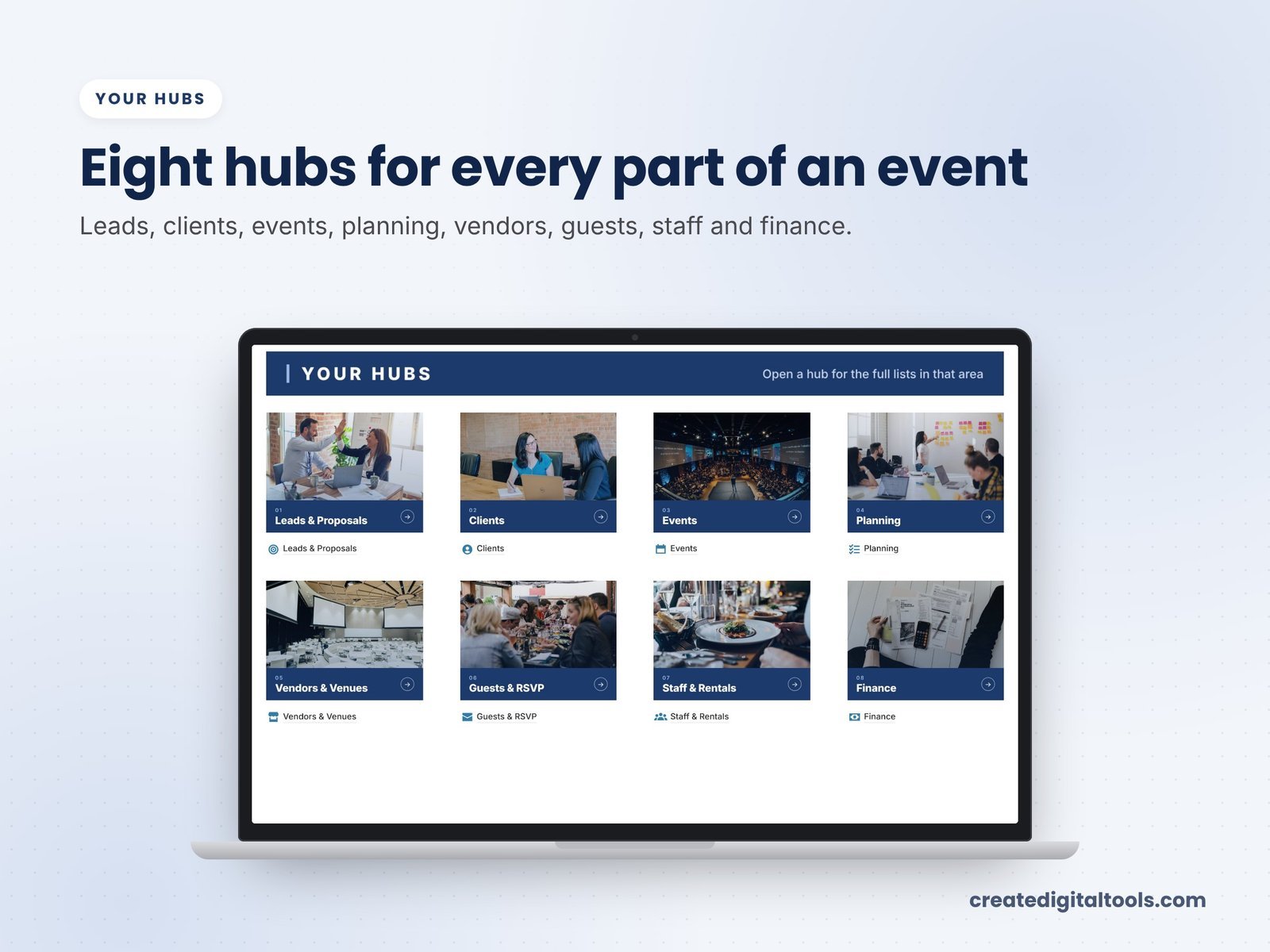
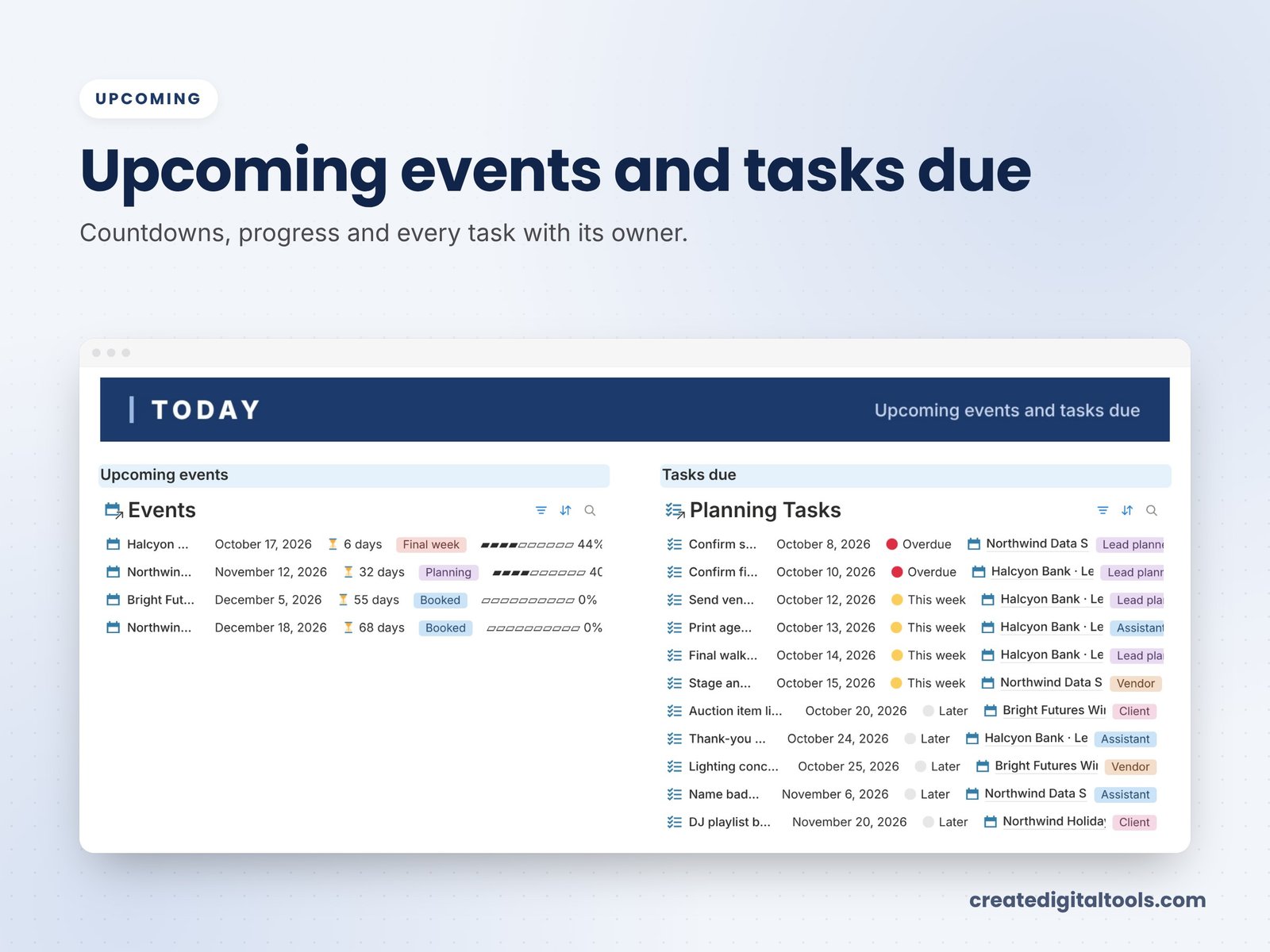
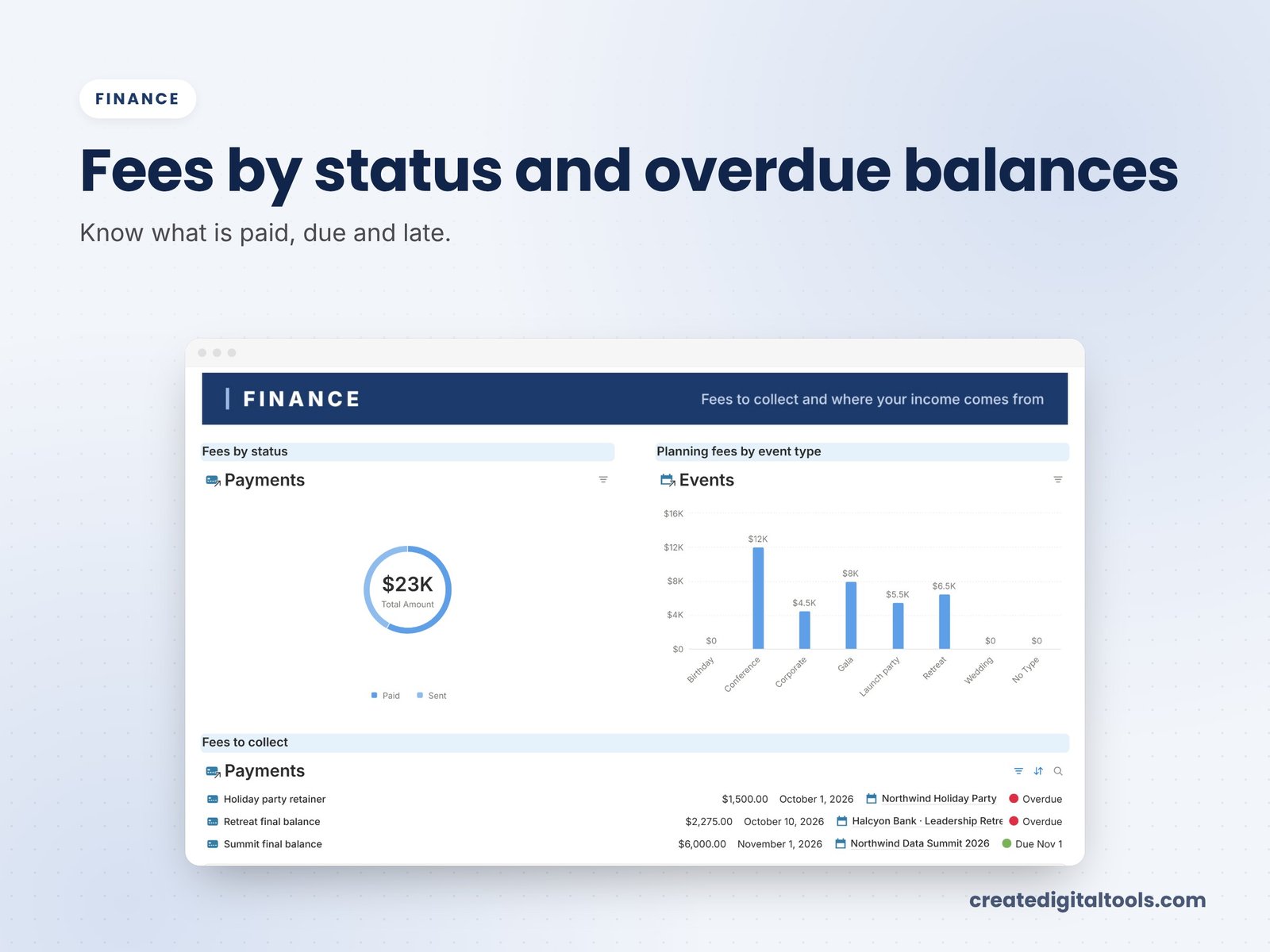
The dashboard uses photo navigation and shows upcoming events, open tasks, fees to collect and spend by category as a chart.
Event hub pages
Every event has a hub page with its run of show, tasks, budget lines, guest list and payments together. Each event shows an automatic countdown, a prep progress bar (tasks done versus total) and budget health (On budget, Watch, Over).
Run of show and planning tasks
The run of show lists clock times, owners and cue notes, sorted for the day. The planning tasks board groups tasks by phase, with due dates and owners.
Budget, fees and payments
Budget and expenses compare planned versus actual, with variance and an over-budget flag. Client fees and payments track deposit, instalments, balance due and paid status.
Vendors and guests
The vendor directory gallery shows categories, contact details, rating and events booked. Guests and RSVP record meal choices and table numbers, with confirmed RSVPs counted per event.
Watch the full walkthrough
Here is the setup guide and full tour on video:
Getting started in your first week
- Read the Start Here guide and the Setup Guide PDF, then open a sample event hub to see how the pieces connect.
- Add your upcoming events with dates and clients, so the countdowns and dashboard fill in.
- Enter budget lines for the nearest event with planned amounts, then add actuals as invoices arrive.
- Add planning tasks by phase, with owners and due dates, so the prep progress bar starts moving.
- Build your vendor directory from the suppliers you already trust, with a rating for each.
- Draft the run of show for your next event and share the times with your team.
- Record client deposits and balances, then delete the sample data when you are ready.
Who it is for (and who it is not for)
A good fit if you:
- Plan corporate events, parties or weddings for clients
- Run several events at once and need budgets, run of show and guests connected
- Work in a venue or hospitality team coordinating many bookings
Probably not a fit if you:
- Need ticket sales, online registration or on-site check-in
- Want seating charts drawn visually (table numbers are tracked as data)
- Plan a single personal event and want something very light
Focused on weddings? See the Wedding Planner Studio Notion template. Browse all Notion templates.
FAQ
Does it work on the free Notion plan?
Yes. You need a Notion account, and the free plan works.
How is it delivered?
You download a PDF with the Duplicate link. Log in to Notion, open the link, click Duplicate, then follow the Start Here page and the Setup Guide PDF.
Can I change budget categories and task phases?
Yes. Once duplicated, every property, category and view can be edited.
Is the sample data real?
No. The sample data is fictional, and the photos are from Unsplash.
Is it an instant download?
Yes. It is a digital product, and nothing physical is shipped.
This is an organising tool for your events business, not legal or financial advice.
Get the Event Planning Studio OS →
Notion is a trademark of Notion Labs, Inc. This is an independent template, not affiliated with or endorsed by Notion.
Notion systems, spreadsheets and planners with a setup guide. Instant download.