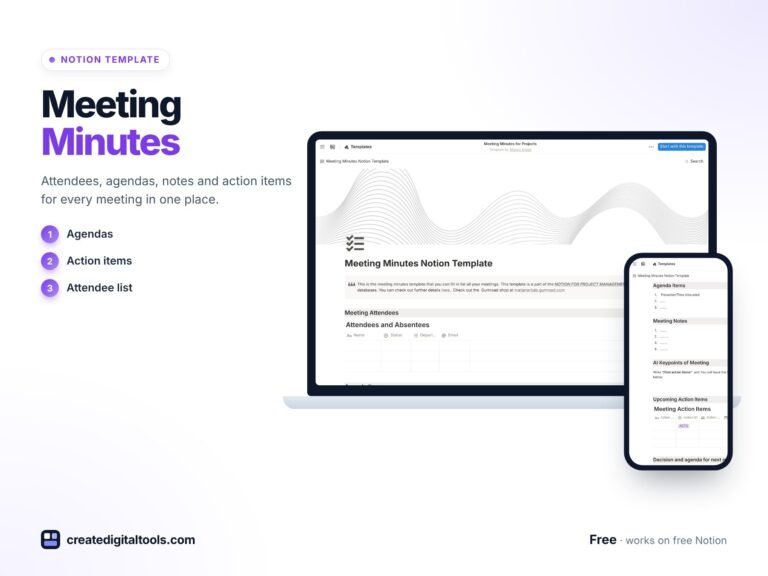
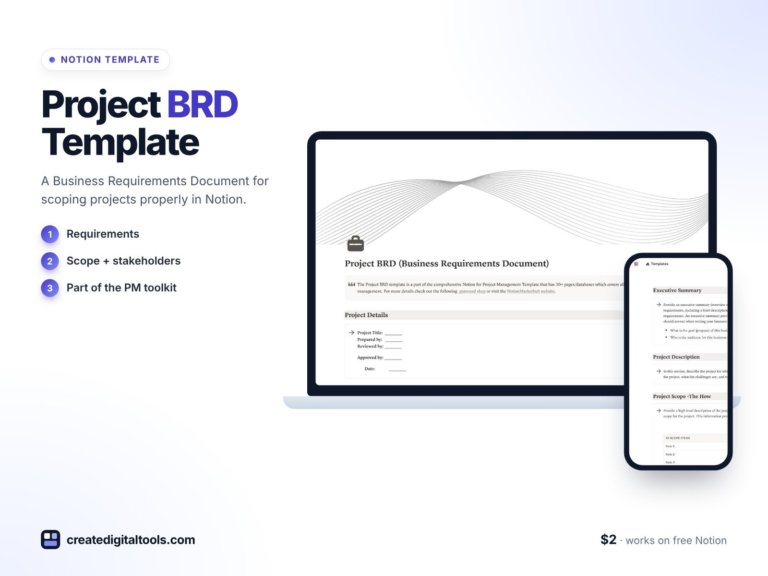
Resource Management Notion Template: Skills & Costing
Picture a small project lead with six people, three live projects and a client asking whether a new piece of work can start next Monday. The honest answer depends on who has which skills, who is already stretched, and what the extra hours would cost. If those answers live in three different spreadsheets and someone’s memory, the reply turns into guesswork. A resource management Notion template puts the team, their skills, their allocation and their cost side by side, so that question gets a clear answer.
This post walks through why resource planning gets messy, how to set up a simple resource workflow yourself, and what is inside our free Project Team & Resource Management Notion template.
Get the Project Team & Resource Management Template →
Why resource planning falls apart in small teams
Most teams do not start with a resource plan. They start with a project plan, a team chat and a contact list. Over time, the details that matter for staffing get scattered:
- Contact details and roles sit in an HR file or an email signature.
- Skills are known informally: “ask Sam, she knows the reporting tool.”
- Allocation is guessed from calendars, or not tracked at all until someone is overloaded.
- Cost is worked out at the end of the month, after decisions have already been made.
Generic task boards do not fix this, because they track work items, not people. A spreadsheet can hold the numbers, but it rarely connects to the projects and tasks the team is actually working on. The result is the same pattern again and again: the most capable people get over-allocated, quieter team members are under-used, and project budgets drift because nobody saw the hours piling up.
How to set up a resource management workflow in Notion
You can build a basic version of this yourself. Here is a practical structure that works for waterfall, agile or mixed projects.
1. Start with a team directory
Create a database with one entry per person. Add properties for role, email, phone and the projects they are assigned to. Keep it as the single list everyone refers to, so new joiners and leavers are updated in one spot.
2. Add a skills matrix
List the skills your projects actually need (for example: scheduling, design, data analysis, client communication). Then record each person’s level for each skill, using a simple scale such as Beginner, Working, Expert. A board or table view grouped by skill quickly shows where you have depth and where one person is a single point of failure.
3. Track allocation, not just tasks
For each person, record how much of their time is committed to each project or task. A percentage or hours-per-week figure is enough. Add a formula that sums their commitments so you can see who is above or below a healthy level.
4. Attach a cost to every resource
Give each person an hourly rate and multiply it by allocated hours. Even rough numbers help you compare staffing options before you commit, instead of discovering the cost afterwards.
5. Review it weekly
Set a short weekly review: check who is over-allocated, which skills are missing for upcoming work, and whether project costs are on track. The habit matters more than the tool.
Inside the resource management Notion template
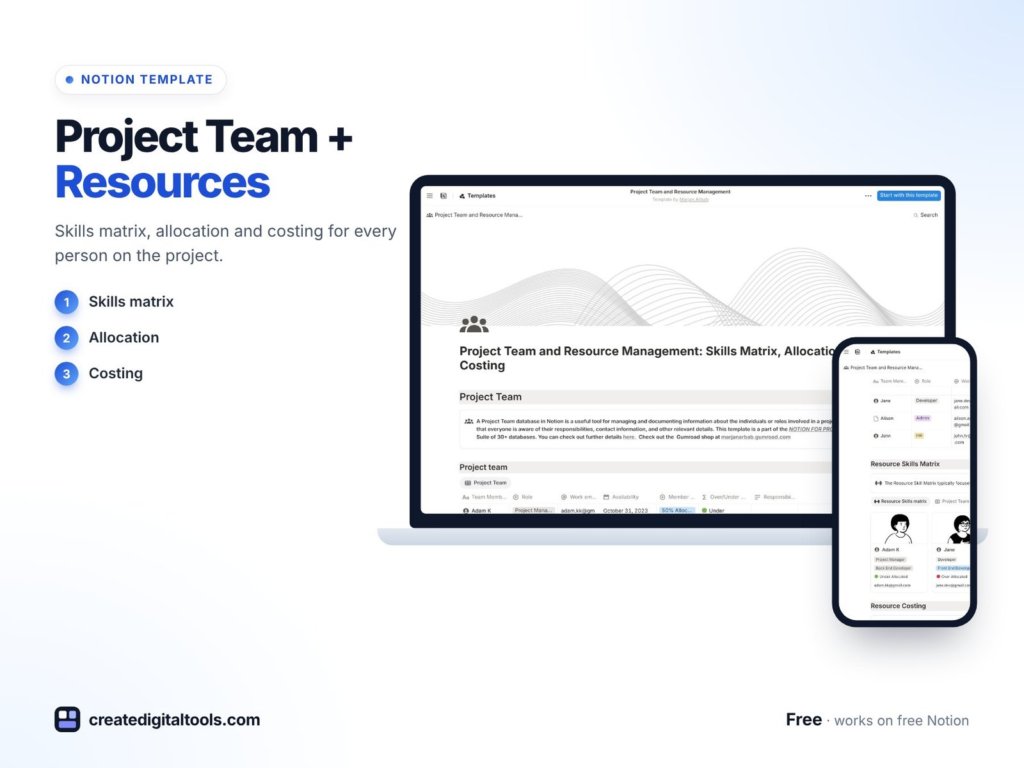
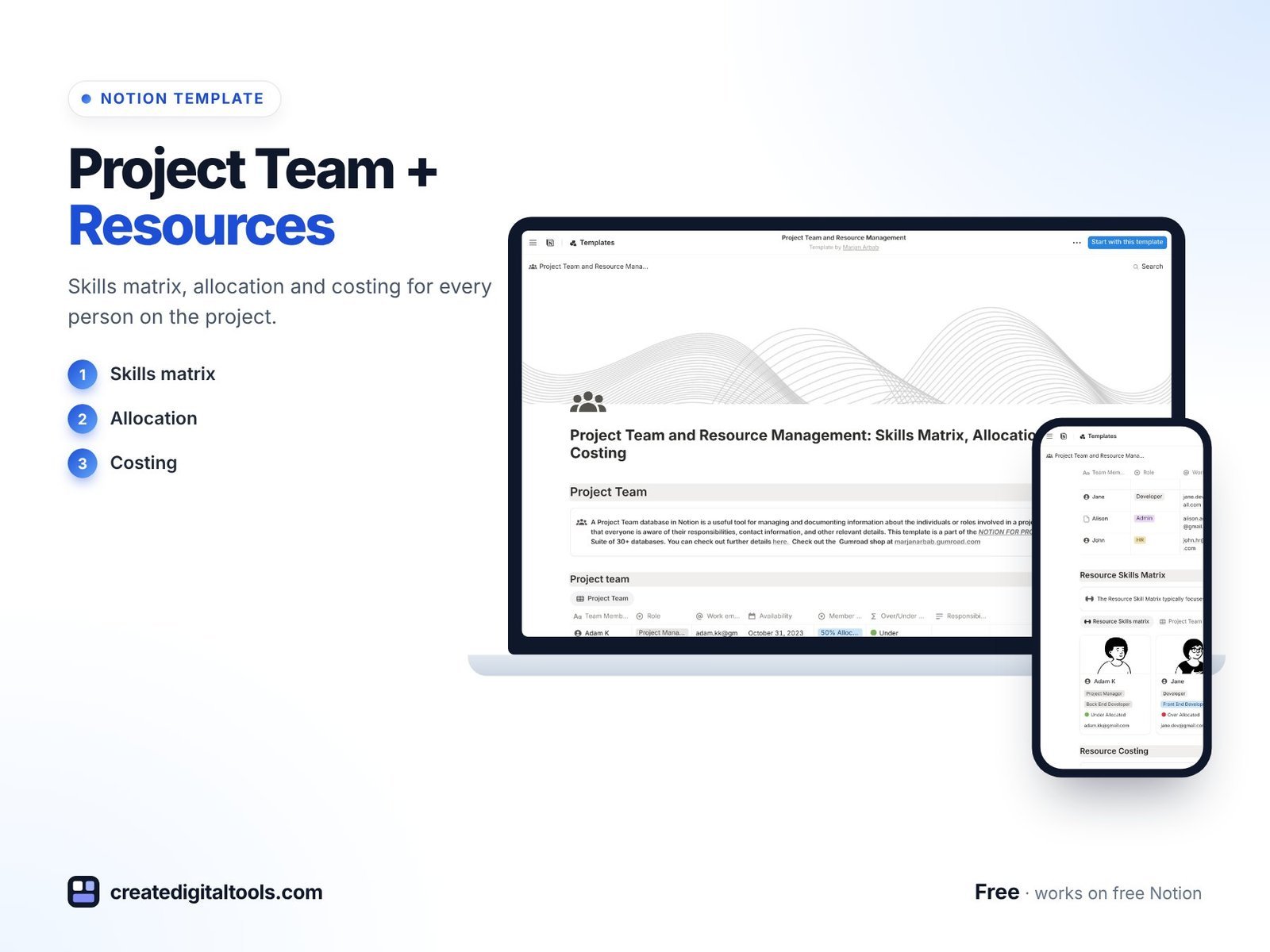
If you would rather not build the structure from scratch, the Project Team & Resource Management Notion template covers four connected areas. It is free and works for waterfall, agile or mixed project styles.
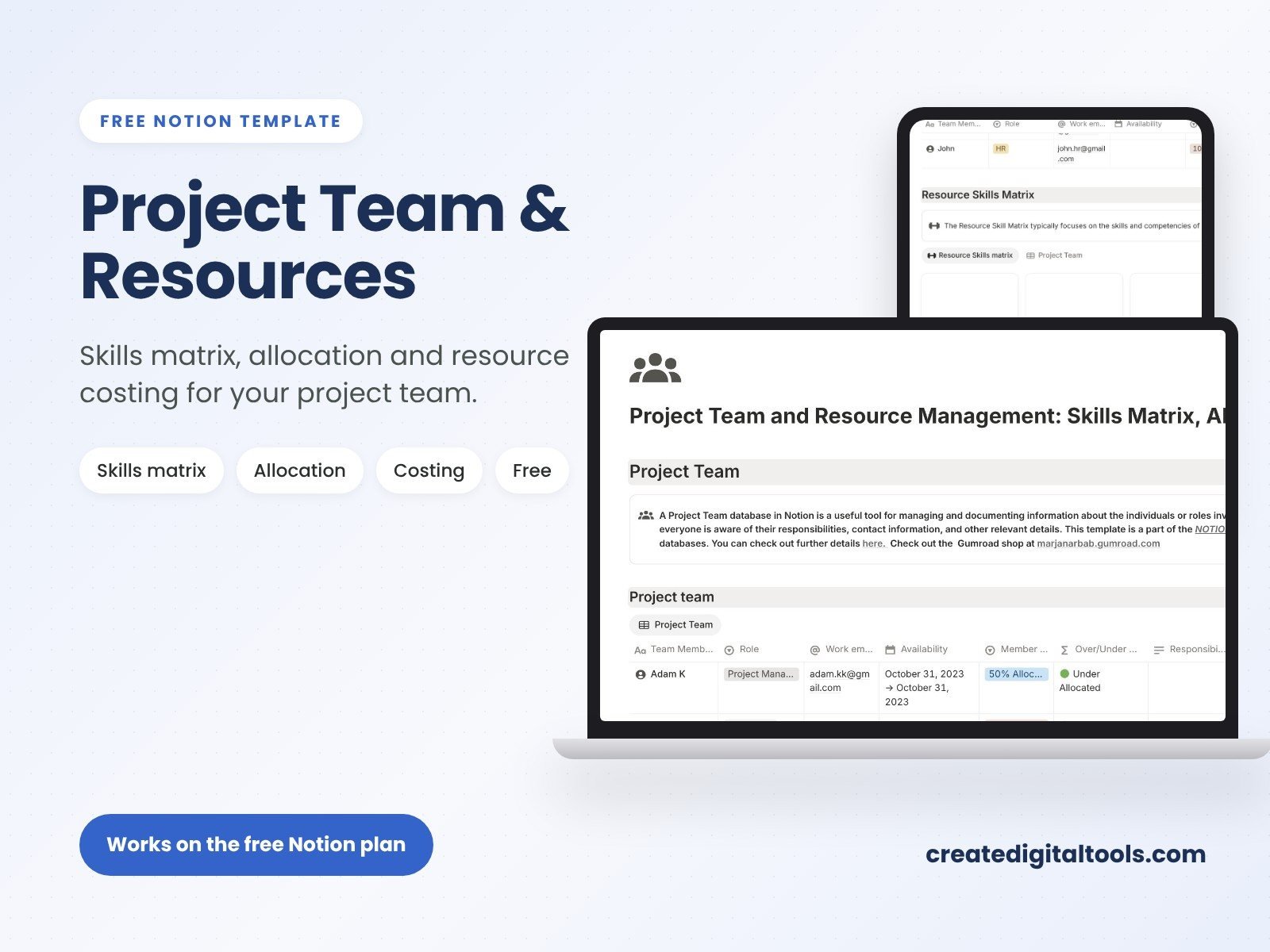
Project team management
Organise team members and their basic information, including contact details and role assignments. This is the base the other sections build on, so every skill, allocation and cost entry ties back to a real person on the team.
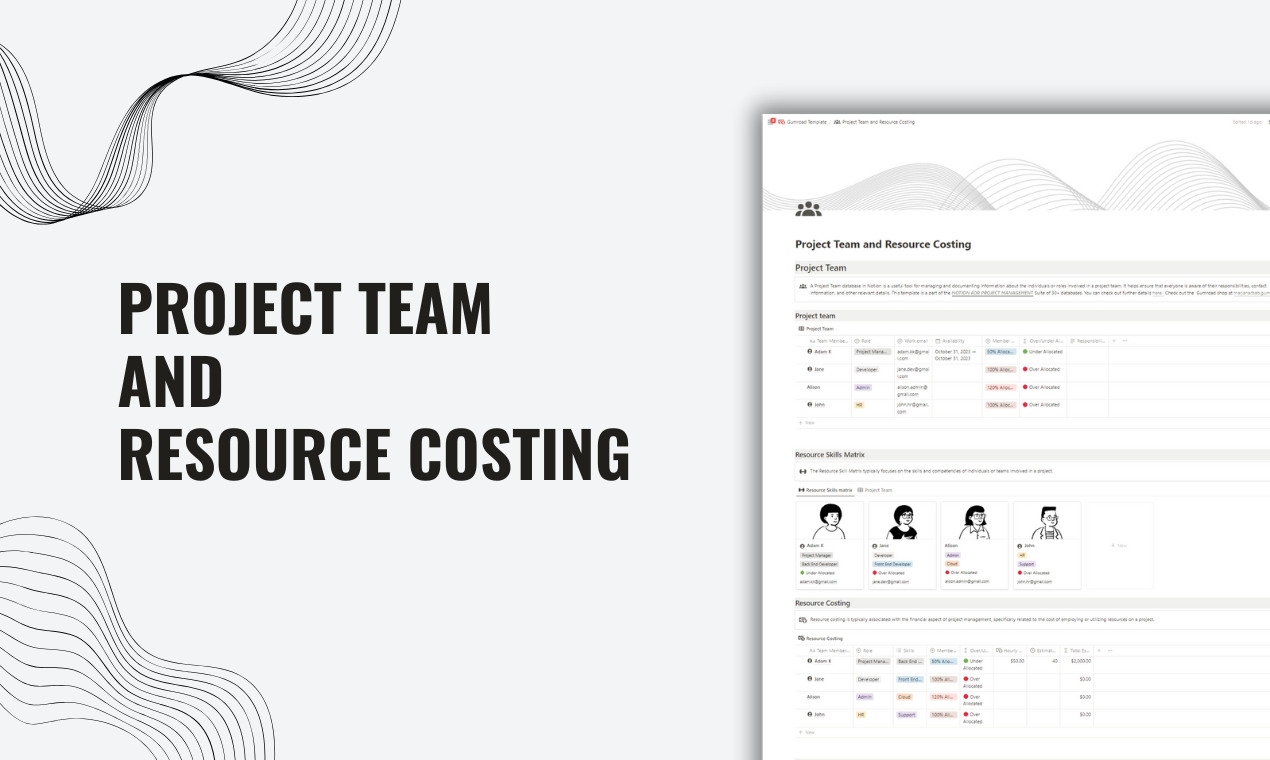
Resource skills matrix
Visualise team skills, expertise and availability. When a new project comes in, you can check who has the right skills and whether they have room, before you promise a start date.
Resource allocation insights
Monitor how much time each team member spends on tasks or projects, and spot over-allocation or under-allocation. This is the section that helps you rebalance work before someone burns out or sits idle.
Resource costing
Calculate the cost of each resource from hourly rates. Because the costing sits next to allocation, you can see what a staffing decision means in money terms at the time you make it.
Tips for getting the most out of it
- Keep skill levels honest. Ask team members to rate themselves, then agree the levels together. It makes the matrix more accurate and more useful for training plans.
- Update allocation when plans change, not at month end. A two-minute update after a planning meeting keeps the numbers trustworthy.
- Use rates you are comfortable sharing. If hourly rates are sensitive, keep the costing view in a page with limited access.
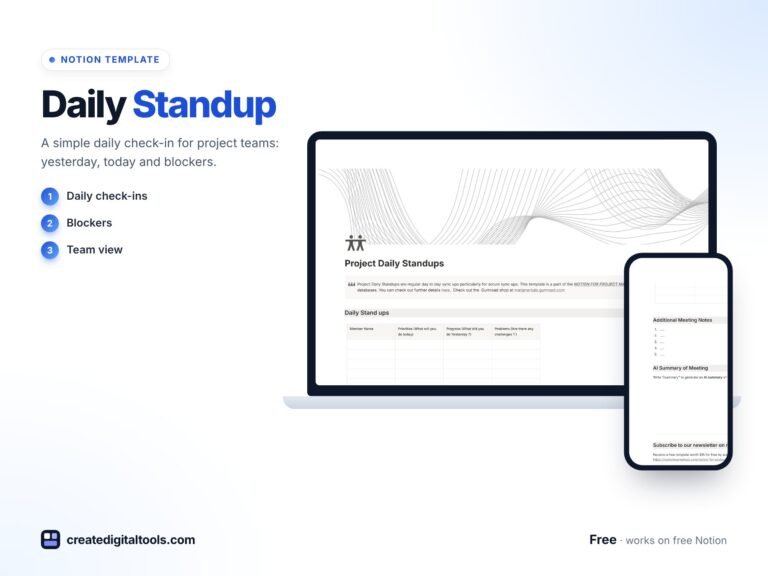
- Pair it with a standup routine. Short daily updates surface blockers early, which feeds back into allocation decisions. Our free Daily Standup for Project Teams template works well alongside this one.
Common resource planning mistakes to avoid
Even with a good structure, a few habits can quietly undo a resource plan. Watch out for these:
- Planning people at 100%. Nobody spends every hour on project work. Meetings, admin and interruptions take real time, so leave room in each person’s allocation.
- Treating skills as fixed. People learn. Revisit the skills matrix every few months, especially after training or a project that stretched someone into a new area.
- Ignoring under-allocation. Over-allocation gets attention because it causes stress. Under-allocation is just as costly, because skilled people sit waiting for work.
- Separating cost from decisions. If cost is only reviewed at month end, it cannot shape who gets assigned. Look at the costing view while you plan, not after.
A simple first week with the template
If you are starting from nothing, this order keeps setup manageable:
- Day one: add every team member with their role and contact details.
- Day two: list the skills your current projects depend on and rate each person.
- Day three: record current allocations across live projects, even if the numbers are rough.
- Day four: add hourly rates and check the resulting costs against your project budgets.
- Day five: hold a short review with the team to correct anything that looks wrong.
After that, small weekly updates are usually enough to keep the picture current.
Who it’s for (and who it’s not for)
A good fit if you:
- Lead a small or mid-sized project team and need a clear view of skills and workload.
- Run agencies, studios or internal teams where the same people work across several projects.
- Want a simple way to estimate resource cost from hourly rates.
- Already use Notion, or are happy to start.
Probably not for you if you:
- Need payroll, timesheets with approvals or invoicing built in.
- Manage a large organisation that needs enterprise capacity-planning software with integrations to HR systems.
- Prefer to work only in spreadsheets.
FAQ
What format is this template?
It is a Notion template. You duplicate it into your own Notion workspace and edit it there.
Do I need a paid Notion plan?
You need a Notion account. Notion’s free plan lets you duplicate templates and work with databases, which is enough to get started. Larger teams sharing a workspace may want a paid plan for collaboration features.
Is it really free?
Yes, this template is listed at no cost on our store. You check out as usual and receive access after the order.
Can I change the skills, roles and rates?
Yes. Everything is editable in Notion: rename skills, add new properties, change rate fields or add views that suit how your team works.
Does it work for agile teams?
Yes. The template is designed for waterfall, agile or mixed projects, since it focuses on people, skills, time and cost rather than one specific method.
Browse more planning tools in our Notion templates collection.
Get the Project Team & Resource Management Template →
Notion is a trademark of Notion Labs, Inc. This is an independent template, not affiliated with or endorsed by Notion.
Notion systems, spreadsheets and planners with a setup guide. Instant download.