Online Course Creation Notion Template (Pink)
Picture a designer who decides to turn her skills into an online course. She has lesson ideas in a notes app, video files in three folders, thumbnail drafts in a design tool, and sales figures from two course platforms in separate dashboards. Every week she spends time just finding things. An online course creation Notion template brings content planning, video production, course design, revenue and launch posts into one organised workspace, so more of that time goes into the course itself.
Here is why course projects get scattered, a step-by-step way to organise your own, and a look inside our Online Course Creation Template in a soft pink design.
Get the Online Course Creation Template (Pink) →
Why course creation gets messy
An online course is really several projects running at once: writing the curriculum, recording and editing video, designing visuals, publishing on one or more platforms, promoting the launch and tracking income. Each part tends to live in its own tool.
- Lesson outlines sit in documents with no link to the videos that cover them.
- Video production status is tracked in your head: recorded, edited, uploaded?
- Design assets such as headers and backgrounds are spread across design apps with no central list.
- Revenue comes in from different platforms, each with its own report.
- Launch posts are planned at the last minute.
A to-do list app can hold tasks, but it does not connect a lesson to its video, its design files and its launch posts. That connection is what keeps a course project from stalling halfway.
How to organise an online course project in Notion
You can use this structure with any tool, though Notion’s linked databases make it especially straightforward.
1. Map the curriculum first
Create a content database with one entry per module or lesson. Add properties for learning goal, status (idea, outlined, scripted, ready) and the course it belongs to.
2. Link each lesson to its video
Set up a video production database and relate it to your content database. Track stages such as script, recording, editing and upload. Now you can open any lesson and see exactly where its video stands.
3. Keep a design asset list
Record each visual you need (course header, slide backgrounds, landing page images) with a link to the working file. Even a simple list stops you hunting through folders.
4. Track revenue by source and month
If you sell on more than one platform, log income per source and per month. Patterns show up quickly: which platform performs, and which months are slow.
5. Plan launch posts alongside the course
Create a social media calendar tied to each course launch. Drafting posts while you build the course means you are ready on launch day.
Inside the online course creation Notion template
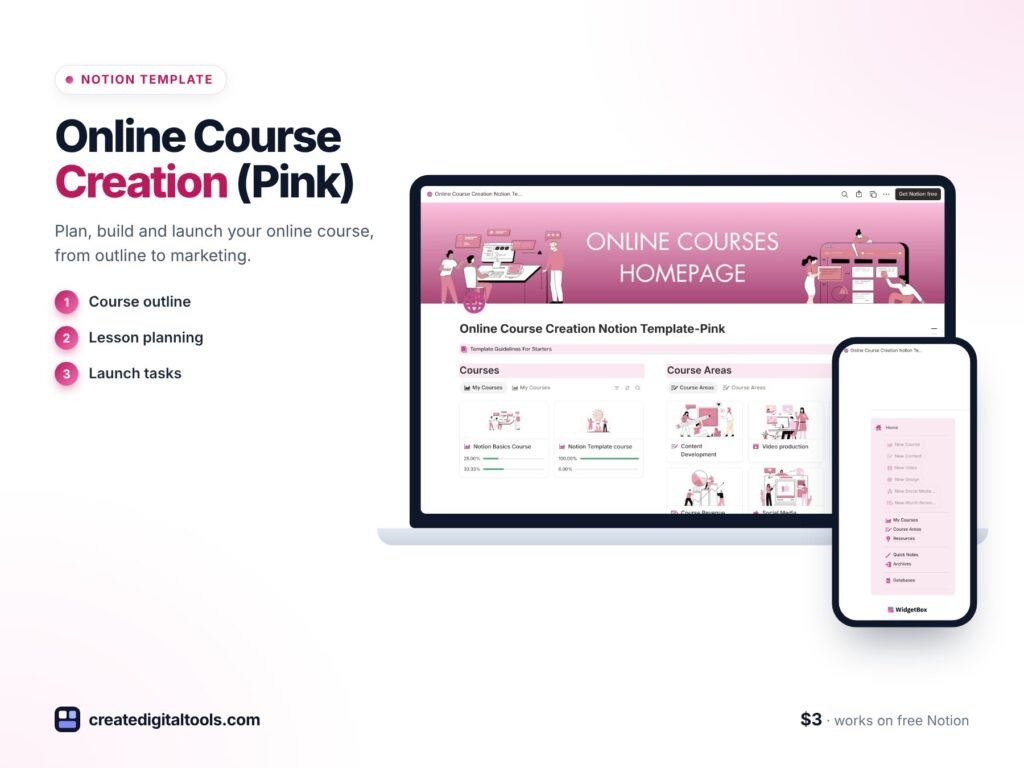
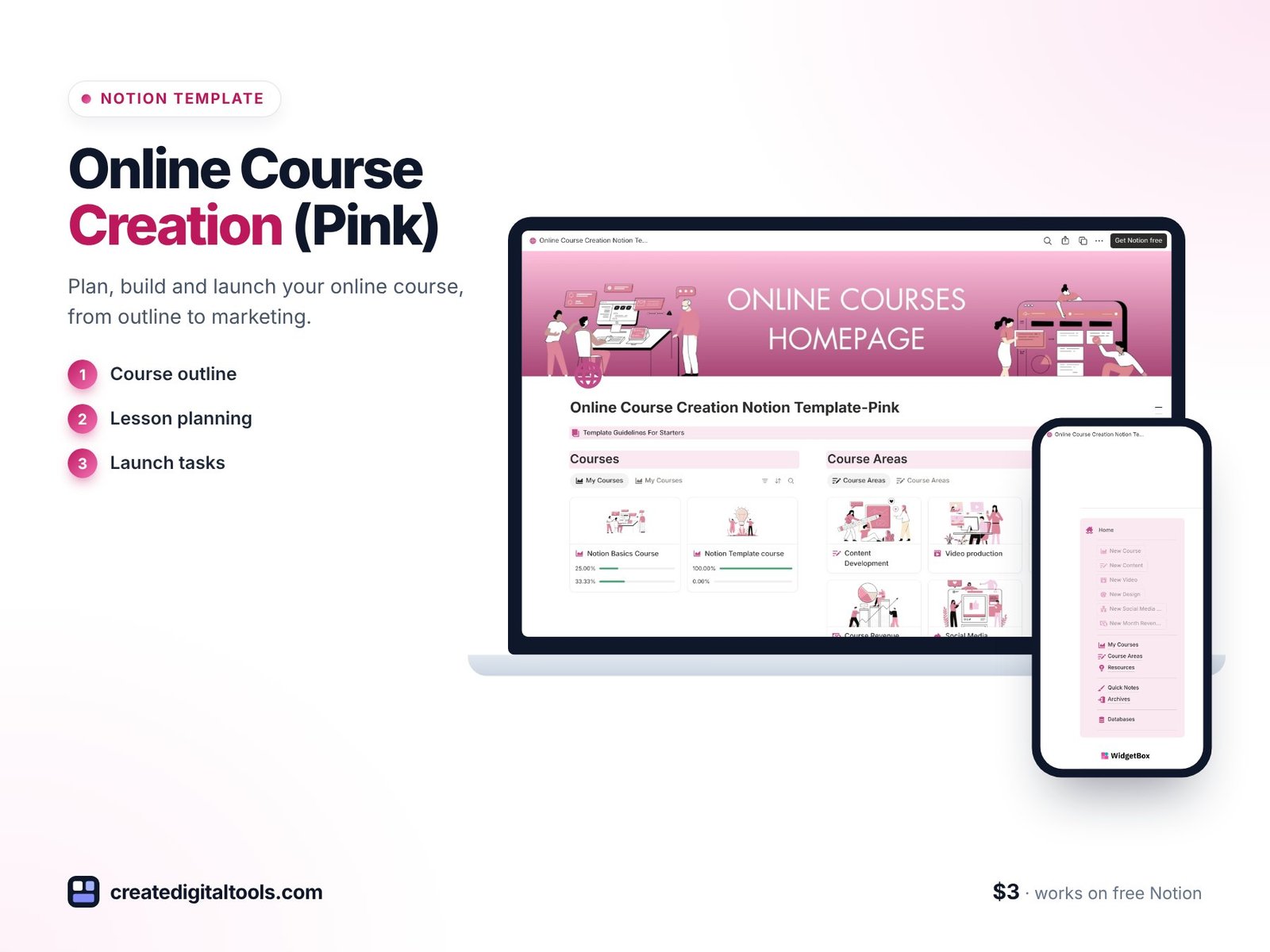
The Online Course Creation Template (Pink) is a Notion template covering five areas of a course business. The pink colour theme gives it a soft, friendly look if you prefer a lighter aesthetic for your workspace.
Content development
Organise, plan and track your course content in one place. This is where your curriculum takes shape, from first ideas to finished lessons.
Video production
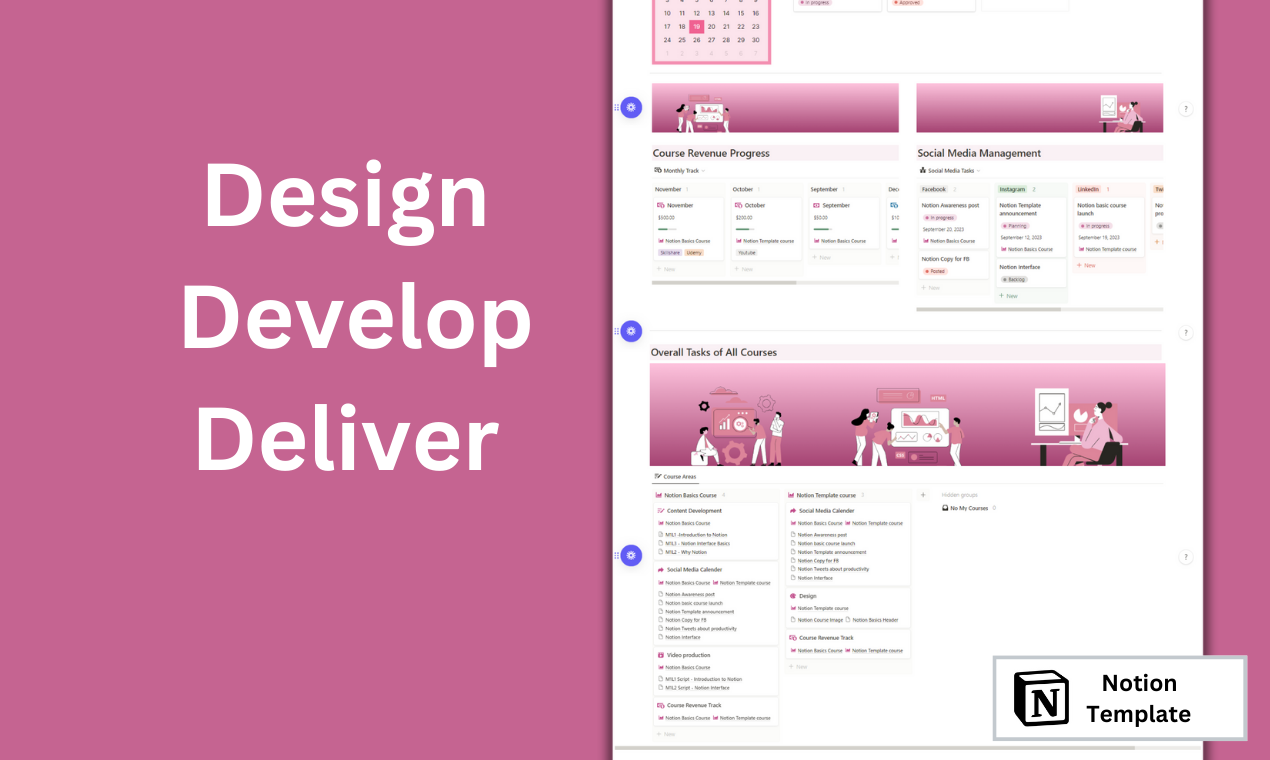
Content and video production databases are linked, so each piece of content connects to its video work. You can follow a lesson from outline through to recorded video.
Course design
Plan course headers, backgrounds and landing pages, and add links to your Adobe and Figma files. Your design work stays connected to the course it belongs to.
Revenue tracking
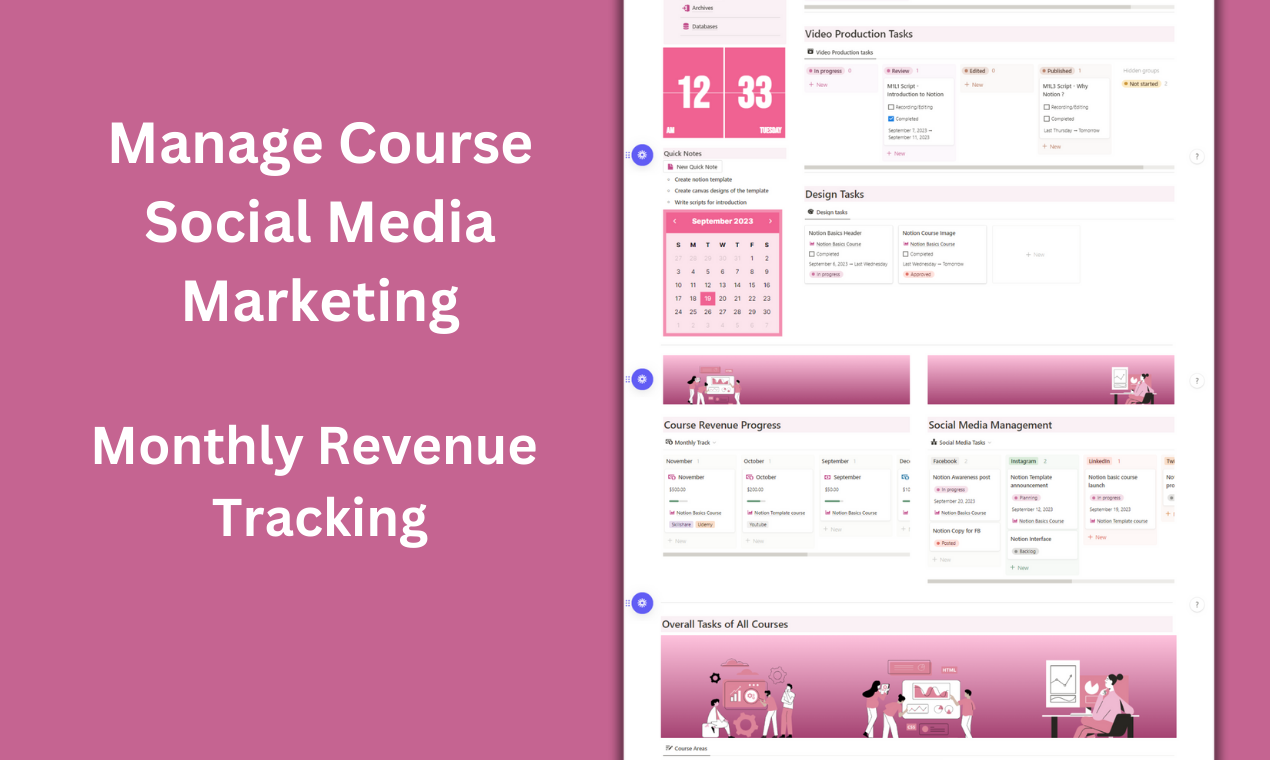
Track course revenue by source, for example Udemy, Skillshare or YouTube, or by month. It gives you a clear picture of where income comes from without opening several dashboards.
Social media management
Plan and schedule social media posts for each course launch, so promotion is part of the plan rather than an afterthought. If social media is a bigger part of your business, our Social Media Marketing Management template goes deeper on content planning.
See the template in action
This short video walks through creating online courses with the Notion template:
A practical course-building order
If you are building your first course, working in this order keeps the project moving:
- Outline the whole course in the content database before recording anything. Gaps are easier to spot on paper than on video.
- Script or bullet-point each lesson, then mark it ready for recording.
- Record in batches. Group lessons by setup, such as screen recordings together and talking-head videos together, and update the video production status as you go.
- Design visuals once the content is stable, so headers and backgrounds match the final lesson titles.
- Draft launch posts while editing, using lesson highlights as content ideas.
- Start revenue tracking from the first sale, so you have a clean record from day one.
Managing more than one course
Once your first course is live, the second one usually starts before the first is finished being promoted. Linked databases help here. Add a course property to content, video, design, revenue and social entries, then create filtered views for each course. You can focus on the course you are building while still seeing revenue and posts for the ones already published. Over time, the revenue view becomes a useful record of which topics and platforms work best for your audience, which helps you decide what to create next.
Mistakes course creators often make
- Recording before outlining. It leads to re-recording when the structure changes.
- Leaving promotion to launch week. Planning posts alongside the course gives you more to share and less pressure.
- Not knowing which platform earns most. Tracking revenue by source helps you decide where to focus future courses.
- Losing design files. Linking Adobe and Figma files to each course means you can update visuals without searching for them.
Who it’s for (and who it’s not for)
A good fit if you:
- Are creating your first online course and want a clear structure from the start.
- Sell courses on more than one platform and want revenue in one view.
- Coach, teach or create content and are turning that knowledge into courses.
- Like a soft pink aesthetic in your workspace.
Probably not for you if you:
- Need a platform to host and deliver video lessons to students. This template is for planning and tracking, not hosting.
- Need accounting software for tax filing. This is an organising tool, not financial or tax advice.
FAQ
What format is this product?
It is a Notion template, which you duplicate into your own Notion workspace.
Do I need a paid Notion plan?
You need a Notion account. Notion’s free plan supports duplicating templates and working with linked databases, so you can start there.
Is it an instant digital download?
Yes. It is a digital product, so you receive access after purchase rather than anything shipped.
Can I change the colours or remove the pink theme?
Yes. Everything in Notion is editable, including covers, icons and colours, so you can adjust the look to suit your brand.
Can I track platforms other than Udemy, Skillshare or YouTube?
Yes. You can add or rename revenue sources to match wherever you sell your courses.
Explore more creator tools in our Notion templates collection.
Get the Online Course Creation Template (Pink) →
Notion is a trademark of Notion Labs, Inc. Udemy, Skillshare, YouTube, Adobe and Figma are trademarks of their respective owners. This is an independent template, not affiliated with or endorsed by any of them.
Notion systems, spreadsheets and planners with a setup guide. Instant download.