How to Use Notion Templates: Free vs Paid — The Honest Guide
The most common path into Notion looks like this. Someone recommends it. You sign up. You stare at a blank page for a moment, feel slightly overwhelmed, and then discover that Notion has templates. Thousands of them. Free ones. Paid ones. Templates for productivity, for business, for students, for freelancers, for people who want to organise their entire life in a single app.
So you grab one. You duplicate it into your workspace. You look at it for a few days. And then — nothing. It sits there, half-used, while you continue doing things the old way.
This is not because the template was bad. It is because nobody explained how to actually use one.
The Template Promise — and Why It Sometimes Fails
A Notion template promises to give you a head start. Instead of building a system from scratch, you get a working structure on day one — databases already set up, views already configured, properties already named, relationships already connected. In theory, you open the template, delete the sample data, and start using it immediately.
In practice, most people do one of three things. They duplicate the template and never touch it because it feels too complex to start filling in. They start using it but abandon it after a week because they do not understand why it is structured the way it is. Or they use ten percent of what the template offers because they do not know the other ninety percent exists.
All three of those outcomes have the same root cause: they grabbed a template before understanding what a template is and how to interact with one. That is what this post fixes.
What a Notion Template Actually Is
A Notion template is a Notion workspace — or a page within one — that has been shared publicly so anyone can duplicate it into their own account. When you duplicate a template, you get an exact copy of everything the creator built: every page, every database, every view, every property, every filter, every relation, every formula. The structure is yours. The sample data is yours to delete or replace. The creator’s original is untouched.
This matters because it means a template is not a document or a form you fill in. It is a complete working system. When you duplicate a project management template with thirty databases connected by relations and rollups, you are not getting a pretty layout — you are getting a functioning architecture that took someone weeks to design and test. Your job is not to understand every detail of how it was built. Your job is to understand what it does and start using it.
Not on Notion yet? Create your free account here — you need one before you can duplicate any template into your own workspace.
How to Duplicate a Template Into Your Workspace
Every Notion template has a public link — a URL that opens a read-only preview of the workspace. In the top-right corner of that preview, you will see a button that says “Duplicate” or “Get template.” Click it. Notion asks which workspace you want to duplicate it into — select yours. The entire template copies into your sidebar as a new page, usually within a few seconds.
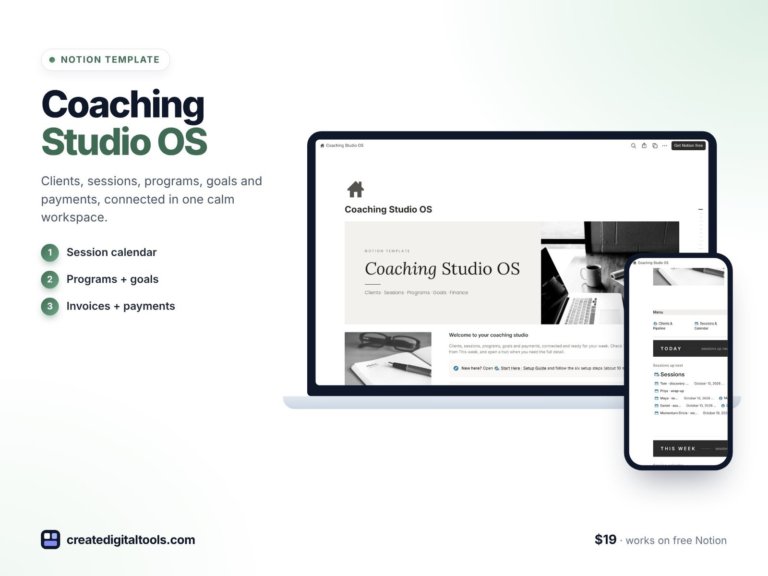
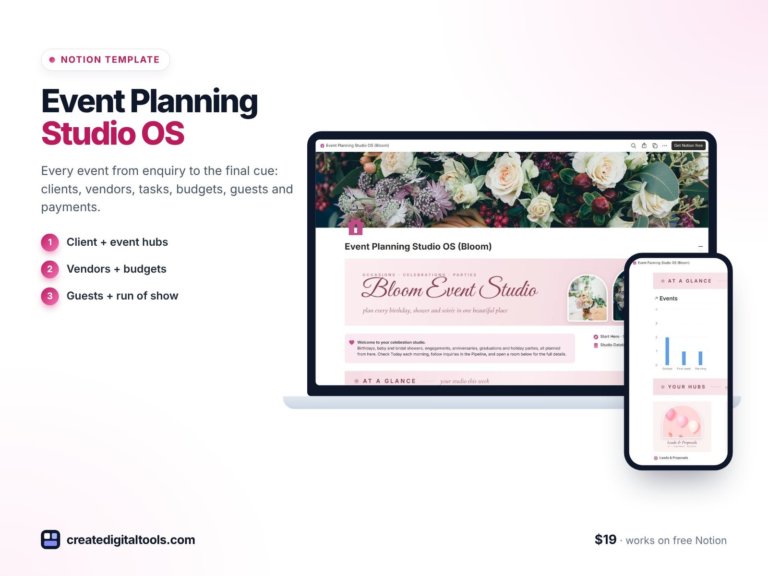
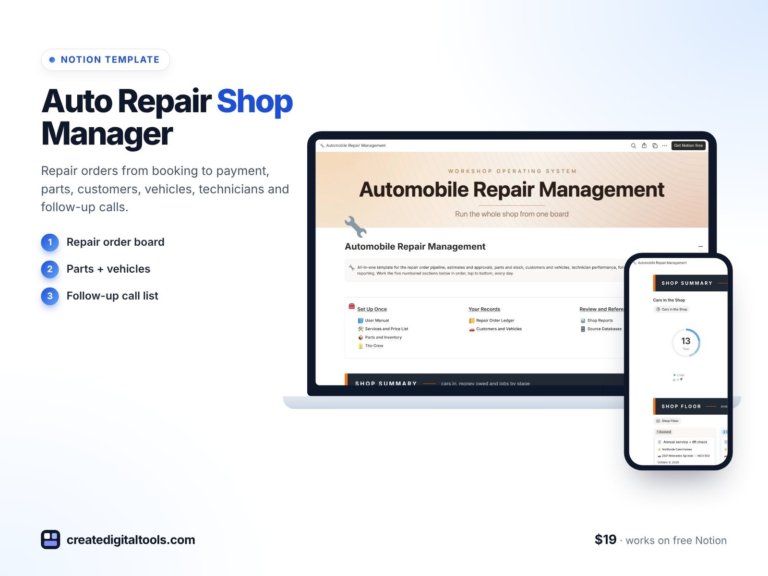
For templates sold through platforms like our own store at createdigitaltools.com, the process is the same. After purchase you receive a Notion link. Open it, click Duplicate, and it is in your workspace. No installation. No software. No account on our end. It is just a Notion page that becomes yours the moment you duplicate it.
One thing worth knowing: if a template is large — thirty or more pages and databases — the duplication can take up to a minute. Notion is copying every single page and database connection. Do not close the browser tab while it is working. Once it finishes, everything will be there exactly as it appeared in the preview.
The First Thing to Do After Duplicating
Most people duplicate a template and immediately start deleting the sample data. That is the wrong first step.
The right first step is to read the sample data. The creator put it there for a reason. It shows you what the template is designed to hold — the kinds of tasks, projects, clients, or records that belong in each database. It shows you which properties matter and how they interact. It shows you how the views are filtered and what they are designed to surface. If you delete everything before you understand any of that, you lose the most important part of the template — the example of how it is supposed to be used.
Spend fifteen minutes clicking through the sample data. Open a few database items and look at what is inside them. Switch between the different views and notice what each one shows and hides. Check whether there is a user manual — good templates include one, either as a separate page or as a section on the home dashboard. Once you understand what the system is built to do, then you can delete the sample data and start entering your own.
Free Templates: What They Are Good For
Free Notion templates are genuinely useful. They give you a working structure without any financial commitment, which makes them a low-risk way to understand how a particular type of system is built in Notion. If you have never used a task database with filtered views before, a good free template shows you exactly how one works — and you can learn from the structure even if the template itself does not end up being your long-term system.
Free templates are also ideal as starting points for simple use cases. A personal task tracker, a basic reading list, a weekly habit log, a simple content calendar — these do not require complex multi-database architectures. A well-made free template handles them perfectly.
The Everyday Life template available free at createdigitaltools.com is a good example of what a free template can legitimately do. It covers daily tasks, habit tracking, yearly goals, a simple budget, and life projects — all connected through a life areas database. It is genuinely functional as a complete personal productivity system, and it is free. That is the bar a good free template should meet.
Where Free Templates Fall Short
Free templates rarely cover complex multi-database systems. Building a thirty-database project management system with bidirectional relations, rollup calculations, formula properties, and multiple filtered views per database takes significant time and testing. Nobody gives that away.
Free templates also tend to lack documentation. When you encounter a database you do not understand or a view that seems wrong, there is usually no user manual to consult and no one to ask. You are on your own to figure out what the creator intended — which, if the template is complex, can take as long as building it yourself would have.
And free templates often lack ongoing support. If Notion updates its features and something in the template breaks, or if you need a property or view that the template does not include, a free template offers no path forward. You adapt it yourself or you start over.
Paid Templates: What You Are Actually Paying For
When you pay for a Notion template, you are not paying for a prettier layout or a fancier colour scheme. You are paying for three things that free templates rarely provide.
The first is architecture. A paid template at the professional level has been designed as a complete system — every database exists for a reason, every relation serves a purpose, every view has been filtered and sorted deliberately. The decisions behind the structure have been made for you, tested against real use cases, and refined based on how people actually use it. That architecture is the product.
The second is documentation. A good paid template includes a user manual — built directly inside the template itself — that explains what each section is for, how the databases connect, what to enter where, and how to customise without breaking the underlying system. You do not need to reverse-engineer what the creator was thinking. They tell you.
The third is completeness. A paid template covers the full scope of what it promises. A project management template does not just include a task list — it includes a risk register, a stakeholder database, a budget tracker, a meeting notes system, a resource matrix, and a project closure checklist. You get the whole workflow, not just the obvious part.
The Project Management with AI template covers exactly this — 30+ databases across every project phase from initial discovery through to closure and lessons learned. Every database includes a user manual page explaining what it is for and how it connects to the others. If you manage projects professionally and want a Notion system that covers the full lifecycle without building it yourself, this is designed for that exact situation.
How to Evaluate Any Template Before You Buy
Before purchasing any Notion template, there are four questions worth answering from the preview.
First: does the template cover the full workflow, or just the obvious part? A social media management template that only includes a content calendar is not a social media management system — it is a calendar. A complete template covers client onboarding, content planning, platform analytics, ad campaign tracking, and team collaboration. Check that the template matches the scope of what you actually need to manage.
Second: are the databases connected? Open a few items and look at whether they have Relation properties linking them to other databases. A collection of unconnected databases is not a system — it is a set of separate lists that happen to live in the same workspace. Connected databases are what give a template its real value.
Third: is there documentation inside the template? A user manual page, a getting started guide, or at minimum a callout at the top of each section explaining what it is for. If there is no documentation, you are buying a structure you may not be able to use correctly.
Fourth: does the preview show real views? If the only view visible in the preview is a basic table with no filters, the template probably does not have the filtered views that make databases genuinely useful. Look for evidence of Board views, filtered Table views, Calendar views, and Timeline views with meaningful group-by and filter settings already configured.
The HR Management, Recruitment and Onboarding template is a useful reference for what all four of these look like when done well — full workflow coverage across the entire employee lifecycle, databases connected through relations, a built-in user manual, and multiple filtered views per database. It is also a good example of a paid template whose price reflects the actual complexity of what it covers rather than just the aesthetic.
How to Adapt a Template Without Breaking It
Every template is a starting point, not a final destination. The right approach to adapting a template is to add before you remove.
Adding new properties, new views, and new pages to a template is safe. None of these changes touch the underlying database relations or formulas. Add a new Select property for a category you need. Add a new filtered view that shows a subset of data you look at frequently. Add a new sub-page inside an existing section. These extensions make the template more useful without risking the structure that makes it work.
Removing things requires more care. Deleting a property that is referenced in a Rollup or Formula will break those calculations. Deleting a database that has Relations pointing to it from other databases will break those relations. Before removing anything from the core structure of a template, check whether it is referenced elsewhere — look at the Rollup and Formula properties in the template’s other databases to see what they depend on.
The safest adaptation strategy: read the user manual first, add what you need, and only remove things from the sample data layer — the actual records in the databases — rather than from the structural layer of properties, relations, and formulas.
The Mistake That Makes Templates Useless
There is one mistake that makes even the best template useless, and it is not a technical one. It is a behavioural one.
The mistake is treating the template as the system instead of treating your actual use of it as the system.
A template sitting in your sidebar with no data in it is not a productivity system. It is a decoration. The value of a template is entirely dependent on whether you put real data into it consistently. That means adding every actual task to the task database rather than keeping a mental list. It means logging every real meeting in the meetings database rather than taking notes in a separate app. It means updating project statuses regularly rather than letting them sit at “In Progress” forever.
This sounds obvious. But most abandoned templates are abandoned not because the structure was wrong, but because the user never committed to it as the place where things actually live. A template becomes a system the moment it becomes the single source of truth — and not before.
Which One Should You Start With?
If you are new to Notion, start with a free template in the area that matters most to you right now. Not five templates across five different areas of your life — one template, in the one area where better organisation would make the most immediate difference. Use it for two weeks. Learn how it works. Understand what relations and views are doing. Then decide whether you want to expand it, replace it with a paid template, or build your own version informed by what you have learned.
If you are already using Notion but your workspace feels like it is held together with tape, a professionally built paid template is often faster than trying to fix what you have. The architecture decisions have already been made correctly. The databases are already connected. The views are already filtering the right data. You spend an afternoon migrating your existing data in and gain a system that would have taken you weeks to build from scratch.
Either way, the template is not the point. The system you build with it is. Start simple, commit to it fully, and add complexity only when you hit a genuine limitation — not in anticipation of one.
Browse the full range of free and paid templates at createdigitaltools.com — each listing includes a full preview so you can evaluate the structure before committing. And if you need a Notion account to get started, sign up free here.
Disclosure: This post contains affiliate links. If you sign up for Notion through the links in this post, we may earn a small commission at no extra cost to you. All opinions are our own and we only recommend tools we genuinely use and believe in.
Notion systems, spreadsheets and planners with a setup guide. Instant download.