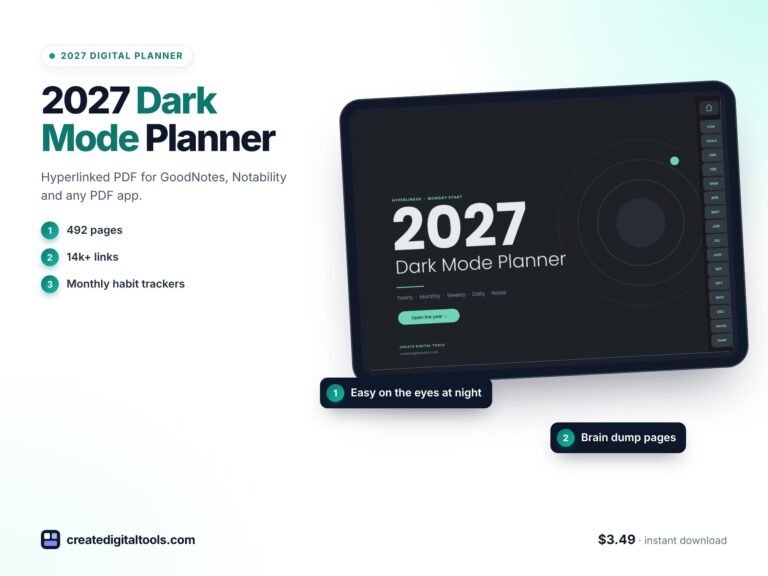
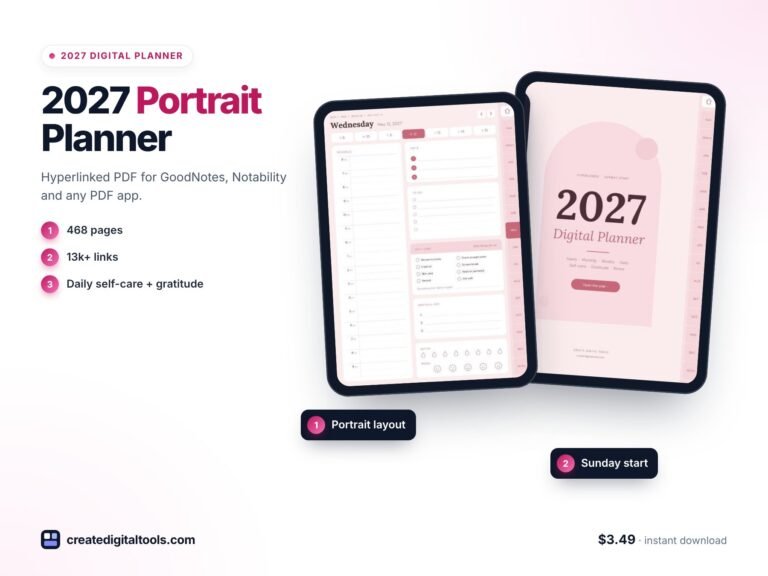
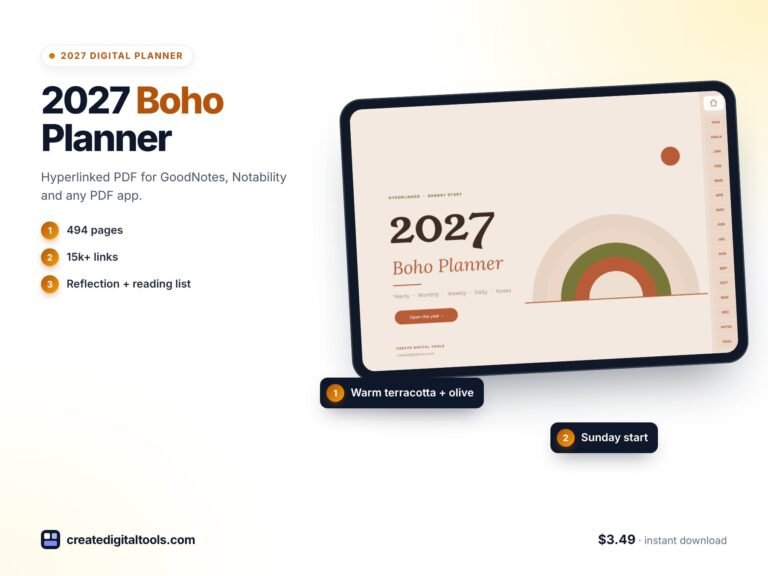
Hyperlinked Digital Planner 2027: Setup and Navigation Guide
Picture someone opening a 400-page planner PDF on their iPad for the first time. They want to jump to next Thursday, so they scroll, and scroll, and scroll, past dozens of pages. By the end of the week they have given up and gone back to the calendar app. This is an illustrative scenario, but it shows why a hyperlinked digital planner matters: when every tab, month, week and day is a link, a long planner becomes quick to use, and you spend your time planning instead of searching.
This guide explains how hyperlinked planners work, how to import and navigate one in GoodNotes or Notability, and what is inside the 2027 Digital Planner in sage green.
Get the 2027 Digital Planner (Sage Green) →
Why a long planner PDF needs links
A full-year planner with daily pages runs to hundreds of pages. That is a strength, because every day gets its own space. Without navigation, though, it becomes a weakness:
- Scrolling is slow. Finding a date in the middle of the year means flicking through hundreds of pages.
- Thumbnails all look alike. Page previews of identical daily layouts do not help you find the right day.
- Bookmarks take setup. You can add them yourself, but few people keep that up for a whole year.
- Returning is just as hard. Once you reach a daily page, getting back to the month view is another hunt.
A properly hyperlinked planner fixes this by making the structure itself clickable: tabs on every page, dates that open the right day, and arrows to move forward and back.
Orientation matters too. A landscape planner suits a tablet in a keyboard case or on a stand, where the page fills the screen side to side and the tabs sit within easy reach. If that is how you usually use your iPad, a landscape layout with links on every page is the most comfortable combination.
How to set up and use a hyperlinked digital planner
These steps apply to most hyperlinked planners in GoodNotes, Notability and similar apps.
1. Import the PDF as a document, not as images
Open the PDF in your note-taking app as a new notebook or document. Importing it as a PDF keeps the internal links working.
2. Learn the difference between writing mode and reading mode
In many apps, links only respond when you are not in pen mode. If a tab does not respond, switch to the read-only or hand tool and tap again. Your app’s own help pages explain the exact setting.
3. Start from the year view
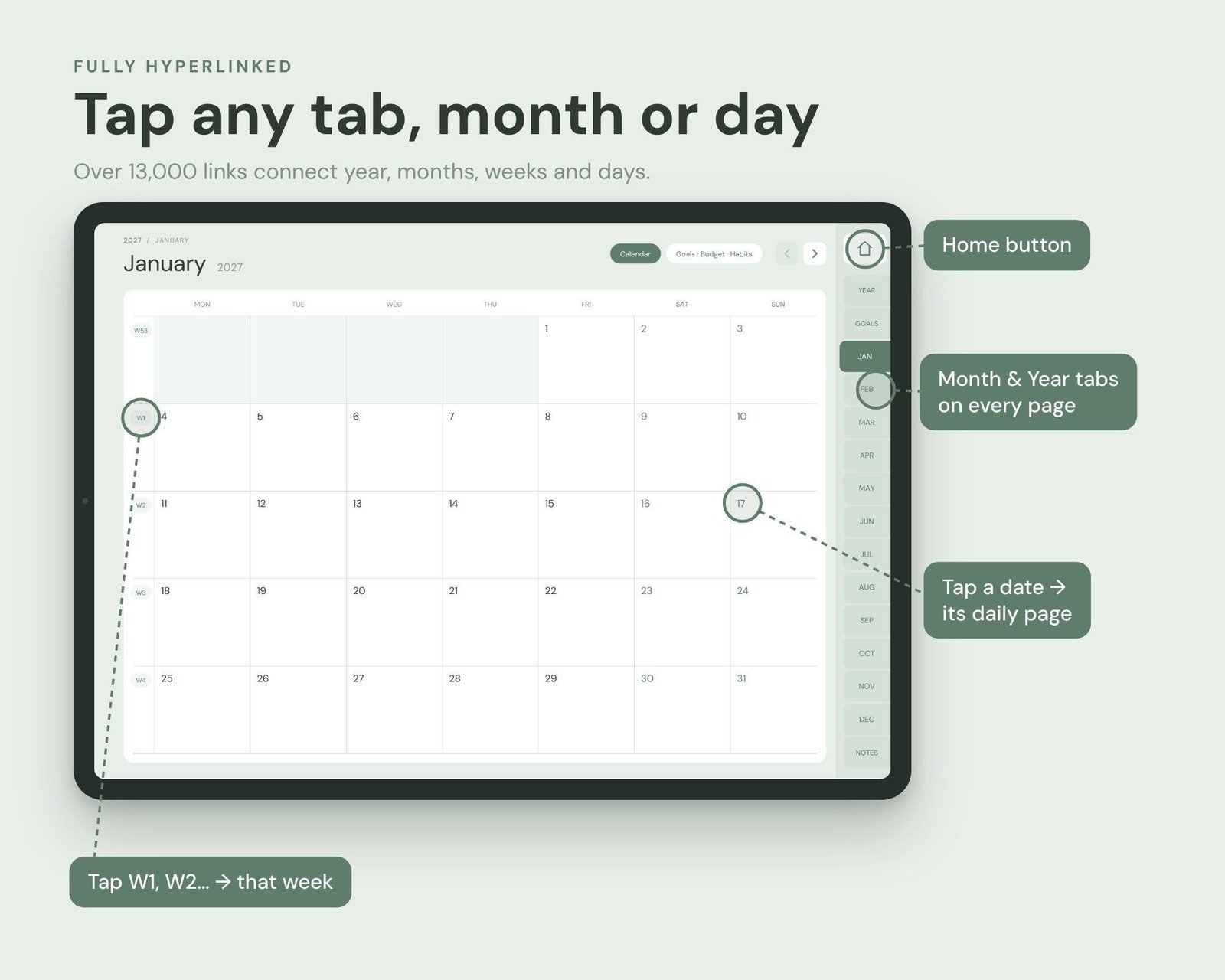
Use the year at a glance as your home base. Tap a month, then a date, and you land on that day’s page.
4. Use the side tabs to jump between sections
Tabs on every page take you to months and key sections without going back to the start.
5. Set your yearly and quarterly goals first
Before filling daily pages, spend twenty minutes on goals and your vision page. Each month, translate them into monthly goals.
6. Plan weekly, adjust daily
Sketch the week’s priorities, then use each daily page for the schedule, top 3 priorities and to-do list.
7. Keep a backup
Before you start writing, keep a clean copy of the original PDF. If you ever want a fresh start, you can import it again.
Inside the 2027 Digital Planner (Sage Green)
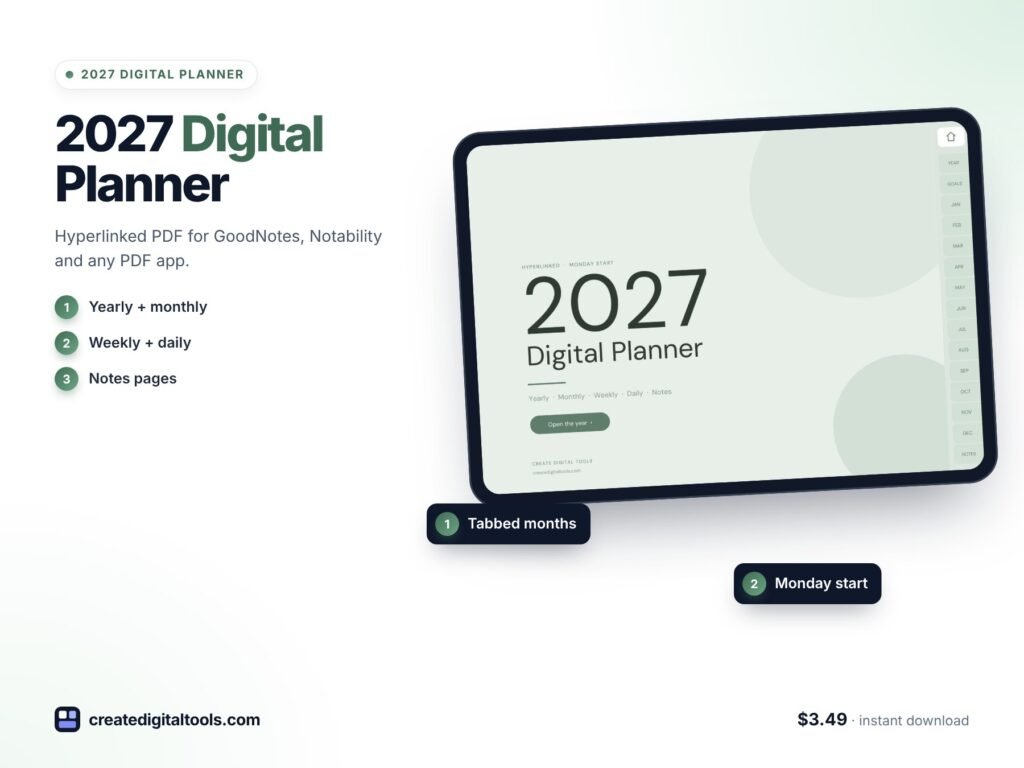
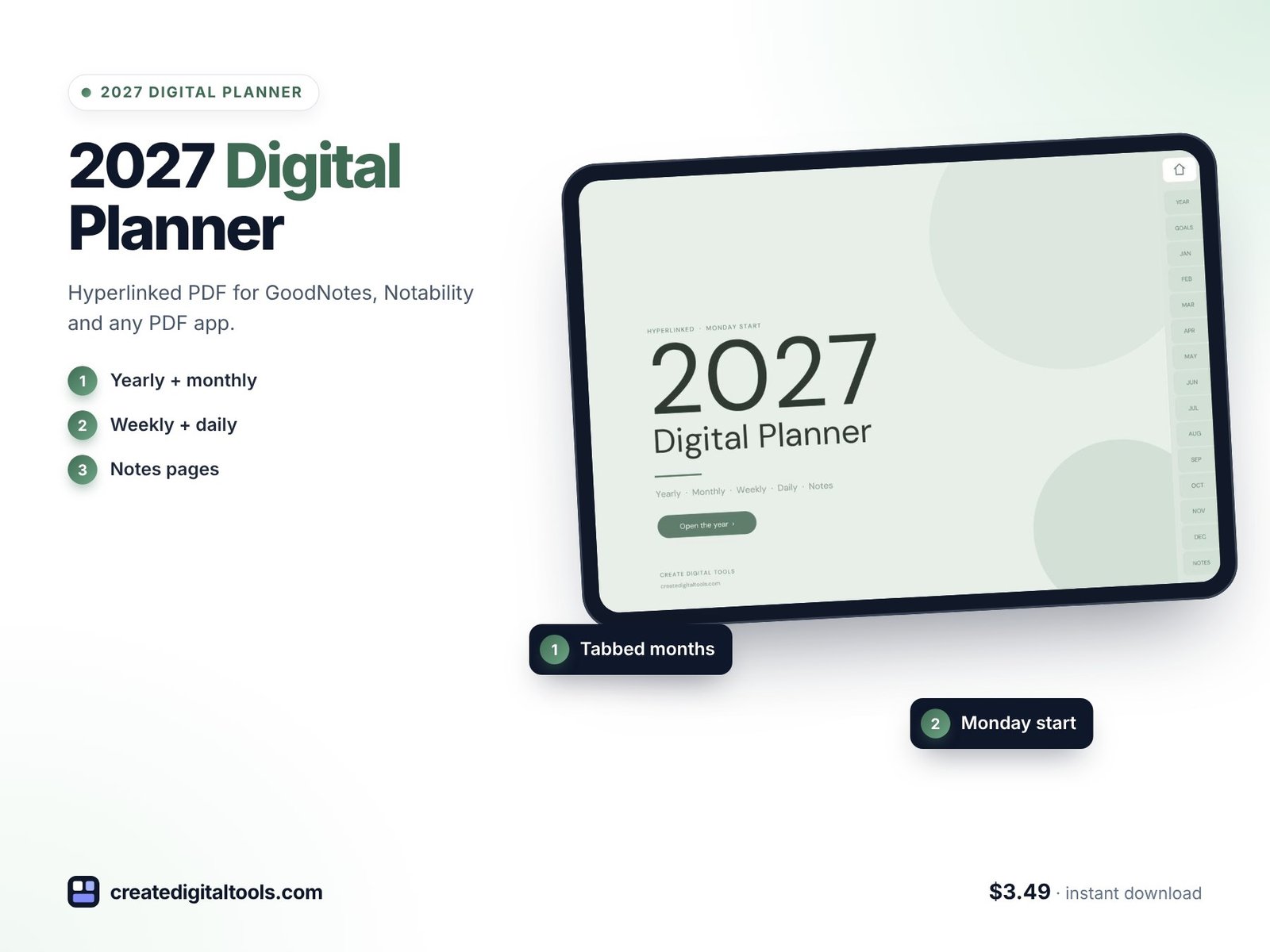
The 2027 Digital Planner is a landscape PDF in sage green, matching the iPad Pro ratio. It has 468 hyperlinked pages with 13,578 internal links, so you can tap any tab, month, week or day to jump there. It works in GoodNotes, Notability and other PDF apps.
Year overview
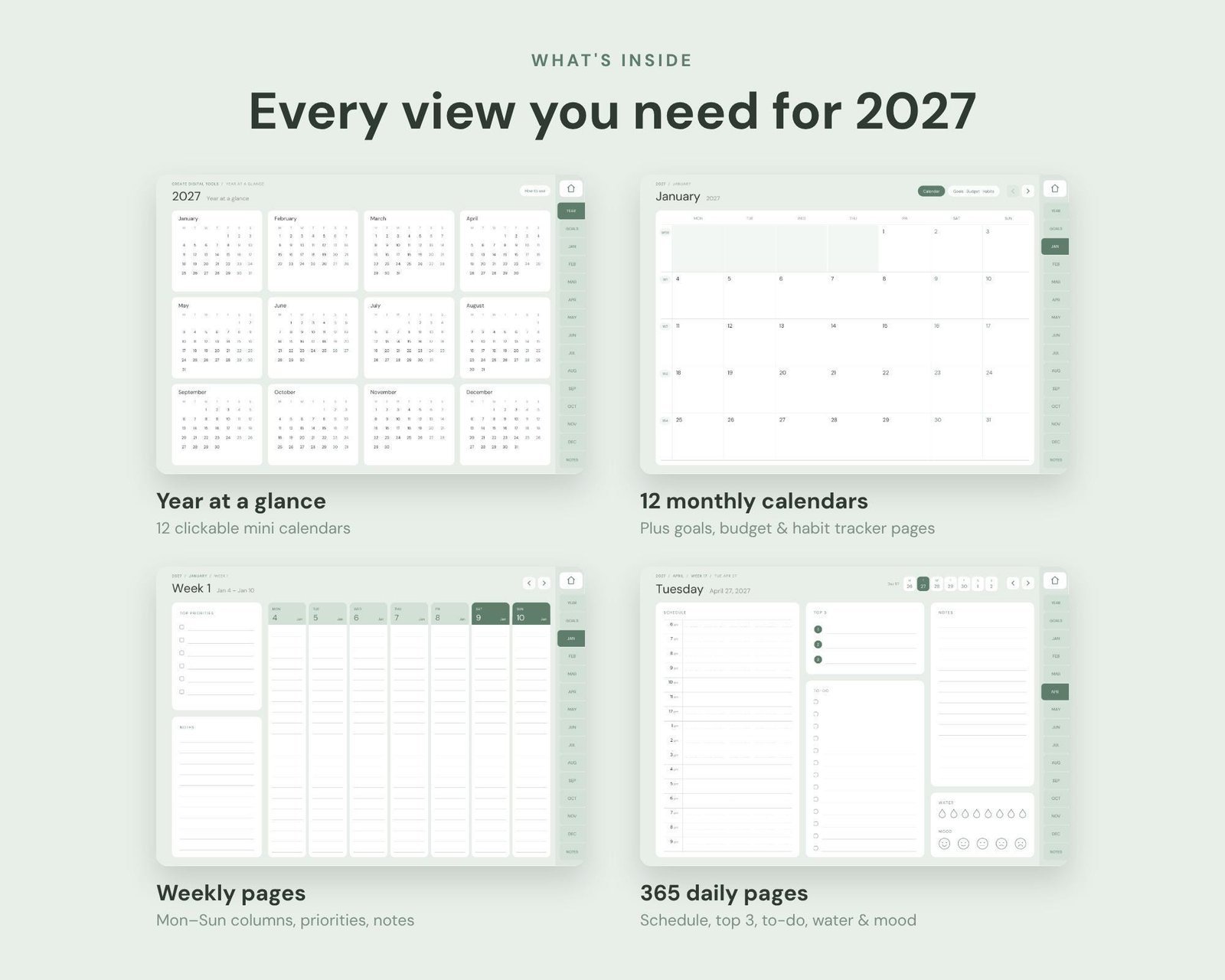
2027 at a glance, with clickable mini calendars.
Goals and habits
Yearly and quarterly goals, a vision page and a yearly habit tracker.
Monthly pages
12 monthly calendars with a Monday start, plus monthly goals, budget and habit pages.
Weekly pages
53 weekly pages with priorities and notes.
Daily pages
365 dated pages with a 6am to 9pm schedule, top 3 priorities, a to-do list, notes, and water and mood trackers.
Notes
20 notes pages in lined and dotted styles.
Navigation aids
Tabs on every page, a home button, breadcrumbs, and previous and next arrows.
The Setup Guide PDF covers downloading, importing into GoodNotes or Notability, navigation and troubleshooting. A setup video is included too.
Getting started in your first week
A gentle first week helps the planner stick:
- Import: follow the Setup Guide to download and import the PDF into GoodNotes or Notability.
- Practise navigation: tap a month, a date, the home button and the previous and next arrows until moving around feels natural.
- Fill in goals: write yearly and quarterly goals and add a few notes to the vision page.
- Set up the month: fill in this month’s goals, budget and habit pages.
- Plan the week: list priorities on the weekly page.
- Use each day: fill in the schedule, top 3, to-do list and trackers as you go.
The breadcrumbs at the top of each page show where you are in the year, which helps when you jump around a lot. If you prefer a quick daily routine, you can work mainly from the weekly pages and only open daily pages when you need more space. Either way, the links mean you are never more than a couple of taps from where you want to be. The calm sage green suits most pen colours, so you can colour-code work, home and personal tasks if that helps you.
Watch the import and setup
This video shows how to import the planner into GoodNotes and Notability:
Who it is for, and who it is not for
A good fit if you:
- Use your iPad in landscape, for example in a keyboard case or on a stand
- Want an all-round planner with goals, budget, habits and daily pages
- Like a calm, neutral sage green look
- Are new to digital planning and want a clear setup guide
Probably not the right fit if you:
- Hold your tablet upright most of the time (a portrait planner suits you better)
- Need time blocking, project and meeting pages for work
- Do not yet own a tablet or note-taking app (neither is included)
- Want a printed planner (this is a digital download only)
Frequently asked questions
Which apps does it work in?
GoodNotes, Notability and other PDF apps.
Is the layout landscape or portrait?
Landscape, matching the iPad Pro ratio.
Is a note-taking app included?
No. You need your own device and a PDF note-taking app.
How do I receive the planner?
It is a digital download with no physical item shipped. The PDF is about 6.6 MB, and the Setup Guide PDF walks you through importing it.
What if the links do not work?
The Setup Guide includes a troubleshooting section. In some apps, links only respond when you switch out of pen mode, so try that first.
Prefer warm, earthy colours and reflection prompts? Take a look at the 2027 Boho Digital Planner in Terracotta. You can browse every digital planner for GoodNotes and iPad in the store.
Get the 2027 Digital Planner (Sage Green) →
GoodNotes, Notability and iPad are trademarks of their respective owners. This is an independent planner, not affiliated with or endorsed by any of them.
Notion systems, spreadsheets and planners with a setup guide. Instant download.