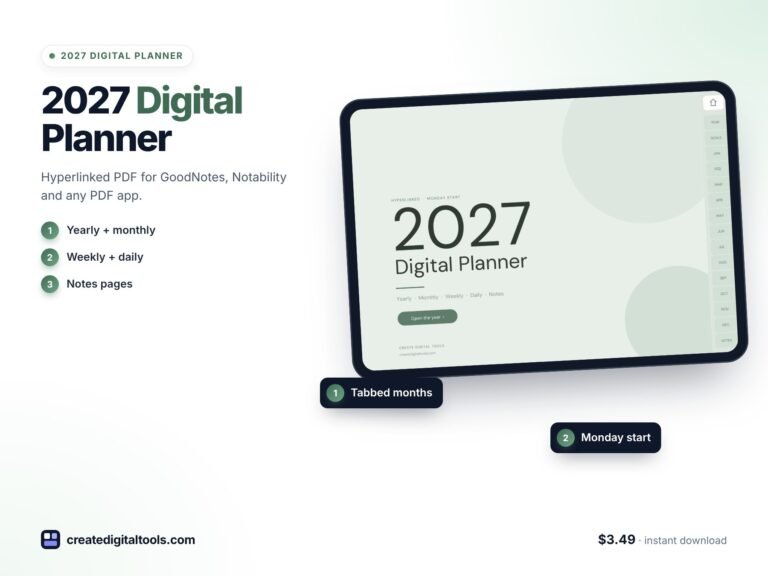
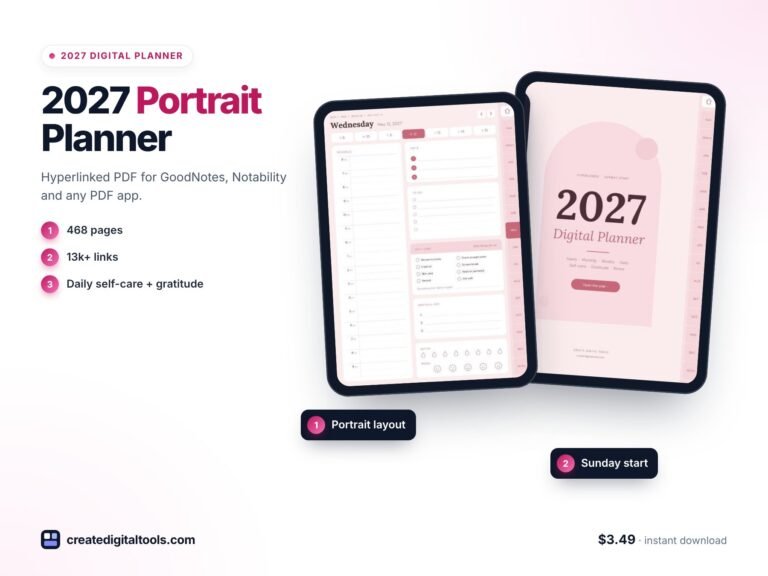
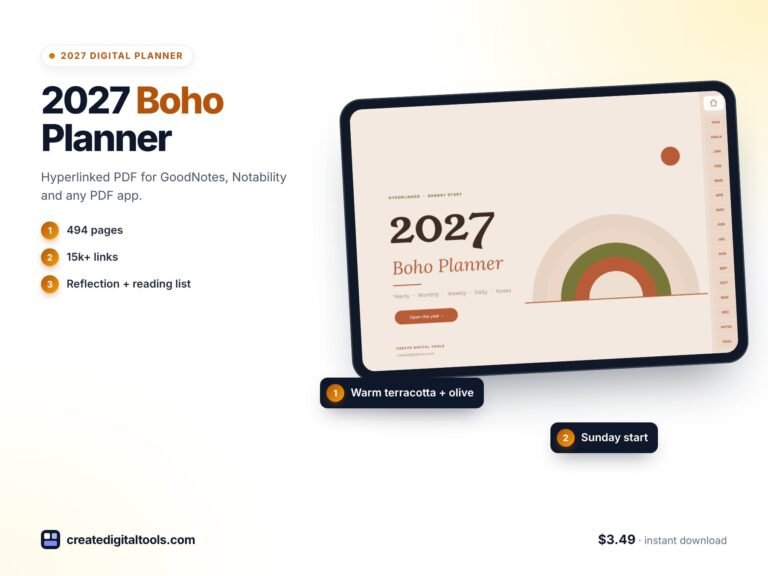
Dark Mode Digital Planner 2027 for Evening Planning
Picture someone who does their planning after dinner. The house is quiet, the lights are low, and they open their tablet to sort out tomorrow. Every app on the device is already in dark mode, but the planner glows bright white, so they turn the brightness right down and squint at the page. This scenario is illustrative, but it is why a dark mode digital planner makes sense for evening planners: dark pages that match the rest of your device, with enough contrast to write and read comfortably.
This guide covers how to plan well in the evening, how to use a brain dump to clear your head before bed, and what is inside the 2027 Dark Mode Digital Planner.
Get the 2027 Dark Mode Digital Planner →
Why a bright planner feels wrong at night
Most digital planners are designed to look like paper: white or cream pages with dark lines. That looks lovely during the day. In the evening, it can feel out of place:
- It clashes with dark mode on the rest of your device, so switching apps feels jarring.
- Turning brightness down makes pale lines and small text harder to see.
- Ideas pile up with nowhere to go, because a normal planner only gives you tasks and a schedule, not space to empty your head.
- Habits get tracked sporadically when the tracker is a small box on a busy page.
A planner designed for dark mode keeps the background dark and uses light text and soft accents, so the page sits comfortably alongside your other dark apps.
How to build an evening planning routine
These steps suit anyone who plans at the end of the day, whichever planner you use.
1. Start with a brain dump
Write everything on your mind in free form: tasks, worries, ideas, reminders. Do not organise yet. The goal is to get it out of your head.
2. Sort the dump into four boxes
Move each item into one of four groups: to do, ideas, waiting on someone else, and let it go. The last box is the most freeing; not everything deserves your attention.
3. Choose tomorrow’s top 3
From your to-do group, pick three things that would make tomorrow a good day. Put them first on the daily page.
4. Sketch the schedule
Block out fixed commitments, then place your top 3 in the gaps. Leave some empty space.
5. Tick off today’s habits
Fill in your habit tracker for the day while it is fresh. A monthly view across every day makes streaks easy to see.
6. Note your mood and water
A quick tick on simple trackers takes seconds and gives you something to look back on at month end.
7. Review the month
At the end of each month, look at your goals, focus notes and habits together and decide what to change.
Inside the 2027 Dark Mode Digital Planner
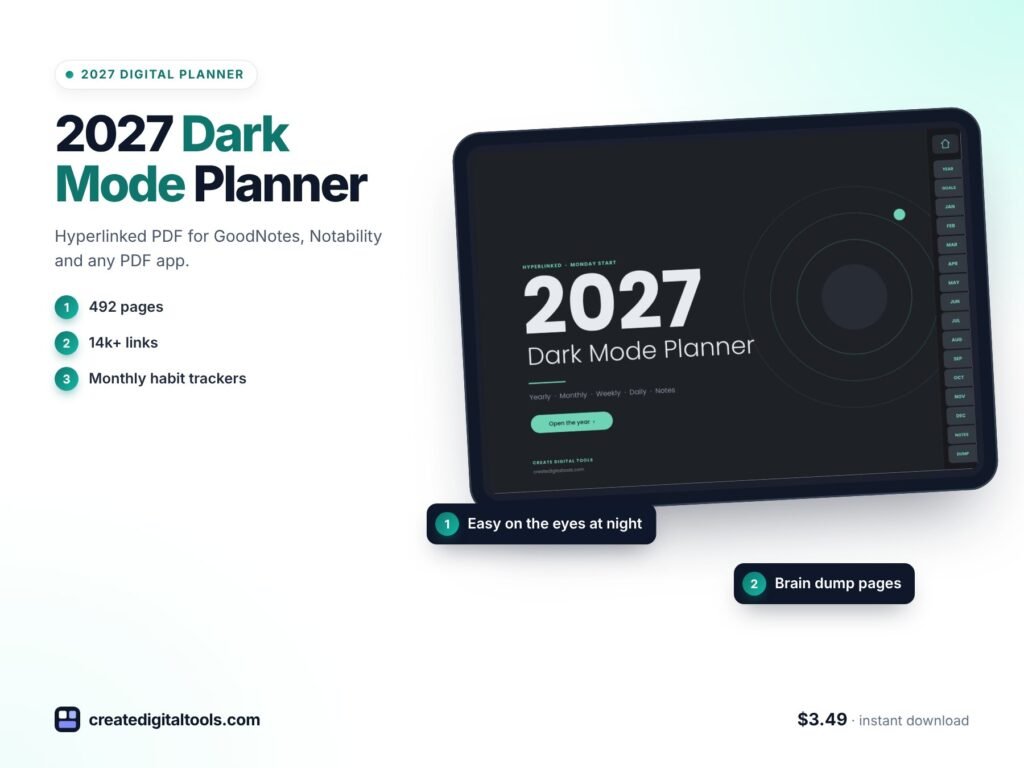
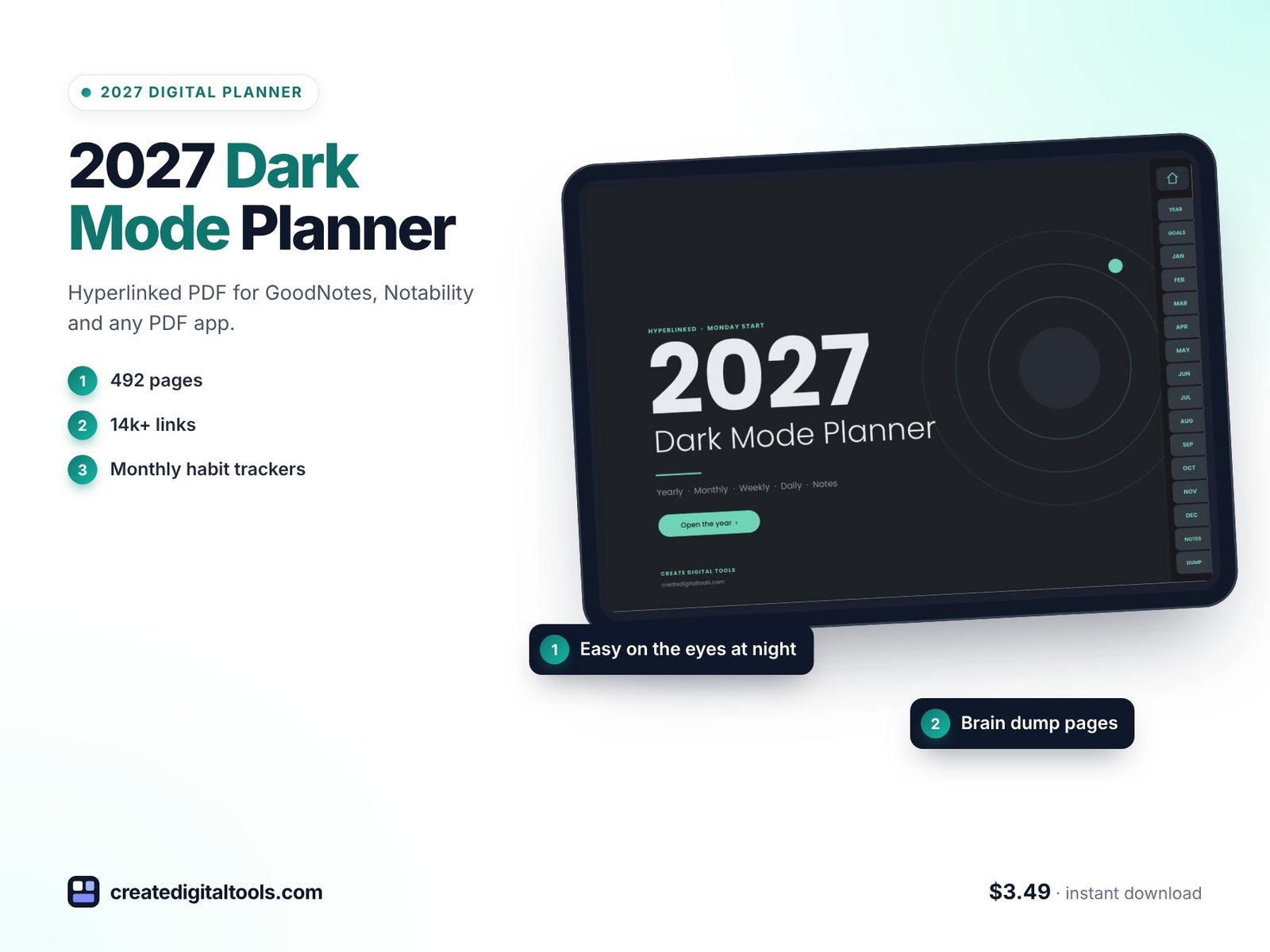
The 2027 Dark Mode Digital Planner is a 492-page hyperlinked PDF with a dark background, charcoal pages, soft mint details and light text. The product page describes it as “a dark background that is easy on the eyes, especially in the evening.” You can tap a tab, a month, a week or a day and go straight there. It works in GoodNotes, Notability, Noteshelf, Xodo and other PDF annotation apps that support internal links, on iPad or Android tablets.
Yearly pages
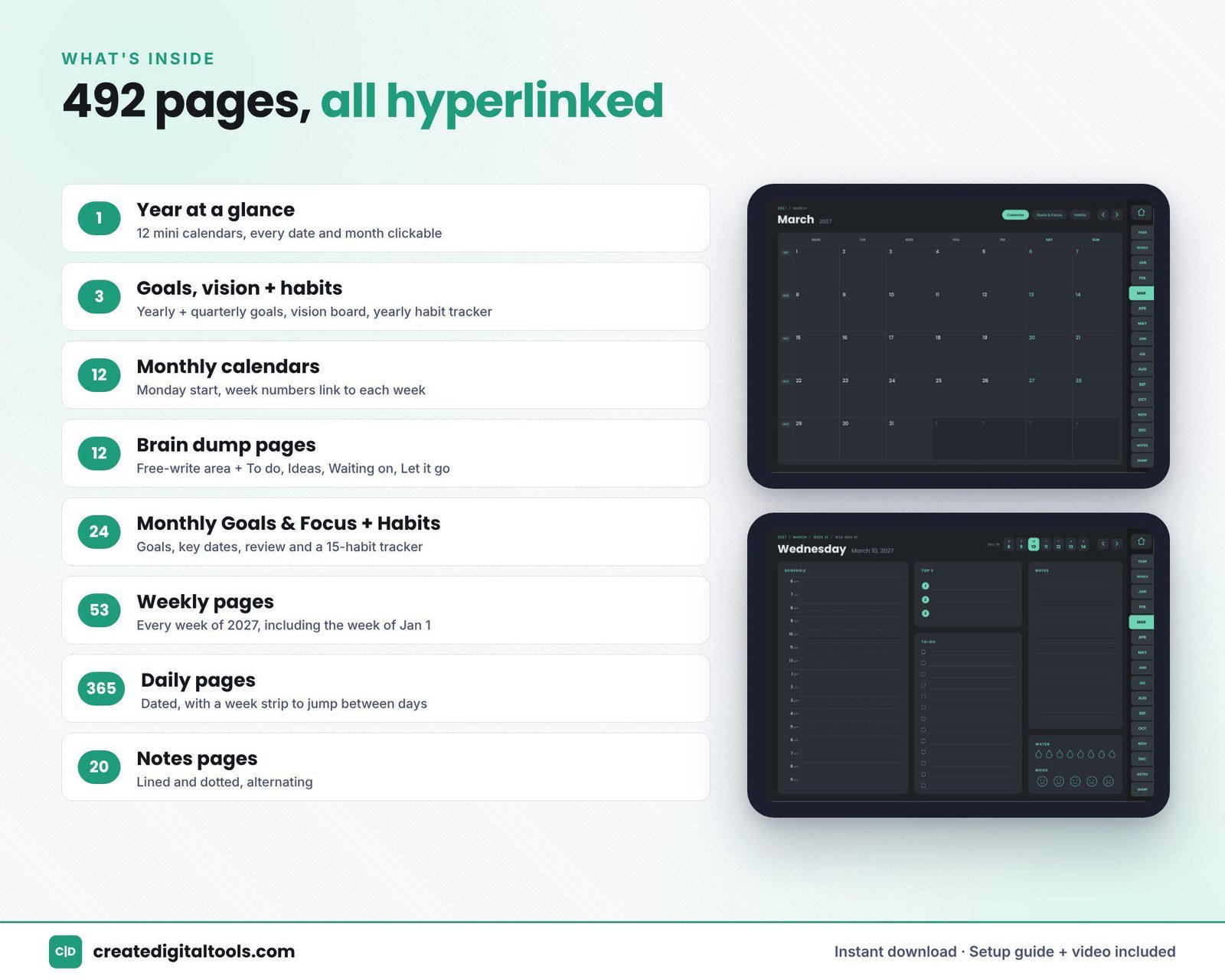
2027 at a glance with 12 mini calendars (tap any month or date to open it), yearly goals plus 4 quarterly goal boxes, a vision page with reflection prompts and vision board frames, and a yearly habit tracker for 4 habits across 12 months.
Monthly calendars
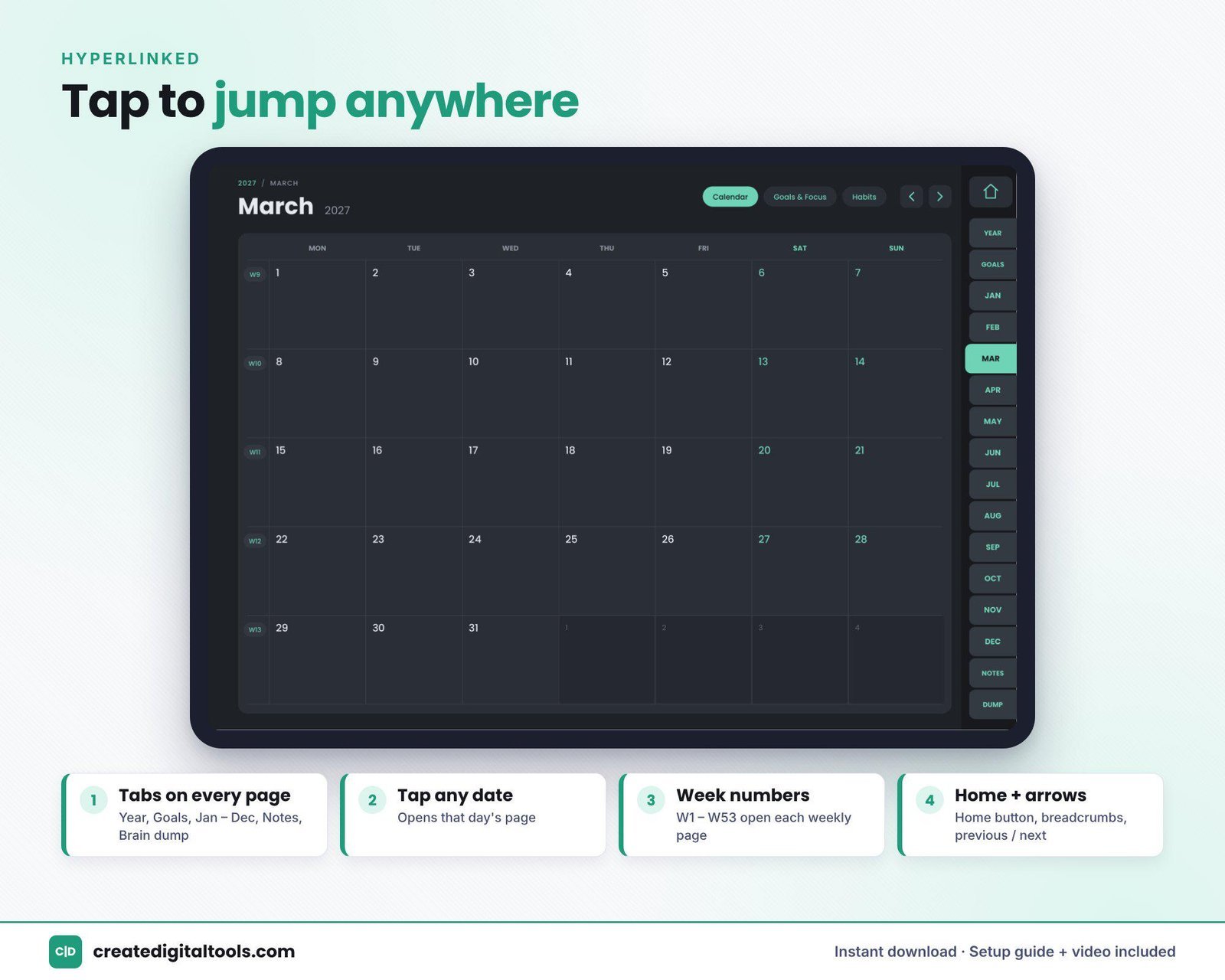
12 monthly calendars with a Monday start. Every date links to its daily page and every week number links to its weekly page.
Monthly Goals and Focus
12 pages with monthly goals, focus notes, key dates and a month review.
Monthly habit trackers
12 pages tracking 15 habits across every day of the month, plus habit notes.
Brain dump pages
12 pages, each with a dotted free-write area plus To do, Ideas, Waiting on and Let it go boxes.
Weekly and daily pages
53 weekly pages with Monday to Sunday columns, top priorities and notes. 365 daily pages with a 6am to 9pm schedule, top 3, a to-do list, notes, water and mood trackers, and a tappable week strip.
Notes
20 notes pages, alternating lined and dotted.
The download includes the planner PDF, a Setup Guide PDF and a setup video.
Getting started with your dark mode planner
A simple first week helps the planner become part of your evening routine:
- Import and explore: follow the Setup Guide to open the PDF, then tap a few dates and week numbers to get used to the links.
- Set your yearly goals: add a few yearly goals and fill the 4 quarterly goal boxes for the first quarter.
- Pick this month’s habits: the monthly tracker has room for 15, but a shorter list is easier to keep.
- Try one brain dump: on an evening when your head feels full, write freely, then sort items into the four boxes.
- Plan tomorrow tonight: open the next daily page, set the top 3 and sketch the schedule.
- Close the month: complete the month review on the Goals and Focus page.
Choose two or three light pen colours that you like on the charcoal pages, such as white for writing and mint or soft yellow for highlights, and save them as favourites in your app. Consistent colours make your notes easier to scan later. The tappable week strip on each daily page also makes it quick to look back at the previous few days during your evening review.
Watch the setup and full tour
This video tours the dark mode planner and shows how to set it up:
Who it is for, and who it is not for
A good fit if you:
- Use dark mode across your devices and want your planner to match
- Do most of your planning in the evening
- Like brain dumps and want a structured way to sort them
- Want detailed monthly habit tracking with 15 habits
Probably not the right fit if you:
- Prefer light, paper-style pages
- Want to print your planner (dark pages use a lot of ink, and this is a digital download only)
- Need budget, project or meeting pages
- Prefer a Sunday-start calendar
Frequently asked questions
Which apps does it work in?
GoodNotes, Notability, Noteshelf, Xodo and other PDF annotation apps that support internal links, on iPad or Android tablets.
What pen colours work best on dark pages?
Light pen colours such as white, pale grey or soft pastels tend to show up best on a dark background. Try a few in your app to find what you like.
Is it an instant download?
Yes. It is a digital download with no physical item: the planner PDF plus a Setup Guide PDF, with a setup video.
Does the week start on Monday?
Yes. Monthly calendars use a Monday start and weekly pages run Monday to Sunday.
Can I share it?
It is licensed for personal use only.
Need a planner for work as well? The 2027 Professional Work Planner in Navy adds time blocking, projects and meeting notes. You can browse all digital planners for GoodNotes and iPad.
Get the 2027 Dark Mode Digital Planner →
GoodNotes, Notability, Noteshelf, Xodo and iPad are trademarks of their respective owners. This is an independent planner, not affiliated with or endorsed by any of them.
Notion systems, spreadsheets and planners with a setup guide. Instant download.