How to Use Notion: The Ultimate Beginner’s Guide for 2025
You’ve heard everyone talking about Notion. Your productivity-obsessed friend swears by it. That solopreneur you follow on social media runs their entire business inside it. And every time you Google “best note-taking app,” Notion shows up at the very top.
But you open it for the first time and… what exactly are you supposed to do with a blank page?
That’s the most common Notion problem — the app is so powerful and so flexible that getting started can feel genuinely overwhelming. Databases, views, blocks, templates, relations, formulas — where do you even begin?
This guide fixes all of that. By the time you reach the end, you’ll understand exactly what Notion is, how it works, and — more importantly — how to set it up in a way that actually makes your life easier. We’ll cover core concepts, walk through building your first workspace from scratch, introduce you to Notion’s most powerful features, and share real productivity hacks that most users take months to discover on their own.
Whether you want to manage work projects, organize personal goals, run a freelance business, or build a complete second brain — Notion can handle all of it. Let’s get you started.
Start with Notion for free here — no credit card required.
What Is Notion? (And Why 35 Million People Use It)
Notion is an all-in-one workspace that combines notes, databases, project management, wikis, and collaboration tools into a single platform. Launched in 2016, it has grown to over 35 million users worldwide — from solo students to teams at Figma, Headspace, and The New York Times.
But that description doesn’t capture why people love it. The better explanation: Notion adapts to how you think, not the other way around.
Most productivity apps force you into a fixed structure. Your to-do app only does tasks. Your notes app only does notes. Your project manager only does projects. You end up juggling five different apps that don’t talk to each other, and half your time disappears switching between them.
Notion gives you building blocks — pages, databases, text, tables, calendars, boards — and lets you arrange them exactly the way you want. A freelancer can use the same Notion workspace to write meeting notes, track client invoices, manage project timelines, and store contract templates. A student can plan coursework, keep research notes, track deadlines, and build a reading list — all linked together, all in one place.
Three things make Notion genuinely different from every other tool:
- Everything is a block — text, images, files, databases, embeds. You can place anything anywhere.
- Databases are incredibly powerful — filter, sort, and display the same data as a table, board, calendar, or timeline — no code required.
- Pages can contain anything — a Notion page isn’t just a document. It’s a canvas that can hold sub-pages, entire databases, and rich media all at once.
The one concept to internalize before we go any further: in Notion, everything is a page, and every page can contain anything. Once that clicks, the whole tool makes sense.
How to Set Up Notion: Your First Workspace in 15 Minutes
Step 1: Create Your Free Account
Notion’s free plan is genuinely generous. You get unlimited pages, unlimited blocks, and access to nearly every core feature — including databases, templates, and collaboration. For most individuals, the free plan is enough to run their entire personal and work life inside Notion.
→ Click here to create your free Notion account
Sign up with your Google account or email address. Once inside, Notion offers onboarding questions about how you plan to use it. You can answer them or skip — we’re going to build something better from scratch.
Step 2: Understand the Sidebar
The left sidebar is your navigation hub. It shows your workspace pages, shared pages, private pages, favourites, templates gallery, and trash. At the very top, you’ll see your workspace name — this is where you switch between workspaces if you ever set up multiple.
The key insight: private pages are only visible to you. Shared pages are visible to anyone you’ve invited to your workspace. This distinction matters once you start collaborating with a team.
Step 3: Create Your First Page
Click the “+” icon next to “Private” in the sidebar, or press Ctrl+N (Cmd+N on Mac). Give it a name — for now, call it “My Workspace.” You now have a blank page. In the centre, Notion prompts you to start typing or press “/” to insert a block. Try typing a sentence. You’ve just added your first text block.
Now type “/” — this opens the block menu, which lists every type of content you can add. We’ll cover this in depth next.
Notion Blocks: The Foundation of Everything
Every piece of content in Notion is a block. Text is a block. An image is a block. A to-do checkbox is a block. A table is a block. Even an entire database is a block you can embed anywhere on any page.
This sounds simple, but it’s the source of Notion’s incredible flexibility. Because everything is a block, you can mix and match content types freely — a heading, then a paragraph, then a to-do list, then an embedded spreadsheet, then a video — all on the same page, all draggable.
The Most Important Block Types for Beginners
Text blocks — paragraphs, headings (H1, H2, H3), bullet lists, numbered lists, and quotes. The bread and butter of any Notion page.
Toggle lists — collapsible sections. Click the arrow to expand or collapse. Use toggles to hide detailed notes under a summary, or to build accordion-style FAQ sections.
To-do checkboxes — simple checkboxes for task lists. Unlike a database, these don’t have properties like due dates, but they’re perfect for quick inline checklists.
Callout blocks — highlighted boxes with an emoji icon. Perfect for tips, warnings, key points, or anything you want to stand out visually.
Dividers — a horizontal line to separate sections. Use liberally on long pages.
Table of Contents — Notion auto-generates this from your headings. Add one at the top of any long page so readers can jump to sections instantly.
Synced blocks — a block that stays identical across multiple pages. Edit it in one place and all other instances update automatically. Excellent for headers, navigation menus, or recurring callouts across a workspace.
How to Add and Rearrange Blocks
Type “/” anywhere to open the block menu. Hover over any existing block to reveal a ⋮⋮ drag handle on the left — drag it to reorder, or hold Shift while dragging to create a side-by-side column layout. Yes — Notion supports multi-column layouts. Drag a block to the right edge of another and Notion creates columns automatically. This is incredibly useful for dashboards.
Notion Databases: The Feature That Changes Everything
If blocks are Notion’s foundation, databases are the superstructure that make it a genuinely transformative tool. Understanding databases is the single biggest leap from “Notion beginner” to “Notion power user.”
A Notion database is a collection of pages — called items — where every item shares the same set of properties. Properties are like columns in a spreadsheet: you might have a “Status” property, a “Due Date” property, a “Priority” property, and so on.
But here’s what makes Notion databases different from any spreadsheet: each item is also a full Notion page. If you have a database of client projects, click any project to open a full page with detailed notes, sub-tasks, files, and embedded content — while still seeing all projects in a clean table view.
The 6 Database View Types
You can display any database in multiple views, and the data stays identical — only the presentation changes. This is one of Notion’s killer features.
Table view — a spreadsheet-style grid. Best for data-heavy databases where you need to see many properties at once: client lists, budget trackers, content calendars.
Board view (Kanban) — cards organized into columns based on a property (usually “Status”). Perfect for project management, editorial pipelines, and sales funnels. Move a card from “In Progress” to “Done” just by dragging it.
Calendar view — items placed on a calendar based on a date property. Use this for content calendars, event planning, and scheduling workflows.
List view — minimal, text-focused. Great for reading lists, link databases, and any collection where you don’t need to scan many properties at once.
Gallery view — visual cards with cover images. Ideal for portfolio databases, recipe collections, and any database where visual presentation matters.
Timeline view — a Gantt-chart style view with a date range. Essential for project planning, product roadmaps, and anything with start and end dates.
The Most Useful Database Properties
When you create a database, every item shares the same properties. The most useful ones for beginners:
- Text — free text, like notes or URLs
- Number — for budgets, counts, ratings, word counts
- Select / Multi-Select — dropdown tags for status, category, or priority
- Date — single date or date range with optional time
- Checkbox — simple yes/no toggle
- Person — assign a team member (great for collaboration)
- Relation — link items in one database to items in another database (Notion’s most powerful property)
- Rollup — calculate values from a related database (sum costs, count tasks, average ratings)
- Formula — calculate values using other properties, like a spreadsheet formula
A Real Notion Template in Action: Everyday Life Template Walkthrough
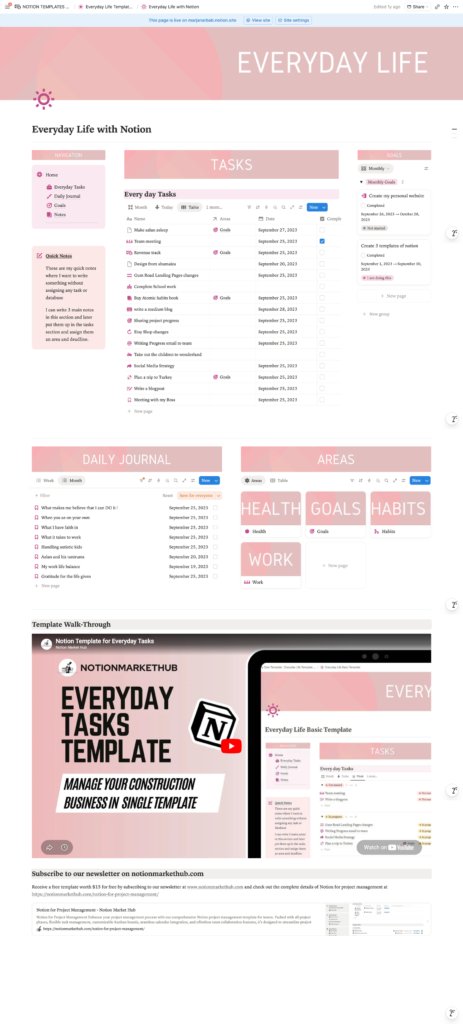
Let’s move from theory to practice. The best way to understand Notion is to see a real template, explore how it’s built, and then adapt it for your own life. We’ll walk through the Everyday Life Notion Template — a free template that shows Notion’s full capability for personal productivity.
This template is structured around a central home dashboard with six core sections:
- Everyday Tasks — a database for all your daily to-dos with areas and status tracking
- Yearly Goal Tracker — set annual goals, break them into milestones, and track progress
- Simple Budget — income and expense tracking in a clean Notion database
- Family — a shared space for family-related tasks and events
- Habit Tracker — daily habit logging with streaks and completion views
- Notes — quick-capture notes before organizing them into proper databases
The home page uses a multi-column callout block as a navigation hub — clicking any item jumps you directly to that section. This is a common power-user pattern in Notion: using callouts as styled navigation panels rather than plain text links.
How the Everyday Tasks Database Is Built
The Everyday Tasks database is the core of this template. Here’s what makes it powerful:
Each task is a page with properties including: Task Name (title), Status (Not Started / In Progress / Done), Area (which Life Area this task belongs to — more on that below), Due Date, and Priority (select property with High/Medium/Low options).
The database is displayed in three views on the home page:
- Today — filtered to tasks due today, sorted by priority
- All Tasks — the full table view with all properties visible
- By Area — a board view grouped by Life Area, so you can see all tasks for “Work,” “Health,” “Personal,” and “Family” in separate columns
This is the power of Notion’s linked database views: the same data, displayed three different ways for three different use cases — all without duplicating a single row.
The Life Areas + Life Projects System
The template uses a classic productivity framework: Life Areas (broad categories like Health, Work, Relationships, Finance) and Life Projects (specific projects within those areas). These are two separate databases connected by a Relation property.
This means: every project is linked to a Life Area. In the Life Areas database, a Rollup property automatically shows how many projects are active in each area — and their combined completion percentage. You don’t calculate anything manually. Notion handles all of it.
This is the Relation + Rollup system in action — arguably the most powerful concept in all of Notion. Once you understand it, you can build databases that automatically calculate project costs, team workload, course completion rates, and more.
Pro Tip: Get the Everyday Life Notion Template for free at marjanarbab.gumroad.com — it’s a perfect starting point for understanding how databases, relations, and views work together before building your own system from scratch.
12 Notion Tips and Hacks That Power Users Actually Use
Now that you understand the structure, here are the productivity hacks that separate beginners from power users.
1. Master the Slash Command
Type “/” anywhere to open the block menu. But you can also search inside it: type “/call” to instantly find the callout block, “/table” for a database, “/code” for a code block. The search is fuzzy, so you don’t need exact names. This is the fastest way to navigate Notion without ever touching your mouse.
2. Use @ to Mention Pages, People, and Dates
Type “@” anywhere in Notion to mention a page (creates a clickable link), a person (tags a workspace member), or a date (inserts a formatted date reminder). The date mention is particularly powerful: it shows up on that date in your notifications, acting as a lightweight reminder system without a separate calendar app.
3. Create Linked Database Views on Any Page
You can display a view of any database on any page without duplicating the data. Go to a page, type “/linked view of database,” search for your database, and choose a view. The data is live — any changes in the view update the original database instantly. This is how power users build dashboards that pull data from multiple databases into one overview page.
4. Use Synced Blocks for Repeating Content
A synced block is a piece of content that lives in one place but appears on multiple pages simultaneously. If you update it in one location, every other instance updates automatically. Perfect for: navigation menus in a workspace, disclaimer text that appears on multiple pages, team announcements that need to be visible across projects.
5. Filter Databases to Create “Smart” Views
Database filters let you create views that automatically show only the items that match specific criteria. A “Today’s Tasks” view filtered to “Due Date = Today” and “Status ≠ Done” will always show only what needs your attention right now — without any manual sorting. Add a “My Tasks” filter using the Person property filtered to “Current User” and every team member sees a personalised view of the same database.
6. Duplicate Pages and Templates
Hover over any page in the sidebar, click the “···” menu, and select “Duplicate.” This is how you get the most out of Notion templates — duplicate the free template we explored above, delete the sample data, and start entering your own. The structure stays intact, the data starts fresh.
7. Use Database Templates for Repeating Items
Inside any database, click the dropdown arrow next to the “New” button and select “+ New Template.” This creates a page template that pre-populates every new item with a specific structure. If you’re managing clients, create a Client Onboarding template that automatically includes a checklist, a meeting notes section, and a task database for every new client page. One click creates the entire structure.
8. Keyboard Shortcut: Turn Any Block Into Another Type
You don’t need to delete and re-type. Click on any block, then press Ctrl+/ (Cmd+/ on Mac) to open the “Turn into” menu. Convert a paragraph into a heading, a bulleted list into a to-do checkbox, or a callout into a quote — without losing any text.
9. Build a Simple Dashboard with Linked Views
Create a new page called “Dashboard.” Use a two-column layout: left column has your navigation callout (links to key pages), right column has a linked view of your tasks database filtered to “Due Today.” Add a third linked view below for “This Week.” You now have a personal command centre that pulls live data from your task database without opening it directly.
10. Add Covers and Icons for Visual Organisation
Click the empty space at the top of any page to add a cover image and an emoji icon. This sounds cosmetic, but it has a real functional benefit: in gallery view, icons and covers make it dramatically faster to find the right item at a glance — especially in large workspaces. Notion includes a free gallery of Unsplash images and custom icon sets for this purpose.
11. Use Formulas to Auto-Calculate Progress
Add a Formula property to any database. A simple progress formula: if you have a “Total Tasks” rollup and a “Completed Tasks” rollup, a formula like round(prop("Completed Tasks") / prop("Total Tasks") * 100) gives you an automatic percentage complete column. No manual calculations. The number updates every time a task status changes.
12. Enable Notion AI for Writing and Summarising
Notion AI (available as an add-on) lets you write, summarise, translate, and generate content directly inside any Notion page. In a meeting notes page, highlight your raw notes and ask Notion AI to “summarise into action items.” In a database, AI can auto-fill properties or generate content for new items based on your prompts. It’s one of the most practical AI writing integrations available in any productivity tool.
What Can You Actually Use Notion For? Real-World Use Cases
One of the most common beginner questions is: “I get that Notion is powerful, but what do people actually use it for?” Here’s a quick map of the most popular use cases, with templates for each.
Personal Productivity
Daily tasks, habit tracking, journaling, goal setting, yearly planning. The Everyday Life template we explored above covers all of these in one workspace. You get a task database, a habit tracker, a daily journal (Daily Entries), and a simple budget — all linked by Life Areas and Life Projects so nothing operates in isolation.
Project Management
Notion replaces tools like Asana and Trello for many small teams. You can build project dashboards with Kanban boards, timeline views for deadlines, meeting notes pages, risk registers, and stakeholder trackers. For a professional-grade PM system, check out the Project Management with AI template — 30+ pages covering every phase from requirements to project closure.
Freelance Business Management
Manage clients, track projects, send invoices, and monitor income — all inside Notion. A client database linked to a project database linked to an invoice database means you can see every client’s full history, outstanding invoices, and project status in one place. The Relation + Rollup system is perfect for this.
Content Creation and Social Media
Content calendars, idea banks, platform analytics, and campaign trackers. A content calendar database with properties for Platform, Post Type, Status, Publish Date, and Link lets you see your entire social strategy in calendar view — then switch to board view to see what’s in draft, in review, or published. Paired with a scheduling tool, it becomes a complete content operation.
Academic and Research
Literature review databases, citation trackers, chapter outlines, writing logs with word count goals. The Relation property connects your Sources database to your Research Notes database — every note links back to its source paper. Filters let you view all notes tagged “Chapter 3” or all sources on a specific topic.
Second Brain (Knowledge Management)
The most advanced Notion use case. A second brain captures everything you read, learn, and want to remember — then organises it so you can find and use it later. The PARA method (Projects, Areas, Resources, Archive) maps directly to Notion’s page structure: four top-level pages, each containing linked databases, notes, and resources organised around that category.
Notion Pricing: Free vs Paid — What Do You Actually Need?
Notion has four plans. Here’s the honest breakdown:
Free — unlimited pages, unlimited blocks, unlimited databases, basic collaboration (up to 10 guests). Enough for most individuals and small teams. Start here.
Plus ($10/month per user) — adds unlimited guests, 30-day version history, and custom domain for Notion Sites. Best for freelancers and small business owners who collaborate with clients.
Business ($15/month per user) — adds advanced permissions, SAML SSO, 90-day version history, and private team spaces. For growing teams.
Enterprise (custom pricing) — advanced security, audit logs, workspace analytics, SCIM provisioning. For large organisations.
The honest recommendation: start on the free plan. You can do almost everything covered in this guide without paying a penny. Upgrade to Plus when you need to share pages with more than 10 guests or want version history for important documents.
Get started with Notion for free
The Fastest Way to Get Started: Use a Pre-Built Template
The single fastest way to go from “blank page” to “working system” in Notion is to start from a well-structured template. Building from scratch is a great learning exercise — but if you need results today, templates are the shortcut.
Here’s a curated list of free and paid templates to get you started:
Free Templates to Grab Right Now
- Everyday Life Notion Template — Tasks, goals, journal, habits, budget, family. Free.
- Meeting Minutes with AI — AI-powered meeting notes, attendance, and action items. Free.
- Daily Standup for Project Teams — Yesterday / Today / Blockers format with Kanban tracking. Free.
Paid Templates for Serious Systems
- Project Management with AI — 30+ pages for structured PMs. $49.
- Business Finance Tracker — Revenue, expenses, cash flow dashboard. $29.
- Sales CRM for Business — Full pipeline, leads, contacts, deal tracking. $19.
- HR Management, Recruitment & Onboarding — ATS, onboarding, performance reviews. $24.
- Online Course Creation — Curriculum, video production, revenue tracking. $9.
- Thesis Writing — Masters & PhD — Literature reviews, citations, chapter drafts. $9.
- Notion Mega Bundle (18+ templates) — Everything above and more for $99. Best value.
Common Notion Beginner Mistakes (and How to Avoid Them)
Mistake 1: Over-building before you start using it. It’s tempting to design the perfect system before entering any data. Resist this. Start with the simplest possible structure — one tasks database, one notes page — and let complexity grow from actual needs.
Mistake 2: Treating Notion like a simple note-taking app. If you’re only using Notion for text notes, you’re getting maybe 20% of its value. The moment you add a database — even a simple one — the real power becomes apparent.
Mistake 3: Not using views. Having a tasks database with only one view is like having a filing cabinet where everything is loose in a single drawer. Add a Board view, a Calendar view, a “Today” filtered view. The same data becomes dramatically more useful with the right presentation.
Mistake 4: Creating databases that can’t talk to each other. The Relation property is what turns a collection of separate databases into an interconnected system. Plan your database structure so that related items can be linked — clients to projects, projects to tasks, tasks to invoices.
Mistake 5: Ignoring templates. Notion includes an extensive built-in template gallery. Even if you plan to build your own system, browse the templates first — they’re full of creative structural ideas and database setups worth borrowing.
What’s Next: Building on Your Notion Foundation
You now have everything you need to start using Notion effectively. Here’s the recommended progression:
- Week 1: Sign up, grab the free Everyday Life template, start adding your actual tasks and goals. Get comfortable with pages and blocks.
- Week 2: Add your first custom database from scratch. Create a simple reading list or project tracker with 3–4 properties. Experiment with different views.
- Week 3: Add your first Relation — link two databases together. Try a Rollup property to automatically count or sum values from the linked database.
- Week 4: Build a dashboard page that pulls linked views from multiple databases. This is your personal command centre.
Follow along with this blog — we publish detailed Notion tutorials every single day, covering databases, formulas, automations, templates, and specific use cases for every industry and life situation.
Conclusion
Notion is one of those rare tools that genuinely changes how you think about organising information. It starts as a blank page, but with blocks, databases, views, and relations, it becomes whatever you need it to be — a personal operating system, a team project hub, a business dashboard, or all three at once.
The key is to start small, use templates to shortcut the learning curve, and let your system grow from real usage rather than theoretical planning.
Ready to start? Create your free Notion account here, then grab the free Everyday Life template to have a working system in minutes.
And if you’re ready to go further — browse the full template store at marjanarbab.gumroad.com for professional-grade systems covering project management, HR, construction, finance, e-commerce, freelancing, and more.
Disclosure: This post contains affiliate links. If you sign up for Notion through my link, I may earn a small commission at no extra cost to you.
Notion systems, spreadsheets and planners with a setup guide. Instant download.