Profit and Loss Statement Template for Excel & Sheets

Picture a freelance designer at the end of March. Her bank app says money came in and money went out, but when a lender, a partner or her own curiosity asks “were you profitable this quarter?”, she has no clear answer. She opens a blank spreadsheet, types “Revenue” in A1, and stops. This illustrative moment is where a good profit and loss statement template earns its keep: you log what happened, and the statement builds itself.
This guide explains how a P&L works, how to set one up yourself in Excel or Google Sheets, and what you get in our Profit and Loss Statement workbook if you would rather start with the formulas already done.
Get the Profit and Loss Statement →
Why small businesses struggle to see their profit
Most small businesses do track money in some way. The problem is that the tracking is built for paying bills, not for understanding the business. A bank statement lists transactions in date order, mixed together. An invoicing app shows sales but not costs. A receipt folder shows costs but not which category they belong to.
A profit and loss statement (also called an income statement) answers a different question: over a period of time, how much did you earn, what did it cost to deliver, what did it cost to run the business, and what was left? To get there you need the same raw transactions, but grouped by category and by period.
Doing that by hand once a year is tiring and error-prone. Doing it monthly is where the real value is, because you can spot a rising cost or a slow month while there is still time to act.
How to build a simple P&L in a spreadsheet
Here is a structure you can follow in Excel or Google Sheets, whether or not you buy anything.
1. Decide your categories first
Group them into three sets: revenue (types of income), cost of sales (costs directly tied to what you sell, such as materials or subcontractors), and operating expenses (software, rent, marketing, insurance). Keep the list short enough that you can choose quickly when you log a transaction.
2. Keep a single transaction log
One row per transaction: date, description, category, amount. Use a dropdown (Data validation) for the category so spelling is consistent. Add helper columns that pull the month and quarter from the date with formulas like =TEXT(A2,”mmm”).
3. Summarise with SUMIFS
On a separate sheet, list your categories down the side and months across the top. Each cell uses SUMIFS to add up the log for that category and month. Gross profit is revenue minus cost of sales; net profit is gross profit minus operating expenses.
4. Add margins
Gross margin is gross profit divided by revenue. Net margin is net profit divided by revenue. Percentages make months of different sizes comparable.
5. Compare against a budget
Set a yearly budget per category, divide by twelve, and compare it to the actual figures to date. A simple IF formula can label each line “on track” or “over”.
6. Set aside for tax
A line that multiplies net profit by your chosen set-aside percentage is a useful reminder of money that is not really yours to spend.
This is enough to build a working statement. The time-consuming part is making it tidy, error-proof and readable, which is what the workbook below is for.
Common P&L mistakes to avoid
- Mixing personal and business spending. If a cost is personal, leave it out of the log. Otherwise your profit looks lower than it is.
- Logging transfers as income. Moving money between your own accounts is not revenue. Only record money earned from customers.
- Too many categories. If you hesitate every time you pick one, merge some. You can always add detail later.
- Waiting until year end. Fifteen minutes a week with your bank statement keeps the log current and the monthly view meaningful.
- Ignoring margin. Revenue can grow while margin shrinks. Watching the percentage, not just the total, shows whether growth is healthy.
Inside the Profit and Loss Statement template
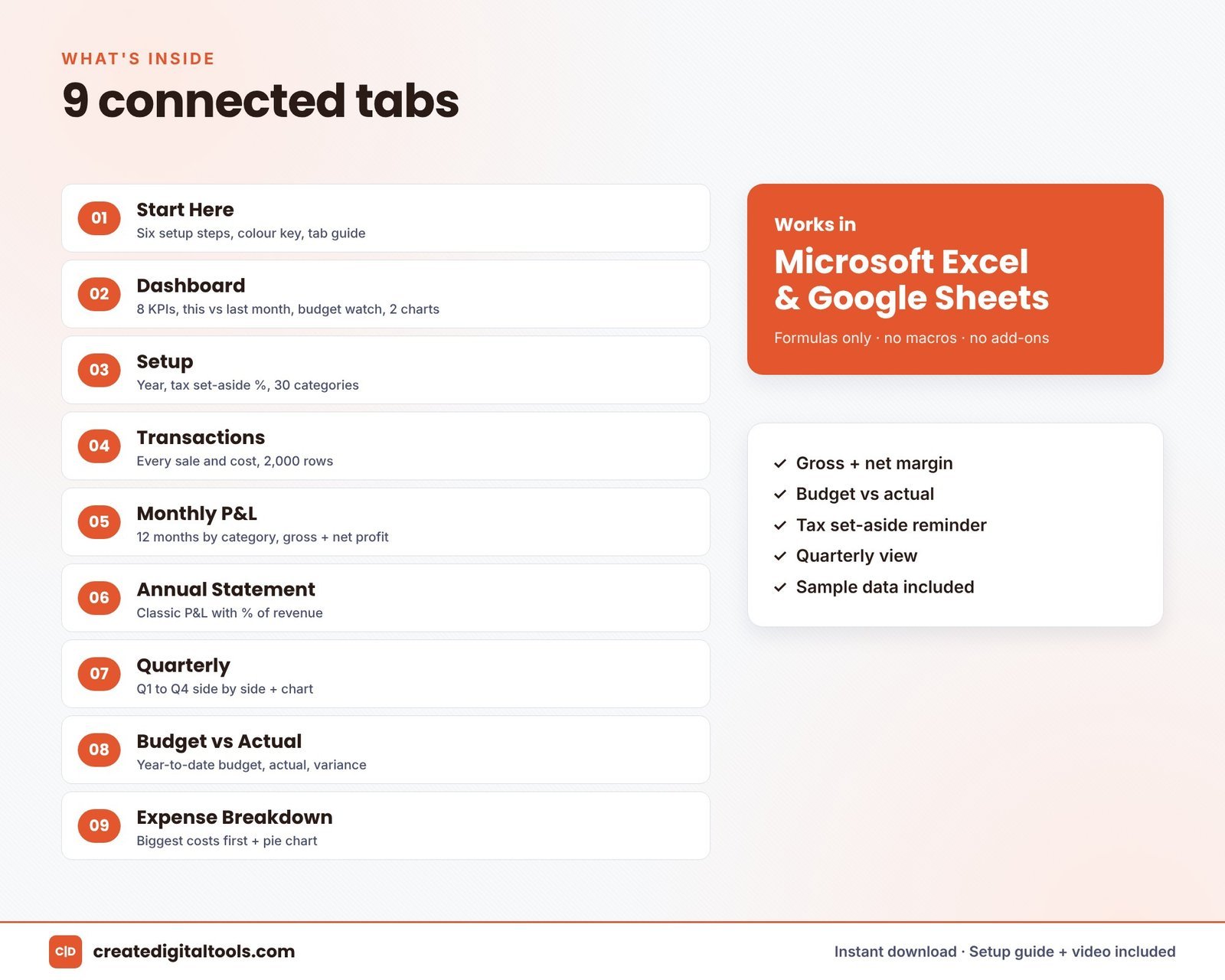
The workbook has 9 connected tabs. You log each sale and each cost once, and it produces a monthly P&L, an annual statement, a quarterly view, budget vs actual and a dashboard. It uses formulas only: no macros, no add-ons and no subscription. Sample data is included so you can see it working before you add your own.
Start Here
Six setup steps, a colour key and a guide to every tab.
Setup
Enter your business name, currency, year and tax set-aside percentage. There are 30 categories in 3 groups, which you can rename to suit your business.
Transactions
Room for 2,000 rows, with a category dropdown. The month and quarter fill in from the date, so you only type what happened.

Monthly P&L
Twelve months by category, with gross and net profit and both margins.
Annual Statement
A classic P&L layout with percentage of revenue on every line and key ratios.
Quarterly
Q1 to Q4 side by side with net margin and a chart.
Budget vs Actual
Your yearly budget scaled to date, with variance and an on track, watch or over budget status.
Expense Breakdown
Costs ranked biggest first, with a pie chart.
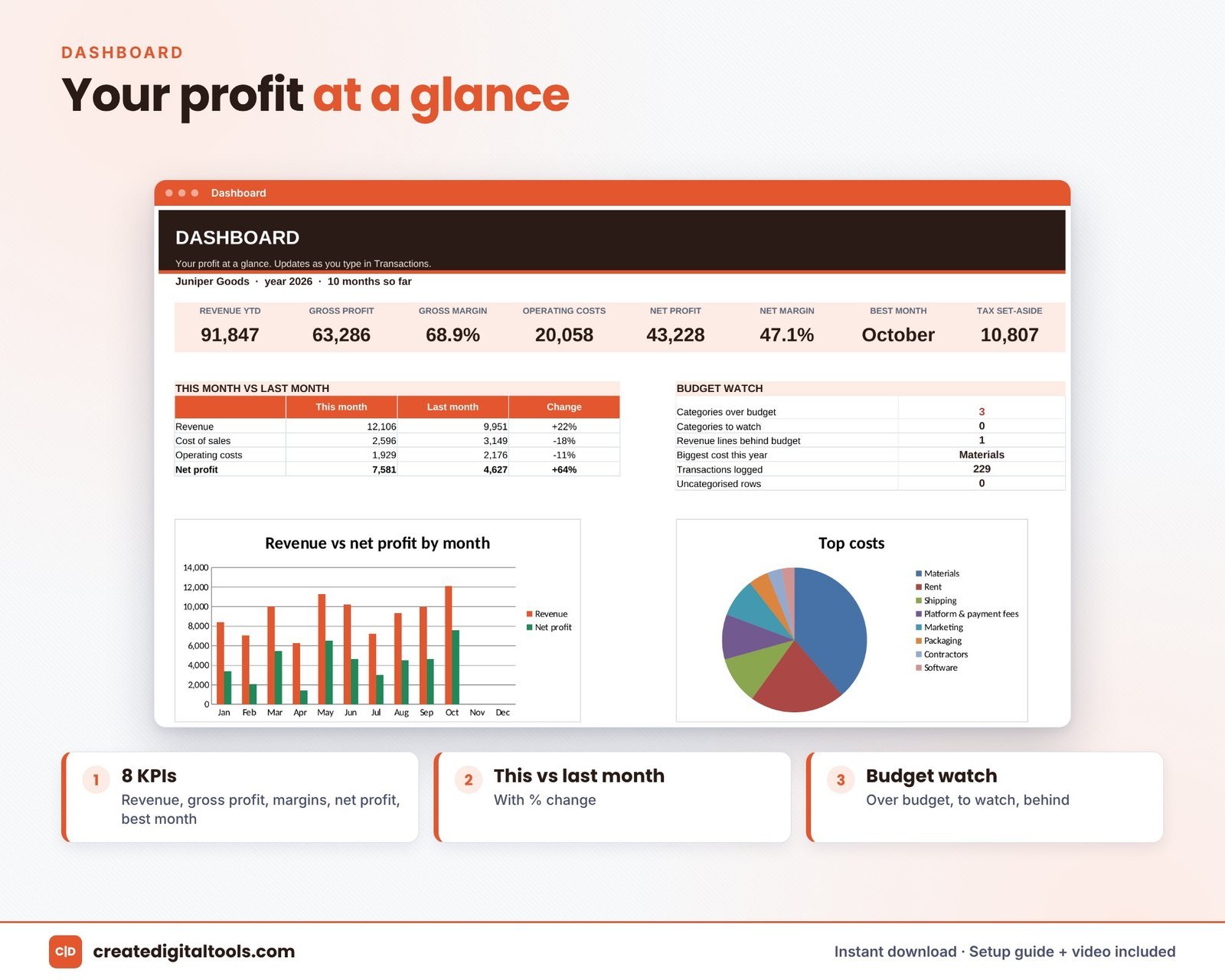
Dashboard
Revenue, gross profit and margin, operating costs, net profit and margin, best month, tax set-aside, this month vs last month, a budget watch and two charts.
You receive Profit-and-Loss-Statement.xlsx, a Setup Guide PDF and a setup and full tour video. If you want more than one workbook, it is also part of the Small Business Finance Spreadsheet Bundle.
See it in action
This video walks through setup and every tab:
Who it is for, and who it is not for
A good fit if you:
- Run a small business, side business or freelance practice and want a monthly view of profit.
- Prefer a spreadsheet you own over another monthly software subscription.
- Want budget vs actual without building the formulas yourself.
Probably not for you if you:
- Need bank feeds, invoicing or payroll. This is a reporting workbook, not accounting software.
- Need formal statements prepared to a specific accounting standard. Talk to an accountant for that.
To see where your cash will be over the next few months, pair it with the Cash Flow Forecast. You can find more workbooks in our spreadsheets collection.
This is an organising tool, not tax or accounting advice.
Frequently asked questions
Does it work in both Excel and Google Sheets?
Yes. It is a spreadsheet for Microsoft Excel and Google Sheets. In Google Sheets, upload the .xlsx file and open it there.
Are there macros or add-ons?
No. It uses formulas only, with no macros, no add-ons and no subscription.
Is it an instant download?
Yes. It is a digital file, so you download the workbook, the Setup Guide PDF and the tour video link after purchase.
Can I change the categories?
Yes. The Setup tab holds 30 categories in 3 groups, and you can rename them to match your business.
How much can I log?
The Transactions tab has room for 2,000 rows for the year.
If you want to know whether you are actually making money each month, a clean transaction log and a ready-made statement are a practical place to start.
Get the Profit and Loss Statement →
Microsoft Excel is a trademark of Microsoft Corporation and Google Sheets is a trademark of Google LLC. This is an independent template, not affiliated with or endorsed by Microsoft or Google.
Notion systems, spreadsheets and planners with a setup guide. Instant download.