Sprint Tracker Spreadsheet: Backlog, Board & Burndown
Picture a five-person software team that runs two-week sprints. Their tool’s free plan ran out, the paid tier is priced per seat, and all they really use is a backlog, a board and a burndown chart. Someone suggests a spreadsheet, and the room goes quiet: who is going to copy cards between tabs every day? A sprint tracker spreadsheet built the right way removes that copying. You write stories once in the backlog, and the board, burndown, velocity and workload views build themselves.
This guide covers how to run Scrum-style sprints in a spreadsheet and walks through the Agile Sprint Tracker for Excel and Google Sheets.
Get the Agile Sprint Tracker →
Why sprint tracking in spreadsheets usually breaks
Teams try spreadsheets for good reasons: everyone already has access, there is no per-seat cost, and they are flexible. The trouble is usually in the setup:
- Manual boards. Moving a story means editing it in two or three places.
- Guessed burndowns. Points are updated from memory at the end of the sprint, so the chart tells you little.
- No velocity history. Without past sprints, planning the next one is guesswork.
- Retro notes lost. Actions agreed in the retro are never followed up.
How to run sprints in a spreadsheet
1. Keep one backlog as the source of truth
Every story lives in the backlog with points, priority, epic, status and the sprint it belongs to. All other views read from here.
2. Define sprints with dates and goals
List each sprint with start and end dates and a one-line goal. Record committed points at planning and done points at review.
3. Build the board from the backlog
Filter the backlog by the current sprint and group by status. If the board is generated by formulas, nobody has to drag cards.
4. Record done dates
When a story is finished, note the date. A burndown based on real done dates shows actual progress against the ideal line.
5. Use a rolling velocity
Velocity swings from sprint to sprint. A rolling average of the last three sprints is a steadier guide for planning.
6. Check workload against capacity
Sum points per person and compare with their capacity for the sprint, especially around holidays.
7. Give retro actions an owner
Log what went well, what to improve and actions, each with an owner, so they are visible next sprint.
A sprint rhythm that works in a spreadsheet
- Sprint planning: sort the backlog by priority, check rolling velocity, and assign stories to the sprint until committed points are close to that average. Check workload so no one is overloaded.
- Daily stand-up: open the board, update statuses and add done dates. The burndown updates from those dates.
- Sprint review: compare committed with done points and note the sprint goal outcome.
- Retro: log what went well, what to improve and two or three actions with owners. Start the next retro by checking those actions.
How to read a burndown chart
The ideal line runs from total committed points on day one to zero on the last day. The actual line shows points left based on real done dates. If the actual line sits above the ideal for most of the sprint, work is finishing late or the sprint was overcommitted. A flat stretch often means stories are too large and only finish at the end. A line that drops below the ideal early may mean the sprint had room for more. Use these signals in the retro, not to judge individuals, but to plan the next sprint better.
Keeping the backlog healthy
A backlog of 300 stories is only useful if the top of it is in good shape. Before each planning session, make sure the next few sprints’ worth of stories are clear, sized and prioritised. Close or archive stories nobody will build. Group related stories under epics so you can see progress on bigger themes, and keep acceptance notes short and testable. A tidy backlog makes planning meetings shorter, because the team spends its time choosing between ready stories instead of working out what each one means.
Story point tips
Points measure relative effort, not hours. Pick a small, well-understood story as a reference and size others against it. Avoid splitting hairs between neighbouring values, and break up any story that feels too big to finish within a sprint. Consistency matters more than precision, because velocity only becomes useful when sizing stays steady over several sprints.
Inside the Agile Sprint Tracker spreadsheet
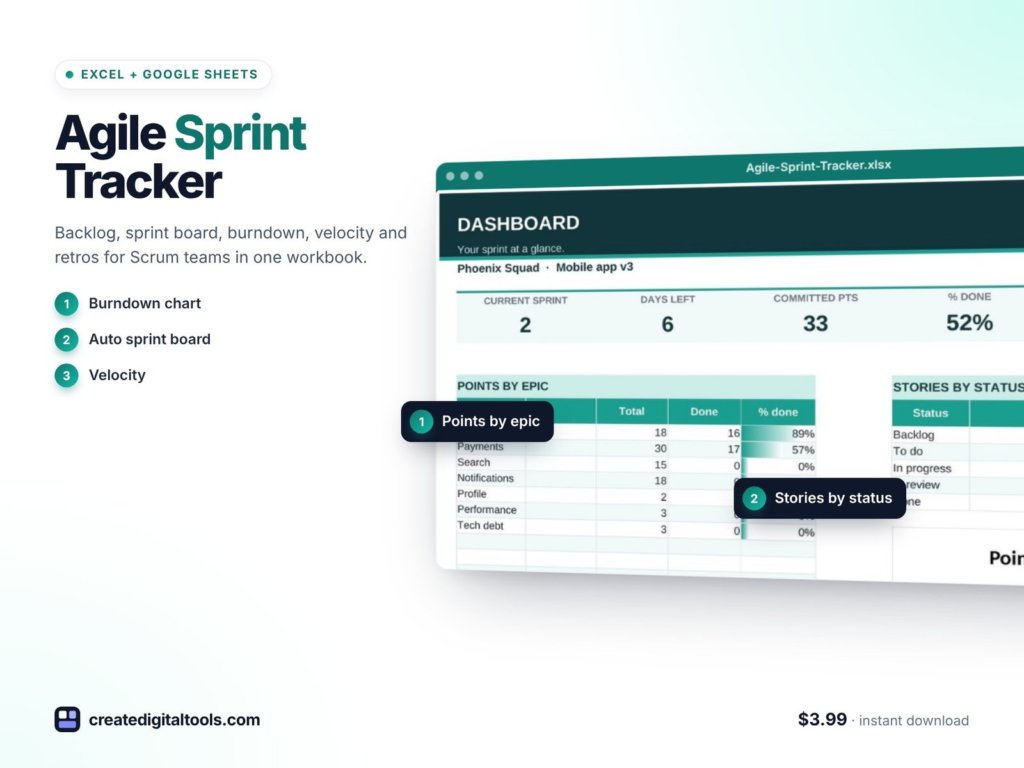
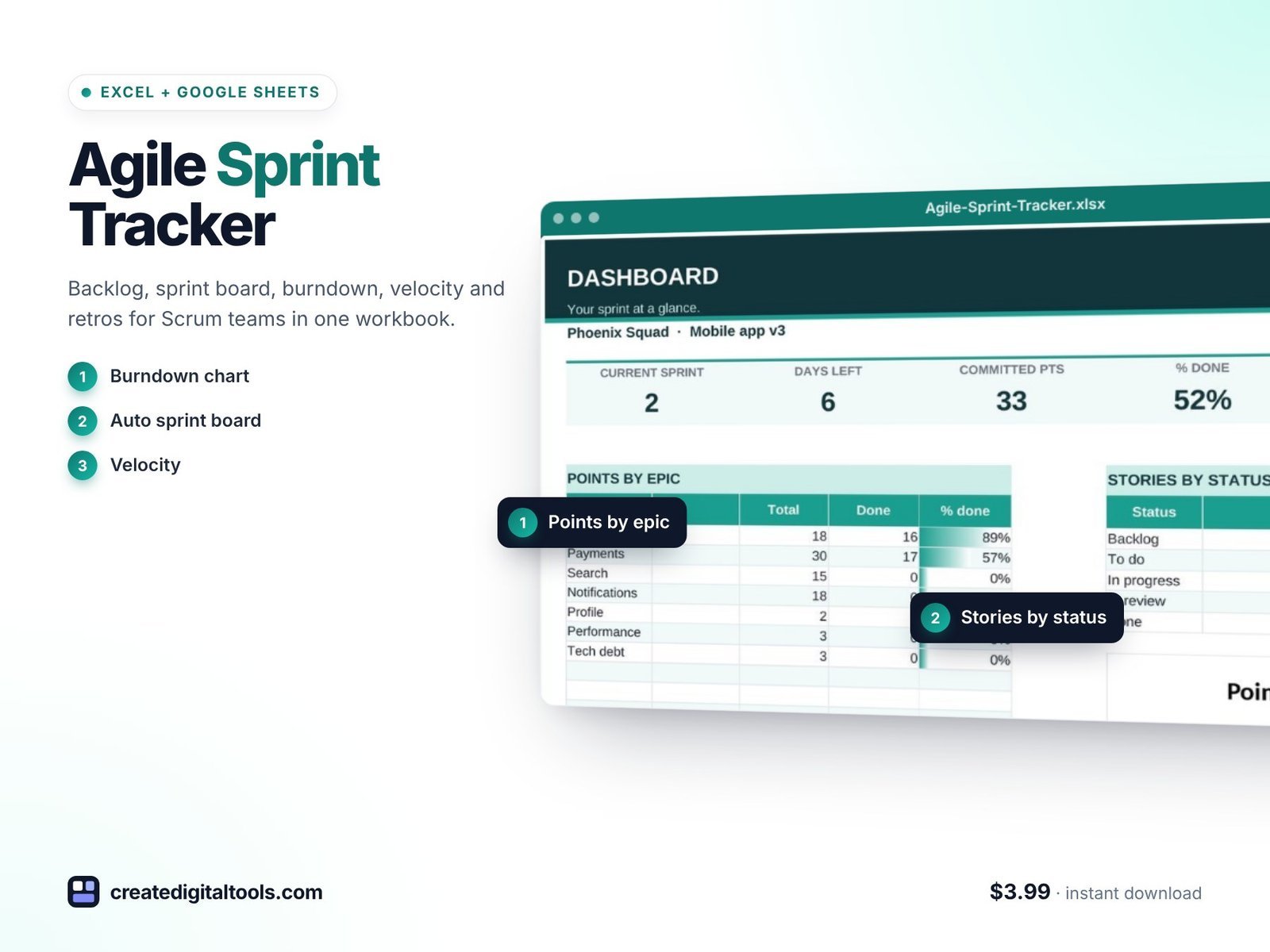
The Agile Sprint Tracker is a ready-to-use spreadsheet for Microsoft Excel and Google Sheets. Write stories in the backlog and give them points and a sprint; the board, burndown, velocity and workload views build themselves. It has 9 connected tabs.
Start Here and Setup
Start Here has a 6-step setup and colour key. Setup holds your team, sprint length, start date and epics.
Dashboard
Current sprint, days left, percent done and velocity.
Backlog
Room for 300 stories with points, priority, epic and status.
Sprints
12 sprints with dates, goals, and committed versus done points.
Board
A Kanban board for one sprint that fills itself from the backlog, with no copying cards between tabs.
Burndown
Ideal versus actual points left, with a chart based on real done dates.
Workload
Points per person against capacity.
Retro
Went well, to improve and actions, with action owners.
Velocity is shown per sprint, along with a rolling 3-sprint average for planning.
Also included
- A setup guide PDF.
- A video walkthrough.
- Sample data that follows today’s date.
Formulas only: no macros, no add-ons and no subscription. Works in Excel 2016 and later, Microsoft 365 and Google Sheets.
Watch the setup guide and full tour:
Who it is for
A good fit if you:
- Run a small Scrum or agile team and want to avoid per-seat tool costs.
- Already share files in Excel or Google Sheets.
- Want a burndown and velocity without manual chart updates.
- Are a student or new Scrum Master learning how sprint metrics fit together.
Probably not for you if you:
- Need integrations with code repositories or automated issue tracking.
- Coordinate many teams on a shared release plan.
- Plan fixed-date projects with task dependencies. The Gantt Chart Project Timeline spreadsheet fits that better.
Explore more in our spreadsheets collection.
FAQ
Does it work in Google Sheets as well as Excel?
Yes: Excel 2016 and later, Microsoft 365 and Google Sheets.
Can my whole team use it?
If you keep it in Google Sheets or a shared Microsoft 365 location, your team can work in the same file.
Can I change the sprint length?
Yes. Sprint length and start date are set on the Setup tab.
How many stories and sprints does it hold?
300 backlog stories and 12 sprints.
Are there macros?
No. Formulas only, with no add-ons or subscription. It is an instant download.
Run your next sprint without another subscription
For $3.99, get a backlog, self-filling board, burndown, velocity and retro log in a spreadsheet your team already knows.
Get the Agile Sprint Tracker →
Microsoft Excel is a trademark of Microsoft Corporation and Google Sheets is a trademark of Google LLC. This is an independent template, not affiliated with or endorsed by Microsoft or Google.
Notion systems, spreadsheets and planners with a setup guide. Instant download.