Gantt Chart Template with Dependencies (Excel & Sheets)
Picture a small renovation contractor planning a kitchen refit. The plumber cannot start until the old units are out, the tiler waits for the plumber, and nobody works on public holidays. When the first job runs two days late, every date after it has to be changed by hand. A Gantt chart template with dependencies handles that knock-on effect for you: type what each task waits for, and its dates follow.
Below is a practical guide to building a dependency-based project timeline, plus a tour of the Gantt Chart Project Timeline spreadsheet for Excel and Google Sheets.
Get the Gantt Chart Project Timeline →
Why simple timelines break
Many project schedules start as a list of tasks with start and end dates. It looks fine until reality arrives:
- Hard-coded dates. One delay means editing every task after it.
- Weekends counted as work days. A “five-day” task suddenly finishes on a Sunday.
- Holidays forgotten. The plan quietly assumes people work through public holidays.
- Progress hidden. A bar shows when a task should happen, not how much of it is done.
Dedicated project software solves this but often comes with a subscription and a learning curve. A well-built spreadsheet can cover the same basics.
How to build a Gantt chart template with dependencies
1. Break the project into tasks with durations
Write each task and how many working days it takes. Keep tasks small enough that you can tell when they are done.
2. Record what each task waits for
For each task, note its predecessor: the task that must finish first. This is the dependency. Its start date becomes the next working day after the predecessor ends.
3. Count working days only
Use a working-day calculation that skips weekends and a list of holidays. In both Excel and Google Sheets, WORKDAY-style functions do this.
4. Group tasks into phases
Phases such as Design, Build and Launch make a long list easier to read and report on.
5. Mark milestones
Milestones are zero-length checkpoints: sign-off, delivery, go-live. List them separately so the next one is always visible.
6. Track percent done against time used
If a task is 50% through its time but only 20% done, it is behind. Flag that early.
7. Draw the chart from the dates
Use conditional formatting across a date grid so bars appear automatically, with a “today” line for orientation.
Common Gantt chart mistakes
The most common mistake is planning in calendar days instead of working days, which makes every estimate look shorter than it is. Another is building a beautiful chart once and never updating it. A third is adding tasks so small that the list becomes noise: a task should be something you would report on, not every email. Keep the list readable, keep the dates honest, and the chart stays useful all the way to the finish.
When a spreadsheet Gantt chart is enough
A spreadsheet works well when one person or a small team owns the plan, the project has up to a few hundred tasks, and most dependencies are simple: one task waits for another to finish. It is also handy when you need to share the plan with clients who will not sign up for another tool, since nearly everyone can open Excel or Google Sheets.
Dedicated project software becomes worth it when many people update tasks at once, when you need to balance people across several projects, or when you need features like time tracking and approvals built in. For many small businesses and freelancers, a clear spreadsheet is the more practical choice.
Tips for keeping a Gantt chart useful
- Update percent done weekly. A chart that is a month out of date is worse than no chart. Pick a day and update every task in progress.
- Do not over-link. Only add a dependency when a task truly cannot start without another. Too many links make the plan rigid.
- Keep durations honest. Estimate in working days and include review time, not just the work itself.
- Add holidays early. Enter public holidays and planned time off at the start, so the finish date is realistic from day one.
- Use a weekly view for stakeholders. A daily chart is good for the team; a weekly chart is easier for clients and managers to read.
A quick worked example: if “Remove old units” takes 2 working days and starts on a Thursday, it finishes on Friday. “Plumbing first fix” depends on it and takes 3 days, so it starts Monday and ends Wednesday. If Monday is a holiday, it starts Tuesday and ends Thursday instead. That is the logic a dependency-based timeline handles for you.
Inside the Gantt Chart Project Timeline spreadsheet
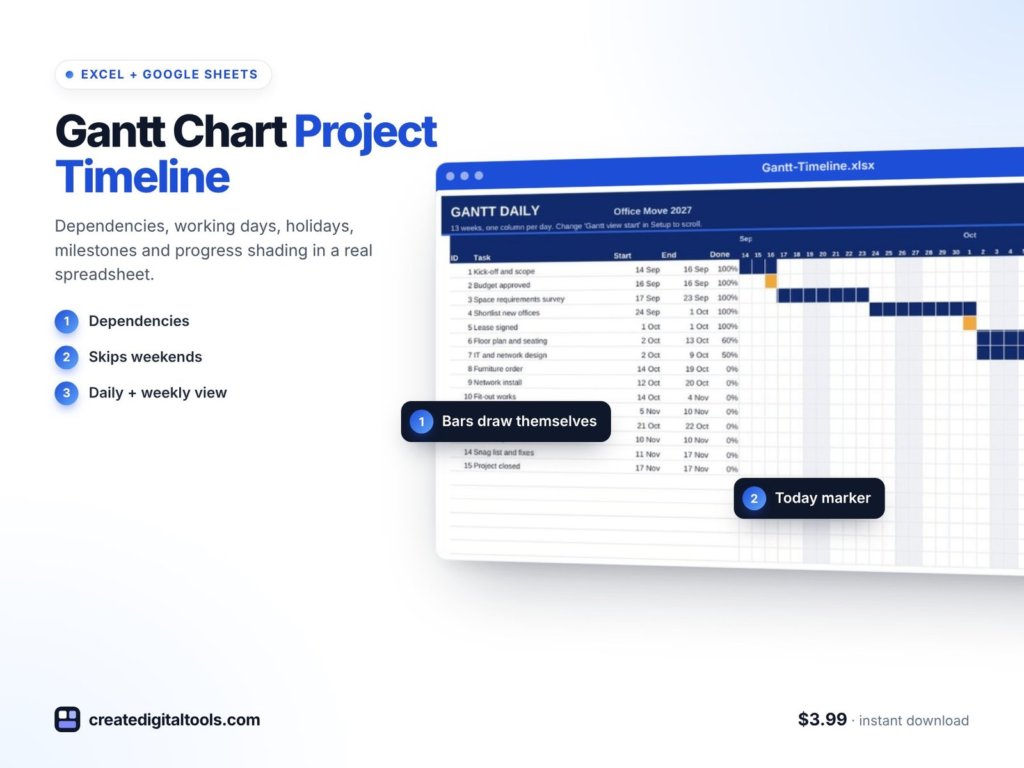
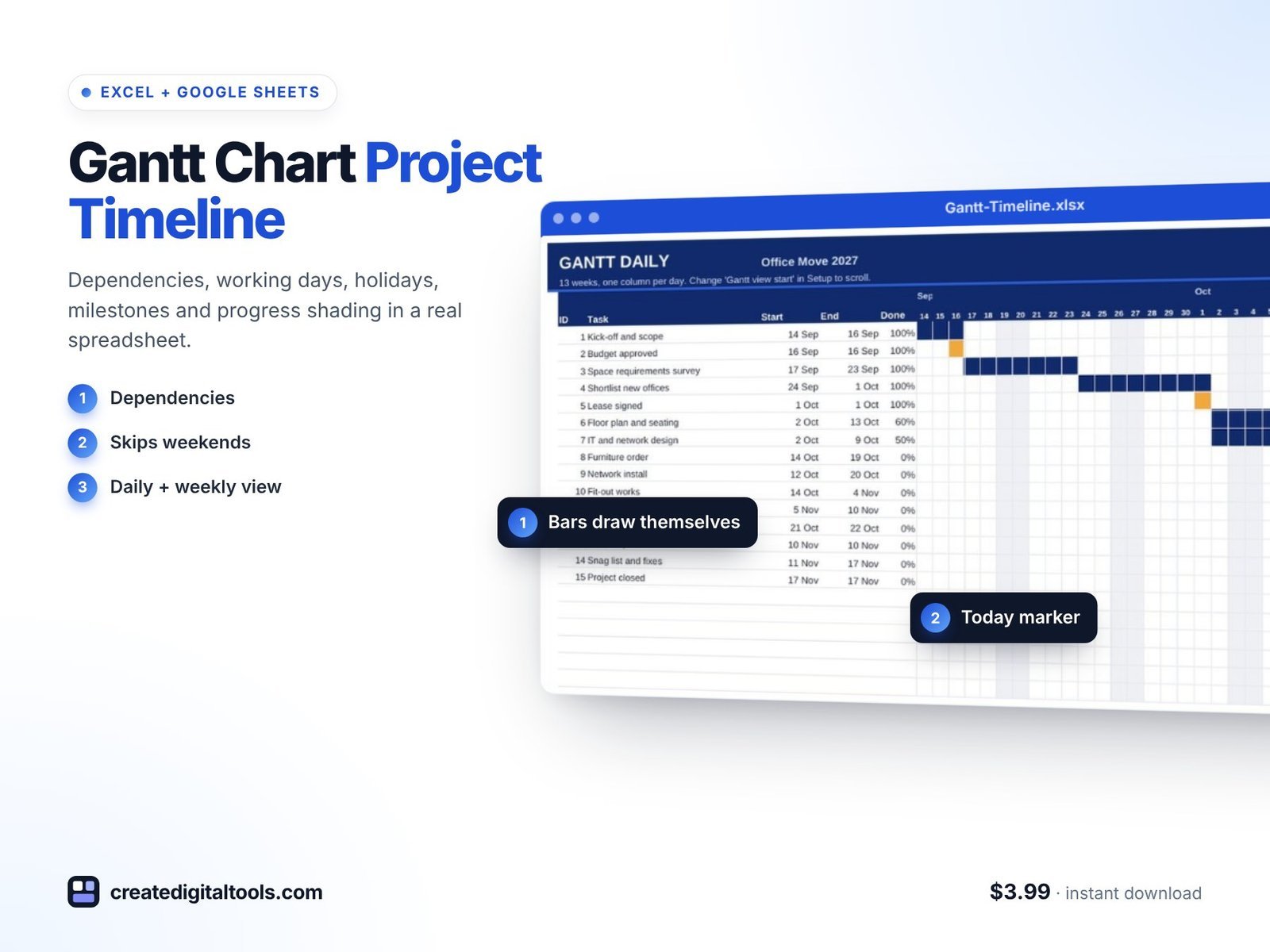
The Gantt Chart Project Timeline is a ready-to-use spreadsheet for Microsoft Excel and Google Sheets. You type your tasks, how long they take and what they wait for. Dates skip weekends and holidays, and the Gantt chart draws itself. It has 7 connected tabs.
Start Here and Setup
Start Here has a 6-step setup and colour key. Setup holds the project start, the view start, your holidays and your phases.
Tasks
Room for 200 tasks, each with a depends-on field. The dates are worked out for you, counting working days only.
Gantt Daily
A 91-day chart with the done part of each bar shaded and a today line, so progress is visible at a glance.
Gantt Weekly
A 52-week chart for longer projects where a daily view would be too wide.
Milestones
Every milestone, listed soonest first.
Dashboard
Progress, late tasks, the finish date and the next milestone. A “behind plan” flag compares percent done with time used.
Also included
- A setup guide PDF.
- A video walkthrough.
- Sample data that follows today’s date.
Formulas only: no macros, no add-ons and no subscription. It works in Excel 2016 and later, Microsoft 365 and Google Sheets.
Watch the setup guide and full tour:
Who it is for
A good fit if you:
- Manage projects where tasks depend on each other, such as builds, events, product work or client projects.
- Need weekends and holidays skipped automatically.
- Want a Gantt view without paying for project software.
- Share plans with clients or teammates who already use Excel or Google Sheets.
Probably not for you if you:
- Need resource levelling or many projects in one portfolio view.
- Run work in sprints with story points. The Agile Sprint Tracker spreadsheet is built for that.
More tools are in our spreadsheets collection.
FAQ
Does it work in both Excel and Google Sheets?
Yes: Excel 2016 and later, Microsoft 365 and Google Sheets.
How do dependencies work?
On the Tasks tab, you type what a task depends on. Its dates then follow from that task, counting working days only.
Can I add my own holidays?
Yes. Enter them on the Setup tab and they are skipped along with weekends.
How many tasks can I plan?
The Tasks tab has room for 200 tasks, with a 91-day daily chart and a 52-week weekly chart.
Are there macros?
No. It is formulas only, with no macros, add-ons or subscription.
Plan projects the way they really run
For $3.99 you get a Gantt chart that handles dependencies, working days and milestones in a spreadsheet you already know how to use.
Get the Gantt Chart Project Timeline →
Microsoft Excel is a trademark of Microsoft Corporation and Google Sheets is a trademark of Google LLC. This is an independent template, not affiliated with or endorsed by Microsoft or Google.
Notion systems, spreadsheets and planners with a setup guide. Instant download.