Freelance Income Tracker for Google Sheets and Excel
Here is an illustrative example (not a real customer). A freelance designer works with five or six clients at a time. Hours live in a notes app, invoices are built from an old document each month, and payments are checked by scrolling through a bank app. In March, a client mentions an invoice that was never sent. In April, the quarterly tax payment arrives and the money set aside for it is short, because nobody worked out what “set aside some for tax” meant in real numbers. The work is going well. The money side is not.
A freelance income tracker in Google Sheets fixes most of this without new software. You log hours, turn them into invoices, see which invoices are unpaid or overdue, and know how much of each payment belongs to the tax pot. This guide shows how to build that tracker yourself with standard spreadsheet formulas, then walks through our Freelancer Finance Kit for Google Sheets and Excel, which has these pieces already connected.
Get the Freelancer Finance Kit →
Why freelance income is hard to track
An employee gets a payslip with tax already taken out. A freelancer gets irregular payments from several clients, on different terms, with tax still owed. That creates a few common problems:
- Unbilled time. Hours that are worked but never invoiced are income you simply lose. They are easy to miss when time is logged in one place and invoices are made in another.
- Late payments go unnoticed. If you do not know an invoice’s due date, you do not know it is late. Chasing payment becomes guesswork.
- Tax as a surprise. Income arrives gross. Without a set-aside habit, a quarterly or annual tax bill can land when the money has already been spent.
- Rates set by feel. Many freelancers pick an hourly rate by looking at others, rather than working back from what they need to earn and how many hours they can actually bill.
- No yearly picture. Bank statements show transactions, not progress toward an income goal or which clients bring in most of the money.
A spreadsheet is a good tool for this because the logic is simple and you stay in control of it. The trick is to link the parts so you type each fact only once.
How to build a freelance income tracker in Google Sheets
You can follow these steps in Google Sheets or Excel. The formulas below work in both.
1. A settings tab
Create a tab for the values everything else refers to: your currency, the year, your income target and the percentage you plan to set aside for tax. Name the cells (Data > Named ranges in Google Sheets, or the Name Box in Excel), for example TaxRate and IncomeTarget. Formulas become easier to read, and you change a value in one cell instead of hunting through every tab.
2. A clients tab
List each client with their rate, whether you bill hourly or per project, and their payment terms in days (for example 14 or 30). Later tabs look these up so you never retype a rate. In Google Sheets, a dropdown (Data > Data validation, “Dropdown from a range”) pointing at the client list keeps names consistent, which matters because totals are matched by name.
3. A time log
Each row is a work session: date, client, project, hours and a billed / not billed column. Pull the client’s rate with a lookup and multiply:
=hours * XLOOKUP(client, Clients!A:A, Clients!B:B)
(VLOOKUP or INDEX/MATCH work too in older Excel versions.) A SUMIFS on the unbilled rows gives you a running “time not yet invoiced” figure, which is the number that catches forgotten invoices:
=SUMIFS(Time!F:F, Time!G:G, "Not billed")
4. An invoices tab with automatic status
Each invoice row has an invoice number, client, issue date, amount and paid date. Three calculated columns do the chasing for you:
- Due date:
=issue_date + XLOOKUP(client, Clients!A:A, Clients!D:D) - Status:
=IF(paid_date<>"", "Paid", IF(TODAY()>due_date, "Overdue", "Unpaid")) - Days late:
=IF(status="Overdue", TODAY()-due_date, 0)
Add conditional formatting (Format > Conditional formatting) to colour “Overdue” red, and you can scan the list in seconds. Sort or filter by status before your weekly admin time.
5. Income and expenses
Keep a simple ledger: date, description, category, income or expense, amount. Use a short, fixed category list (software, equipment, travel, professional fees and so on) so totals stay meaningful. Monthly totals come from SUMIFS with date bounds:
=SUMIFS(Amount, Type, "Income", Date, ">="&DATE(year,month,1), Date, "<="&EOMONTH(DATE(year,month,1),0))
6. Tax set-aside
Multiply each month’s profit (income minus expenses) by your planning rate:
=MAX(0, month_income - month_expenses) * TaxRate
Track what you have actually moved into a separate savings account next to it, and the difference shows what is still to move. Add your country’s payment deadlines as dates so you can see the next one coming. The percentage you use is your own planning assumption; ask a qualified accountant or your tax authority what applies to you.
7. A rate calculator
Work backwards. Add your income target and yearly business costs, then divide by the hours you can realistically bill (working weeks multiplied by billable hours per week, not total hours worked). That gives a minimum hourly rate. Multiply by your billable hours per day for a day rate, and by estimated hours for project quotes.
=(IncomeTarget + YearlyCosts) / (WorkingWeeks * BillableHoursPerWeek)
8. A dashboard
Finally, pull the headline numbers together: year-to-date income, expenses and profit, outstanding and overdue invoices, unbilled time and tax set aside. Add a column chart of monthly income and a bar chart of income by client. A progress figure such as =YTD_income / IncomeTarget, formatted as a percentage, shows how the year is going at a glance.
That is the whole method. Building it from scratch takes some time and testing, mostly in getting the lookups, date ranges and charts to agree with each other. If you would rather start with that work done, the kit below follows the same structure.
How the Freelancer Finance Kit does it
The Freelancer Finance Kit is an Excel workbook that also opens in Google Sheets. It covers clients, hours, invoices, tax set-aside and rates, and the tabs are linked so you enter things once. It comes with a Setup Guide PDF and a setup video.

Start Here
You enter your currency, year, tax percentage, income target and the business details that appear on your invoices. These settings feed the rest of the file, so this is the only place you set them.
Clients
Each client has a rate, an hourly or project billing type and payment terms. The tab also shows totals billed and outstanding per client, so you can see who owes what without opening the invoice list.
Time Log
Log hours by client and the billable amounts are filled in for you from the client’s rate. Time that has not been invoiced yet shows up on the dashboard as uninvoiced time.
Invoices and the printable Invoice Template
Every invoice you send goes on the Invoices tab. The due date, the Paid / Unpaid / Overdue status and the days late are calculated automatically. Hourly and fixed-fee invoices both work, and the tax/VAT column is there if you charge it.
The Invoice Template tab fills itself from your Invoices, Clients and Time Log tabs: pick an invoice number and it shows the client details, line items, hours, rate, tax/VAT and total, ready to print or save as a PDF.

Income & Expenses
A ledger for money in and out, with 20 freelancer categories already set up, so monthly totals and profit work from day one.
Tax Set-Aside
Shows a monthly amount to set aside based on the tax percentage you chose, with quarterly reminders. It tracks what you have set aside against the planned figure. These are planning estimates, not tax advice.
Rate Calculator
Works out a minimum hourly rate, a day rate and project prices from your income target and costs, the same back-calculation described above.
Dashboard
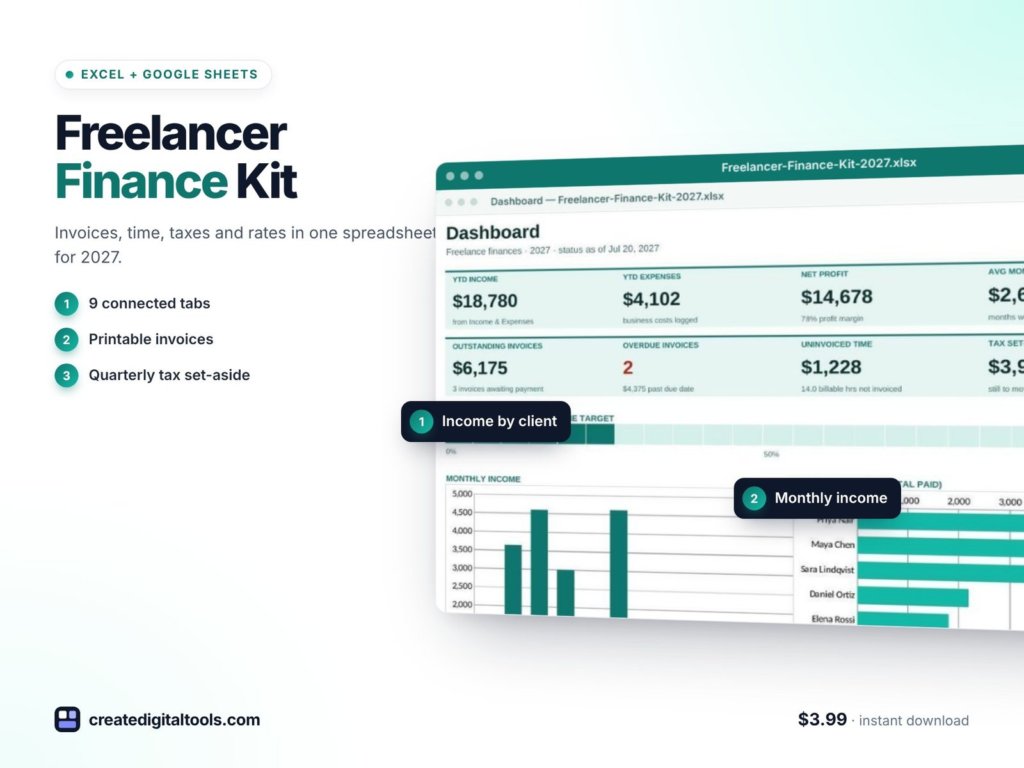
Year-to-date income, expenses, net profit and average monthly income; outstanding and overdue invoices; uninvoiced time; tax set aside year to date; progress toward your annual income target; and charts for monthly income and income by client. The charts and tiles update from the other tabs.

The screenshots use sample data. You delete the sample rows before you start.
Watch the setup video
Who it’s for (and who it isn’t)
A good fit if you:
- Freelance as a designer, writer, developer, consultant, virtual assistant or similar, and bill several clients
- Bill by the hour, by the project or both
- Want to see unpaid and overdue invoices without digging
- Want a planned tax set-aside figure instead of a guess
- Prefer a spreadsheet you own to a monthly invoicing subscription
Probably not for you if you:
- Need automatic bank feeds or online card payments on invoices (you enter figures yourself)
- Run a team with payroll and inventory; a small business set such as the Small Business Finance Spreadsheet Bundle may suit better
- Need software that files tax returns for you
If you mostly need to manage project deadlines and deliverables rather than money, look at the Freelancer Project Tracker Spreadsheet, which covers clients, time log, invoices and your real hourly rate from the project side.
FAQ
Does it work in Google Sheets as well as Excel?
Yes. It is built for both. In Excel you open the file directly. In Google Sheets you import it (File > Import > Upload) and it runs on standard formulas. The Setup Guide PDF covers both.
Can I use my own currency?
Yes. You set the currency on the Start Here tab, along with the year, your tax percentage and income target.
Will it calculate my taxes?
It calculates a planning set-aside from the percentage you enter and reminds you quarterly. It does not know your country’s tax rules and is not tax advice. Check the right rate and deadlines with an accountant or your tax authority.
Can I bill fixed-fee projects, not just hours?
Yes. Clients can be set to hourly or project billing, and invoices can be hourly or fixed fee.
How do I make an invoice?
Add the invoice on the Invoices tab, then pick its number on the Invoice Template tab. The template fills in the client details, line items, totals and due date, and you print it or save it as a PDF.
Is it an instant download?
Yes. It is a digital download with the workbook, the Setup Guide PDF and a link to the setup video. Nothing physical is shipped.
Browse more finance and budgeting spreadsheets, or see all our Excel and Google Sheets templates.
Get the Freelancer Finance Kit →
This article is general information, not tax, legal or financial advice. Excel is a trademark of Microsoft and Google Sheets is a trademark of Google. This spreadsheet is independent and not affiliated with or endorsed by either.
Notion systems, spreadsheets and planners with a setup guide. Instant download.