Content Calendar Google Sheets Template for 2027
Picture a small business owner who posts on Instagram, TikTok and a weekly newsletter. Ideas live in phone notes, hashtags in a different note, brand deals in email, and the only record of what worked is a vague memory of “that one Reel that did well”. Every Monday starts with “what should I post this week?” This illustrative scene is the reason a simple content calendar Google Sheets template is often the first tool creators reach for: everything planned, posted and measured in a file you can open anywhere.
Below you will find how to set up a content calendar in a spreadsheet, the columns that are worth tracking, and a tour of our Content Planner 2027.
Get the Content Planner 2027 →
Why posting without a calendar feels so tiring
Posting regularly is less about creativity and more about decisions. What to post, where, in which format, with which hashtags, on which day. Without a plan, you make all of those decisions every day, usually at the last minute.
Scheduling apps help with publishing, but most are built around one platform at a time and many charge monthly. Notes apps hold ideas but cannot tell you which pillar you have neglected or which day of the week tends to work best for you. And when a brand pays you for a post, that income often ends up tracked nowhere at all.
A spreadsheet is a good fit because it is flexible, works for every platform, and can do the counting for you.
How to build a content calendar in Google Sheets
1. Define your content pillars
Pick three to five themes you post about, for example tips, behind the scenes, product, community. Every post should belong to one. This keeps your feed balanced.
2. Create setup lists
On a separate tab, list your platforms, pillars, formats (Reel, carousel, story, video, email) and statuses (idea, drafting, scheduled, posted). Use these lists as dropdowns with Data validation so entries stay consistent.
3. One row per post
Columns: date, platform, pillar, format, title or hook, caption notes, hashtag set, status. Add conditional formatting so each status has its own colour.
4. Add results columns
After a post has been live a few days, record views, likes, comments, shares and saves. A simple formula can add those up as an engagement figure.
5. Keep an idea bank
A separate tab for ideas means you never start from a blank page. When it is time to plan, pull from the bank.
6. Review monthly
Use COUNTIFS to see posts per pillar and per platform, and AVERAGEIFS to see which day or format tends to perform best for you. Let your own numbers guide next month’s plan.
A weekly content routine that fits in an hour
- Review last week. Fill in results for posts that have been live a few days. Note anything that stood out.
- Check your mix. Look at posts per pillar this month. If one theme is missing, plan something for it.
- Pull from the idea bank. Choose the posts for the coming week and add them to the calendar with platform, format and date.
- Batch the writing. Draft captions and pick hashtag sets in one sitting, then set each row to “scheduled” or “ready”.
- Capture new ideas. Anything that came up during the week goes into the idea bank for later.
Tips for a calendar you will keep using
- Plan fewer posts than you think. A steady rhythm you can keep is more useful than an ambitious plan you abandon.
- Repurpose on purpose. Note in the calendar when one idea becomes a Reel, a carousel and a newsletter section.
- Track brand work in the same file. Collaboration deadlines and payments are easier to manage next to your posting schedule.
What to measure, and what to ignore
It is easy to drown in numbers. For most small accounts, a handful is enough: how often you posted, which pillars you covered, and engagement per post (likes, comments, shares and saves together). Saves and shares are often a better signal of useful content than likes alone. Look at trends across a month rather than reacting to a single post, and compare like with like, for example Reels with Reels, rather than every format at once.
Inside the Content Planner 2027
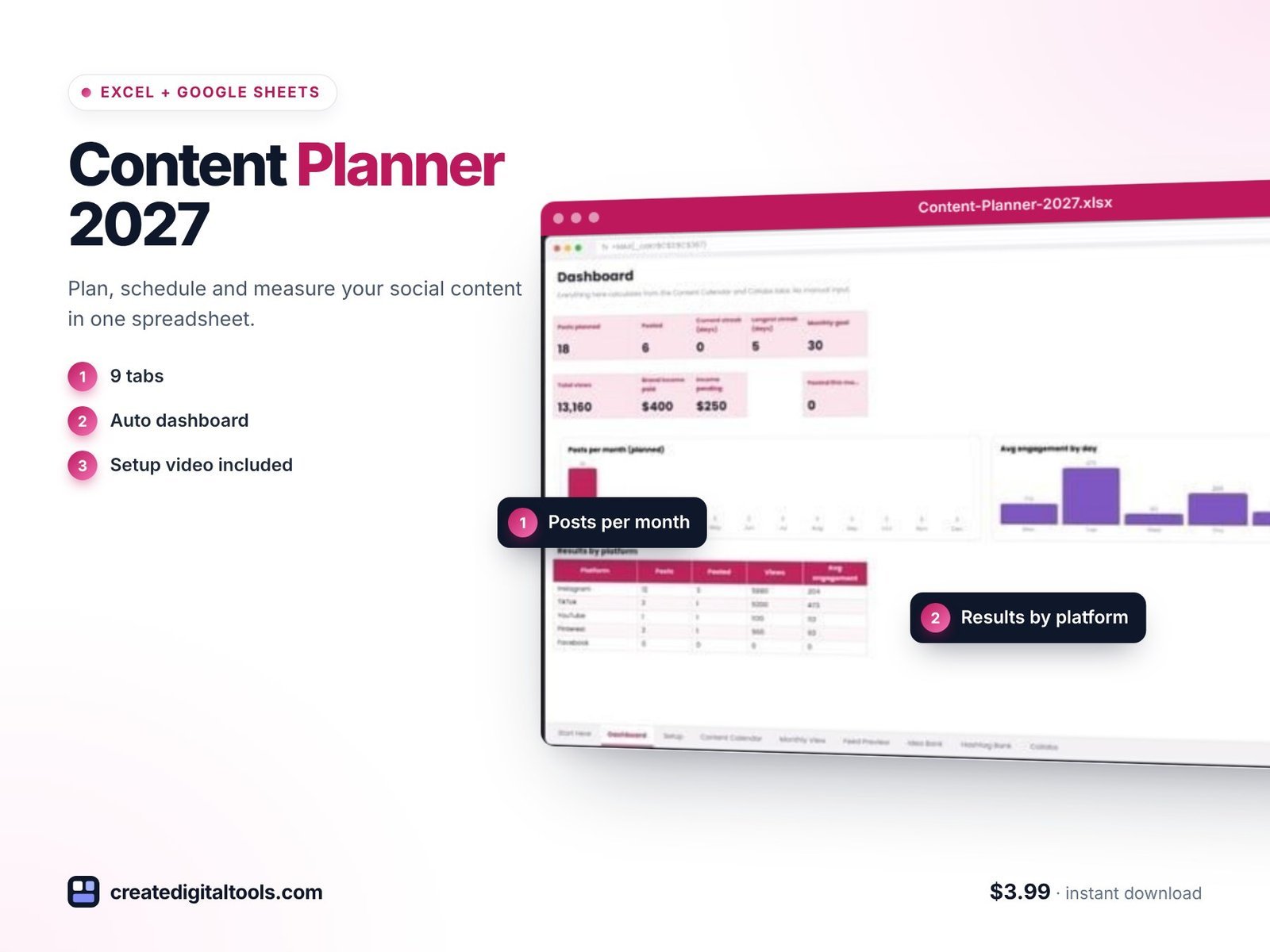
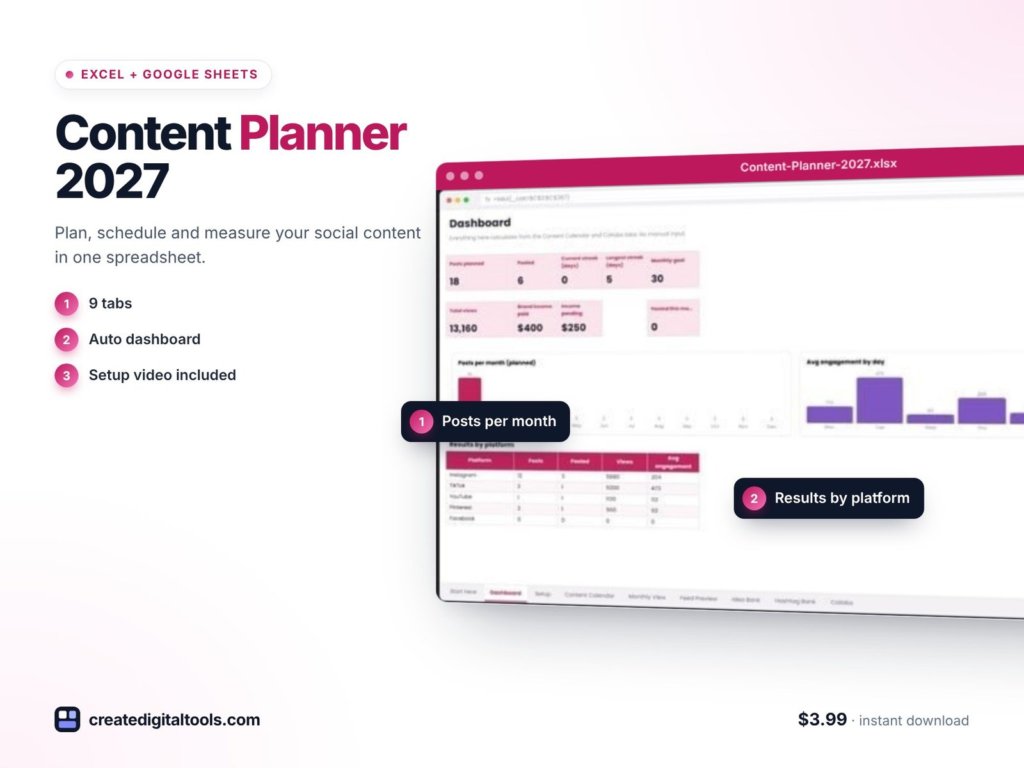
The Content Planner 2027 is a 9-tab workbook for Google Sheets and Microsoft Excel. It works for Instagram, TikTok, YouTube, Pinterest, Facebook, LinkedIn, Threads, X, blogs and newsletters, and needs no macros.
Dashboard
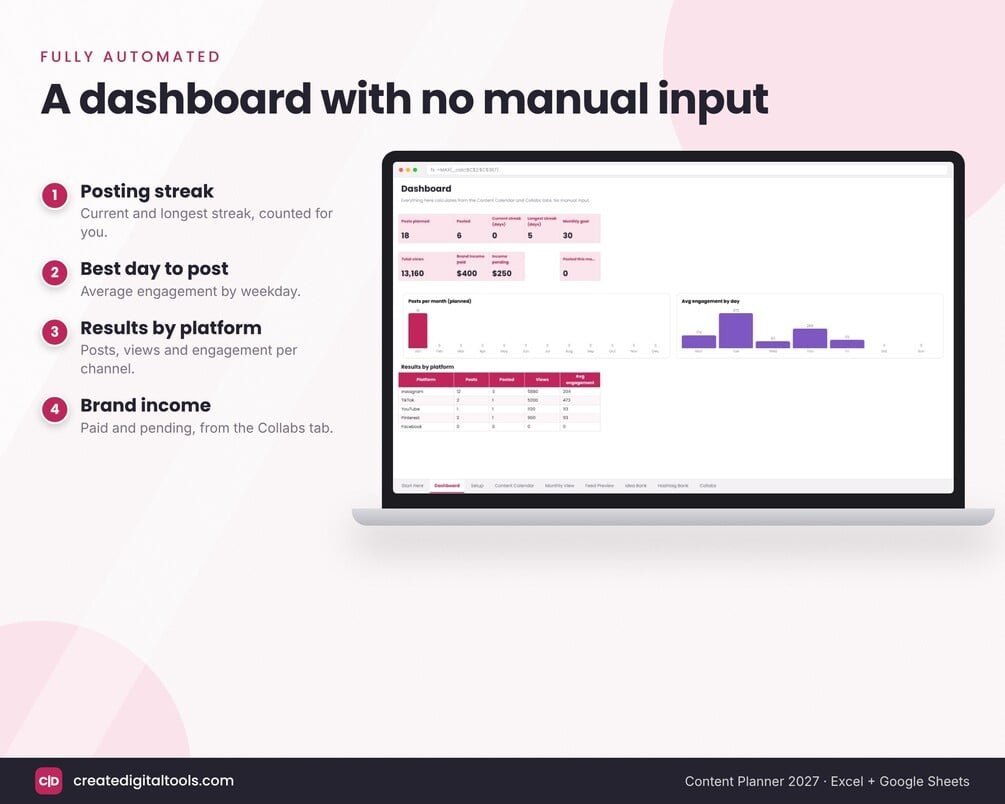
The dashboard needs no manual input. It shows posts planned and posted, your current and longest posting streak, best day to post, results by platform, content mix by pillar, brand income and three charts.
Content calendar
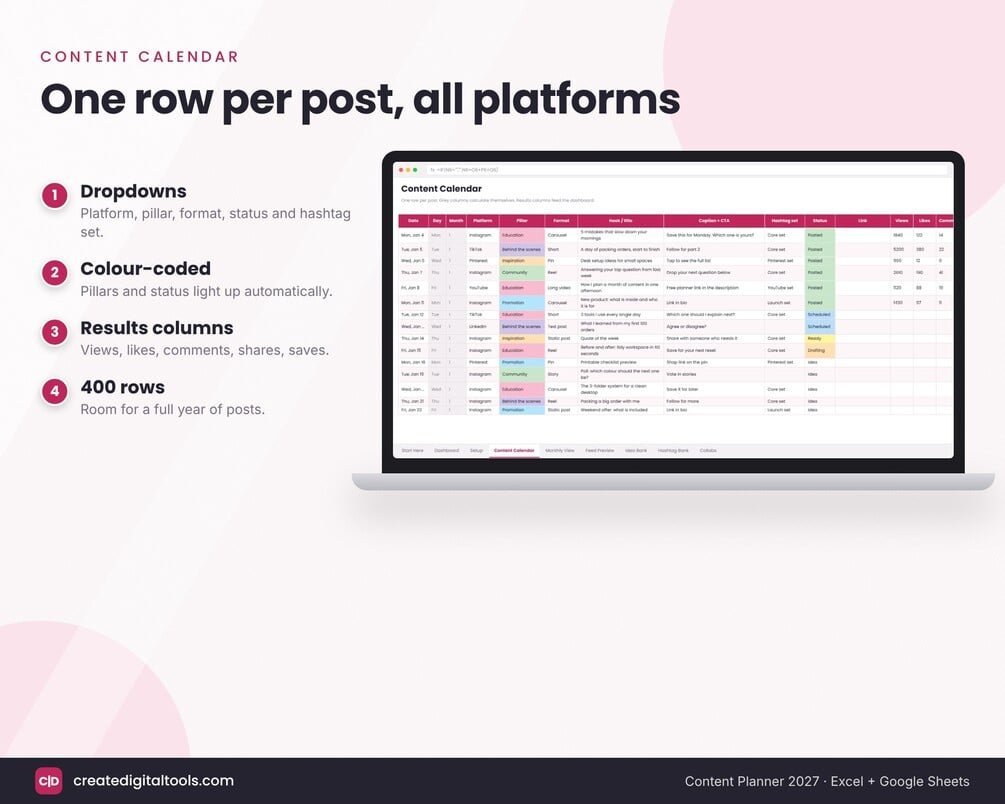
Room for 400 posts, with dropdowns for platform, pillar, format, hashtag set and status. Rows are colour-coded, and you can track views, likes, comments, shares and saves, with engagement worked out automatically.
Monthly view
Pick a month to see every day with its posts.
Feed preview
Shows your next 12 Instagram posts in a 3 x 4 grid, coloured by pillar, so you can check the balance of your grid before you post.
Idea bank, hashtag bank, collabs and brand income
Keep ideas ready to use, store hashtag sets with an automatic count, and track collaborations and brand income.
Setup lists and start-here guide
Setup lists feed every dropdown, so you can rename platforms, pillars and formats to fit your plan. A start-here guide and a setup guide PDF walk you through the first steps.
Watch the walkthrough
This video shows the Content Planner 2027 in Google Sheets and Excel:
Who it is for, and who it is not for
A good fit if you:
- Create content for yourself or a small business across several platforms.
- Want to plan, post and review results in a spreadsheet rather than another subscription app.
- Earn some income from brand collaborations and want to keep track of it.
Probably not for you if you:
- Need automatic posting to your social accounts. This is a planning and tracking workbook, not a scheduler.
- Manage many clients’ accounts with approval workflows. A team tool may suit better.
If you produce video, the Video Production Project HQ can help you manage shoots and edits. More workbooks are in our spreadsheets collection.
Frequently asked questions
Does it work in Google Sheets and Excel?
Yes. It works in Microsoft Excel (Windows, Mac and online) and in Google Sheets. For Sheets, upload the file, then use File > Save as Google Sheets.
Which platforms can I plan for?
Instagram, TikTok, YouTube, Pinterest, Facebook, LinkedIn, Threads, X, blogs and newsletters. You can edit the setup lists to match the ones you use.
Does it need macros?
No. It works without macros.
Is it an instant download?
Yes. It is a digital download, with a setup guide PDF included. It is licensed for personal and single-business use.
How many posts can I plan?
The content calendar has 400 rows.
When your ideas, posts, hashtags and results sit together, Monday planning becomes a short, calm job.
Get the Content Planner 2027 →
Google Sheets is a trademark of Google LLC and Microsoft Excel is a trademark of Microsoft Corporation. Instagram, TikTok, YouTube and other platform names are trademarks of their respective owners. This is an independent template, not affiliated with or endorsed by any of them.
Notion systems, spreadsheets and planners with a setup guide. Instant download.