Freelance Project Tracker Spreadsheet: Real Hourly Rate
Picture a freelance designer juggling a fixed-fee logo project, an hourly website job and a monthly retainer. The fixed-fee project felt well paid when it was quoted, but after three extra rounds of revisions nobody has checked what it actually paid per hour. Two invoices are past due and the designer is not sure which. A freelance project tracker spreadsheet brings clients, hours, invoices and income together, so those answers are a glance away.
This post explains how to set up a freelance tracking routine and then walks through the Freelancer Project Tracker for Excel and Google Sheets.
This is an organising tool, not financial or tax advice.
Get the Freelancer Project Tracker →
Why freelancers lose track of what pays
Freelance admin tends to spread across many places:
- Time in a timer app, or not tracked at all on fixed-fee work.
- Invoices in an invoicing tool or a folder of PDFs.
- Projects and tasks in a notebook or project app.
- Income goals nowhere in particular.
Because nothing is connected, you cannot easily see your real hourly rate on a project, which clients owe money, or how this month compares to your goal. Generic project tools are built for teams, not for one person who is also the bookkeeper.
How to set up a freelance project tracker spreadsheet
1. Start with a client list
One row per client, with contact details. Later this is where you will see what each client has been invoiced, paid and still owes.
2. Add projects with a pricing type
Mark each project as fixed, hourly or retainer, with its fee or rate. Mixing pricing types is normal; your tracker should handle all three.
3. Log time on every project, including fixed fee
This is the step most people skip. Log start and end times even on fixed-fee work. It is the only way to know the real hourly rate.
4. Calculate your real hourly rate
For fixed-fee work, divide the fee by the hours you actually logged. Compare it with your target rate. Projects that land well below it tell you where to price differently next time.
5. Track invoices to “paid”
Record invoice date, due date and amount. Mark paid when the money arrives. Anything past due should be highly visible.
6. Review monthly against a goal
Each month, compare hours, invoiced and paid amounts against your income goal.
Tracking fixed, hourly and retainer work side by side
- Fixed fee: the price is set up front, so the risk is in the hours. Log every session so you can see the effective rate at the end.
- Hourly: income follows the hours you log, so the time log doubles as your invoice backup. Check it before you invoice.
- Retainer: a set amount each month for an agreed amount of work. Logging hours shows whether the retainer still matches the work you actually do.
Keeping all three in the same tracker lets you compare them fairly. You might find that a retainer you thought was modest actually pays better per hour than a larger fixed project, or the other way round.
Signs your tracking needs an upgrade
You might be ready for a proper tracker if you have ever found an unpaid invoice weeks late, quoted a project without knowing how long the last similar one took, or reached the end of a month unsure whether you hit your income goal. None of these mean you are bad at business. They mean the information exists but is scattered. Pulling it into a single workbook is usually enough to fix it.
A 15-minute weekly admin routine
- Fill gaps in the time log. Add any sessions you forgot to record during the week.
- Raise invoices. Check which finished or milestone projects have not been invoiced yet.
- Chase overdue payments. Look at what is past due and send polite reminders.
- Review tasks. Move anything due next week to the top of your list.
- Glance at the month. Compare paid and invoiced amounts with your income goal.
What your real hourly rate can tell you
Suppose a fixed-fee project was quoted assuming 20 hours, but you logged 32. The effective rate drops well below what you planned. That does not always mean the client was wrong for you. It might mean the scope needed clearer revision limits, or that this type of project needs a higher base price. Seeing the number is the first step to quoting better next time.
Inside the Freelancer Project Tracker
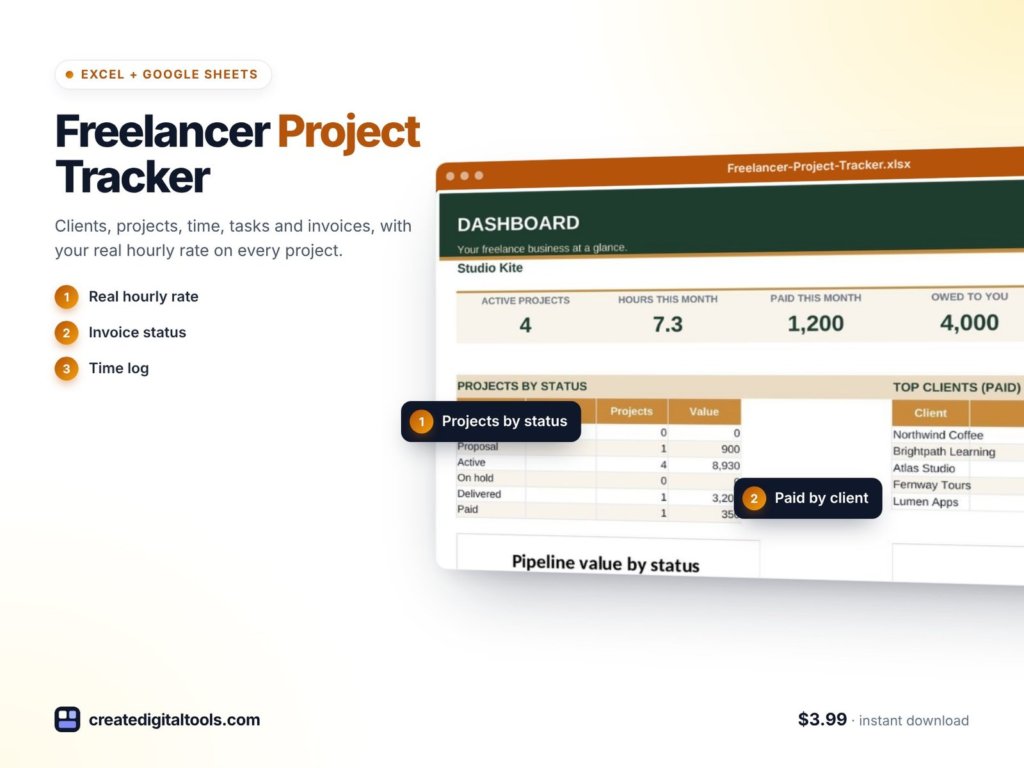
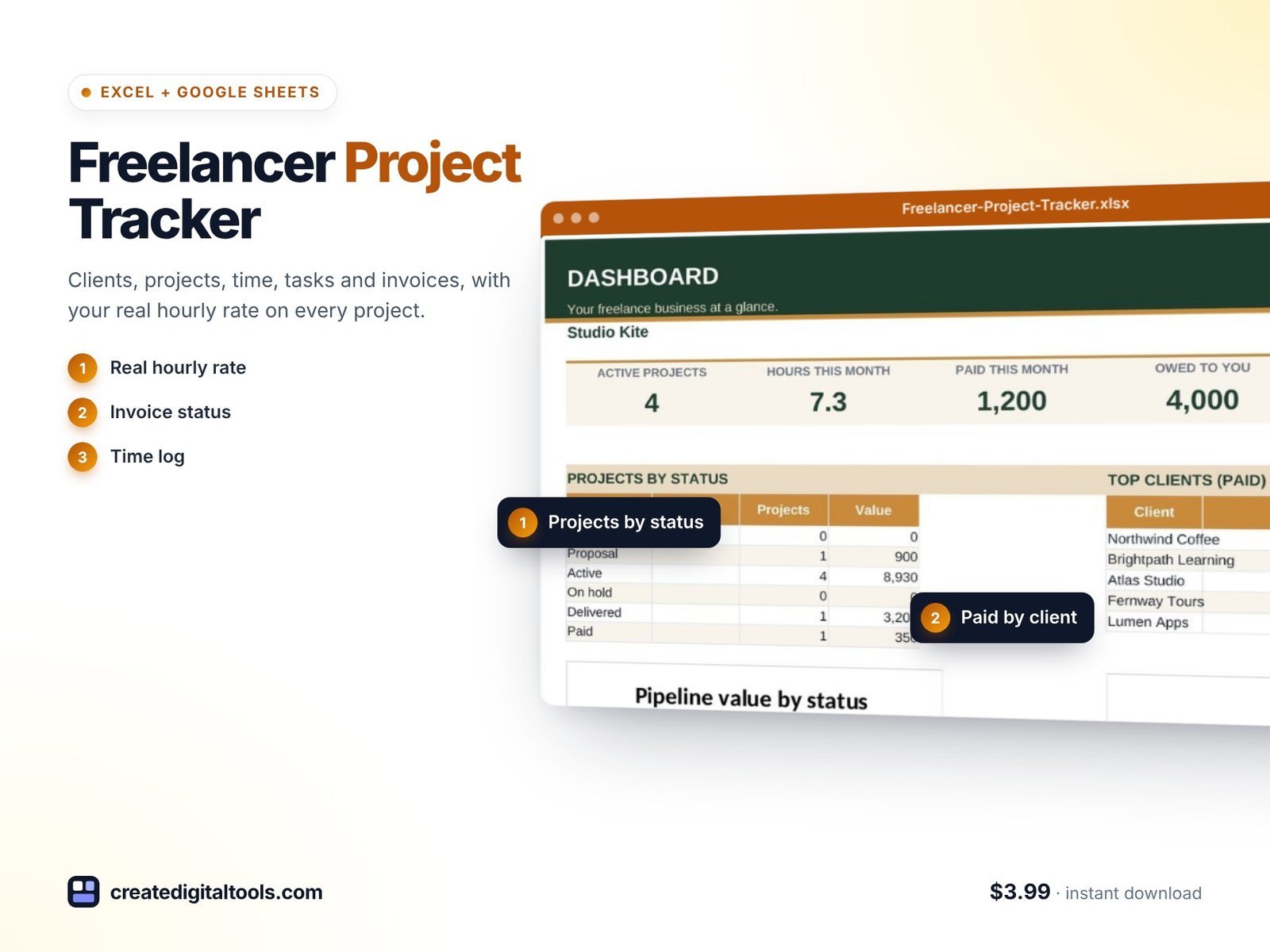
The Freelancer Project Tracker is a ready-to-use spreadsheet for Microsoft Excel and Google Sheets. You add clients and projects and log your hours and invoices. Your real hourly rate, money owed and income against goal work themselves out. It has 9 connected tabs.
Start Here and Setup
Start Here has a 6-step setup and a colour key. Setup holds your currency, default rate, income goal and payment terms.
Dashboard
Active projects, hours, paid, owed and your real rate, with overdue money shown on the dashboard.
Clients
Room for 50 clients, each with invoiced, paid and owed amounts.
Projects
Room for 100 projects: fixed, hourly or retainer. Projects are flagged when they are late, under-priced or not yet invoiced.
Time Log
500 entries, with hours calculated from start and end times.
Tasks
200 to-dos with due-date flags.
Invoices
200 invoices, with status worked out for you.
Monthly
Hours, invoiced and paid against your goal, with a chart.
Also included
- A setup guide PDF.
- A video walkthrough.
- Sample data that follows today’s date.
Formulas only: no macros, no add-ons and no subscription. Works in Excel 2016 and later, Microsoft 365 and Google Sheets.
Here is the setup guide and full tour:
Who it is for
A good fit if you:
- Work for yourself as a designer, writer, developer, consultant, VA or similar.
- Mix fixed-fee, hourly and retainer work.
- Want to know which clients and projects are really worth your time.
- Prefer a spreadsheet you own to another subscription.
Probably not for you if you:
- Need to send invoices directly or take card payments. This tracks invoices; it does not send them.
- Run an agency with a team and shared timesheets.
- Need full bookkeeping or tax returns.
Planning bigger client projects with stages that wait on each other? The Gantt Chart Project Timeline spreadsheet pairs well with it. See more in our spreadsheets collection.
FAQ
Excel or Google Sheets?
Either. It works in Excel 2016 and later, Microsoft 365 and Google Sheets.
How is the real hourly rate calculated?
For a fixed-fee project, it is the fee divided by the hours you actually logged on the Time Log.
Can I use my own currency?
Yes. Set your currency on the Setup tab.
Does it handle retainers?
Yes. Projects can be fixed, hourly or retainer.
Is it a one-off purchase?
Yes. It is an instant download for $3.99 with no subscription, macros or add-ons.
See what your work really pays
Track clients, hours, invoices and income in a single workbook and spot under-priced projects before you quote the next one.
Get the Freelancer Project Tracker →
Microsoft Excel is a trademark of Microsoft Corporation and Google Sheets is a trademark of Google LLC. This is an independent template, not affiliated with or endorsed by Microsoft or Google.
Notion systems, spreadsheets and planners with a setup guide. Instant download.