Portrait Digital Planner 2027 in Bold, Bright Colours
Picture someone who loves planning on an iPad but always ends up tilting it sideways, squinting at a landscape planner built for a desk. They want something that feels like a paper notebook in the hand: tall, bright and easy to flip through on the sofa. This illustrative scene is the case for a portrait digital planner 2027 layout, and it is the idea behind our Color Block planner in Bold Brights.
Below you will find how to set up a digital planner so you actually keep using it past January, followed by a tour of everything in the Color Block planner.
Get the 2027 Color Block Digital Planner →
Why so many digital planners get abandoned
Most people do not stop planning because they lack discipline. They stop because the planner is awkward. Too many taps to reach today. Pages that look nothing like how they think. Colours that feel flat by February. A landscape layout that wastes half the screen when the tablet is held upright.
Paper planners have the opposite problem: they are pleasant to hold but you cannot jump from a month to a date in one tap, and you cannot undo a mistake. A hyperlinked PDF in an app like GoodNotes or Notability sits in the middle. It looks and feels like paper, but every month tile, date and week number is a link.
Orientation matters more than people expect. A portrait planner fits the way most people hold a tablet for writing, leaves more vertical space for a daily schedule, and works well in split view next to another app.
How to set up a digital planner you will keep using
1. Pick one app and stick with it
GoodNotes, Notability, Noteshelf and Xodo all handle hyperlinked PDFs. Choose the one you already like writing in. Import the PDF as a new notebook, not as a single document inside another notebook, so the links keep working.
2. Set a home page
Bookmark the cover or the year-at-a-glance page. Every planning session starts there, and you are one tap from any month.
3. Plan top-down once a month
At the start of each month, open the monthly calendar and write in fixed dates, then choose three priorities. It takes ten minutes and gives every weekly page a direction.
4. Keep the week light
On the weekly page, write only the focus for the week and the few tasks that truly matter. Detail belongs on the daily page.
5. Use stickers as labels, not decoration
Word stickers like “Due” or “Call” make pages scannable. Save them in your app’s sticker or elements library so they are a drag away.
6. Review at month end
A short reflection page each month helps you notice what worked. That is what keeps a planner useful in October, not just in January.
Portrait or landscape: how to choose
If you are unsure which orientation suits you, think about how you actually use your tablet:
- Portrait suits handwriting with a stylus, planning on the sofa or in bed, and holding the tablet like a notebook. Daily pages get a long, uninterrupted schedule column.
- Landscape suits a tablet in a keyboard case or on a stand, and two-page spread layouts.
- If you use split view to keep a planner open next to email or a browser, portrait pages tend to read more comfortably in the narrower half of the screen.
Making bright colours work for you
A bold palette is not only about looks. Colour can act as a navigation aid. Because each month on the cover has its own colour tile, you start to recognise months at a glance. You can extend the idea with your own highlighter colours: one for work, one for personal, one for appointments. Keep the set small, three or four colours, so the pages stay easy to read rather than busy.
Inside the 2027 Color Block Digital Planner
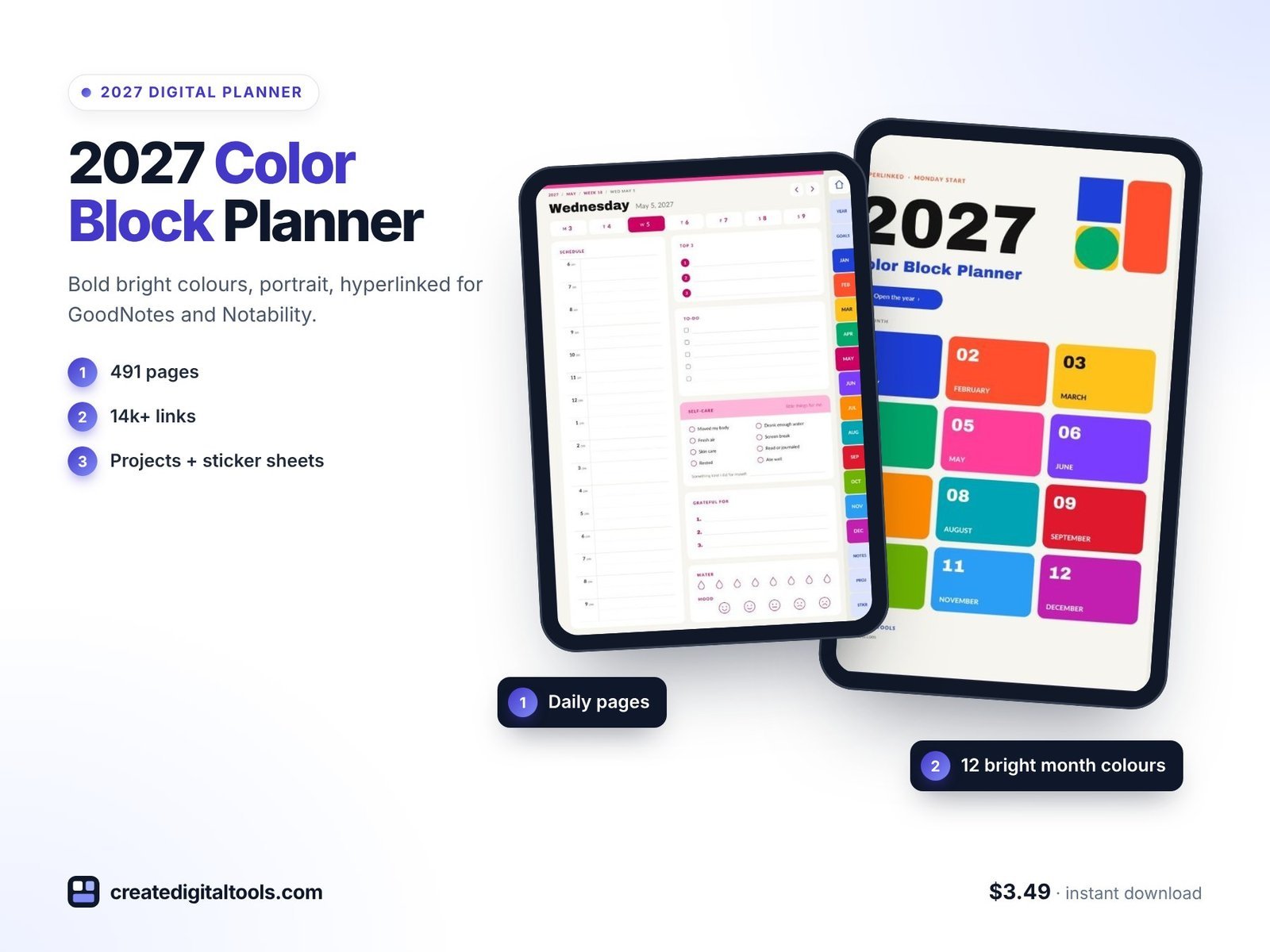
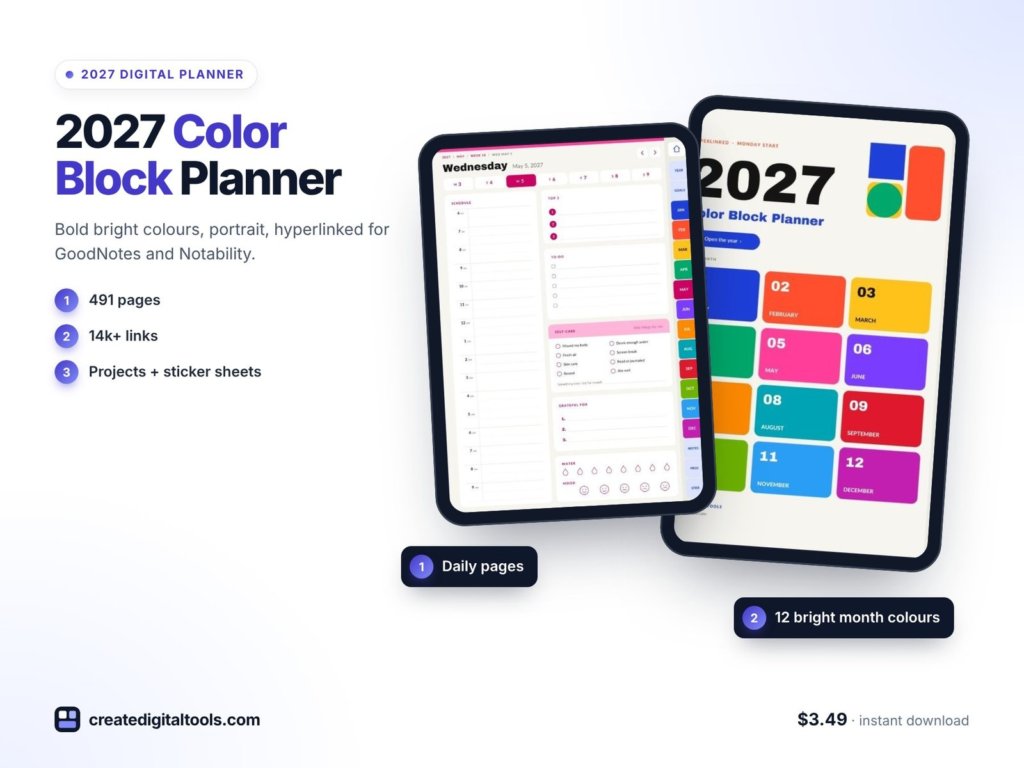
The planner is a 491-page hyperlinked PDF in portrait (1668 × 2388 px), about 7.4 MB. It works with GoodNotes, Notability, Noteshelf, Xodo and other PDF annotation apps that support internal links, on iPad or Android tablets.
Cover and yearly pages
The cover has 12 colour-block month tiles that open each month when tapped. There is a 2027 year-at-a-glance page with 12 mini calendars, a yearly goals page with 4 quarterly goal boxes, a vision page with reflection prompts and vision board frames, and a yearly habit tracker for 4 habits across 12 months.
Monthly pages
Twelve monthly calendars start on Monday, each with a priorities list and notes. Dates link to daily pages and week numbers link to weekly pages. Each month also has a Goals & Focus page and a Reflection page, which includes a 10-dot rating across 8 life areas.
Weekly and daily pages
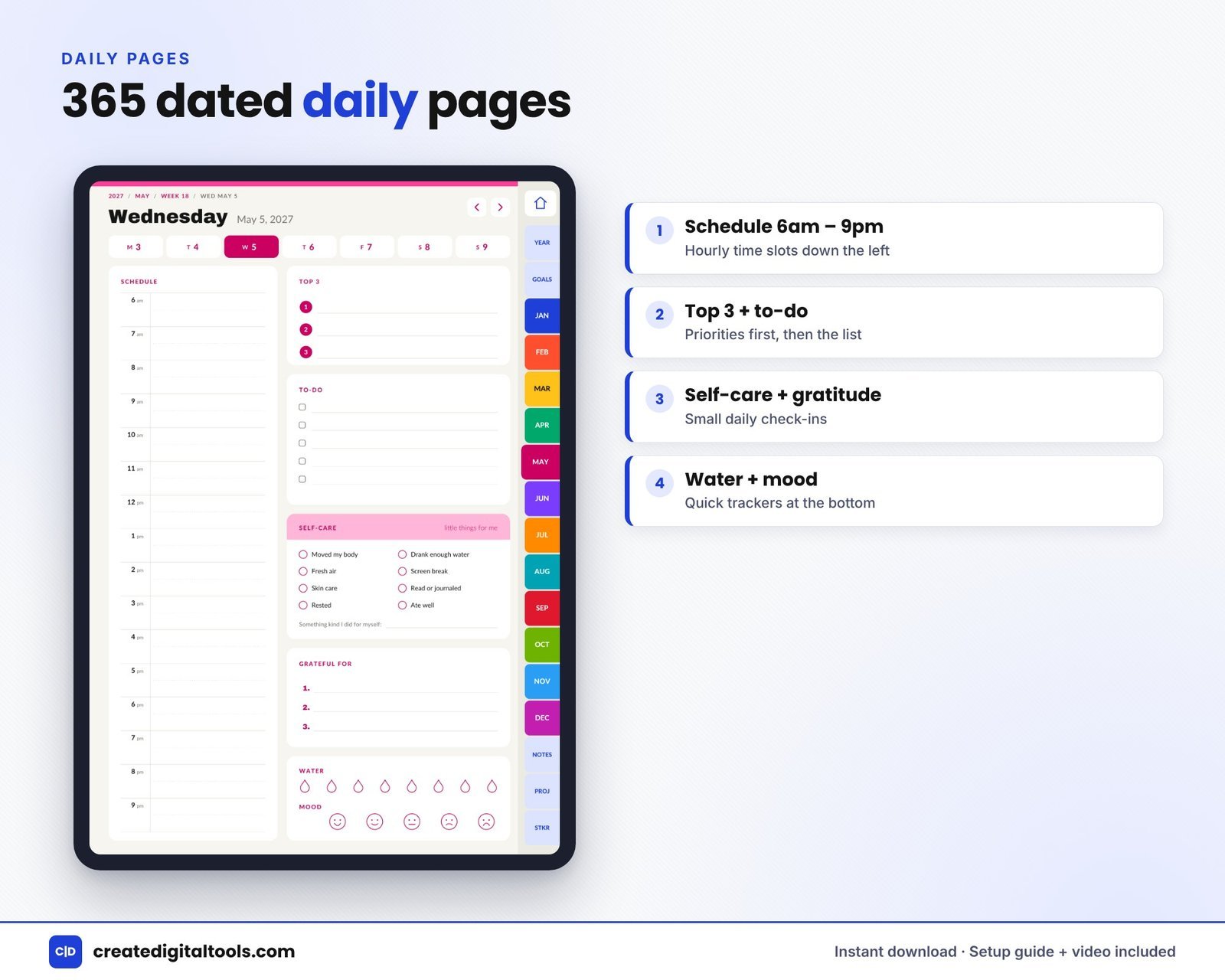
There are 53 weekly pages with a weekly focus list and a self-care habit grid. The 365 dated daily pages have a schedule from 6am to 9pm, a top-3 list, a to-do list, a self-care check-in, gratitude, water and mood trackers, and a tappable week strip.
Projects, stickers and notes
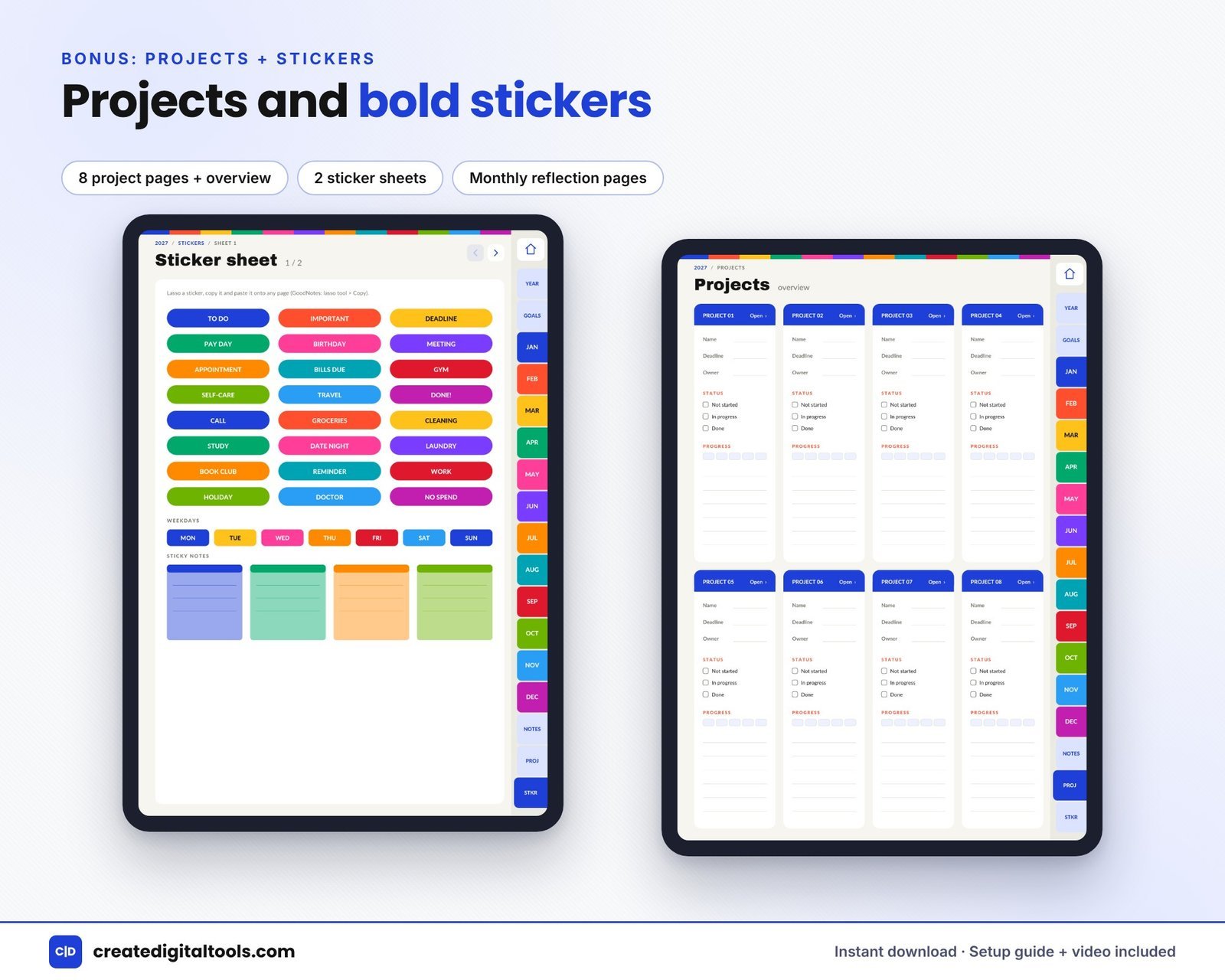
A project overview covers 8 projects, plus 8 project planners with milestones and tasks. Two digital sticker sheets include 24 word labels, weekday labels, date circles 1 to 31 and other shapes and notes. There are 20 notes pages, alternating lined and dotted.
A Setup Guide PDF and a setup video are included.
See the planner in action
This walkthrough flips through the bright portrait layout page by page:
Who it is for, and who it is not for
A good fit if you:
- Hold your tablet upright to write and want a planner that fills the screen that way.
- Like bold, bright colour and a clear Monday-start week.
- Want daily, weekly, monthly and project pages in a single file.
Probably not for you if you:
- Prefer a landscape, two-page spread layout.
- Want a muted or minimal look. A calmer professional style might suit you better.
- Need a printed planner. This is a digital download for use in a PDF app.
If you want something more understated for work, take a look at the 2027 Professional Work Planner in Navy. More styles are in our digital planners collection.
Frequently asked questions
Which apps does it work with?
GoodNotes, Notability, Noteshelf, Xodo and other PDF annotation apps that support internal links, on iPad or Android tablets.
Is it portrait or landscape?
Portrait, at 1668 × 2388 px.
Does the week start on Monday?
Yes. The monthly calendars start on Monday.
Is it an instant download?
Yes. It is a digital download for personal use. You import the PDF into your planner app.
Can I use the stickers in other notebooks?
The two sticker sheets are pages in the PDF. Most annotation apps let you copy or lasso an element and save it to your own sticker or elements library for reuse.
A planner you enjoy opening is a planner you keep using, and bright colour on an upright page is a good place to start.
Get the 2027 Color Block Digital Planner →
GoodNotes, Notability, Noteshelf and Xodo are trademarks of their respective owners. This is an independent planner, not affiliated with or endorsed by any of them.
Notion systems, spreadsheets and planners with a setup guide. Instant download.