Student Digital Planner 2026-2027 for GoodNotes
Picture a student in the second week of term. The syllabus for each class is a separate PDF, deadlines live in the university portal, quiz dates were announced out loud in a lecture, and the grade weighting is buried on page four of a handout. By October, something gets missed. This illustrative scene is why a student digital planner 2026-2027 built around the academic year can help: classes, assignments, exams and grades in a single hyperlinked file on your tablet.
This guide covers how to set up your academic year at the start of term, a few study-planning habits that work, and a tour of our Student Planner 2026-2027 for GoodNotes and other PDF apps.
Get the Student Planner 2026-2027 →
Why students lose track of deadlines
It is rarely one big thing. It is the spread. Every class has its own syllabus, its own portal page and its own way of announcing changes. A general calendar app shows events but not the difference between a reading and a 30% essay. A paper planner runs January to December, which is no use for a September to August year.
The other issue is visibility. A deadline written on a monthly calendar is easy to forget when you are working day to day. It needs to show up on the week and on the day it matters.
A digital planner on a tablet solves part of this. You can handwrite, which helps memory, but also tap from a month to a date, keep lecture notes next to your schedule, and never run out of pages.
How to set up your academic year in a planner
1. Do a syllabus sweep in week one
Sit down with every syllabus and copy each assignment, quiz, exam and project into an assignment tracker and an exam tracker, with due dates and weightings. It takes an hour and saves a semester of surprises.
2. Write the class schedule once
Fill in your weekly timetable with rooms and times. You will refer to it constantly in the first month.
3. Transfer deadlines to the month
Mark each due date and exam on the monthly calendar so you can see crowded weeks coming.
4. Plan the week every Sunday
On the weekly page, list what is due this week, which exams or quizzes are coming, and two or three study goals.
5. Use study blocks and focus sessions
On the daily page, block out study time and break it into short focus sessions. Ticking off sessions makes progress visible on long assignments.
6. Track your grades as you go
A weighted grade tracker shows where you stand in each class and what you need on remaining work. It is far better than guessing at the end of term.
7. Take notes in a consistent format
Cornell notes (cues, notes and a summary) are well suited to revision. Keep them in the same file as your planner so everything for a class is close at hand.
Exam season: plan backwards
For each exam, start from the date and work backwards. Decide when you want to finish reviewing new material, when you will do practice questions, and when you will do a final light review. Write those study blocks into the daily pages now, while the weeks still look empty. When the exam is three weeks away, the plan is already there, and you can focus on doing it rather than deciding it.
Small habits that help all year
- Two-minute daily check. Each morning, glance at today’s classes and anything due. Each evening, move unfinished tasks forward.
- One reading list. Keep all required and recommended readings on a single list per term, so nothing hides in a syllabus PDF.
- Grade check after each result. Enter marks as soon as you get them back. It keeps the weighted total accurate and removes end-of-term guesswork.
- Notes next to the plan. Lecture notes on the daily page for that class mean you always know where to find them.
Importing a planner the right way
To keep every link working, import the PDF into your notes app as a new notebook rather than inserting its pages into an existing one. Then bookmark the start-here page. If you take lecture notes in a separate notebook today, try writing them on the daily page for a week instead; having notes, deadlines and the schedule in the same file means fewer places to look when revision starts.
Inside the Student Planner 2026-2027
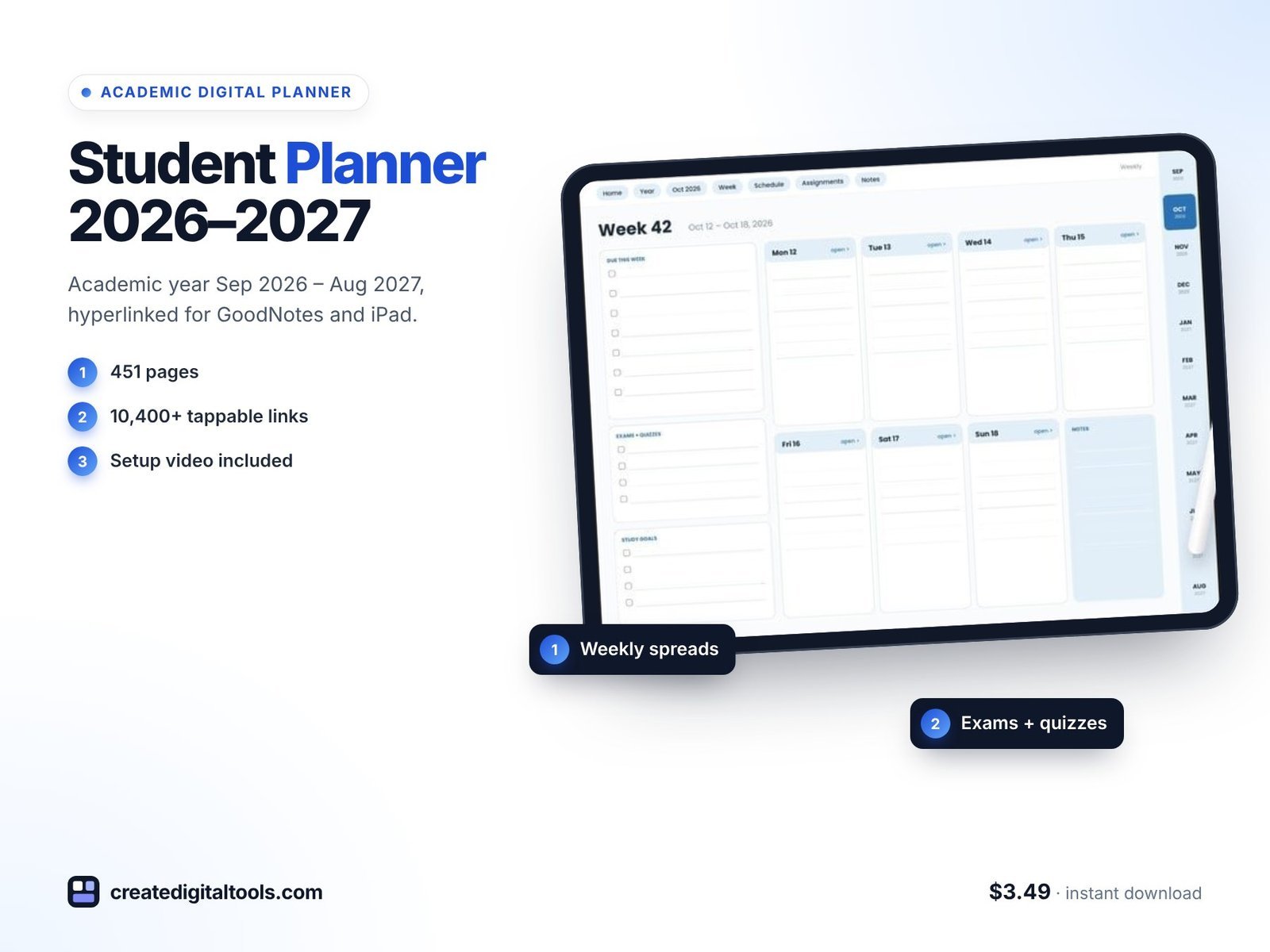
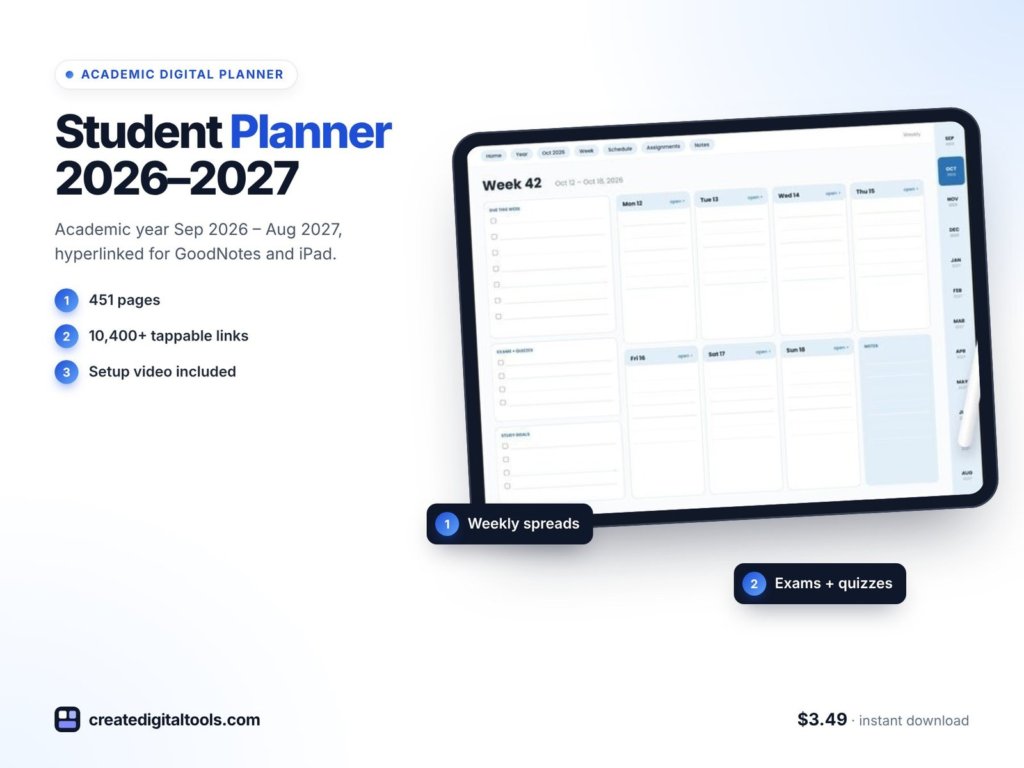
The planner runs from September 2026 to August 2027 across 451 pages, in a landscape layout with a Monday start. It has 10,486 internal links, each one checked, and deadlines appear on daily, weekly and monthly pages. It works with GoodNotes, Notability, Noteshelf, Xodo, Samsung Notes and other PDF apps with link support, on iPad or Android tablets.
Start-here page and year overviews
A start-here page shows every month and tracker on one screen. The 2026 and 2027 year overviews include goals and important dates.
Monthly calendars
Twelve monthly calendars, each with sections for what is due this month, exams and goals.
Weekly pages
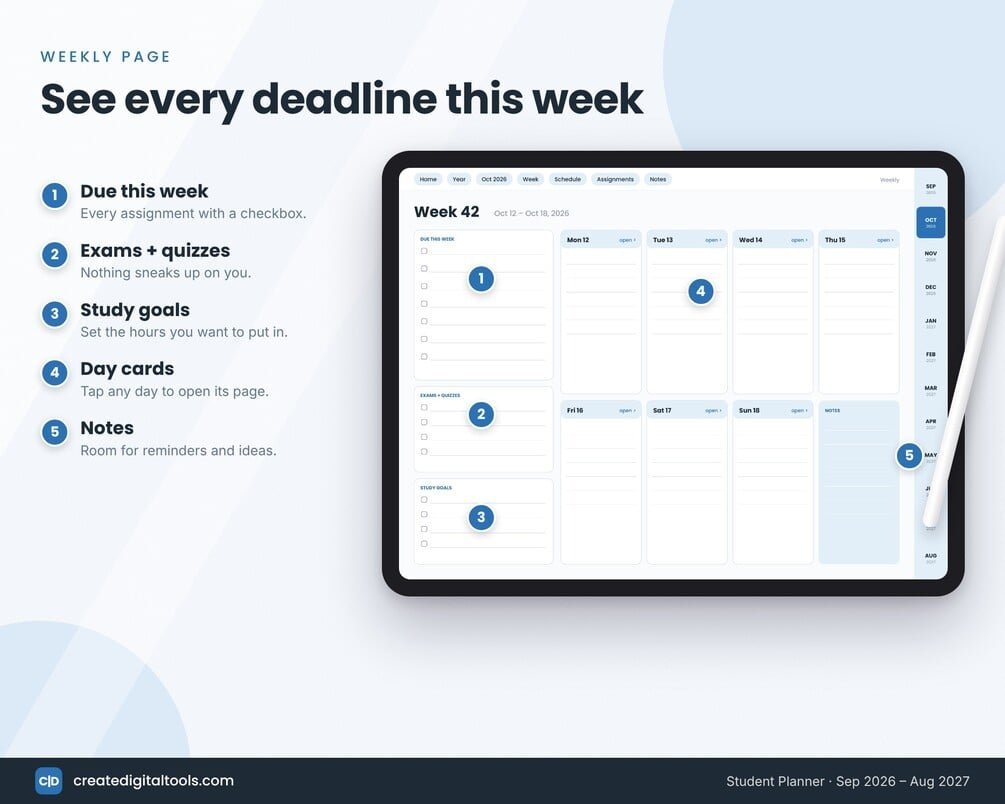
Fifty-three weekly pages, each with due this week, exams and quizzes, study goals, day cards and notes.
Daily pages
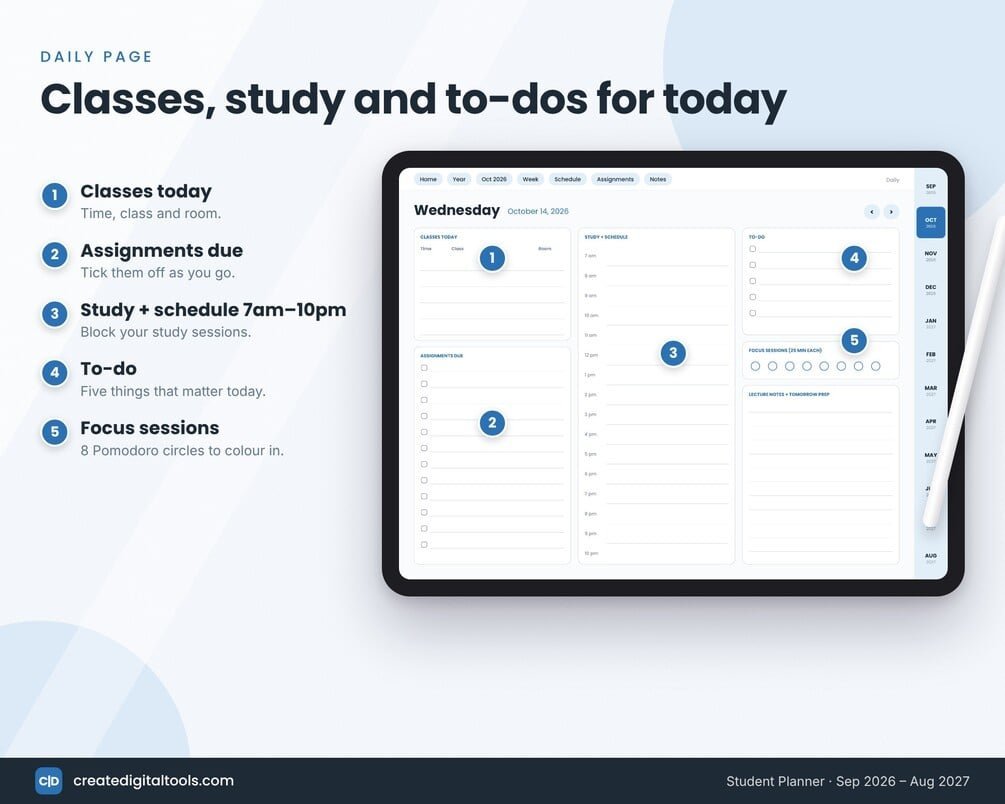
365 dated daily pages with classes today, assignments due, study blocks from 7am to 10pm, a to-do list, 8 focus sessions and space for lecture notes.
Academic trackers
A class schedule, a fall and spring semester overview, an assignment tracker, an exam tracker, a weighted grade tracker, a study planner and a reading list.
Notes
Five Cornell notes pages, plus lined and dot grid notes.
A setup guide PDF and a step-by-step walkthrough video are included.
Watch the walkthrough
This video tours the planner page by page:
Who it is for, and who it is not for
A good fit if you:
- Are a high school, college or university student on a September to August year.
- Take notes on an iPad or Android tablet and want your planner in the same app.
- Want assignments, exams and grades tracked alongside your daily schedule.
Probably not for you if you:
- Follow a January to December academic calendar.
- Prefer a portrait layout or a Sunday-start week.
- Want a printed planner. This is a digital download for PDF apps.
If you plan late at night and prefer darker pages, the 2027 Dark Mode Digital Planner is another option. More styles are in our digital planners collection.
Frequently asked questions
Which apps does it work with?
GoodNotes, Notability, Noteshelf, Xodo, Samsung Notes and other PDF apps with link support, on iPad or Android tablets.
What dates does it cover?
September 2026 to August 2027, with dated daily pages.
Is it landscape or portrait?
Landscape, with a Monday start.
Is it an instant download?
Yes. It is a digital download for personal use. Import the PDF into your app as a new notebook.
Can I use it for more than one semester?
Yes. It includes a fall and spring semester overview and runs through to August 2027.
A week-one syllabus sweep and a planner that shows deadlines where you will see them can make the whole year calmer.
Get the Student Planner 2026-2027 →
GoodNotes, Notability, Noteshelf, Xodo and Samsung Notes are trademarks of their respective owners. This is an independent planner, not affiliated with or endorsed by any of them.
Notion systems, spreadsheets and planners with a setup guide. Instant download.