Hostinger hPanel Tour 2026: Every Section Explained (Real Screenshots)
If you have just bought Hostinger hosting, the first thing you see is hPanel, Hostinger’s own control panel. It is not cPanel, and it does not look like the panels you may remember from older hosts. Menus are grouped differently, a lot of settings are switched on for you, and in 2026 there is a whole new set of AI tools sitting in the sidebar.
This guide walks through every main section of hPanel using real screenshots from my own account. My shop and blog run on WordPress and WooCommerce on a Hostinger Business plan, so every screen below is a live site, not a demo. Private details such as IP addresses and server names are blurred, and each screenshot has numbered purple boxes so you know exactly where to look.
This post contains affiliate links. If you buy through them, I may earn a commission at no extra cost to you.
By the end you will know what each part of hPanel does, which settings matter on day one, which ones you can safely ignore, and where to click when something goes wrong.
Quick answer: what is Hostinger hPanel?
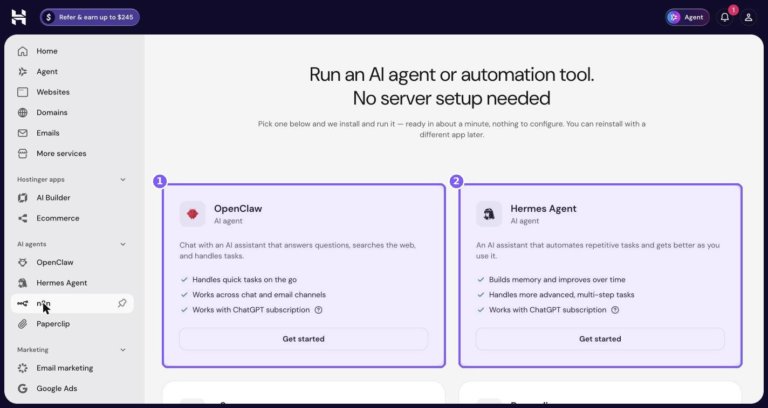
hPanel is the control panel you use to manage everything you buy from Hostinger: websites, hosting plans, domains, email, and the newer AI tools. The main sidebar has Home, Agent, Websites, Domains, Emails and More services, followed by Hostinger apps (AI Builder, Ecommerce), AI agents (OpenClaw, Hermes Agent, n8n, Paperclip) and Marketing tools.
- For a WordPress site, nearly all your work happens under Websites, then Manage site, which opens a site dashboard with WordPress, Hosting Plan, Performance, Security, Domains, Files and more.
- Day-one checklist: confirm SSL is active, switch on Force HTTPS, check the CDN status, look at your backup schedule and run a speed test.
- Good to know: hPanel is easier for beginners than cPanel, but some settings live in places you would not guess. This tour shows where.
Table of contents
- What is hPanel (and how is it different from cPanel)?
- The hPanel Home screen
- The Websites list
- The site dashboard
- WordPress overview
- Staging: test changes before they go live
- Hosting plan details and resources
- SSL certificates
- CDN (content delivery network)
- Page speed test
- Backups
- Auto Installer
- Domains
- Emails
- AI agents: OpenClaw, Hermes Agent, n8n and Paperclip
- AI Builder
- Creating a new site: the Create site flow
- Refer & earn: Hostinger’s referral programme
- Common problems and where to fix them in hPanel
- How I use hPanel to run an online store
- A first-week hPanel checklist
- Tips for getting more out of hPanel
- Is hPanel better than cPanel?
- Frequently asked questions
- Ready to try hPanel yourself?
Watch the full Hostinger walkthrough
What is hPanel (and how is it different from cPanel)?
hPanel is Hostinger’s in-house control panel. Instead of licensing cPanel, Hostinger built its own dashboard, and it shows. The layout is cleaner, buttons use plain words like “Manage site” and “Clear cache”, and most of the technical settings you would have to hunt for in cPanel are surfaced as simple toggles.
The trade-off is that if you are used to cPanel, you will need a few minutes to re-learn where things are. For example, file management sits under Files, database tools sit under Databases, and things like PHP settings and cron jobs live under Advanced. Once you know the pattern, it is quick.
There are two levels to keep in mind:
- Account level. This is the main sidebar you see on the Home screen: Websites, Domains, Emails, AI tools, marketing and billing. It covers everything in your Hostinger account.
- Site level. When you click Manage site on any website, hPanel switches to a site dashboard with its own left-hand menu. Every setting there applies to that one website only.
Most confusion with hPanel comes from mixing these two up. If you cannot find a setting, ask yourself whether it belongs to your whole account or to a single site, and go to the matching level.
If you are still choosing a host, my honest Hostinger review and the Hostinger vs Bluehost vs SiteGround comparison cover performance, support and value. This post assumes you already have an account and want to understand the panel.
The hPanel Home screen
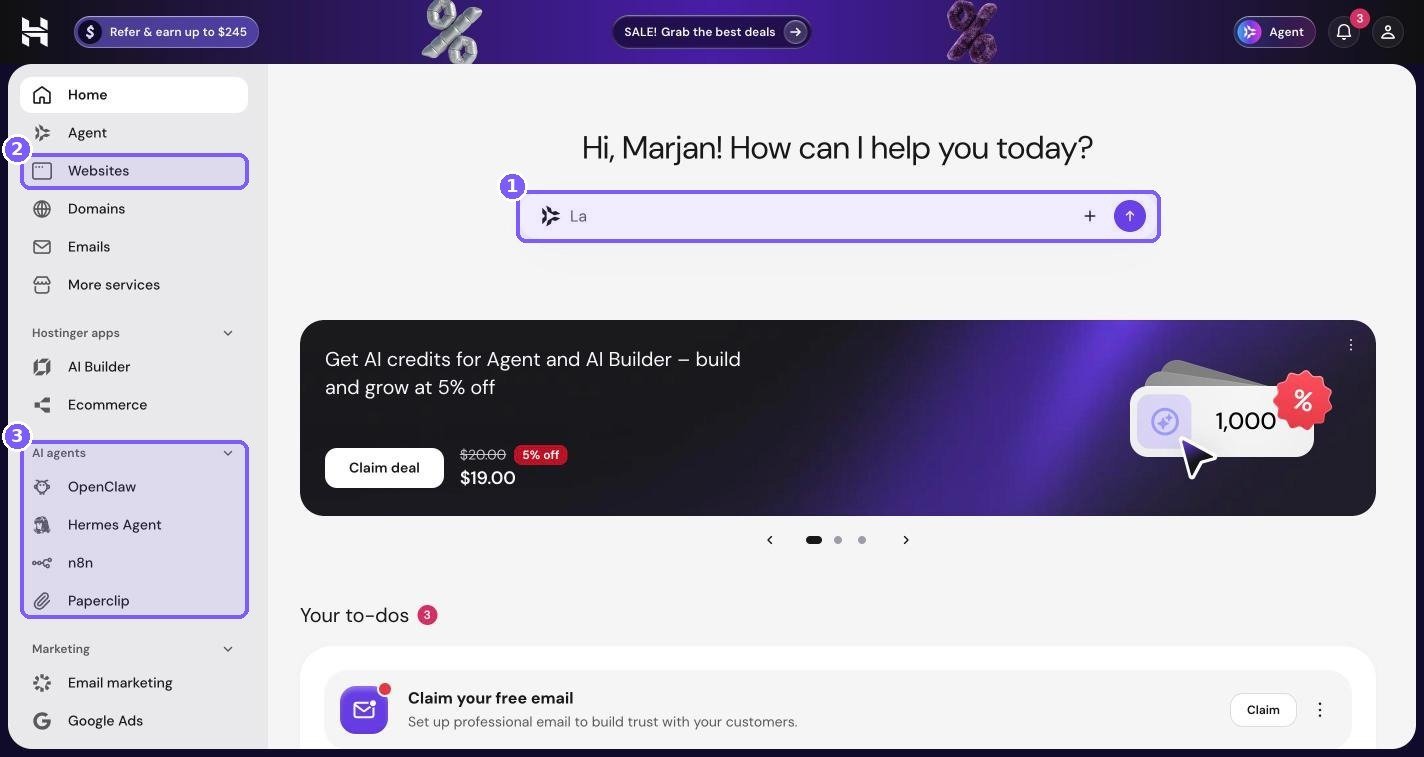
When you log in, hPanel opens on the Home screen. In 2026 it looks more like a chat app than a hosting panel: a big greeting at the top with a prompt bar underneath, promo cards in the middle, and a to-do list below.
The Agent prompt bar
The prompt bar under the greeting (box 1) is Hostinger’s AI assistant, labelled Agent in the sidebar and in the top-right corner. You can type requests such as “show me my websites” or “help me point my domain” instead of clicking through menus. It is handy when you know what you want but not where it lives.
The banner below it promotes AI credits for Agent and AI Builder, which tells you these tools use a credit system for heavier tasks. I would not buy credits on day one. Use the panel normally first, then decide whether the AI features save you enough time to be worth it.
The main sidebar
The left sidebar is your account-level menu. From top to bottom you get:
- Home – the screen you are on.
- Agent – the AI assistant in a full page view.
- Websites – every website on your account (box 2). This is where you will spend most of your time.
- Domains – your domain portfolio, transfers and DNS.
- Emails – your email plans and mailboxes.
- More services – everything else you have bought, such as VPS or add-ons.
- Hostinger apps – AI Builder and Ecommerce.
- AI agents – OpenClaw, Hermes Agent, n8n and Paperclip (box 3).
- Marketing – Email marketing and Google Ads.
Your to-dos
Further down the Home screen there is a “Your to-dos” list. Mine shows a “Claim your free email” task, with the note “Set up professional email to build trust with your customers.” These are Hostinger’s suggestions for unfinished setup steps. They are worth working through once, because they usually point at something useful you have not used yet, such as free email included with your plan.
The top bar
The top bar has three things worth knowing about. On the left is a “Refer & earn” button that opens Hostinger’s referral popup. On the right are the Agent shortcut, your notifications bell, and your account menu, where billing, profile and security settings live. If you ever need to change your password or turn on two-factor authentication, the account menu is the place to start.
The Websites list
Click Websites in the sidebar and you get a list of every site on your account. Each row shows a thumbnail of the site, its domain, what it is built with, and when it was created, plus two buttons on the right.
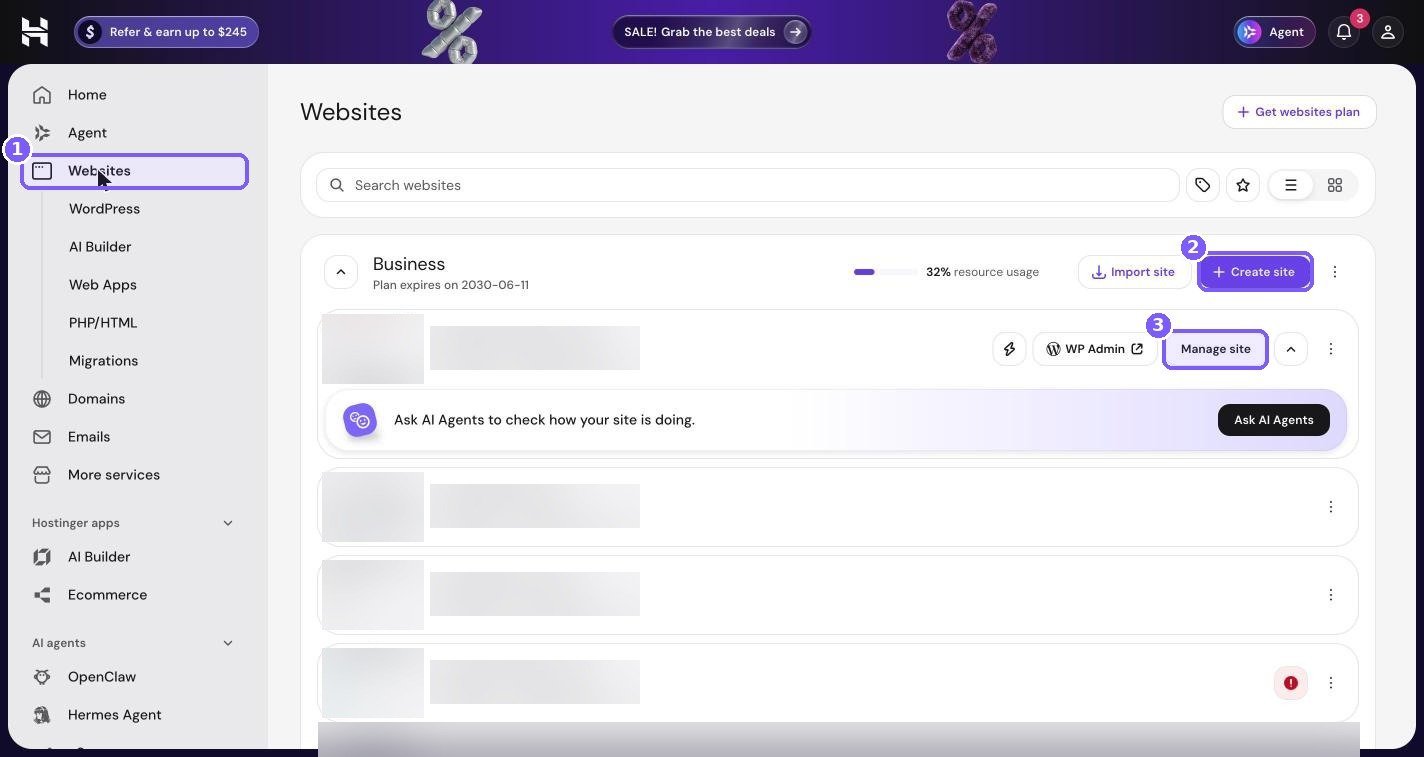
On my account the list is grouped under the plan the sites belong to, in my case the Business plan. If you have several sites, this grouping makes it clear which plan’s resources each site is using.
Searching and filtering
Once you have more than a handful of sites, use the search field at the top. Type part of a domain and the list filters as you type.
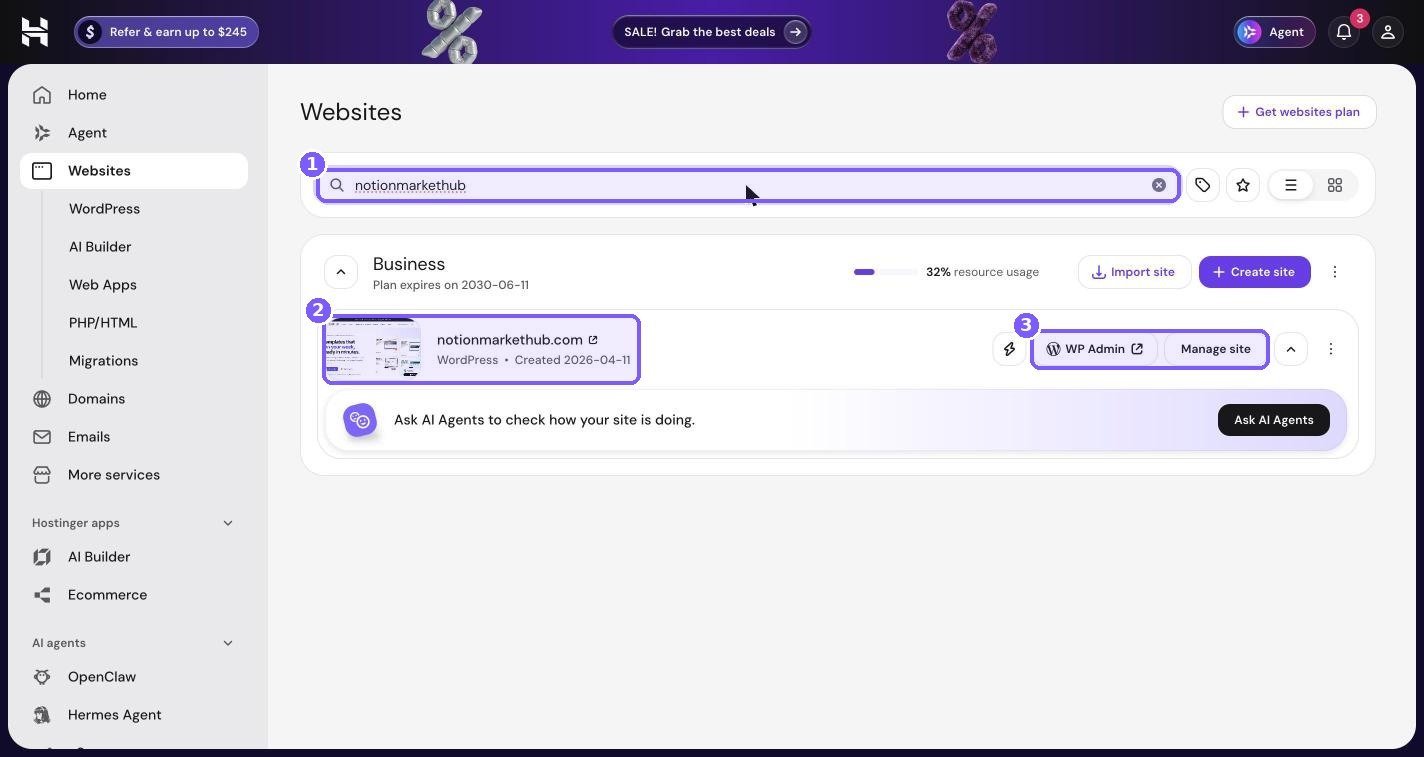
The plan header above the filtered result also shows a resource usage percentage for the whole plan and the plan’s expiry date. That percentage is a quick health check. If it creeps up towards the top end, it is time to look at the plan resources page (covered below) before your sites slow down.
WP Admin vs Manage site
These two buttons do very different things:
- WP Admin opens your WordPress dashboard (wp-admin) in a new tab and logs you in automatically. Use it for content, plugins, themes and WooCommerce.
- Manage site opens the hPanel site dashboard. Use it for hosting-level settings: SSL, CDN, backups, PHP, files, databases and so on.
A simple rule: if it is about what your visitors see, go to WP Admin. If it is about the server your site runs on, go to Manage site.
The site dashboard
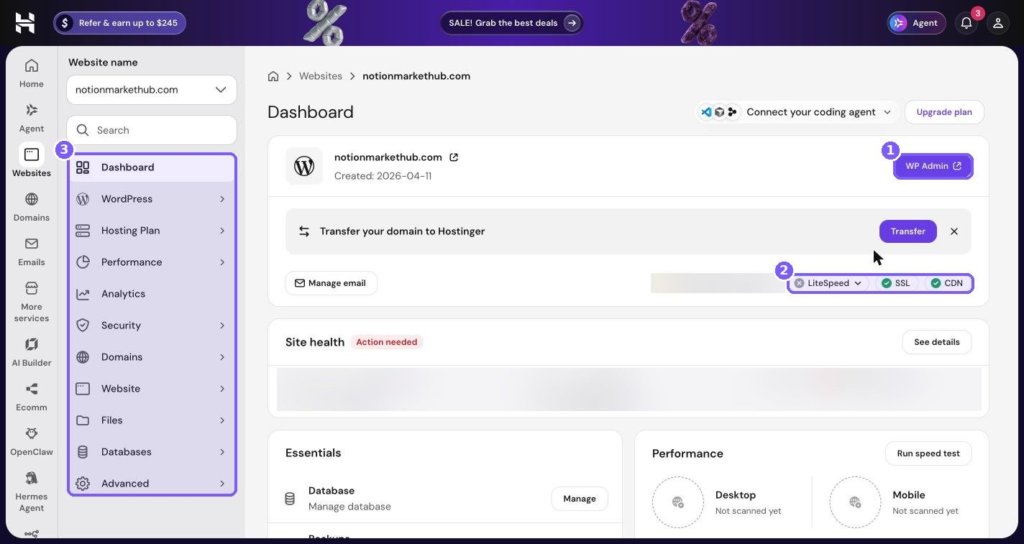
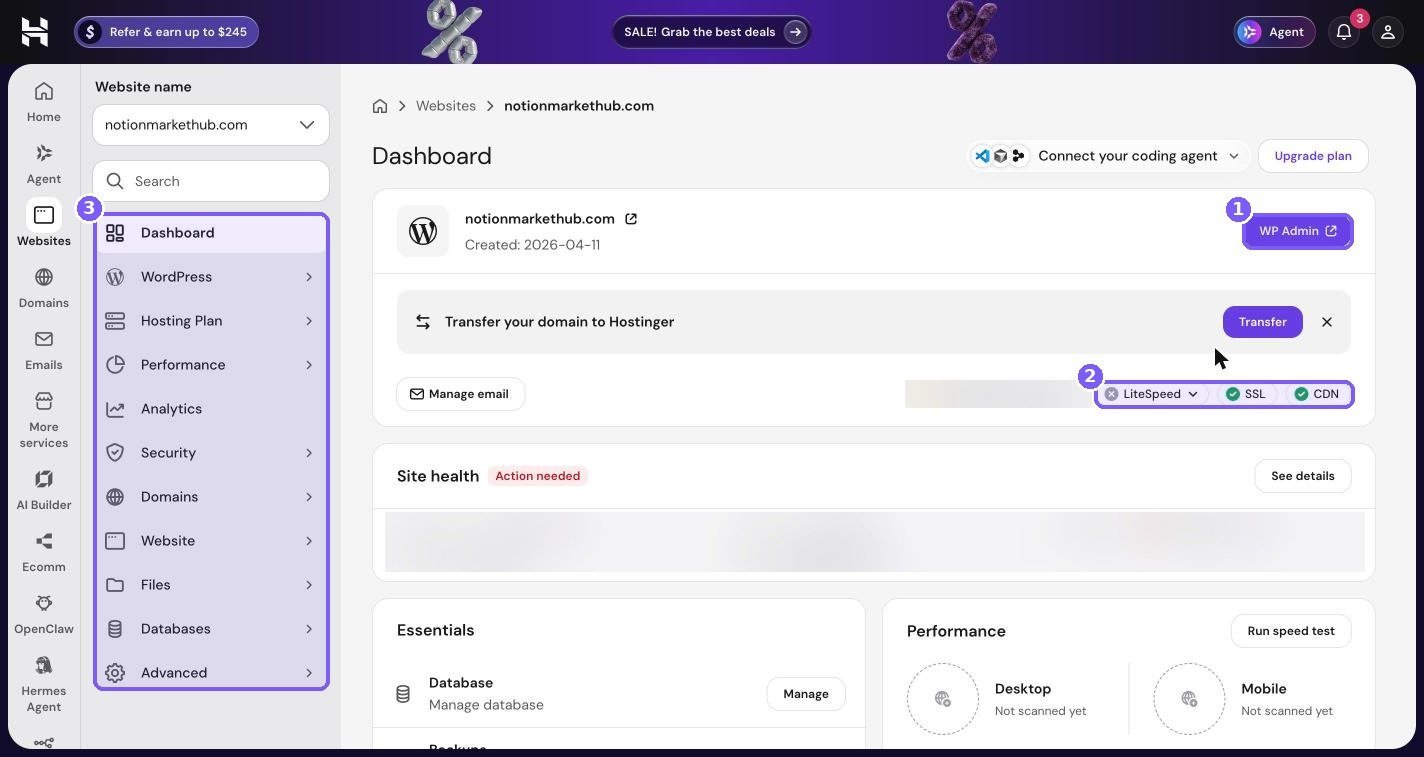
Clicking Manage site opens the site dashboard. This is the heart of hPanel for any single website, and it is worth learning well.
The header card
At the top you see the site’s domain, the date it was created, and the WP Admin button (box 1). There is also a Manage email button, a “Connect your coding agent” dropdown for developers who want an AI coding tool to work on the site, and an Upgrade plan button.
On my dashboard there is also a “Transfer your domain to Hostinger” bar. It appears because my domain is registered elsewhere and only points to Hostinger. You can close it if you are happy keeping your domain where it is. Moving it is optional, and the site works the same either way.
The status chips
The three chips on the right (box 2) are a quick summary of your site’s performance and security setup:
- LiteSpeed – whether the LiteSpeed Cache plugin is set up on the site. On my screenshot this chip is grey rather than green, which matches the “Install” recommendation you will see on the WordPress overview page later. It is a reminder that I still have a caching step to finish.
- SSL – a green tick means an SSL certificate is installed and active.
- CDN – a green tick means Hostinger’s CDN is serving your site.
If any of these are not green, click the chip to jump to the relevant setting. It is the fastest health check in hPanel.
The site menu
The left-hand menu (box 3) is where every site-level tool lives. Here is what each section is for:
| Menu section | What you will find there |
|---|---|
| Dashboard | The overview you are looking at now, with essentials, performance and resource usage. |
| WordPress | Overview, Updates, AI Troubleshooter, Staging, Copy Website, Presets and Video tutorials. |
| Hosting Plan | Plan details, resources usage, renew and upgrade. |
| Performance | AI Troubleshooter, Object Cache, Page Speed and CDN. |
| Analytics | Traffic and usage information for the site. |
| Security | SSL and other security tools for the site. |
| Domains | Domains connected to this site, including parked domains and subdomains. |
| Website | Tools such as the Auto Installer. |
| Files | File Manager, Backups and FTP Accounts. |
| Databases | Database management for the site. |
| Advanced | Developer-level settings for the site. |
There is also a search field above the menu. If you know what you want, for example “PHP” or “cron”, type it there instead of opening every section.
Essentials, performance and resource usage
Scroll down the dashboard and you reach three cards that are worth checking every week or two.
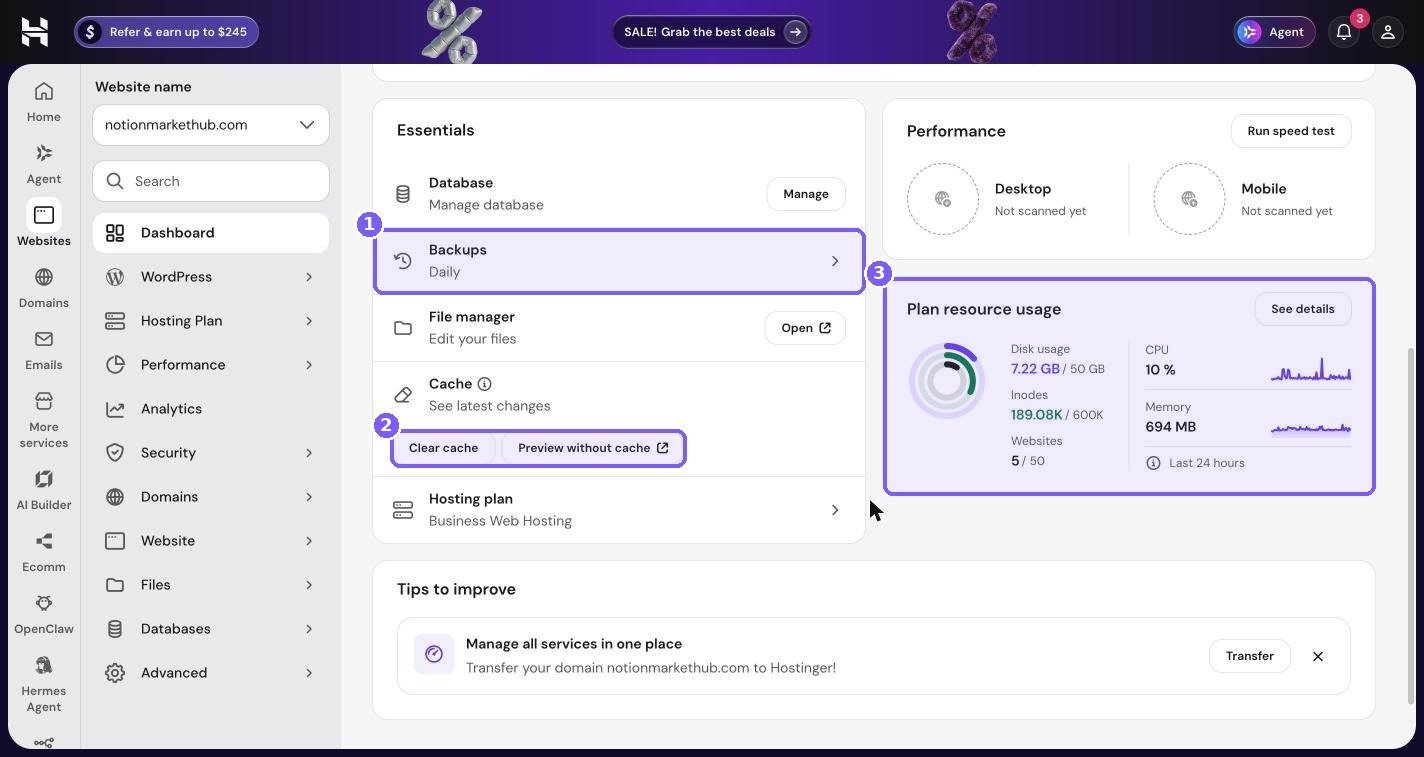
The Essentials card has shortcuts to the things you use most: Database (Manage), Backups, File manager (Open), Cache, and your Hosting plan (mine reads Business Web Hosting).
The Cache row deserves a special mention. “Clear cache” empties the server cache so visitors see your latest changes. “Preview without cache” opens your site with caching bypassed, which is the quickest way to answer the question “is my change not showing because of cache, or because it did not save?”
The Performance card shows Desktop and Mobile scores once you have run a speed test. Mine said “Not scanned yet” when I took the screenshot, and there is a Run speed test button to fix that.
The Plan resource usage card is a small summary of how hard your plan is working. On my account it showed 7.22 GB of 50 GB disk used, 189.08K of 600K inodes, 5 of 50 websites, CPU at 10% and memory at 694 MB over the last 24 hours. Click See details for the full breakdown. I explain what each of these numbers means in the plan details section below.
At the bottom there is a “Tips to improve” box. On my dashboard it suggests transferring my domain to Hostinger. Treat these tips as suggestions, not warnings.
WordPress overview
Open WordPress in the site menu and then Overview. This page is the control centre for WordPress-specific hosting settings, and it is one of the most useful screens in hPanel.
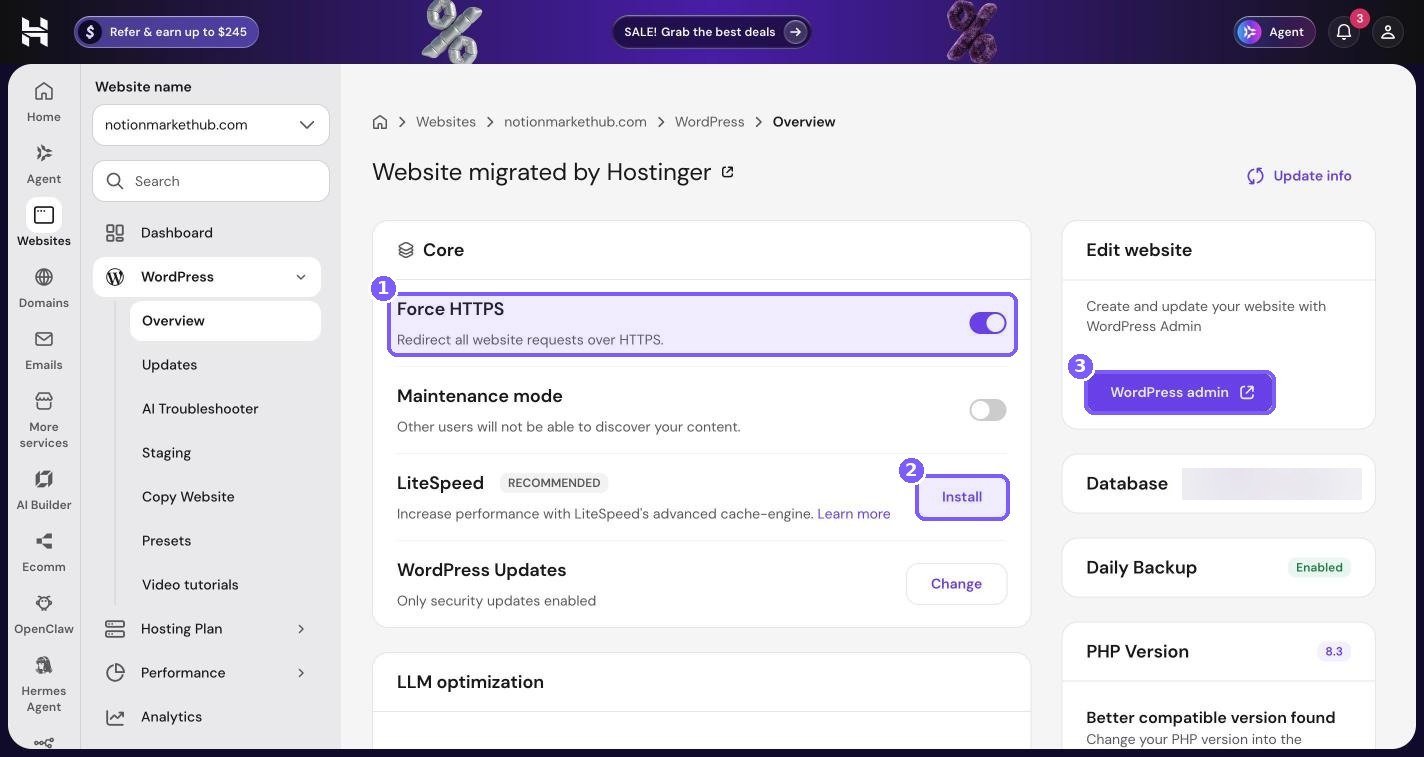
The page title on my site reads “Website migrated by Hostinger” because Hostinger’s team moved the site over from my previous host. If you want them to do the same for you, my guide on moving a WordPress website to Hostinger for free walks through the request.
The Core card
The Core card holds four settings:
- Force HTTPS (box 1) – “Redirect all website requests over HTTPS.” Keep this on. It makes sure nobody lands on the insecure http:// version of your site.
- Maintenance mode – when on, “Other users will not be able to discover your content.” Use it briefly while you make big changes, and remember to switch it off afterwards.
- LiteSpeed (box 2) – “Increase performance with LiteSpeed’s advanced cache-engine.” If you see Install here, the LiteSpeed Cache plugin is not active yet. Installing it is one of the biggest free speed wins on Hostinger.
- WordPress Updates – mine says “Only security updates enabled”, with a Change button. This controls whether hPanel auto-updates WordPress core for you.
The right-hand column
On the right you will find the WordPress admin button (box 3), the Database card, a Daily Backup row marked Enabled, and the PHP Version card, which shows 8.3 on my site along with a “Better compatible version found” note. That note means hPanel has spotted a PHP version that may suit your site better. Before switching PHP versions, make a backup and, ideally, test on staging first.
There is also an LLM optimization section lower on the page, which relates to how your content is presented to AI tools and search assistants. It is new, so check what your own panel offers there before relying on it.
The WordPress submenu
The submenu under WordPress is worth knowing:
- Overview – the page above.
- Updates – manage WordPress core, plugin and theme updates.
- AI Troubleshooter – an AI tool that tries to diagnose site errors.
- Staging – a safe copy of your site for testing (next section).
- Copy Website – clone a site to another domain on your plan.
- Presets – saved setups for new WordPress installs.
- Video tutorials – short how-to videos from Hostinger.
Staging: test changes before they go live
Staging is a private copy of your website where you can try things without risking the live site. If you run a store or any site that earns money, this is one of the most valuable features in hPanel.
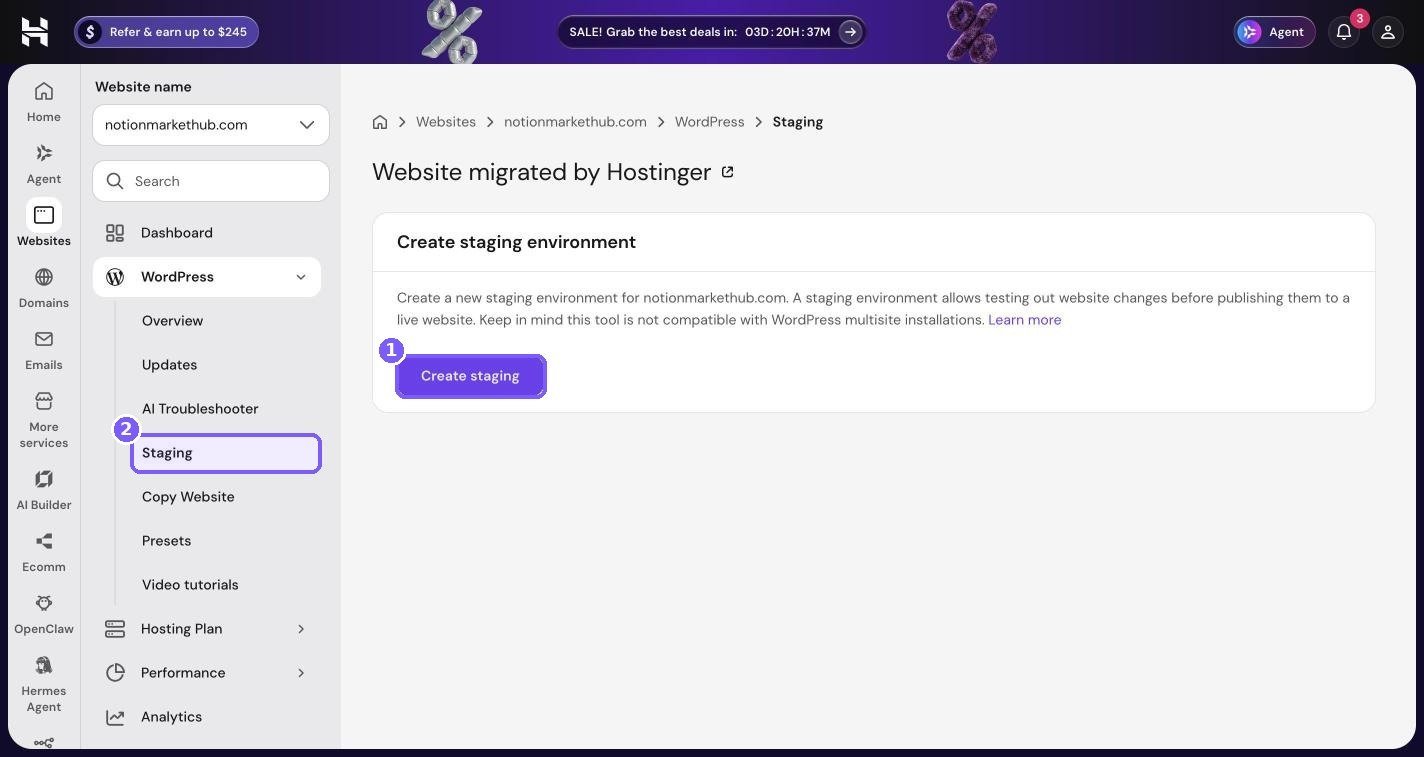
The Staging page explains the idea in a sentence: you create a staging environment, test your changes there, and only push them to the live site when you are happy. On my account I have not created one yet, so the page shows the “Create staging environment” card with a single button.
When to use staging
- Before updating a major plugin such as WooCommerce or your page builder.
- Before changing your theme or doing a redesign.
- Before switching PHP versions.
- When testing a new checkout setup, payment method or membership plugin.
A simple staging routine
- Open WordPress, then Staging, and click Create staging.
- Wait for hPanel to copy your site. Larger sites take longer.
- Log in to the staging copy and make your change.
- Click through the important pages: home, a blog post, product page, cart and checkout.
- If everything works, publish the staging copy to live. If not, delete it and start again.
Remember that a store keeps taking orders on the live site while you test. If you push a staging copy over the live site, any orders or comments made in the meantime could be overwritten, so for stores, it is often safer to use staging to test a change and then repeat that change on the live site. I cover this in more detail in my guide to speeding up and securing WordPress on Hostinger.
Hosting plan details and resources
Open Hosting Plan and then Plan Details to see exactly what your plan includes and where your site lives.
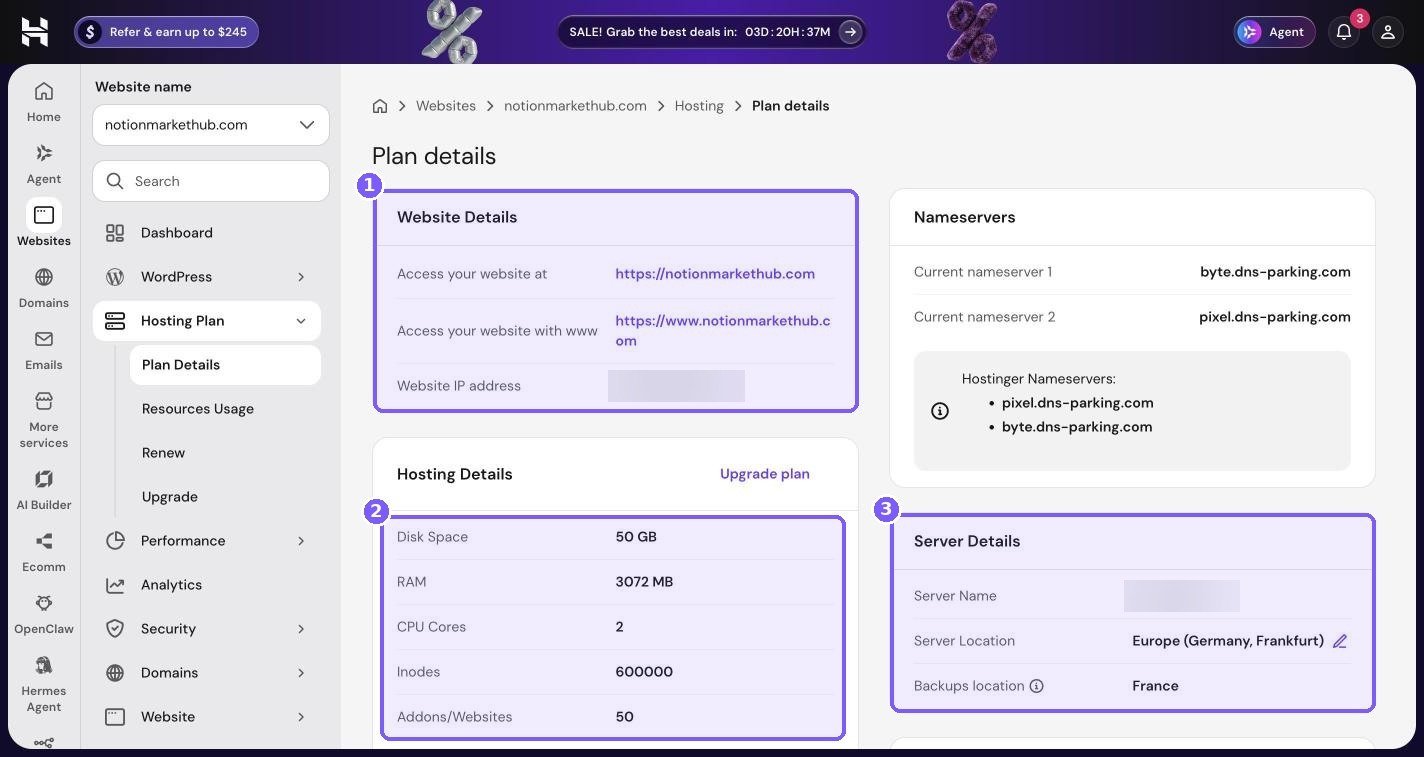
Website Details
The first card confirms how your site is accessed: the https address, the www version, and the IP address (blurred in my screenshot). If you ever need to point a domain manually, this is where you find the IP.
Hosting Details
The second card lists the limits of your plan. My Business plan shows:
| Resource | My plan | What it means in practice |
|---|---|---|
| Disk Space | 50 GB | How much storage your files, images, databases and emails can use. |
| RAM | 3072 MB | Working memory for PHP processes. More RAM helps busy WooCommerce stores. |
| CPU Cores | 2 | Processing power. Matters most during traffic spikes and heavy admin work. |
| Inodes | 600000 | The maximum number of files and folders. Image-heavy sites and caches use lots of these. |
| Addons/Websites | 50 | How many separate websites you can host on this plan. |
Your numbers will differ depending on your plan. Plan names and limits change from time to time, so check the current plan pages before you buy. My Hostinger pricing breakdown compares the tiers.
Nameservers
Next to Website Details there is a Nameservers card. It shows the nameservers your domain currently uses and Hostinger’s own nameservers for comparison. If they match, your domain’s DNS is managed in hPanel. If they do not, your DNS lives at your registrar or another provider, and changes need to be made there.
Server Details
The Server Details card shows where your site is physically hosted. My site is on a server in Europe (Germany, Frankfurt), and my backups are stored in France. Choose a server location close to most of your visitors, because distance adds delay to every request. If most of your customers are in North America, a European server is not ideal, and you can ask Hostinger about moving it. The pencil icon next to the location suggests this can be changed from here.
The rest of the Hosting Plan menu
- Resources Usage – graphs of CPU, memory, processes and inodes over time. If your site feels slow at certain times of day, look here first.
- Renew – renewal options for the plan.
- Upgrade – move to a bigger plan when you outgrow this one.
SSL certificates
An SSL certificate is what puts the padlock in your visitors’ browsers and lets your site load over https. Without it, browsers show “Not secure” warnings, and payment providers will not work. On Hostinger, SSL is handled in Security, then SSL.
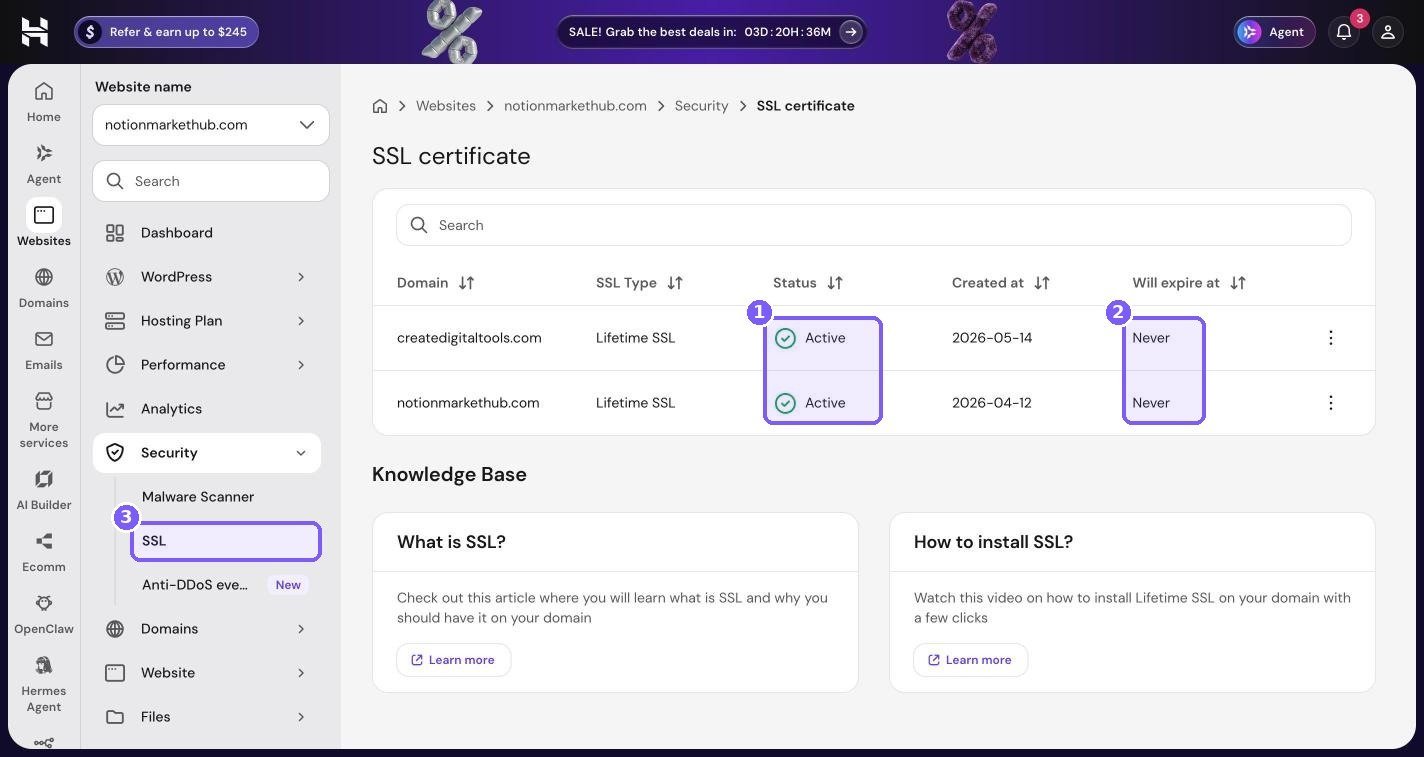
The table lists every domain on the site with its SSL type, status, creation date and expiry. Both my domains use “Lifetime SSL”, which is Hostinger’s free certificate. The Status column reads Active and the expiry column reads Never, which means Hostinger handles renewals in the background and you do not have to think about it.
What to check on the SSL page
- Every domain and subdomain you use should be listed with status Active.
- If a new domain shows anything other than Active, give it some time after pointing the domain. SSL can only be issued once the domain resolves to Hostinger.
- After SSL is active, go back to WordPress Overview and make sure Force HTTPS is on.
If you see mixed content warnings (some images or scripts loading over http), that is usually a WordPress setting or a hard-coded link in your content, not an SSL problem. Updating your WordPress address and site address to https, and running a search-and-replace for old http links, normally fixes it.
CDN (content delivery network)
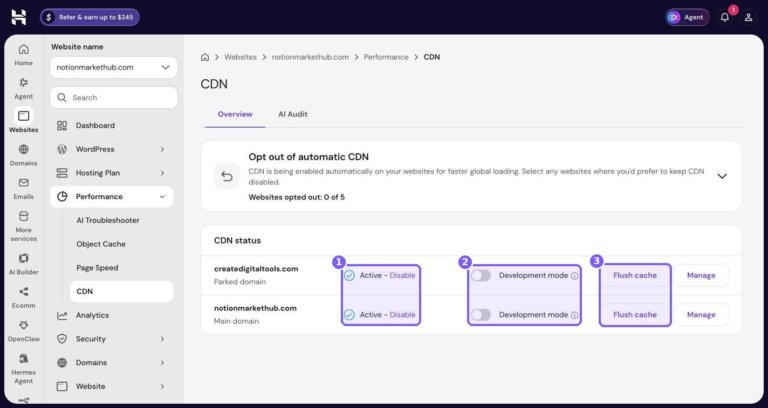
A CDN stores copies of your site’s files on servers around the world, so visitors get them from somewhere close by. Hostinger has its own CDN, and you manage it under Performance, then CDN.
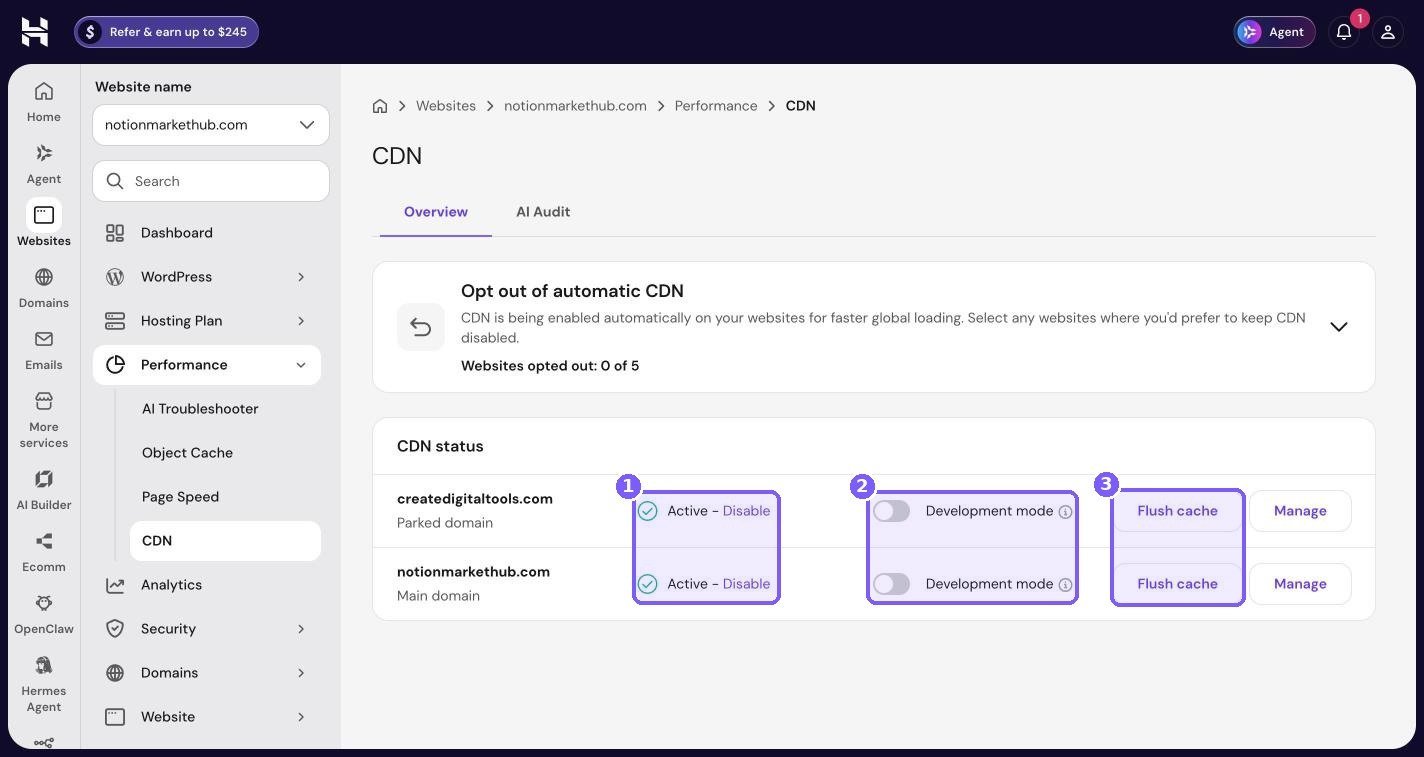
At the top there is an “Opt out of automatic CDN” card. It says CDN is being enabled automatically on your websites for faster global loading, and shows how many websites you have opted out. On my account that is 0 of 5, so every site uses the CDN.
The CDN status table lists each domain. On my account, createdigitaltools.com is listed as a parked domain and notionmarkethub.com as the main domain, and both show Active.
The three CDN controls
- Active / Disable (box 1) – turns the CDN on or off for that domain. Leave it on unless a support agent tells you otherwise.
- Development mode (box 2) – temporarily bypasses the CDN cache so you can see changes straight away while you are editing. Switch it on during a redesign, then switch it off again, otherwise your visitors lose the speed benefit.
- Flush cache (box 3) – clears everything the CDN has stored. Use it after big changes like a new theme, new CSS, or replacing images with the same file name.
There is also a Manage button for each domain and an AI Audit tab at the top of the page for deeper CDN settings and checks.
Page speed test
Hostinger has a built-in speed test under Performance, then Page Speed. It saves you from opening a separate tool every time you want to check your site.
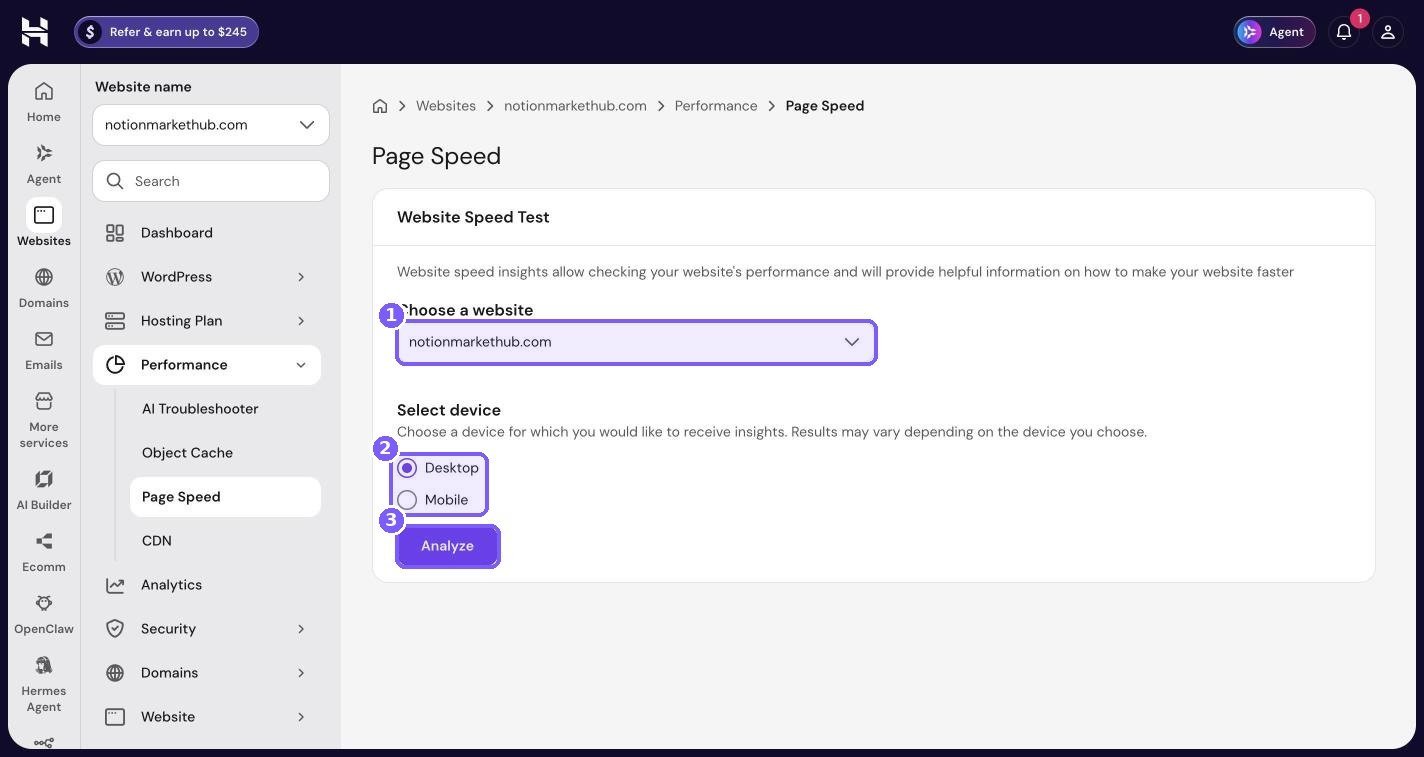
Pick a website (box 1), choose Desktop or Mobile (box 2), and click Analyze (box 3). The results then appear on the site dashboard’s Performance card as well.
Tips for useful speed tests
- Test mobile first. Most visitors are on phones, and mobile scores are usually lower.
- Test the pages that earn money, not just the home page. For a store that means product pages and the shop page.
- Run the test twice. The first run can be slower because caches are empty.
- Change one thing at a time, then re-test. Otherwise you will not know what helped.
The Performance submenu also includes AI Troubleshooter and Object Cache. Object cache stores the results of database queries in memory, which can help busy WordPress and WooCommerce sites. If your plan offers it, it is worth testing on staging.
Backups
Backups are your safety net. In hPanel they live under Files, then Backups.
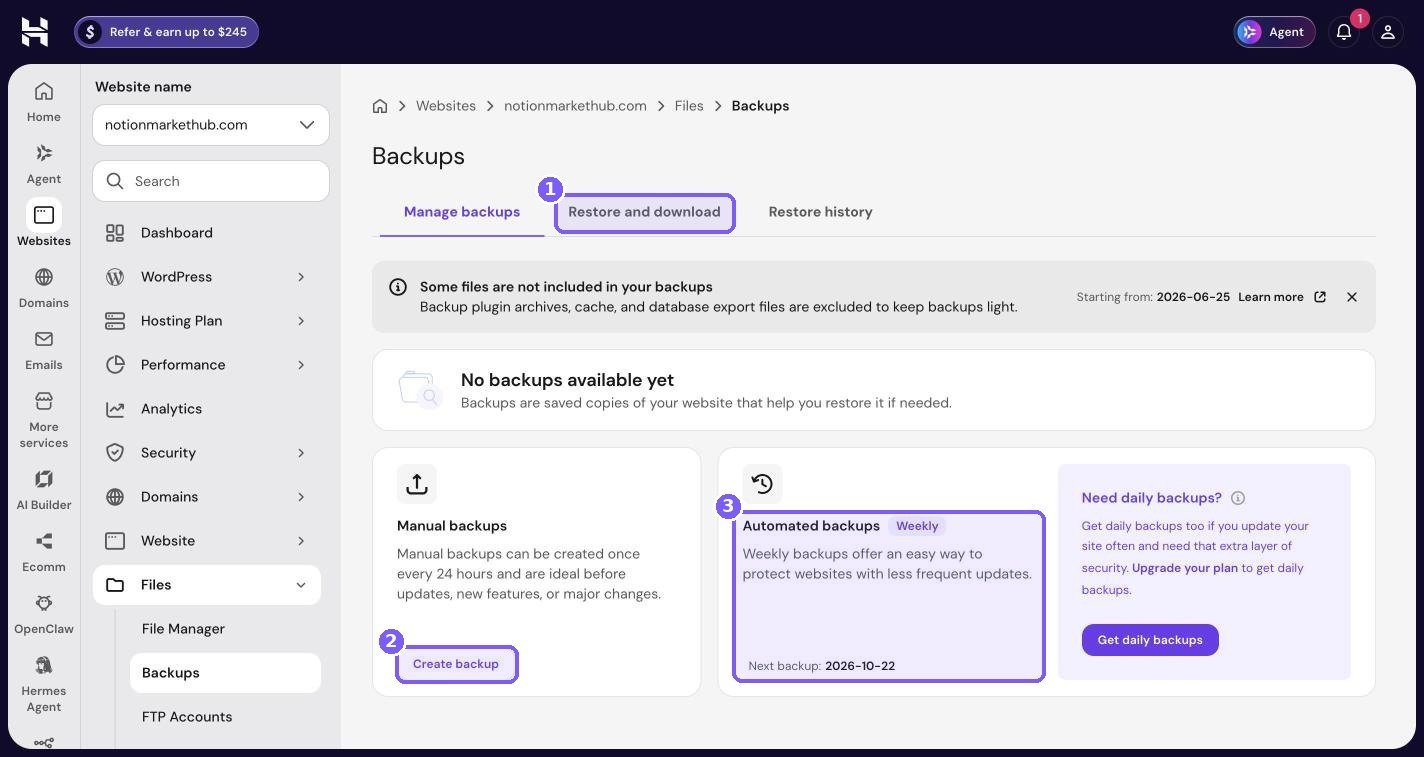
The page has three tabs: Manage backups, Restore and download, and Restore history. A grey note at the top explains that backup plugin archives, cache files and database export files are excluded to keep backups light. That is sensible, but it means if you rely on a backup plugin’s zip files stored on the server, they will not be in Hostinger’s backups.
Manual backups
The Manual backups card says manual backups can be created once every 24 hours and are ideal before updates, new features or major changes. Click Create backup (box 2) before any risky change. It takes seconds to start and can save you hours.
Automated backups
The Automated backups card (box 3) shows the schedule and the next backup date. On this screen, my account shows Weekly, with a “Need daily backups?” panel next to it offering daily backups through an upgrade.
You may notice that the site dashboard and WordPress Overview on my account both show a Daily backup row as enabled, while this Backups page shows the weekly schedule. Hostinger’s backup options vary by plan and change over time, so check the Backups page on your own account and confirm which schedule applies before you rely on it. If your site takes orders every day, daily backups are worth having.
Restoring a backup
Open the Restore and download tab (box 1), pick a date, and choose whether to restore files, the database or both. You can also download a copy to keep on your own computer. I recommend downloading a full backup once a month and storing it somewhere other than your hosting account.
Auto Installer
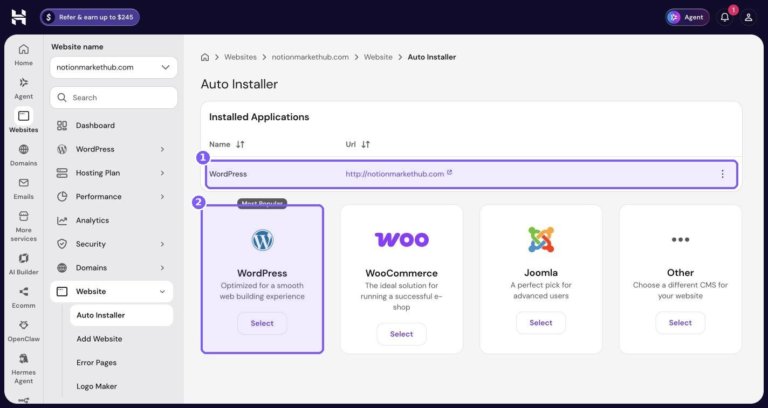
The Auto Installer, under Website, then Auto Installer, is where you install applications like WordPress with a few clicks.
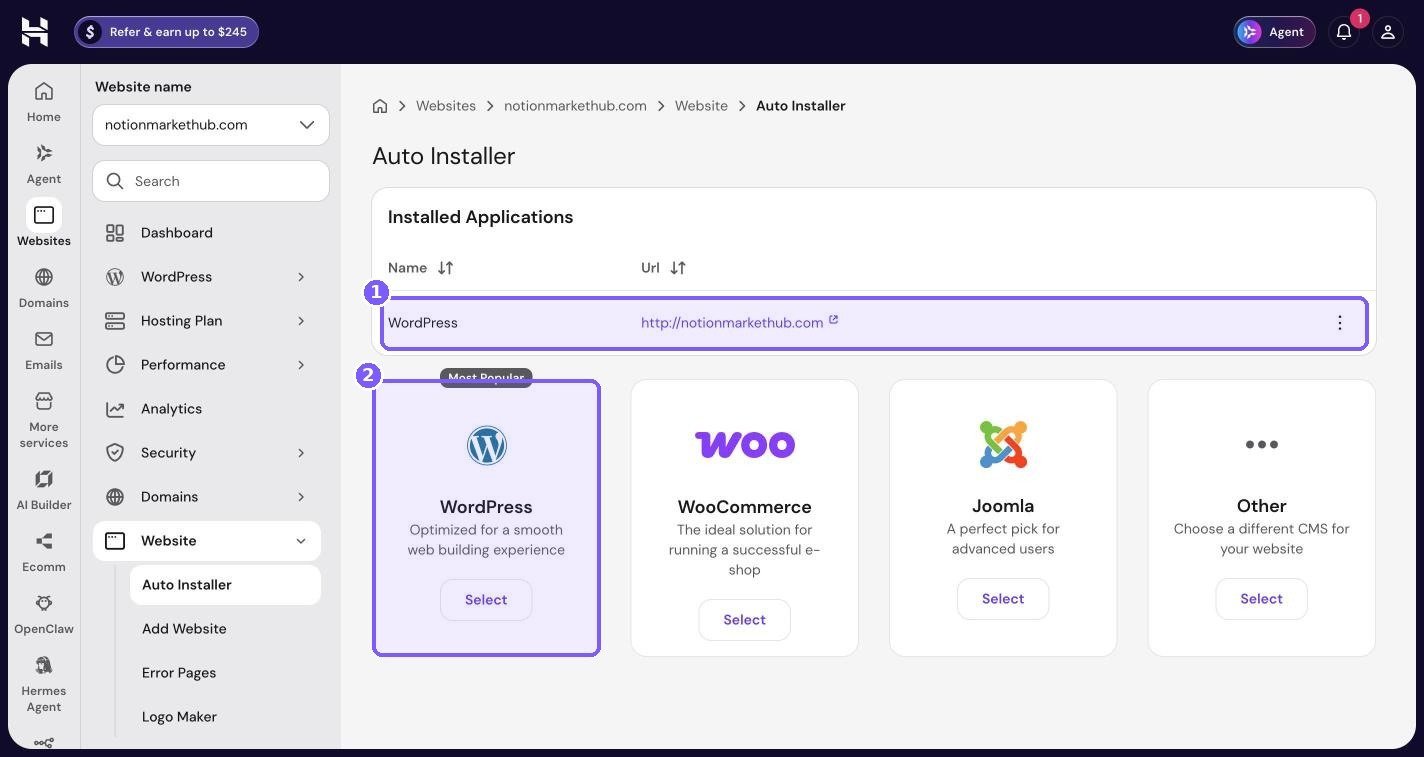
The top section lists apps already installed on the site, with the URL each one is installed on. Below that you can pick a new app. The WordPress tile is tagged “Most Popular” and described as “Optimized for a smooth web building experience.” There are also tiles for WooCommerce, Joomla and Other.
When to use the Auto Installer
- To install WordPress on a domain or subdomain that does not have it yet.
- To set up a WooCommerce store from scratch, with WordPress and WooCommerce installed together.
- To install a different application, such as Joomla, on a separate domain.
If you only want to add a plugin to an existing WordPress site, do that from WP Admin instead. The Auto Installer is for whole applications, not plugins.
Domains
Click Domains in the main sidebar to open your domain portfolio. This is account-level, so it covers every domain you have bought from or pointed to Hostinger.
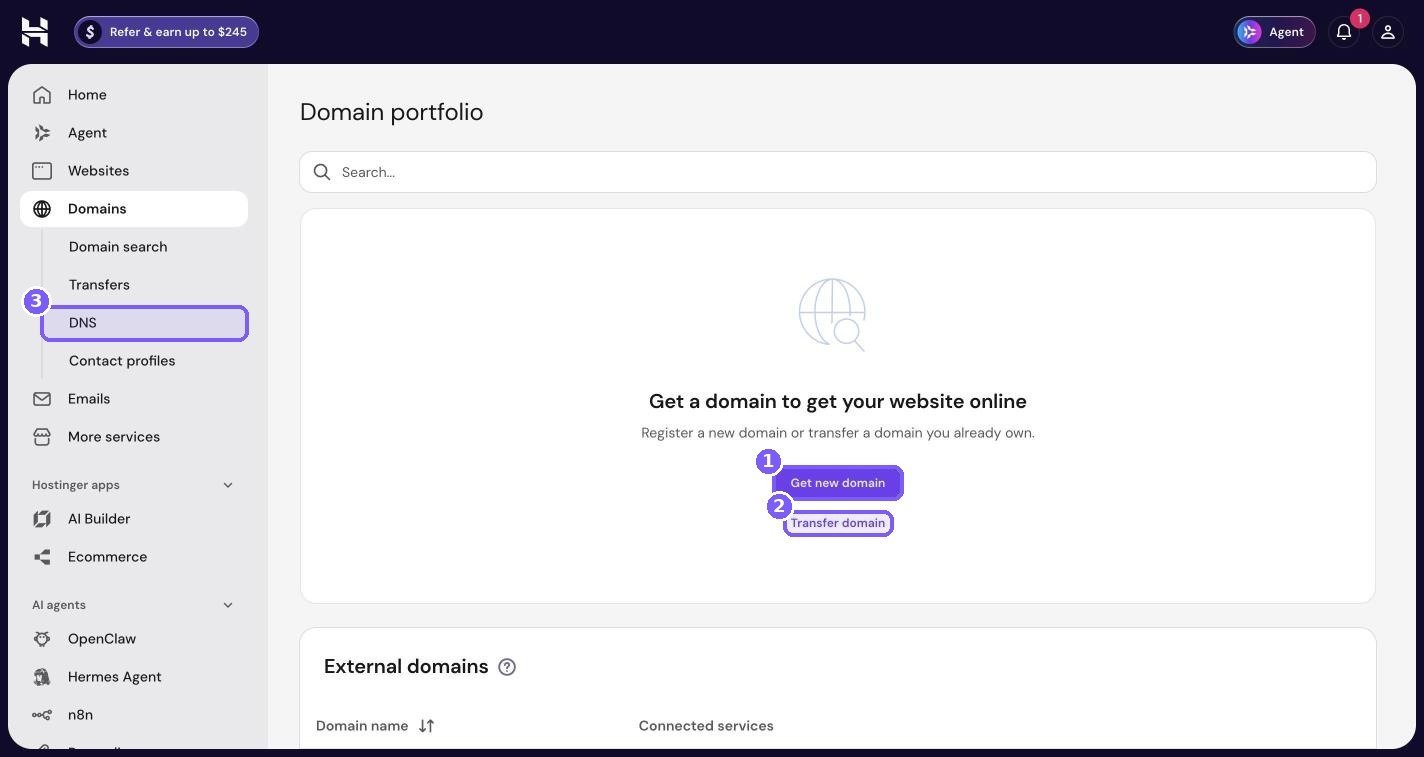
My portfolio shows the empty state “Get a domain to get your website online” because my domains are registered with another company and only pointed to Hostinger. Those appear below in an External domains table.
The three things you will do here
- Get new domain (box 1) – search for and buy a domain. If you are starting fresh, registering the domain with your host keeps renewals and DNS together. You can search for a domain on Hostinger here.
- Transfer domain (box 2) – move a domain you already own from another registrar to Hostinger. It is optional, but it means fewer logins and renewals in different places.
- DNS (box 3) – edit DNS records such as A, CNAME, MX and TXT. You need this for things like verifying your domain with Google, connecting email, or pointing a subdomain somewhere else.
A quick tip on DNS: changes can take a while to spread across the internet. If something does not work straight after you change a record, wait a little before changing it again.
Emails
Click Emails in the main sidebar to manage professional email addresses on your own domain, like hello@yourdomain.com.
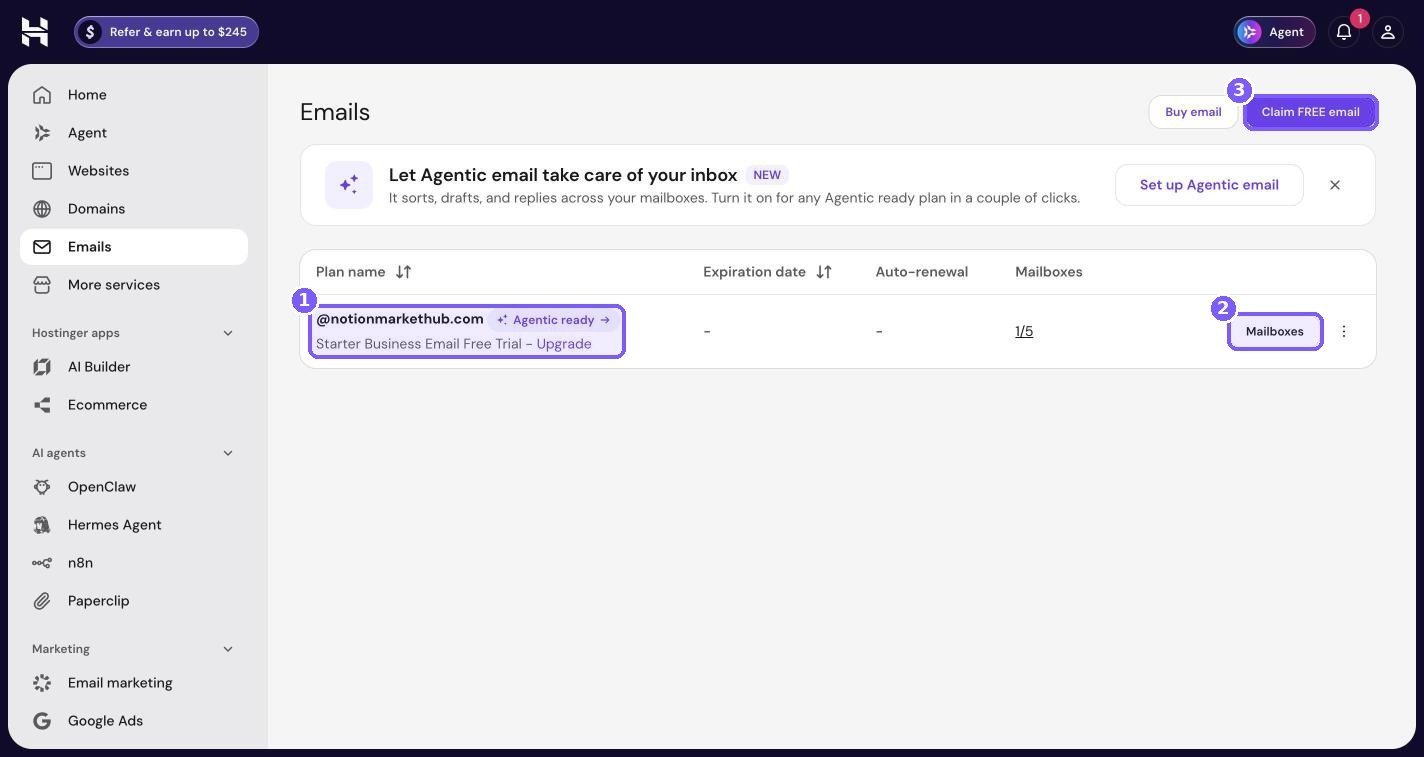
The page has a banner for a new feature called Agentic email, which Hostinger describes as something that “sorts, drafts, and replies across your mailboxes.” It can be switched on for any Agentic-ready plan.
Below that is the plans table. My domain has a Starter Business Email plan on a free trial, with an Upgrade link, and a Mailboxes button showing 1 of 5 mailboxes in use. The top-right corner has Buy email and Claim FREE email buttons.
How to set up email in hPanel
- Click Claim FREE email (or Buy email if you want a bigger plan).
- Choose the domain you want the address on.
- Create your first mailbox, for example hello@ or support@.
- Follow the prompts to add the DNS records. If your DNS is at Hostinger, this is usually automatic.
- Open webmail or add the account to your phone or mail app.
For a full walkthrough with every step, see my guide on creating a professional email address with your own domain. If you need more mailboxes or storage, Hostinger’s business email plans are listed separately.
AI agents: OpenClaw, Hermes Agent, n8n and Paperclip
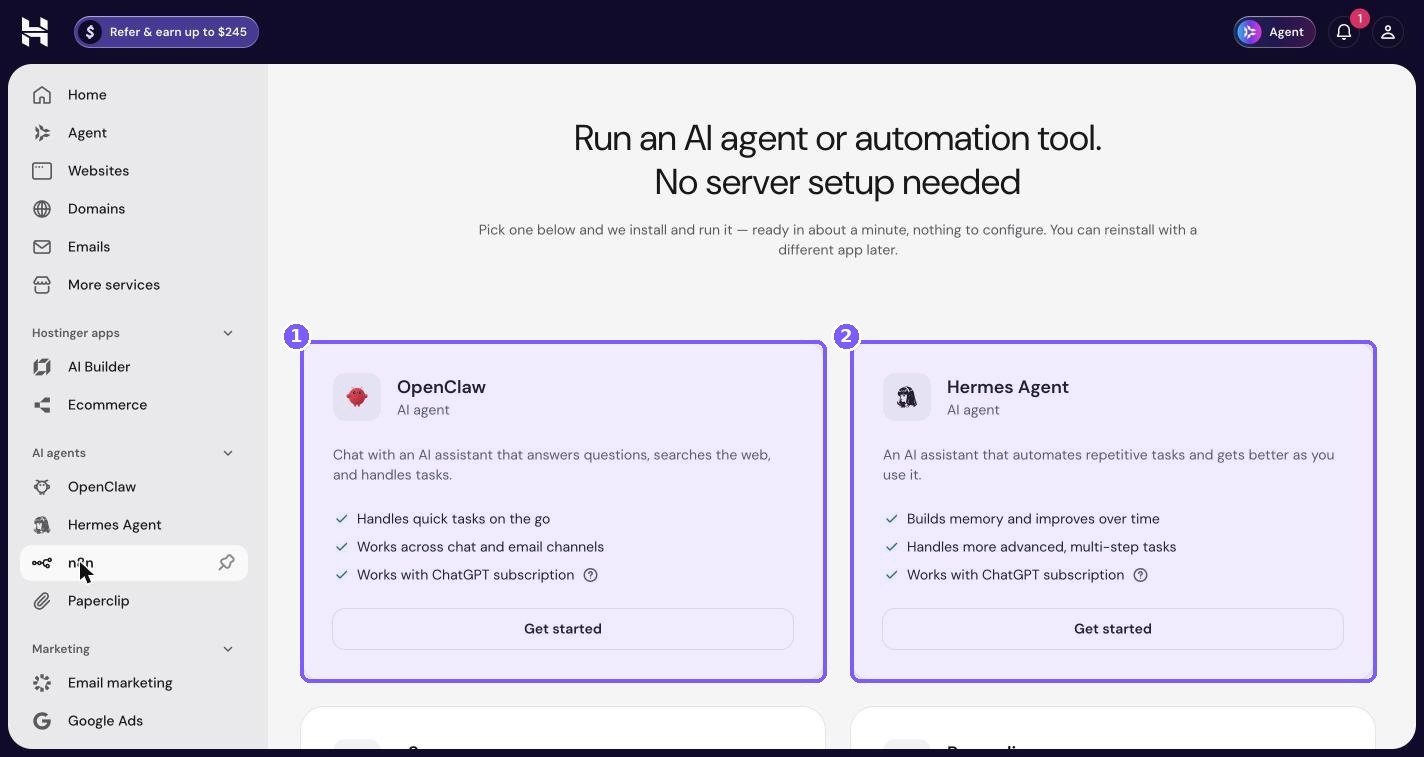
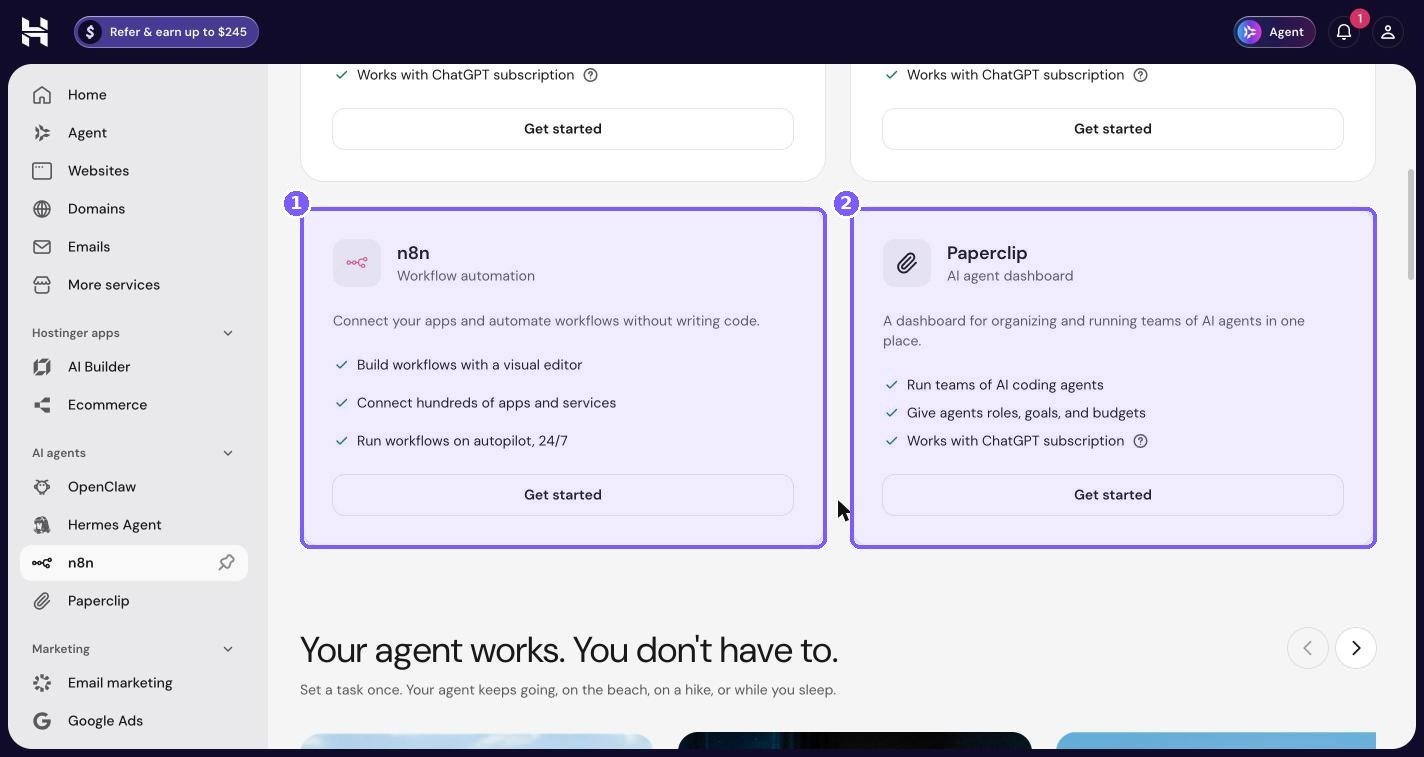
This is the newest part of hPanel, and probably the biggest change since last year. Under AI agents in the sidebar there are four tools, all listed together under the heading “Run an AI agent or automation tool. No server setup needed.”
The subtitle sums up the idea: you pick one, and Hostinger installs and runs it for you, ready in about a minute, with nothing to configure. It also notes you can reinstall with a different app later.
OpenClaw
OpenClaw is described as a chat assistant that answers questions, searches the web, and handles tasks. The card lists three points: it handles quick tasks on the go, works across chat and email channels, and works with a ChatGPT subscription. Think of it as a personal assistant that lives on its own server instead of inside a browser tab.
Hermes Agent
Hermes Agent is described as an AI assistant that automates repetitive tasks and gets better as you use it. The card says it builds memory and improves over time, handles more advanced, multi-step tasks, and also works with a ChatGPT subscription. Where OpenClaw is aimed at quick tasks, Hermes is aimed at longer jobs that benefit from remembering context.
n8n
n8n is a workflow automation tool, similar in spirit to Zapier or Make. The card says “Connect your apps and automate workflows without writing code,” and lists building workflows with a visual editor, connecting hundreds of apps and services, and running workflows on autopilot, 24/7. For a small business this is the most practical of the four: you can connect your store, email, spreadsheets and CRM so that routine jobs happen on their own.
Paperclip
Paperclip is described as an AI agent dashboard for organising and running teams of AI agents. The card lists running teams of AI coding agents, giving agents roles, goals and budgets, and working with a ChatGPT subscription. It is the most technical of the four and is aimed at people who want several AI agents working on code or projects at the same time.
Should you use them?
These tools are new and Hostinger sells them as separate plans, so look at each one’s current details before you sign up. If you are curious, n8n is the easiest place to start because the results are concrete: a form submission lands in a spreadsheet, a new order sends a Slack message, and so on. I wrote a full guide on running n8n and AI agents on Hostinger without server setup that covers the setup flow, AI provider options and practical first workflows.
AI Builder
AI Builder sits under Hostinger apps in the sidebar. It is Hostinger’s AI website and app builder, and the landing page headline is “You bring the idea. AI builds it – in minutes.”
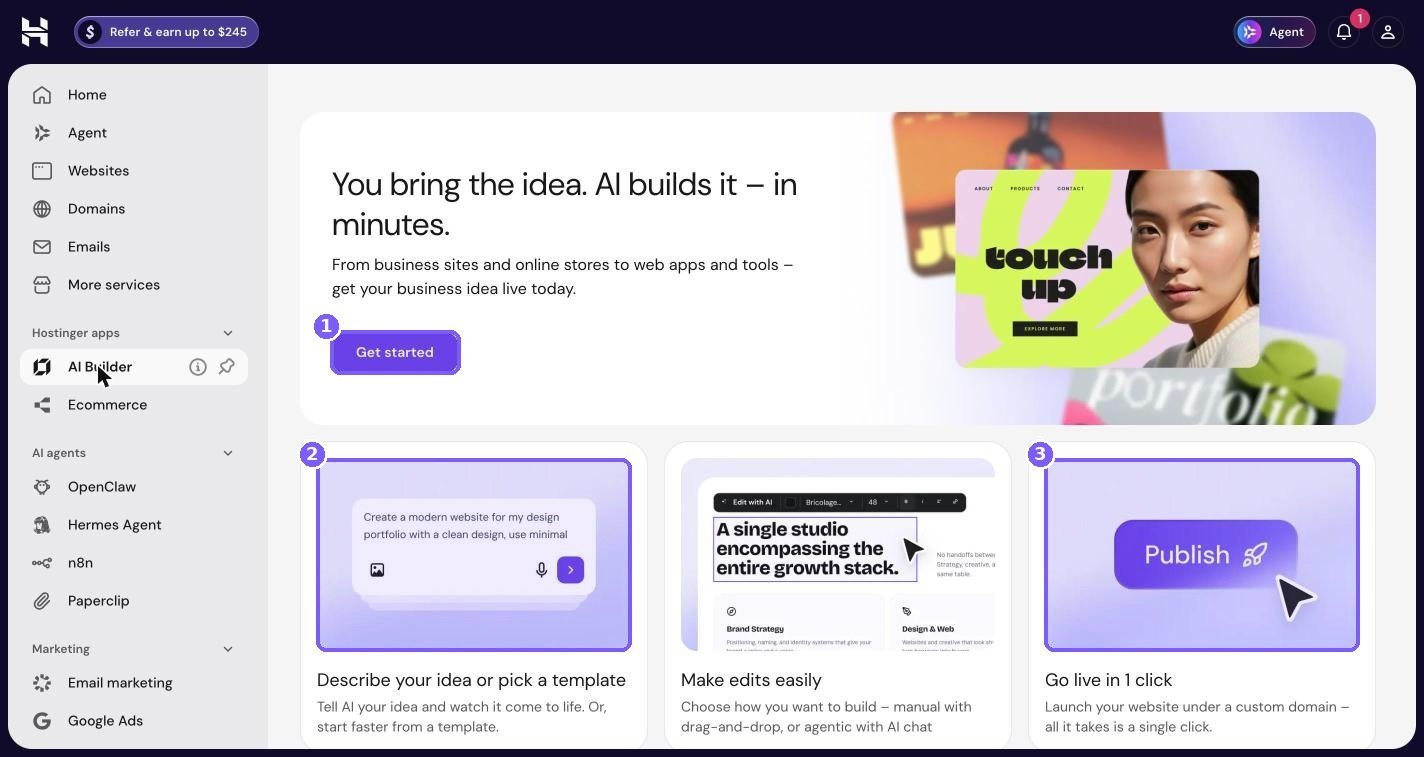
The subtitle says it covers business sites and online stores as well as web apps and tools. The three cards explain the flow:
- Describe your idea or pick a template (box 2) – tell the AI what you want, or start from a template.
- Make edits easily – choose between manual drag-and-drop editing or agentic editing through AI chat.
- Go live in 1 click (box 3) – publish under a custom domain with one click.
AI Builder or WordPress?
AI Builder is a good fit for a simple business site, a landing page or a small tool where you want something live quickly and do not need plugins. WordPress is the better choice if you want a blog, a WooCommerce store, full control over SEO, or access to thousands of plugins. I run my shop on WordPress for that reason. If you want to try the AI route, my Hostinger Horizons review shows what building a site by chatting with AI looks like in practice, and my guide to building a business website with no code on Hostinger covers the builder route.
Creating a new site: the Create site flow
To add a new website, go to Websites and click the purple + Create site button. A dropdown appears with four options.
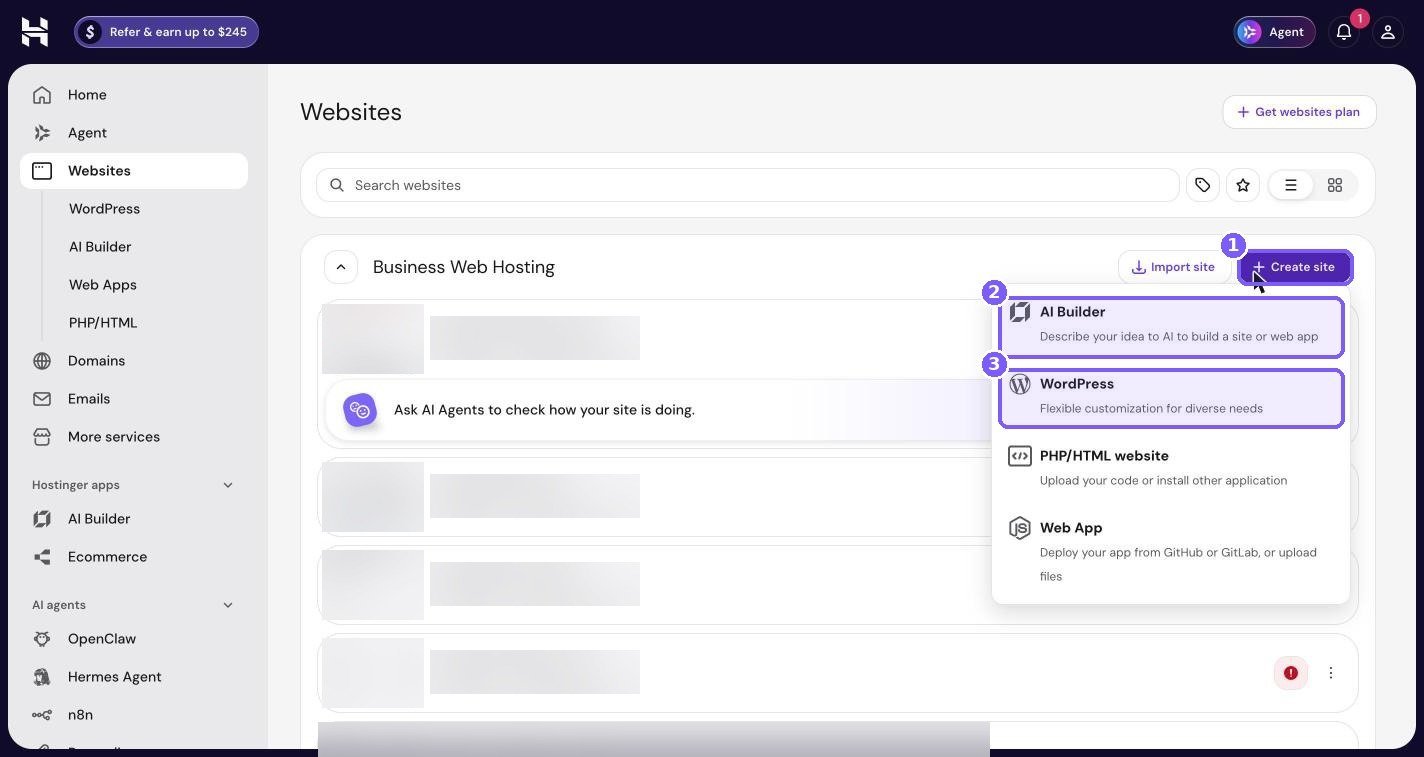
The four options are:
- AI Builder – build a site or web app by describing it to AI.
- WordPress – a standard WordPress install with full flexibility.
- PHP/HTML website – for custom code or a static site you have built yourself.
- Web App – for hosting a web application.
The WordPress setup wizard
If you pick WordPress, hPanel walks you through a short wizard. One of the first steps asks which domain or subdomain you want to use.
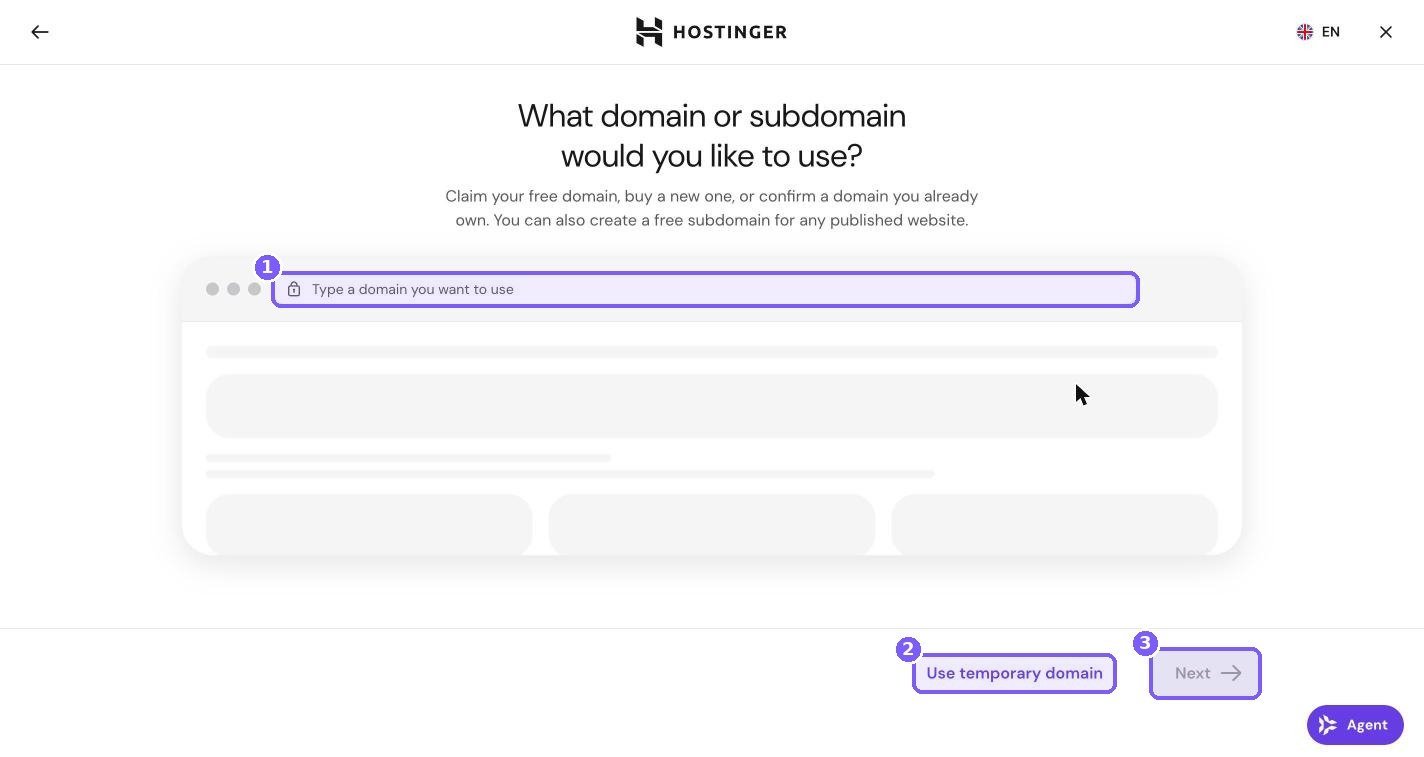
You have two choices here:
- Type a domain you want to use (box 1) – enter a domain you own or have just bought. If the domain is registered elsewhere, you will need to point it to Hostinger afterwards.
- Use temporary domain (box 2) – Hostinger gives you a temporary address so you can build the site before your real domain is ready. This is also handy if you are moving a site and want to set everything up before switching DNS.
Once you enter a domain, Next (box 3) becomes clickable and the wizard continues with the remaining setup steps. For a complete beginner walkthrough of this process, see how to start a website using Hostinger. If you are bringing an existing WordPress site from another host, read how to migrate a WordPress site to Hostinger without downtime first.
Refer & earn: Hostinger’s referral programme
The “Refer & earn” button in the top bar opens a small popup titled “Refer and get rewarded.” On my account it says: “Earn 20% for every friend you refer. They get 20% off their first purchase.” Below that is your personal referral link with a Copy link button and a Track referrals link to see how many people have signed up.
That means if you sign up for Hostinger through my referral links in this post, the popup says you get 20% off your first purchase, and I earn a commission. Discounts and terms are set by Hostinger and can change, so check the final price at checkout.
If you build websites for clients, the referral programme is also worth knowing about from the other side. Every site you set up for someone else is a chance to share your own link. For agencies managing many client sites, my Hostinger Agency Professional plan review covers the plans built for that.
Common problems and where to fix them in hPanel
Knowing the sections is one thing. Knowing which one to open when something breaks is what saves you time. Here are the problems I see most often on WordPress sites, and the part of hPanel I would check first for each.
| Problem | Where to look first in hPanel |
|---|---|
| My changes are not showing on the live site | Site dashboard, Cache: use Preview without cache. If the change shows there, click Clear cache and flush the CDN. |
| Browser says “Not secure” | Security, then SSL: check the domain is Active. Then WordPress Overview: switch on Force HTTPS. |
| The site is slow | Performance, then Page Speed for a fresh test. Then Hosting Plan, then Resources Usage for CPU and memory spikes. |
| I broke something after an update | Files, then Backups: restore from before the update. Next time, use Staging first. |
| White screen or error message | WordPress, then AI Troubleshooter. If that does not help, restore a backup. |
| Email is not arriving | Emails: check the mailbox exists. Then Domains, then DNS: check the MX records point to the right place. |
| A new domain is not working | Domains, then DNS, and Plan Details, then Nameservers: check where the domain points. |
| “Disk full” or upload errors | Site dashboard, Plan resource usage: check disk space and inodes. |
When changes do not show up
This is the number one question from new WordPress owners. Caching is the reason almost every time. On Hostinger there can be three layers of cache between your edit and your visitor: the LiteSpeed Cache plugin inside WordPress, the server cache that hPanel’s Clear cache button controls, and the CDN. Clearing only one of them sometimes is not enough.
My routine is to open the page with Preview without cache first. If the change is there, I know it saved and only the cache is out of date, so I clear all three. If the change is not there, the problem is in WordPress itself, and clearing cache will not help.
When the site gets slow
Slow sites usually come from one of three things: a heavy plugin, a traffic spike, or a plan that has quietly become too small. Run a page speed test to get a baseline, then look at Resources Usage to see whether CPU or memory hit their limits at the times the site felt slow.
If resources are fine, the cause is usually inside WordPress, often a plugin or an unoptimised image. If resources are maxed out regularly, it may be time to upgrade. My guide to speeding up and securing WordPress on Hostinger goes through this step by step.
When something breaks after an update
This is where backups and staging earn their keep. If a plugin or theme update breaks your site, go to Files, then Backups, open Restore and download, and restore the most recent backup from before the update. Then recreate the update on a staging copy to find out what went wrong without your visitors seeing it.
How I use hPanel to run an online store
My shop sells digital products through WooCommerce on WordPress, so hPanel is a daily tool rather than something I open once a year. Here is what my weekly routine looks like in practice.
- Monday: open the site dashboard and glance at the status chips and Plan resource usage. If anything looks off, I investigate before the week gets busy.
- Before any plugin update: create a manual backup, and for big updates like WooCommerce itself, test on staging first.
- After publishing new products or posts: clear cache and, if I changed images or styles, flush the CDN.
- Monthly: run mobile and desktop speed tests on a product page and the shop page, and check Resources Usage for the month.
- Every few months: download a full backup and store it outside Hostinger.
None of this takes long, and that is the point. hPanel makes the routine jobs quick enough that you actually do them. If you want the full setup for a store like mine, I wrote a separate guide on how to sell digital products from your own WooCommerce store on Hostinger.
hPanel features that matter most for stores
Not every section matters equally when you run a shop. These are the ones I would prioritise:
- SSL and Force HTTPS. Payment providers and browsers expect https on every page, especially checkout.
- Backups. Orders and customer accounts live in your database. Losing a day of them is painful.
- Staging. Checkout bugs cost real money, so test payment and plugin changes away from the live site.
- Plan resources. RAM and CPU matter more for stores than for blogs, because cart and checkout pages cannot be fully cached.
- Email. Order confirmations and download links should come from your own domain so they look trustworthy and are less likely to land in spam.
If you expect high traffic or run a larger catalogue, compare shared plans with Hostinger’s cloud plans. My Hostinger Cloud hosting review for eCommerce explains when the extra resources are worth paying for.
A first-week hPanel checklist
If you have just signed up, work through this list in your first week. It covers everything in this tour that actually affects your site.
- Websites: confirm your site appears in the list and that WP Admin logs you in.
- Site dashboard: check that the SSL and CDN chips are green.
- WordPress Overview: turn on Force HTTPS and install LiteSpeed if it shows Install.
- WordPress Updates: decide whether you want security-only updates or full automatic updates.
- Security, then SSL: make sure every domain shows Active.
- Performance, then Page Speed: run a mobile and desktop test and note the scores.
- Files, then Backups: check your automated backup schedule and make one manual backup.
- Hosting Plan, then Plan Details: check your server location suits your visitors.
- Emails: set up at least one address on your own domain.
- Domains: if your domain is elsewhere, decide whether to transfer it or leave it pointed.
That is it. Ten steps, maybe an hour, and your site is on a solid base.
Tips for getting more out of hPanel
- Use the site search box. The search field above the site menu finds settings faster than clicking through sections.
- Pin what you use. In the main sidebar you can pin tools you open often, such as n8n, so they stay at hand.
- Clear cache in the right order. After a big change, clear the LiteSpeed cache in WordPress, then Clear cache in hPanel, then Flush cache on the CDN.
- Make a manual backup before every big update. The once-every-24-hours limit is not a problem if you build the habit.
- Check Resources Usage monthly. It is the earliest warning sign that you are outgrowing your plan.
- Use Preview without cache when debugging. It removes caching from the list of suspects instantly.
- Do not ignore the to-do list on Home. It often points to free features you are already paying for.
Is hPanel better than cPanel?
For most small business owners, yes. hPanel puts the settings that matter for WordPress sites front and centre, explains them in plain language, and handles things like SSL renewals and CDN setup automatically.
cPanel is still more familiar to developers and offers more raw options in some areas. If you are a developer who lives in cPanel, expect a short learning curve. If you are a business owner who just wants a fast, secure site, hPanel is easier to live with.
For the bigger picture on whether Hostinger is right for you, including performance and support, read my Hostinger review. If you are running a store with heavy traffic, my Hostinger Cloud hosting review looks at when it is worth moving up from shared hosting.
Frequently asked questions
Is hPanel free with Hostinger hosting?
Yes. hPanel is Hostinger’s own control panel and comes with every hosting plan. You do not pay extra for it, and you do not get cPanel instead.
Can I use cPanel on Hostinger instead of hPanel?
Not on Hostinger’s standard web hosting plans, which use hPanel. If you need cPanel specifically, you would have to look at a VPS and install a control panel yourself, which is more work and cost.
Where do I find my WordPress login in hPanel?
Go to Websites and click WP Admin next to your site, or open the site dashboard and click the WP Admin button at the top. Both log you in to WordPress automatically.
Does Hostinger include free SSL?
On my account, both domains show Lifetime SSL with status Active and an expiry of Never in Security, then SSL. Check the plan details at sign-up for what your plan includes.
How do I clear the cache on Hostinger?
There are up to three layers. Clear the LiteSpeed Cache plugin in WordPress, click Clear cache on the hPanel site dashboard, and use Flush cache under Performance, then CDN if the CDN is active.
How often does Hostinger back up my site?
It depends on your plan. On my account the Backups page shows automated weekly backups with an option to upgrade to daily, and manual backups can be created once every 24 hours. Check Files, then Backups on your own account.
What are the AI agents in hPanel?
They are four tools you can run on Hostinger without setting up a server: OpenClaw (chat assistant), Hermes Agent (multi-step assistant with memory), n8n (workflow automation) and Paperclip (a dashboard for teams of AI agents). Each has its own plan.
Can I host more than one website on one Hostinger plan?
Yes, depending on the plan. My Business plan allows 50 websites. Check Hosting Plan, then Plan Details for your own limit.
Ready to try hPanel yourself?
hPanel is one of the main reasons I stay with Hostinger. It is clear, the important settings are easy to find, and features like free SSL, CDN and staging are built in rather than bolted on. The new AI agents and AI Builder are worth exploring once your main site is set up.
If you want to follow along with this tour on your own account, you can start with WordPress hosting through my link below. According to the referral popup in hPanel, friends who sign up through a referral link get 20% off their first purchase.
Next, read how I sell digital products from my own WooCommerce store on Hostinger, or jump straight to speeding up and securing WordPress on Hostinger.
Notion systems, spreadsheets and planners with a setup guide. Instant download.