
Description
Setup Guide & Full Tour
Stop chasing content over email and guessing whether a fixed-fee project made money.
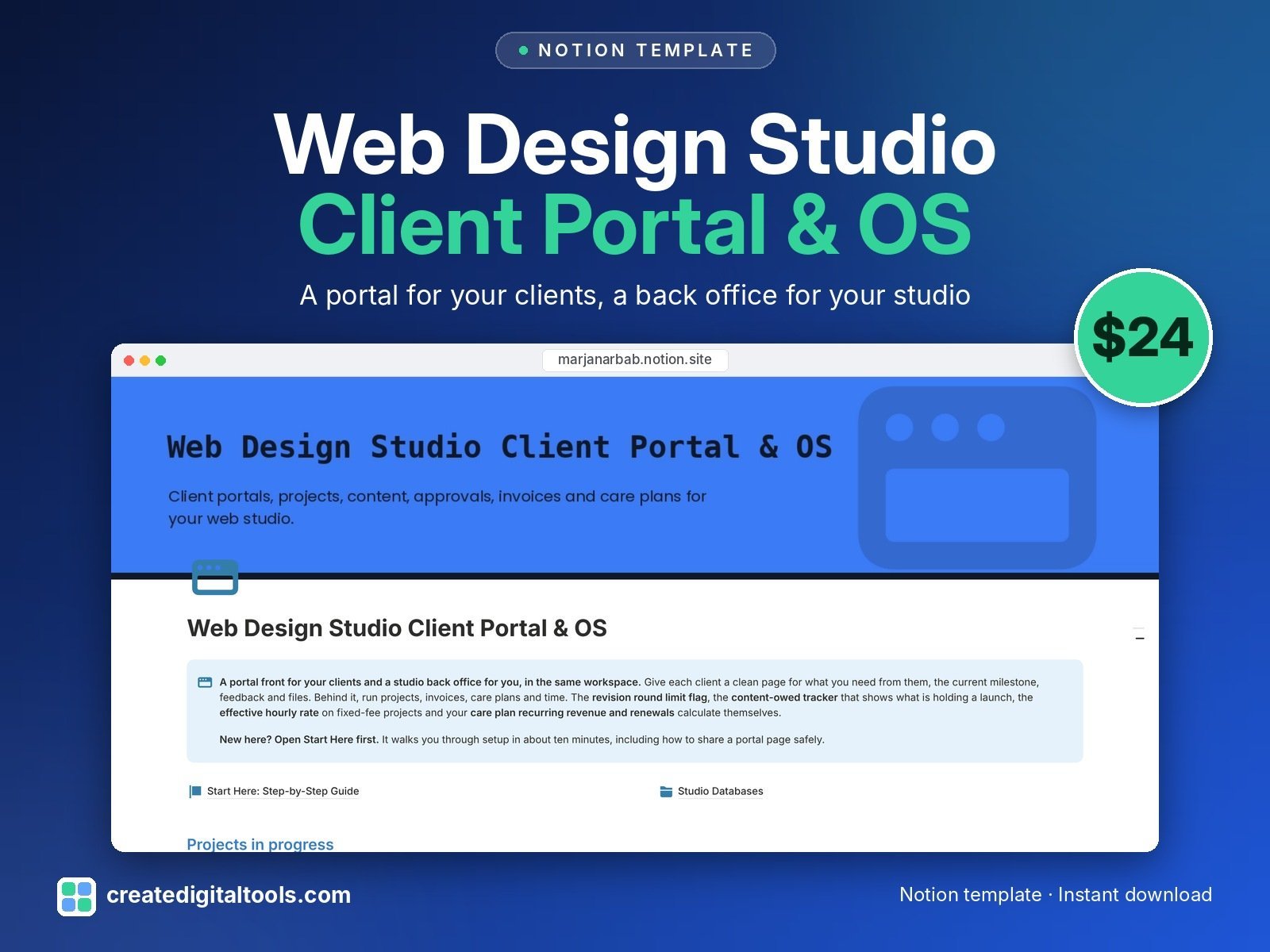
Web Design Studio Client Portal & OS is a Notion template for freelance web designers and small web design and development studios. It gives you a portal front for your clients and a studio back office for you, in the same workspace.
Who it’s for
- Freelance web designers and developers
- Small web design and development studios
- Studios that sell monthly care and maintenance plans
What’s inside
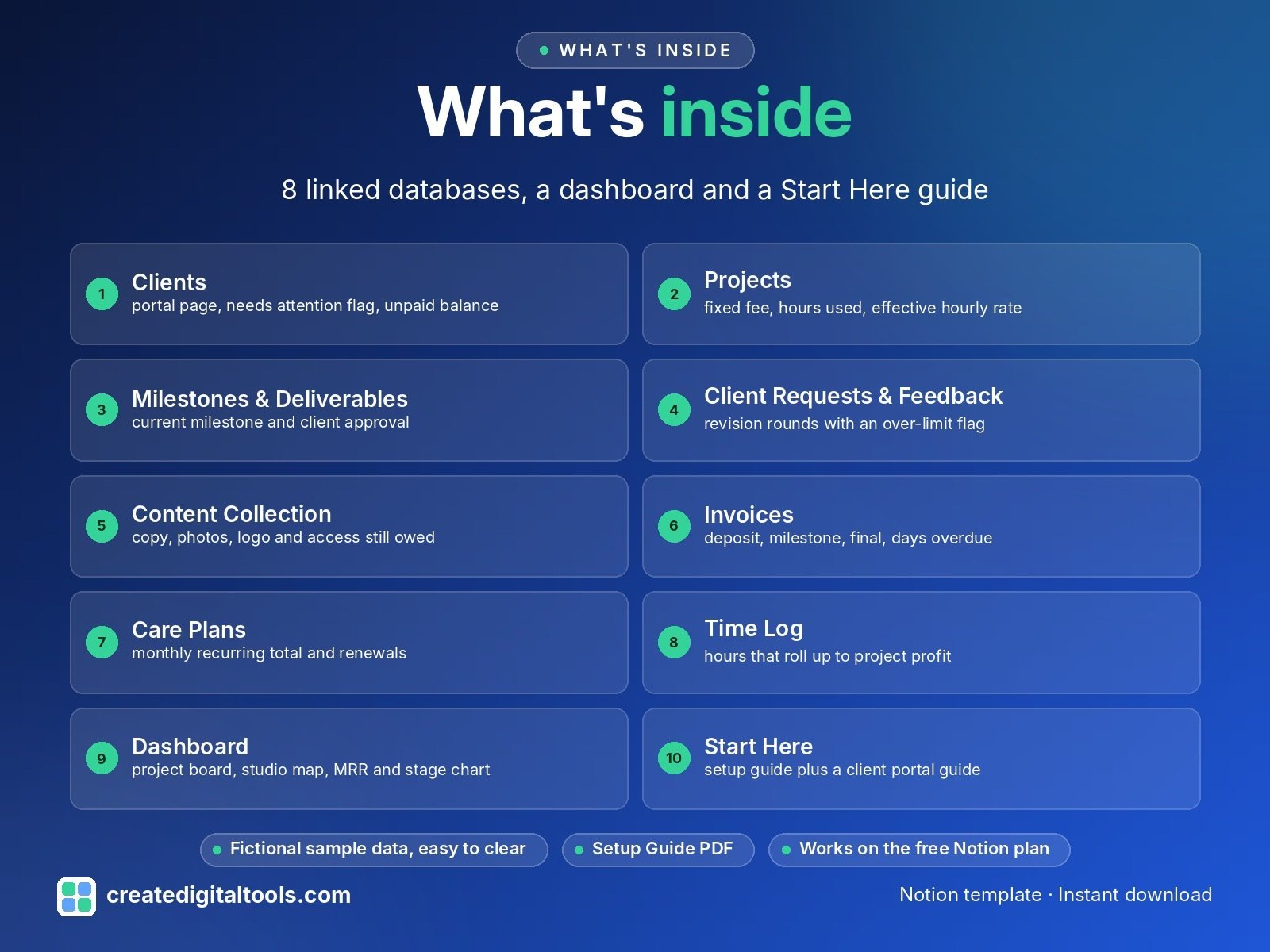
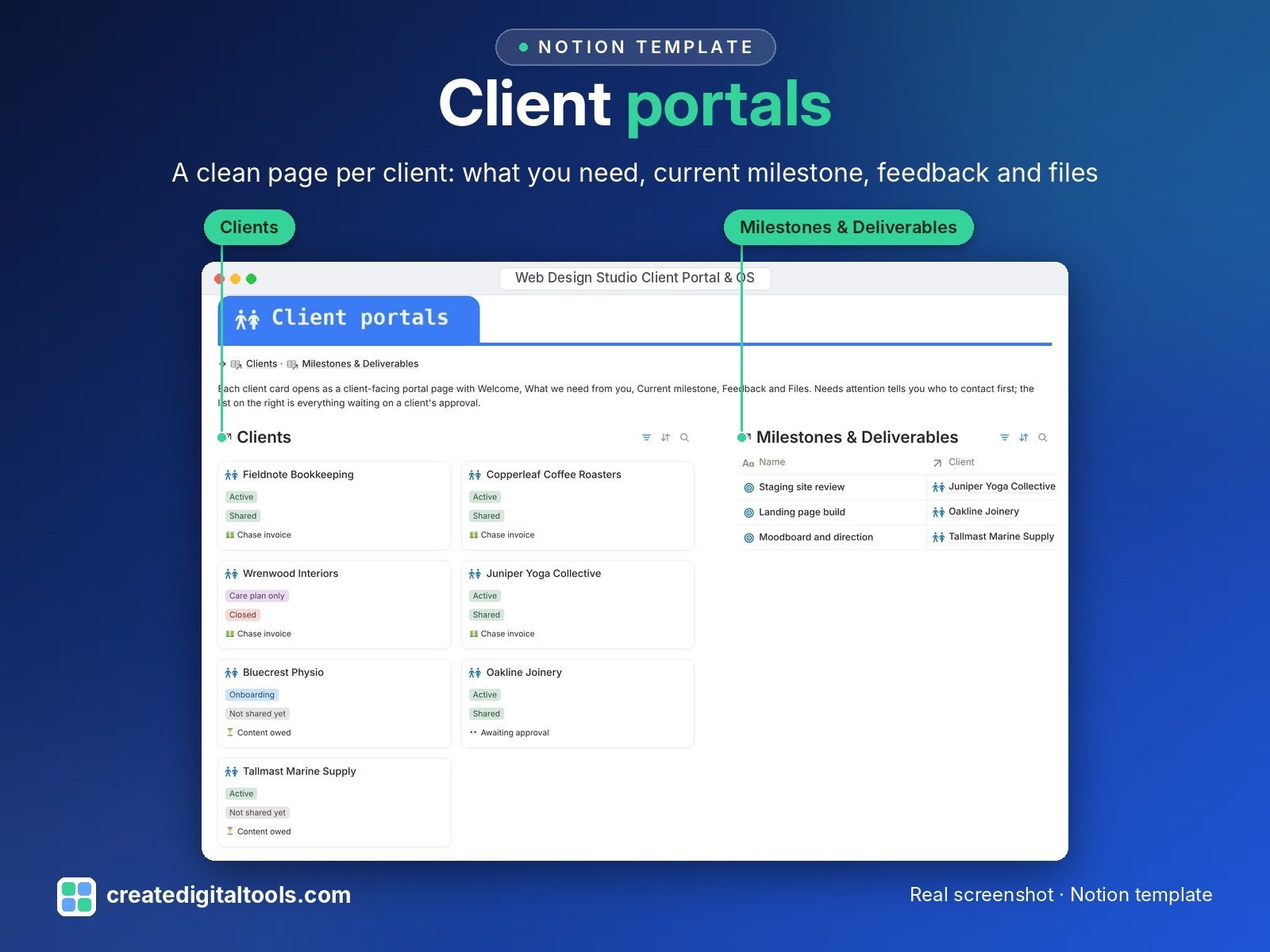
- Clients: each client card opens as a client-facing portal page with Welcome, What we need from you, Current milestone, Feedback and Files, plus a needs-attention flag and unpaid balance
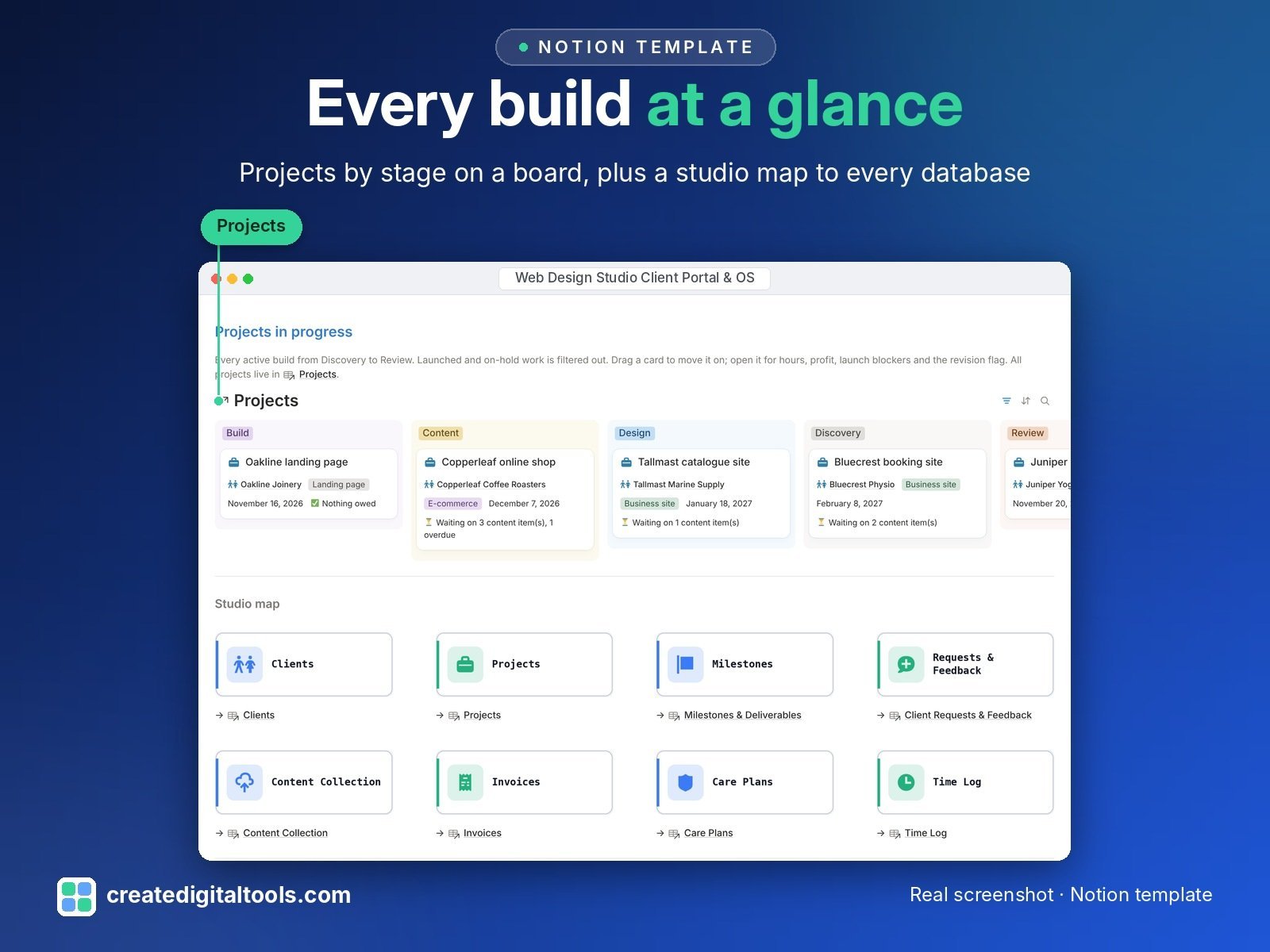
- Projects: board by stage from Discovery to Review, fixed fee, hours used against budget and effective hourly rate
- Milestones & Deliverables: current milestone and client approval
- Client Requests & Feedback: revision rounds used against included, with an over-limit flag
- Content Collection: copy, photos, logos and access still owed, with due dates and a chase flag
- Invoices: deposit, milestone, final and extra work, days overdue and an aging bucket
- Care Plans: monthly recurring total from active plans, renewals inside 30 days flagged
- Time Log: hours that roll up to project profit
- Dashboard: projects-in-progress board, a studio map to every database, monthly recurring total and a projects-by-stage chart
- Start Here: Step-by-Step Guide, including a portal guide for sharing a page with a client safely
What makes it different
- Portal front plus studio back office: your numbers stay in the back office, your client sees a clean page.
- Revision round limit flag: when a round goes over, the project and the request show a warning, so you can quote it as extra.
- Content-owed tracker: each project shows what is holding its launch.
- Effective hourly rate on fixed-fee projects, and profit after time cost.
Built-in automations
Five date stamps: Milestone Approved sets Approved on, Invoice Paid sets Paid on, Request Done sets Closed on, Content Received sets Received on, Project Launched sets Launched on. Database automations run on Notion’s paid plans (Plus and up). On the Free plan they pause and you can make the same changes by hand; every database, formula and view still works.
Set up in 3 steps
- Open the template link in your PDF and click Duplicate to copy it into your own Notion workspace.
- Open Start Here and follow the setup: add your own details and clear the sample data when you're ready.
- Work from the dashboard every day and use the views you need most.
What you get
- The Notion template (duplicate link delivered as a PDF)
- Setup Guide PDF with a step-by-step walkthrough and FAQ
- Start Here guide inside the template, with fictional sample data so you can see how everything connects
- Video walkthrough: setup guide and full tour (at the top of this page)
Free plan
Works on the Free Notion plan. Desktop, web and the Notion mobile app.
Please note
- You choose what to share. Sharing settings are your responsibility; the guide shows how to share a client's page and how to test it first.
- Never store passwords in Notion. Use a password manager.
- This is an organising tool, not legal, tax or accounting advice.
- Digital product: nothing physical is shipped.
- Sample data is fictional.
Notion is a trademark of Notion Labs, Inc.; this is an independent template by Create Digital Tools (createdigitaltools.com).
New to Notion? Try it free here (affiliate link: we may earn a commission at no extra cost to you).
Want your own store like this one? createdigitaltools.com runs on Hostinger WordPress hosting. Start your own shop with Hostinger, or try the no-code Hostinger Website Builder.
Affiliate links: I may earn a commission at no extra cost to you.