How to Sell Digital Products From Your Own WooCommerce Store on Hostinger (2026 Guide)
Marketplaces like Etsy and Gumroad are an easy way to start selling digital products, but they take a cut of every sale, control your customer list, and can change their rules overnight. Your own store fixes all three. You keep the customer relationship, you set the prices and the checkout experience, and every sale builds your brand instead of someone else’s.
This is exactly how my own shops run. My Notion templates, spreadsheets and digital planners are sold from a WordPress and WooCommerce store hosted on Hostinger. In this guide I will show you the same setup, step by step, with real screenshots from my hPanel account.
This post contains affiliate links. If you buy through them, I may earn a commission at no extra cost to you.
You do not need to be a developer. If you can install a WordPress plugin and fill in a settings page, you can follow along.
Quick answer: how do you sell digital products on Hostinger?
- Get Hostinger WordPress hosting and a domain.
- In hPanel, click Create site, choose WordPress, and connect your domain (or use a temporary domain while you build).
- Install WooCommerce from WP Admin or from the Auto Installer.
- Make sure SSL is Active and Force HTTPS is switched on.
- Create products marked Virtual and Downloadable, upload your files, and set download limits.
- Connect a payment gateway such as Stripe or PayPal.
- Set up email on your own domain so order and download emails look trustworthy.
- Turn on backups, test on staging, and check page speed before you launch.
Table of contents
- Why sell from your own WooCommerce store?
- What you need before you start
- Step 1: Create a WordPress site in hPanel
- Step 2: Install WooCommerce
- Step 3: Secure checkout with SSL and Force HTTPS
- Step 4: Set up WooCommerce for digital downloads
- Step 5: Create your first digital product
- Step 6: Connect payments
- Step 7: Set up email on your own domain
- Step 8: Domain and DNS basics for your store
- Step 9: Backups and staging before you launch
- Step 10: Make the store fast
- Step 11: Launch checklist
- After launch: getting your first sales
- Customer support and refunds
- Tips from running my own digital product store
- Frequently asked questions
- Start your own digital product store
Watch the full Hostinger walkthrough
Why sell from your own WooCommerce store?
WooCommerce is a free plugin that turns WordPress into a full online store. It handles products, cart, checkout, customer accounts, order emails and secure downloads. For digital products, it does almost everything you need out of the box.
Here is how it compares to selling only on marketplaces:
| Your own WooCommerce store | Marketplace (Etsy, Gumroad and similar) | |
|---|---|---|
| Fees | Hosting plus payment processing fees | Listing and/or transaction fees on every sale |
| Customer emails | Yours to keep and contact (with consent) | Limited or controlled by the platform |
| Branding | Your design, your domain | Platform branding everywhere |
| Rules | Your own policies | Platform rules can change at any time |
| Traffic | You bring it (SEO, social, email) | Built-in marketplace search traffic |
| Setup effort | A few hours | A few minutes |
The honest trade-off is traffic. A marketplace brings you buyers on day one; your own store does not. That is why many sellers, me included, do both: marketplaces for discovery, and their own store for repeat customers, bundles, and better margins.
What you need before you start
- A hosting plan that runs WordPress well. I use Hostinger’s Business plan. Hostinger’s WordPress hosting plans all support WooCommerce, but stores benefit from more RAM and CPU, because cart and checkout pages cannot be fully cached.
- A domain name. Something short and brandable. You can search for a domain on Hostinger or use one you already own.
- Your digital products. PDFs, ZIP files, spreadsheets, template links, audio, video or anything else you can deliver as a file or link.
- A payment account. Stripe, PayPal, or both.
- About half a day. Most of that is writing product descriptions, not technical setup.
If you are not sure which plan to pick, my Hostinger pricing guide compares the tiers, and my Hostinger review covers performance and support.
Step 1: Create a WordPress site in hPanel
Log in to hPanel and click Websites in the sidebar. Click the purple + Create site button and choose WordPress from the dropdown.
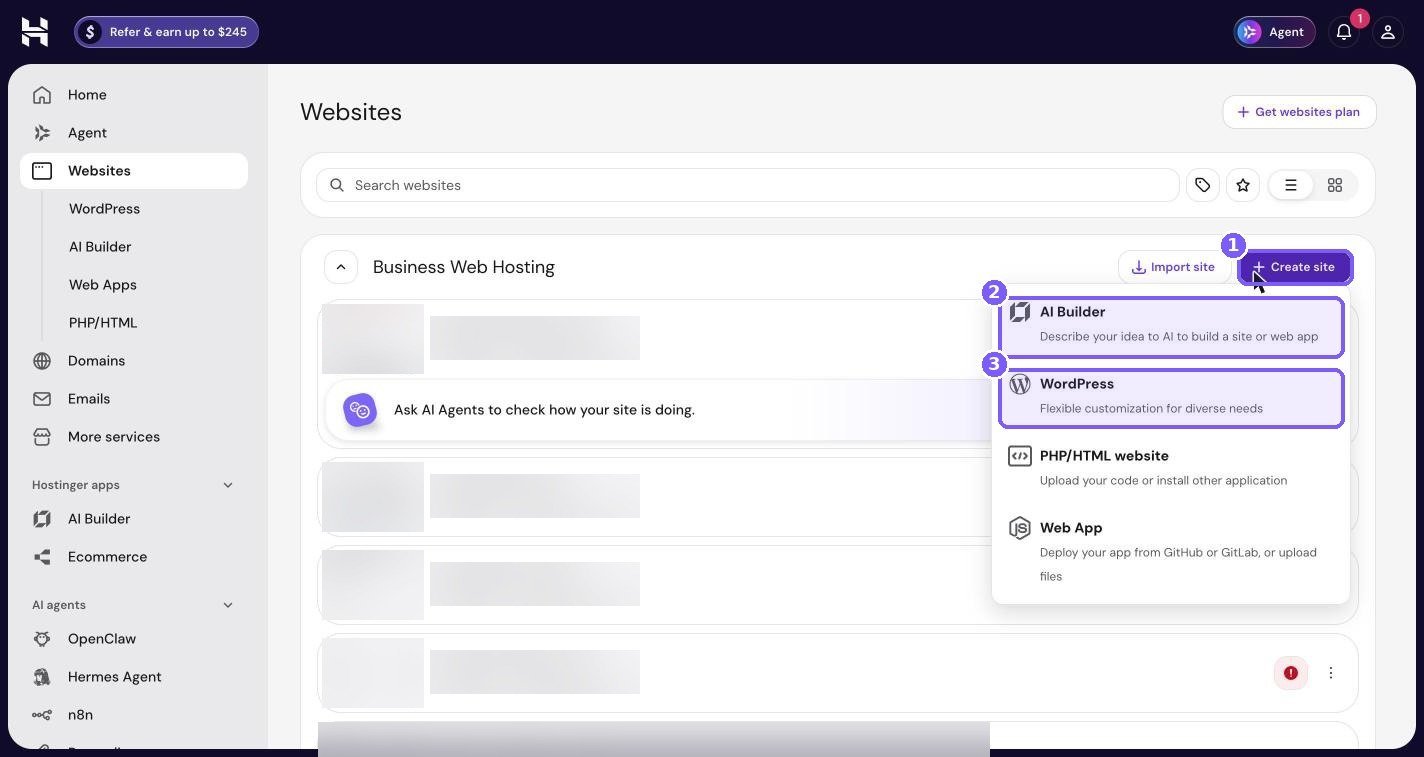
AI Builder is tempting, but for a store selling digital downloads, WordPress with WooCommerce gives you more control over download security, taxes, coupons and email. Choose WordPress.
Connect your domain
The setup wizard asks which domain or subdomain you want to use.
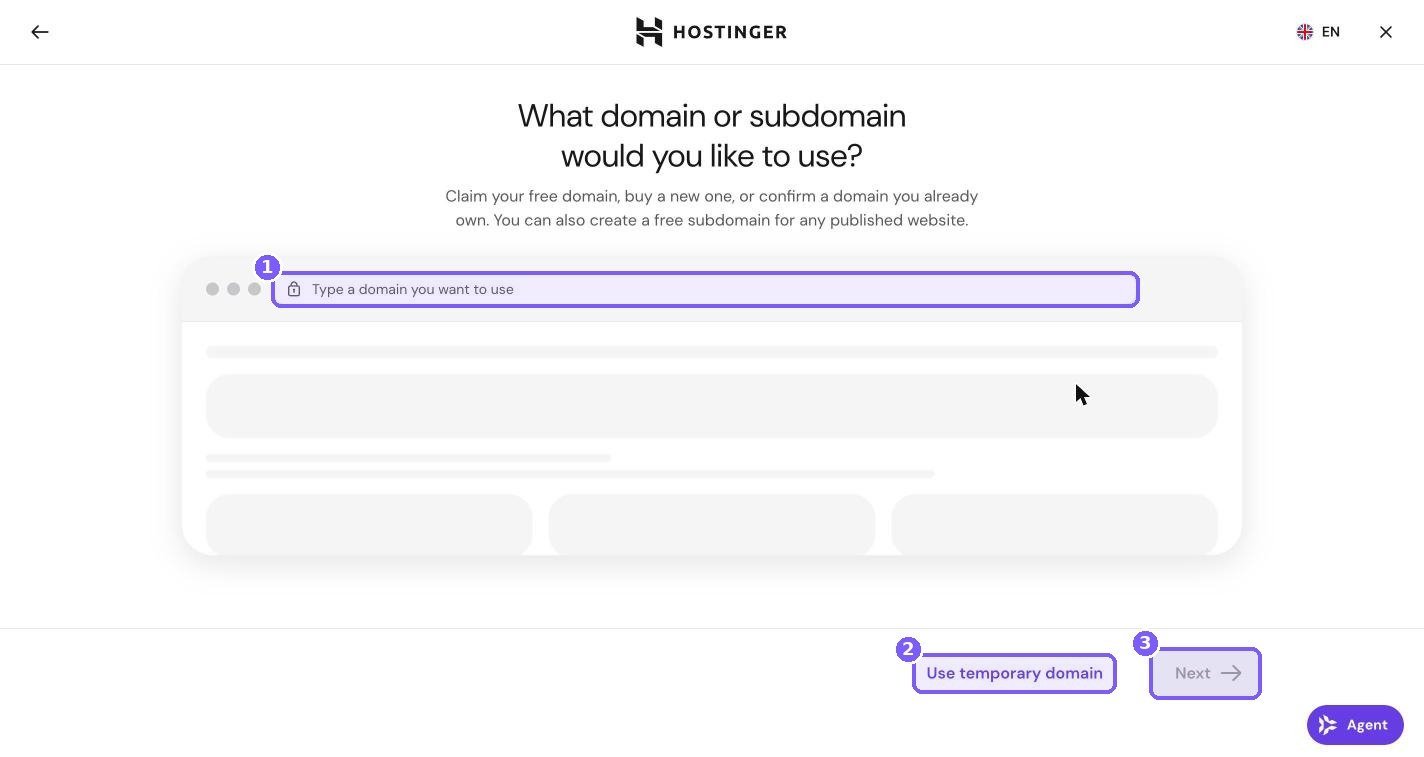
If your domain is ready, type it in and click Next. If you are still waiting on a domain, or you are moving an existing store and do not want to switch over yet, click Use temporary domain. You can build the whole store on the temporary address and connect your real domain later.
Follow the rest of the wizard to finish installing WordPress. When it is done, your new site appears in the Websites list.
Already have a store elsewhere?
If you are moving an existing WooCommerce store from another host, do not rebuild it from scratch. Hostinger offers free migration for WordPress sites, and my own store was moved this way. See how to move your WordPress website to Hostinger for free and how to migrate without downtime before you start.
Step 2: Install WooCommerce
You have two ways to install WooCommerce on Hostinger.
Option A: From WordPress. Go to Websites, click WP Admin next to your site, then go to Plugins, Add New, search for WooCommerce and click Install, then Activate. This is the usual route if WordPress is already installed.
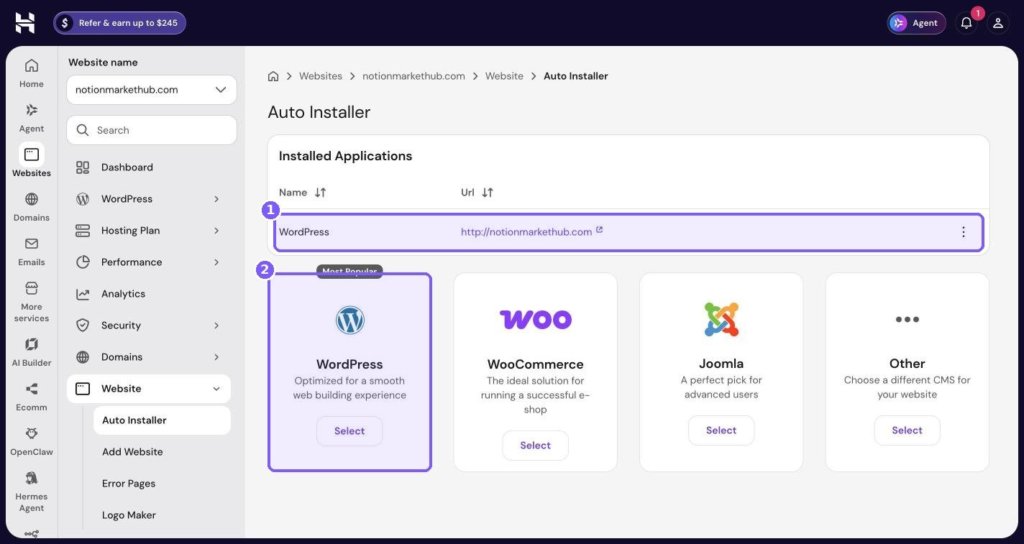
Option B: From the Auto Installer. In hPanel, open your site, then Website, then Auto Installer. Alongside the WordPress tile there is a WooCommerce tile, which installs WordPress and WooCommerce together for a new store.
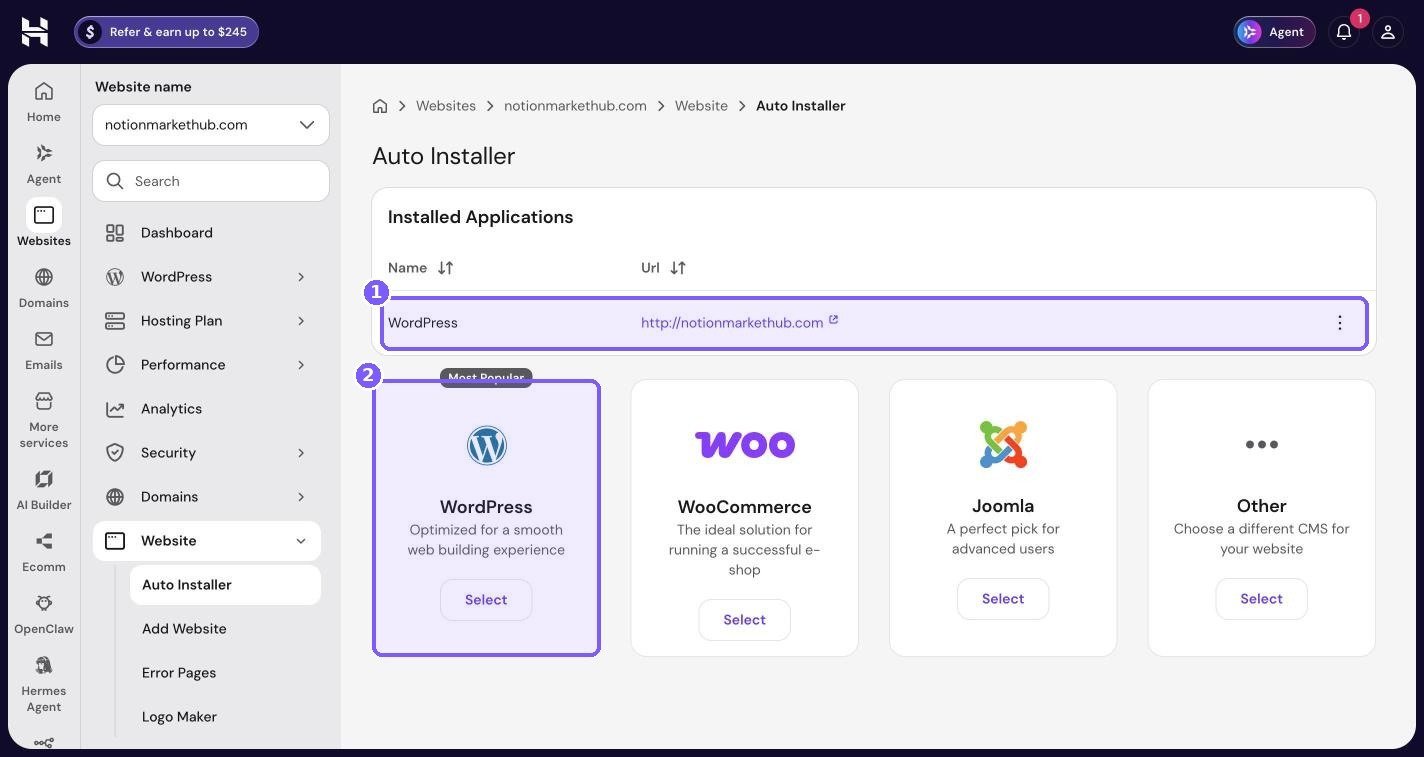
Either way, when you activate WooCommerce it launches a setup wizard. Fill in your store address, currency and the type of products you sell. When it asks what you plan to sell, choose downloads or digital products.
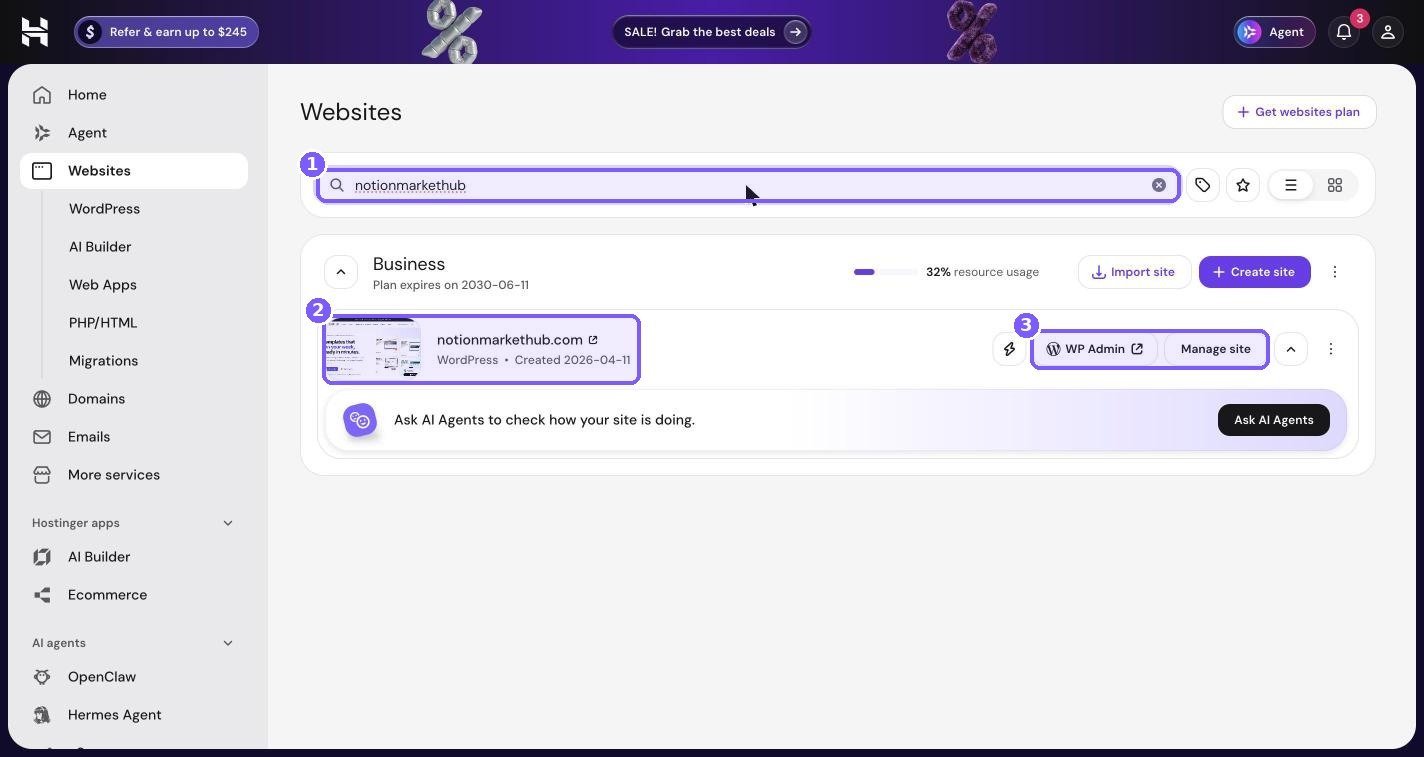
Find your way back to WP Admin quickly
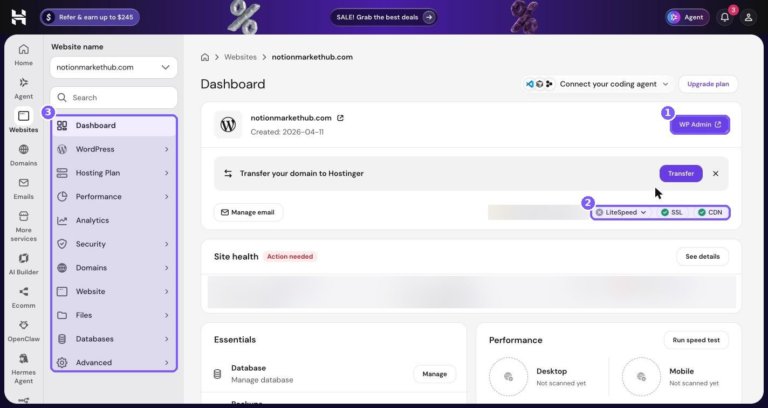
You will switch between hPanel and WordPress often while setting up. The fastest route is the Websites list, where every site has a WP Admin button that logs you in automatically.
Step 3: Secure checkout with SSL and Force HTTPS
No one should type card details or log into an account on a page without https. Payment gateways also require it. On Hostinger this takes about a minute to check.
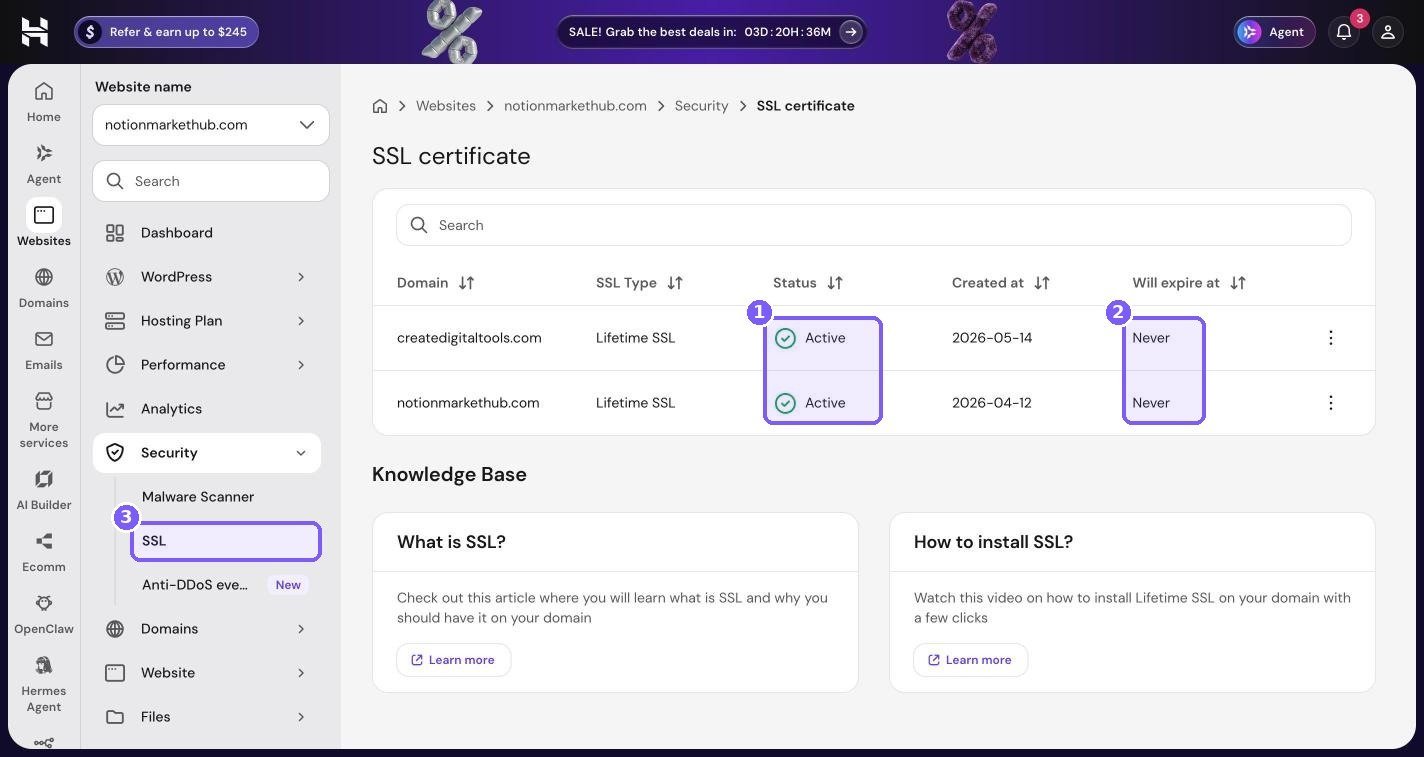
First, go to your site’s Security menu, then SSL, and confirm your domain shows status Active. Hostinger’s free Lifetime SSL is installed automatically once your domain points to the site.
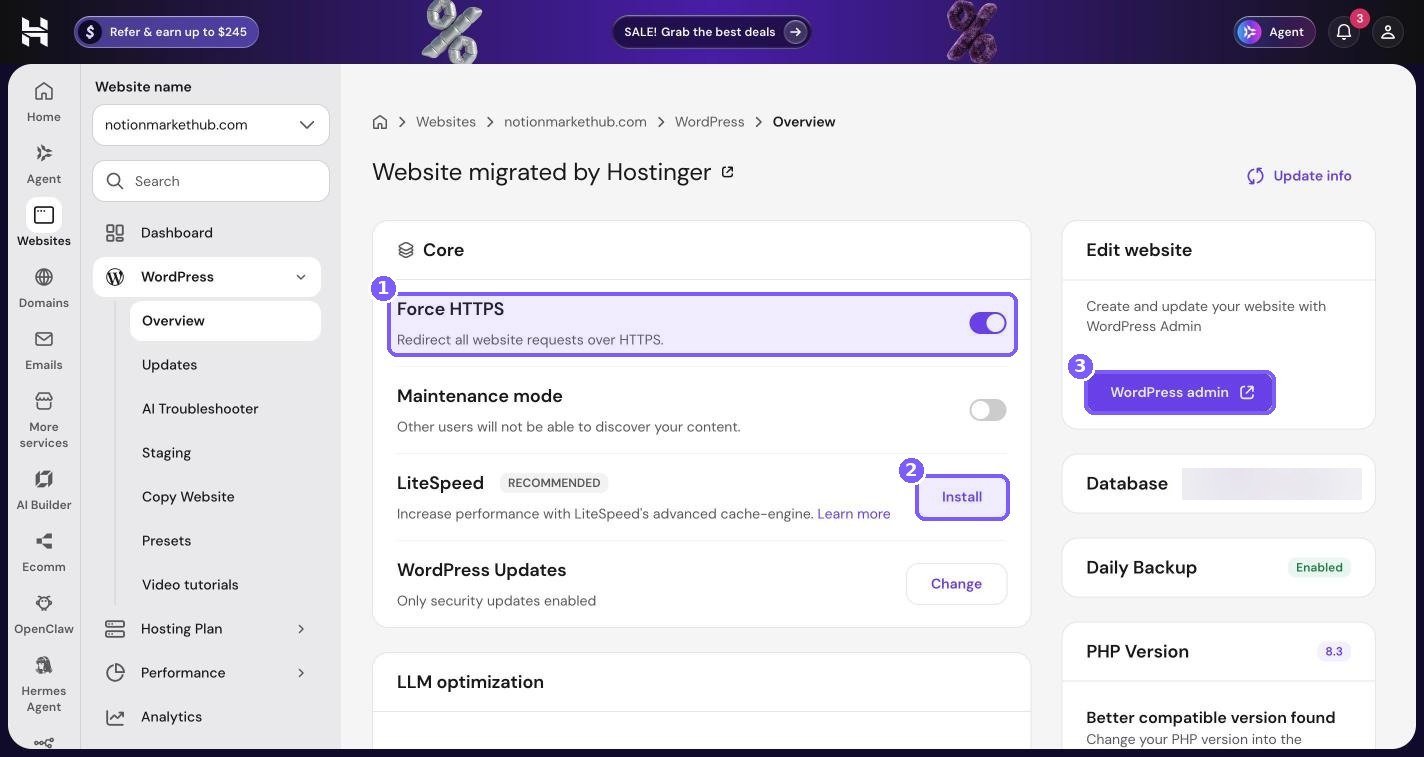
Then open WordPress, then Overview, and make sure Force HTTPS is switched on. This redirects every request to the secure version of your site, including old links that still use http://.
Finally, in WordPress, go to Settings, General and make sure both the WordPress Address and Site Address start with https://. If they do not, update them carefully, or ask Hostinger support to help.
Step 4: Set up WooCommerce for digital downloads
This is the part that matters most for digital products. In WP Admin, go to WooCommerce, Settings, then the Products tab, then Downloadable products. Here is what each setting does and what I recommend.
| Setting | What it does | My recommendation |
|---|---|---|
| File download method | How WooCommerce delivers the file to the buyer | Force downloads is the most secure. If large files fail, try X-Accel-Redirect/X-Sendfile, then Redirect only as a last resort. |
| Allow using redirect mode (insecure) as a last resort | Falls back to a direct link if a forced download fails | Leave off unless downloads are failing and you cannot fix it another way. |
| Downloads require login | Only logged-in customers can download | On, if you require accounts. Off if you allow guest checkout. |
| Grant access to downloadable products after payment | Gives access when an order is Processing, not only Completed | On, so customers get their files straight away. |
| Open in browser | Opens files like PDFs in the browser instead of downloading | Personal choice. I leave it off so customers save the file. |
| Append a unique string to filename for security | Makes file URLs harder to guess | On. |
Why Force downloads matters
When you upload a file to a downloadable product, WooCommerce stores it in a protected folder called woocommerce_uploads. Force downloads means the file is sent through WooCommerce, which checks the customer is allowed to have it, instead of exposing a direct link that could be shared. Hostinger’s servers run LiteSpeed, which respects the .htaccess rules WooCommerce uses to protect that folder.
Delivering Notion templates and other link-based products
Not every digital product is a file. Notion templates, Canva templates and Google Sheets are usually delivered as a duplicate link. The cleanest way to do this in WooCommerce is to create a short PDF with the link and instructions inside, and upload that as the downloadable file. This keeps the link behind payment, and the PDF can include setup tips that reduce support emails. It is how I deliver my own templates.
Step 5: Create your first digital product
In WP Admin, go to Products, Add New.
- Enter the product name and a clear description of what the buyer gets.
- In the Product data box, choose Simple product, then tick Virtual and Downloadable. Virtual removes shipping; Downloadable adds the file fields.
- Under Downloadable files, click Add File, give it a name (for example “Budget Planner – Excel”), and upload or choose the file.
- Set Download limit (how many times the buyer can download) and Download expiry (how many days the link works). Leave both blank for unlimited. I prefer a generous limit so genuine customers do not get locked out.
- Add your regular price and, if you like, a sale price.
- Add a product image and a few gallery images showing what is inside.
- Choose a product category, such as Notion Templates or Spreadsheets.
- Publish.
Product page tips for digital goods
- Show what is inside. Screenshots, a short preview video and a list of included pages or tabs do more than any sales copy.
- Say exactly what the buyer receives. File format, number of files, which apps it works with, and how delivery works.
- Answer the two big questions: “Will this work for me?” and “How do I get it after I pay?”
- Add an FAQ section for common questions like refunds, updates, and device compatibility.
Step 6: Connect payments
Go to WooCommerce, Settings, Payments. The most common options for digital sellers are:
- Stripe (via the official WooCommerce Stripe Payment Gateway plugin) for cards, Apple Pay and Google Pay.
- PayPal (via the official WooCommerce PayPal Payments plugin), which many buyers trust and prefer.
- WooPayments, WooCommerce’s own payment option, available in supported countries.
I recommend offering at least two options. Some buyers will only pay with PayPal, others want to use a card without logging in to anything.
After connecting a gateway, use its test or sandbox mode to place a fake order. Check the full journey: add to cart, checkout, payment, order confirmation email, and the download link working. Only then switch to live mode.
Taxes on digital products
Tax rules for digital products depend on where you and your customers are. In the EU and UK, for example, VAT on digital products is usually charged based on the customer’s location. WooCommerce has tax settings and there are plugins and services that calculate digital tax automatically. This is general guidance, not tax advice, so check the rules for your country or speak to an accountant before launching.
Step 7: Set up email on your own domain
Every order sends emails: an order confirmation, a receipt, and the download links. If those come from a generic address, or land in spam, customers think something went wrong and email you, or worse, open a dispute.
In hPanel, click Emails in the main sidebar.
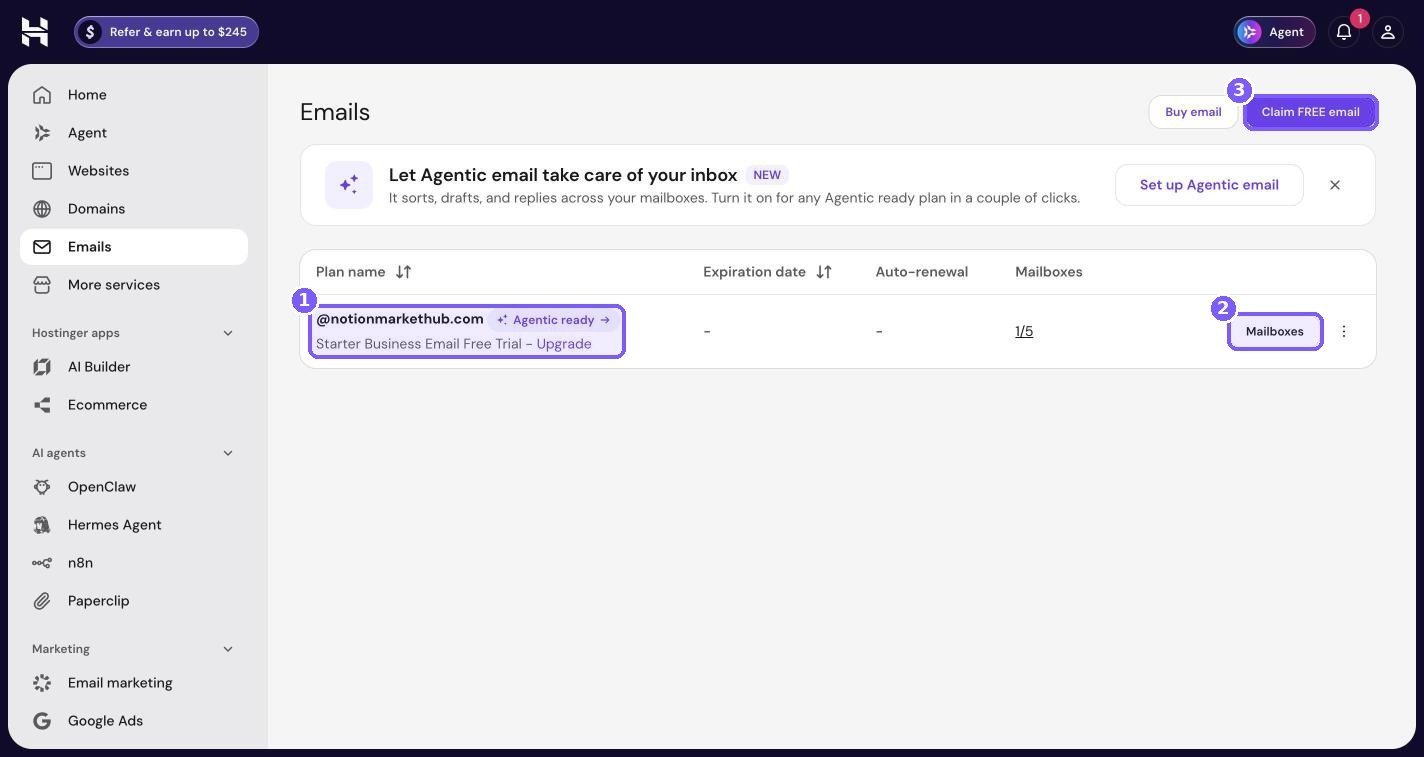
Create at least one mailbox, such as hello@yourdomain.com or orders@yourdomain.com. Then in WordPress go to WooCommerce, Settings, Emails, and set the “From” name and address to match.
To improve delivery, use an SMTP plugin to send WordPress emails through your real mailbox instead of the server’s default mail function. Most SMTP plugins only need your mailbox address, the mail server details from hPanel, and your mailbox password.
For a complete walkthrough, see my guide on setting up a professional email address with your own domain. If you need extra mailboxes or storage, Hostinger has separate business email plans.
Step 8: Domain and DNS basics for your store
If you bought your domain from Hostinger, DNS is usually configured automatically. If your domain is registered elsewhere, you either point its nameservers to Hostinger or add the right DNS records at your registrar.
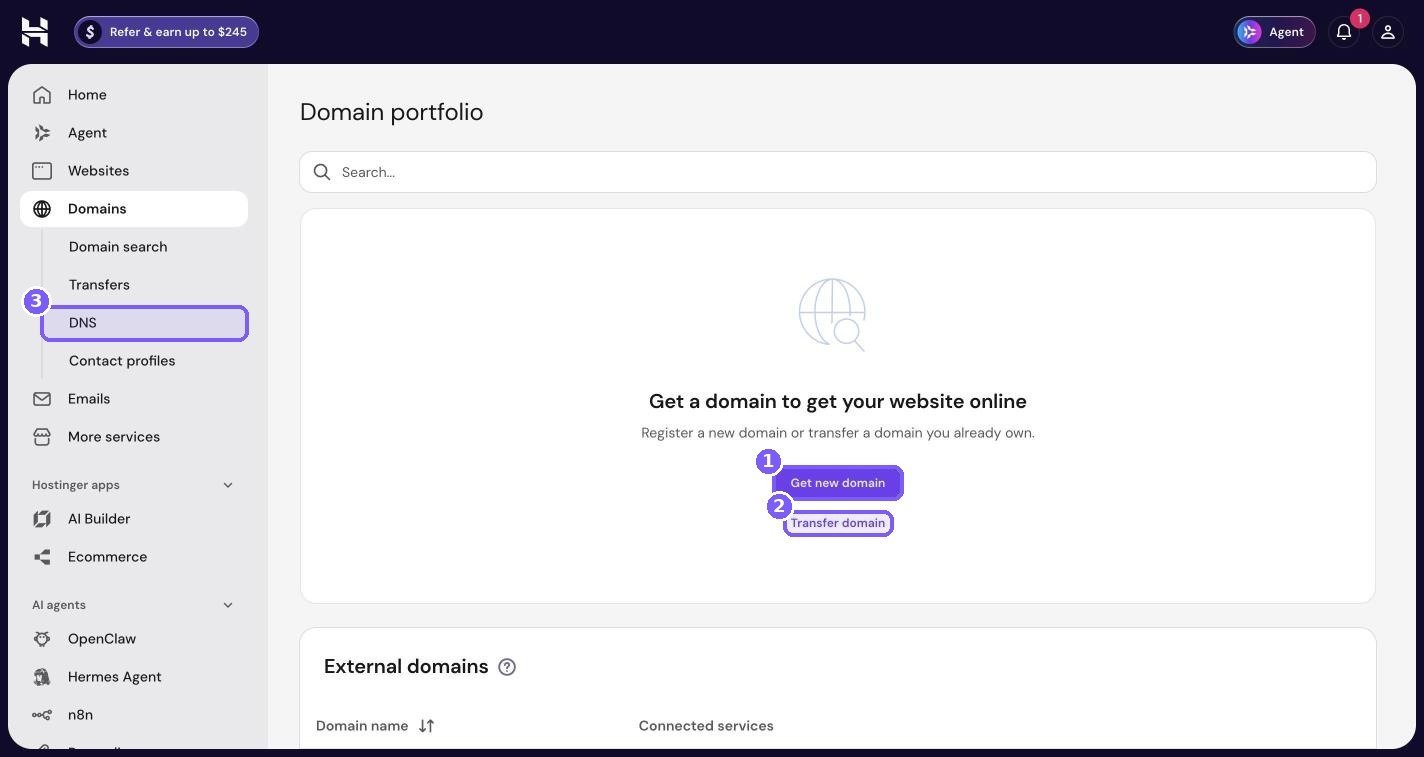
My domains are registered elsewhere and pointed to Hostinger, which works fine. Transferring is optional. The main reasons to transfer are having renewals and DNS in the same account and seeing everything in hPanel.
Using more than one domain
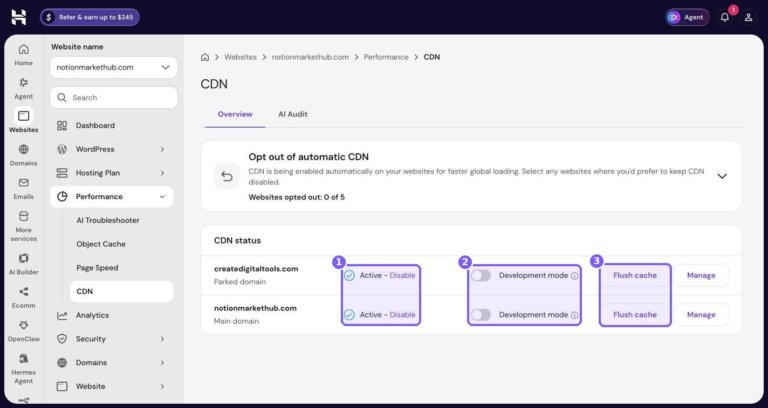
You can point extra domains at the same store as parked domains. On my account, createdigitaltools.com is a parked domain on the same hosting as notionmarkethub.com. This is useful if you own several brand names or common misspellings and want them all to reach the same shop.
Step 9: Backups and staging before you launch
Your store’s database holds orders, customers and download permissions. Losing even a day of that is painful. Before you launch, check your backups.
In hPanel, open your site, then Files, then Backups.
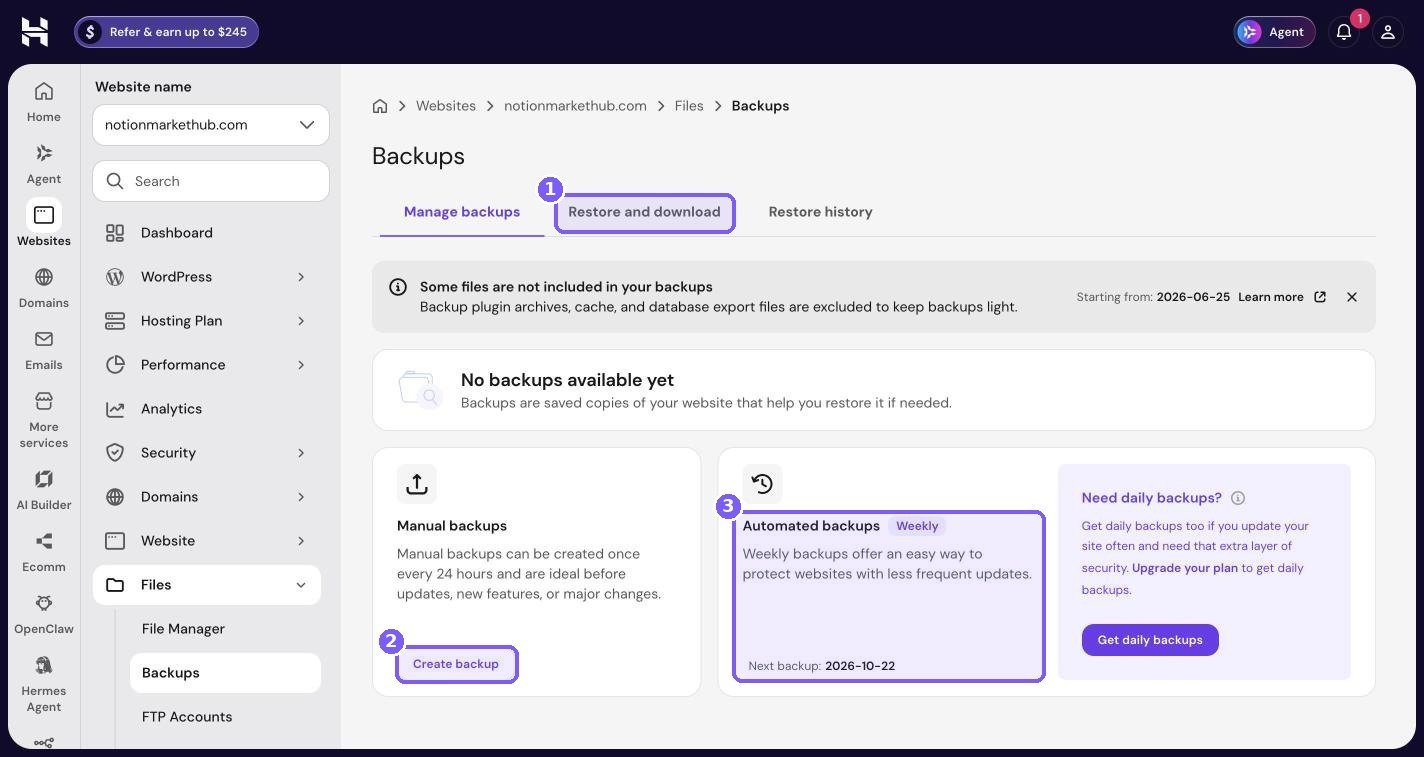
On my account the Backups page shows automated weekly backups, with an option to upgrade to daily, and manual backups can be made once every 24 hours. If your store takes orders every day, daily backups are worth having. Either way, get into the habit of clicking Create backup before you update WooCommerce or any payment plugin.
Test big changes on staging
Staging gives you a private copy of your store to test updates and new features.
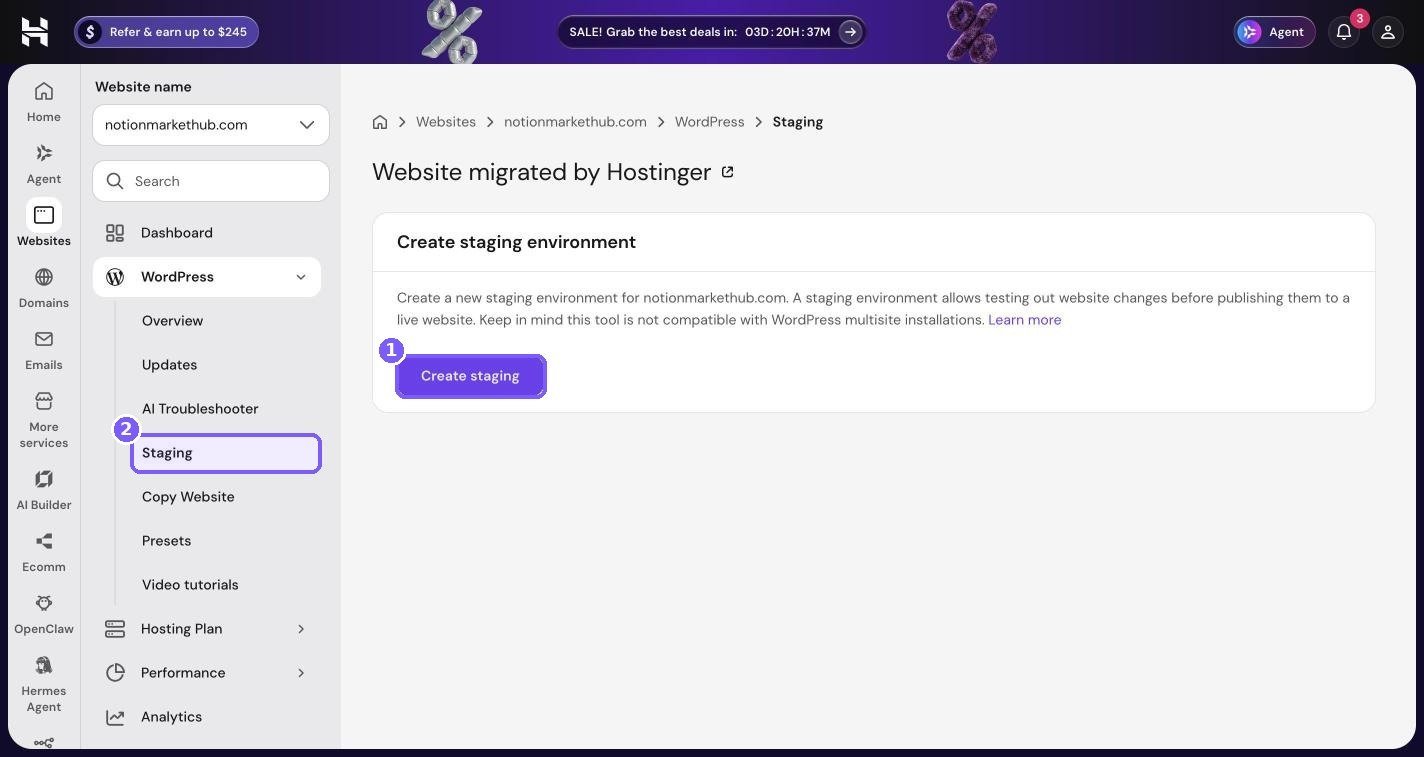
Use staging before updating WooCommerce, changing your theme, or adding a new payment method. One important note for stores: orders keep coming in on the live site while you test, so pushing the whole staging copy back over live can overwrite recent orders. For stores, I use staging to confirm a change works, then repeat that change on the live site.
Step 10: Make the store fast
Fast stores sell more. Slow product pages lose buyers before they even see the price. Hostinger gives you three tools for this.
Install LiteSpeed Cache
If WordPress Overview shows an Install button next to LiteSpeed, click it. LiteSpeed Cache is free and works with the LiteSpeed web server that Hostinger uses. It understands WooCommerce and, by default, does not cache cart, checkout and account pages, which must always show live data for each customer.
Check the CDN
Under Performance, then CDN, make sure the CDN is Active for your domain. The CDN serves images, scripts and styles from servers closer to your buyers. After uploading new product images or changing your theme, click Flush cache there.
Test speed on product pages
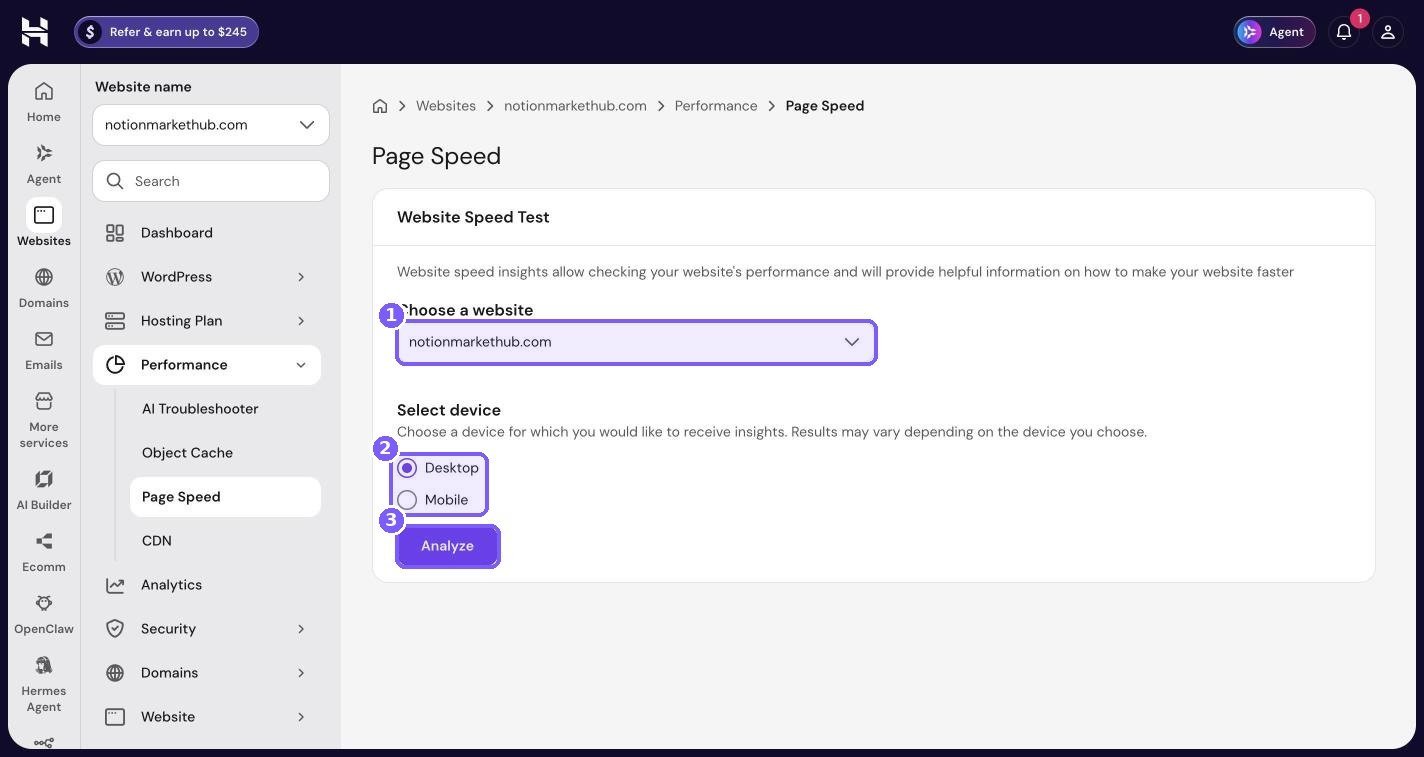
Under Performance, then Page Speed, choose your site, select Mobile, and click Analyze. Test a product page and the shop page, not only the home page.
Keep an eye on resources
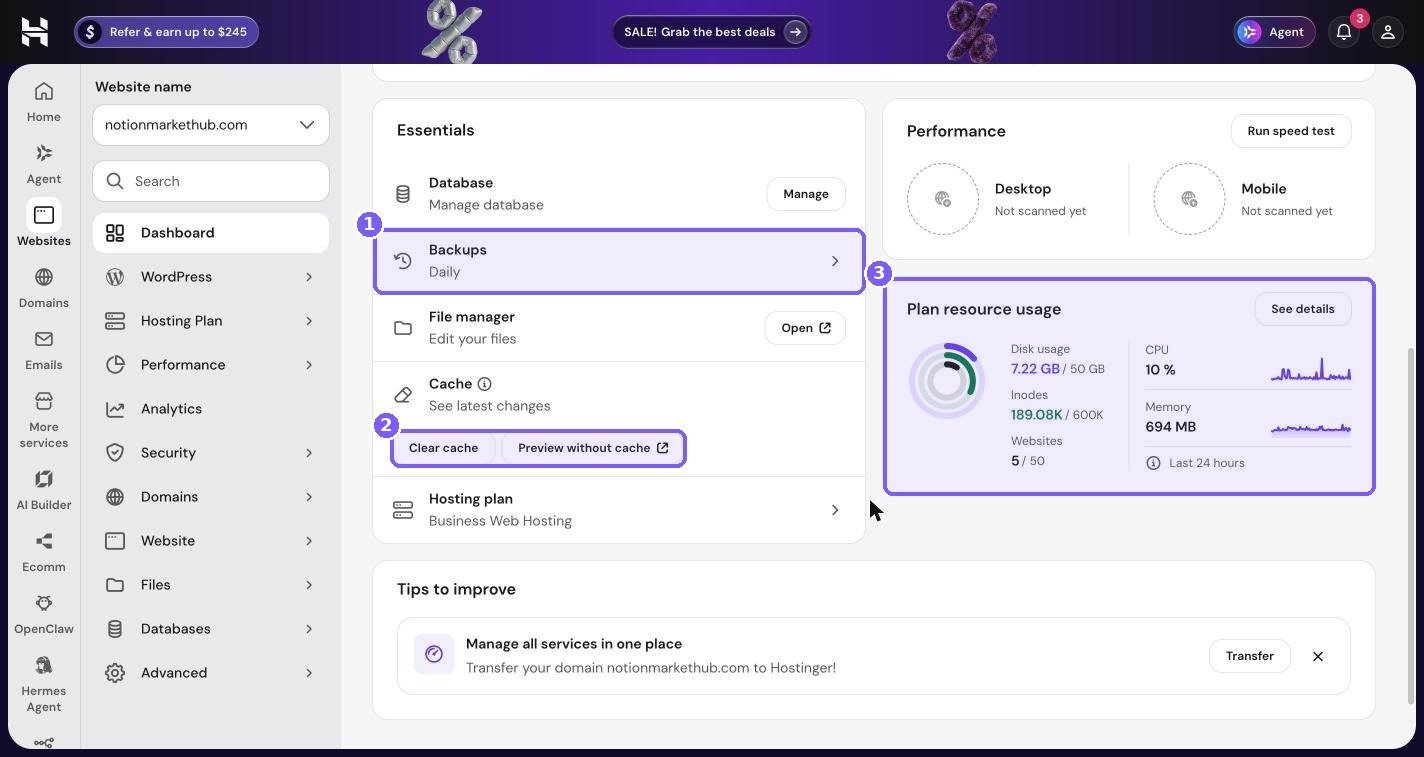
On the site dashboard, the Plan resource usage card shows disk, inodes, CPU and memory. Stores use more memory than blogs because so many requests are personalised.
For a deeper walkthrough of every speed and security setting, see my guide to speeding up and securing WordPress on Hostinger.
Step 11: Launch checklist
Before you share your store with the world, run through this list:
- SSL shows Active and Force HTTPS is on.
- Every product is marked Virtual and Downloadable, with the correct file attached.
- File download method is set to Force downloads.
- A test order (in sandbox mode) completes and the download link works.
- Order emails arrive in your inbox, not spam, from your own domain address.
- Refund policy, terms and privacy policy pages are published and linked in the footer.
- A manual backup was taken today.
- LiteSpeed Cache is installed and the CDN is Active.
- Mobile speed test on a product page looks reasonable.
- Payment gateways are switched from test to live mode.
After launch: getting your first sales
A new store does not get traffic on its own. These are the channels that have worked best for digital products in my experience, roughly in order of effort.
Your email list
If you have any kind of audience, even a small one, email them first. A short launch email with a time-limited coupon is the quickest way to get your first orders and your first reviews. If you do not have a list yet, add a free download (a mini version of a paid product works well) in exchange for an email address.
Search engines
Write helpful blog posts around the problems your products solve. Someone searching “how to track rental income” is a good fit for a rent ledger spreadsheet. WordPress makes this easy, and an SEO plugin helps with titles, descriptions and sitemaps. Search traffic takes months to build, but it keeps arriving long after you publish.
Pinterest and social media
Digital products are visual, which suits Pinterest, Instagram and short video. Each pin or post should link to a specific product page, not your home page. Show the product in use rather than a plain cover image.
Marketplaces as a funnel
If you already sell on Etsy or similar platforms, include a short thank-you note in your files that mentions your own store for bundles, updates or related products. Check each marketplace’s rules first, as some restrict linking to outside shops.
Watch what buyers do
Once traffic starts arriving, look at which product pages get visits but few sales. Usually the fix is better preview images, a clearer description, or answering a question buyers keep asking. Small improvements on your best pages beat adding lots of new products.
Customer support and refunds
Digital products bring a specific kind of support request: “I did not get my file,” “the link does not work,” or “how do I open this?” A little preparation cuts these down a lot.
- Write a clear refund policy and link it from the footer and checkout. Many digital sellers do not offer refunds once a file is downloaded, but whatever you choose, state it clearly before purchase.
- Make resending files easy. In WooCommerce, open the order and use the order actions to resend the order details email with download links.
- Check the spam folder first. When a customer says no email arrived, it is usually there. Setting up email on your own domain with SMTP reduces this a lot.
- Keep a short FAQ on each product page for app compatibility and how to open the files.
- Reply from your domain address. It looks professional and builds trust for future purchases.
Tips from running my own digital product store
- Bundle your products. Bundles are easy to create with digital goods and raise your average order value.
- Use coupons for launches. WooCommerce has built-in coupons. A short launch discount for your email list is an easy first sale.
- Collect emails at checkout. With the right consent checkbox, every buyer can join your newsletter, which is something marketplaces rarely allow.
- Keep file sizes reasonable. Compress PDFs and images. Smaller files download faster and use less of your disk and inodes.
- Name files clearly. “Budget-Planner-Excel.xlsx” is better than “final_v3.xlsx”. Customers notice.
- Add a “how to get your files” page. Link it from the order email. It reduces “where is my download?” emails a lot.
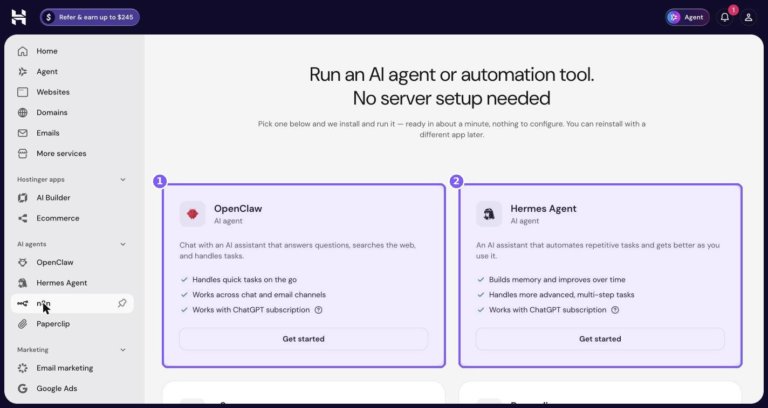
- Automate the boring parts. Once you have sales, tools like n8n can send new orders to a spreadsheet or Notion. I cover this in running n8n and AI agents on Hostinger.
Frequently asked questions
Can I sell digital products on Hostinger shared hosting?
Yes. WooCommerce runs on Hostinger’s WordPress and web hosting plans. For a store with steady traffic, choose a plan with more RAM and CPU, and consider cloud hosting as you grow.
Is WooCommerce free?
The WooCommerce plugin itself is free. You pay for hosting and a domain, payment processing fees, and any paid extensions or themes you choose.
How do customers receive their files?
After payment, WooCommerce shows download links on the order confirmation page, includes them in the order email, and lists them in the customer’s account under Downloads.
How do I stop people sharing my download links?
Use Force downloads, set a download limit and expiry, and consider requiring login for downloads. No method is perfect, but these settings make casual sharing much harder.
Can I sell Notion templates with WooCommerce?
Yes. Create a downloadable PDF that contains the duplicate link and setup instructions, and attach it to a Virtual and Downloadable product.
Do I need a separate email plan?
Not necessarily. Some Hostinger plans include free email. On my account the Emails page shows a Claim FREE email button. If you need more mailboxes or storage, there are paid business email plans.
What happens if an update breaks my store?
Restore a backup from Files, then Backups in hPanel. To avoid it in the first place, take a manual backup before updates and test big changes on staging.
Start your own digital product store
Selling from your own WooCommerce store takes a little more setup than a marketplace, but you keep more of each sale, own your customer list, and build a brand that is not at the mercy of someone else’s algorithm. Hostinger handles the hosting side well: free SSL, CDN, backups, staging and a clear control panel.
If you are ready to set yours up, you can start with Hostinger WordPress hosting through my link. According to Hostinger’s referral popup, friends who sign up through a referral link get 20% off their first purchase.
Want to understand every part of the control panel first? Read my full hPanel tour with real screenshots.
Notion systems, spreadsheets and planners with a setup guide. Instant download.