How to Run n8n and AI Agents (OpenClaw, Hermes Agent, Paperclip) on Hostinger Without Server Setup
A year ago, running your own automation server or AI agent meant renting a VPS, installing Docker, configuring a reverse proxy, sorting out SSL, and then keeping all of it updated. Most small business owners took one look and went back to paying for Zapier.
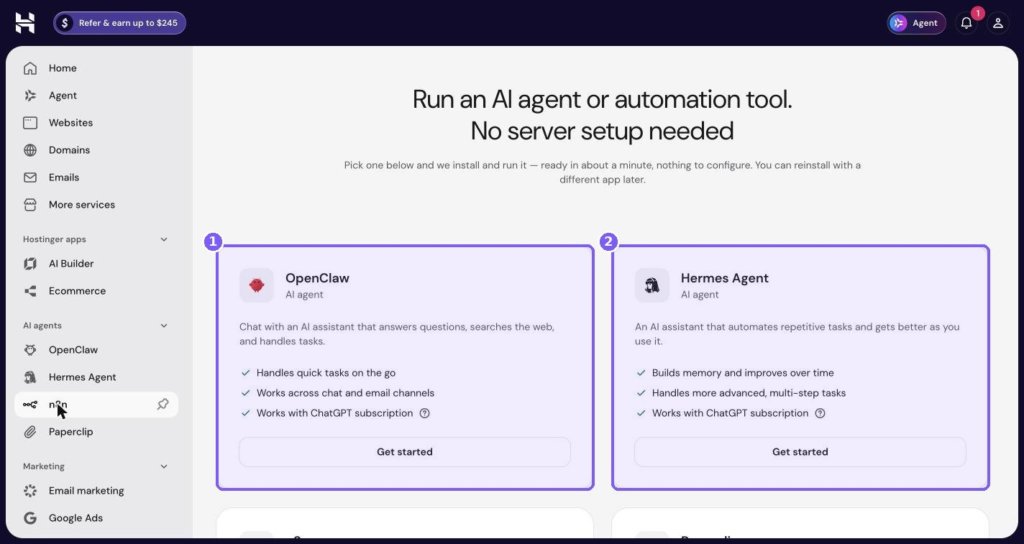
In 2026, Hostinger has added a section to hPanel called AI agents, with four tools you can run without touching a server: OpenClaw, Hermes Agent, n8n and Paperclip. The page heading says it plainly: “Run an AI agent or automation tool. No server setup needed.”
In this guide I will show you where these tools live in hPanel, what each one is for, how the setup works, and some practical first automations for a small online business. Screenshots are from my own Hostinger account.
This post contains affiliate links. If you buy through them, I may earn a commission at no extra cost to you.
A quick note on accuracy: these products are new and change often. Everything shown in the screenshots is what my hPanel displayed when I captured them. Where I describe setup steps or options beyond what is on screen, I have checked them against Hostinger’s own public help pages and linked those pages so you can confirm the current details yourself.
Quick answer: how do you run n8n or an AI agent on Hostinger?
- Log in to hPanel and open AI agents in the left sidebar.
- Pick OpenClaw, Hermes Agent, n8n or Paperclip and click Get started.
- Choose a plan for that app and complete the purchase. Each app runs on its own plan.
- Follow the guided onboarding. Hostinger installs and runs the app for you, and the page says it is ready in about a minute.
- For the AI agents, connect an AI model: Hostinger’s help pages list ready-made credits, your own API key, or (per the cards in hPanel) a ChatGPT subscription.
- Start with one small, useful task and build from there.
Table of contents
- What changed: AI agents in hPanel
- The four tools at a glance
- OpenClaw and Hermes Agent
- n8n and Paperclip
- How the setup works
- Connecting an AI model
- Practical first automations for a small business
- Connecting your AI tools to your WordPress site
- Worked example: new WooCommerce order to Google Sheets
- Troubleshooting common issues
- Email as a channel for your agent
- Managed apps vs running your own VPS
- Tips for getting real value from AI agents
- Frequently asked questions
- Get started with AI agents on Hostinger
Watch the full Hostinger walkthrough
What changed: AI agents in hPanel
The AI agents group now sits in the main hPanel sidebar, below Hostinger apps and above Marketing. You can see it on the Home screen as soon as you log in.
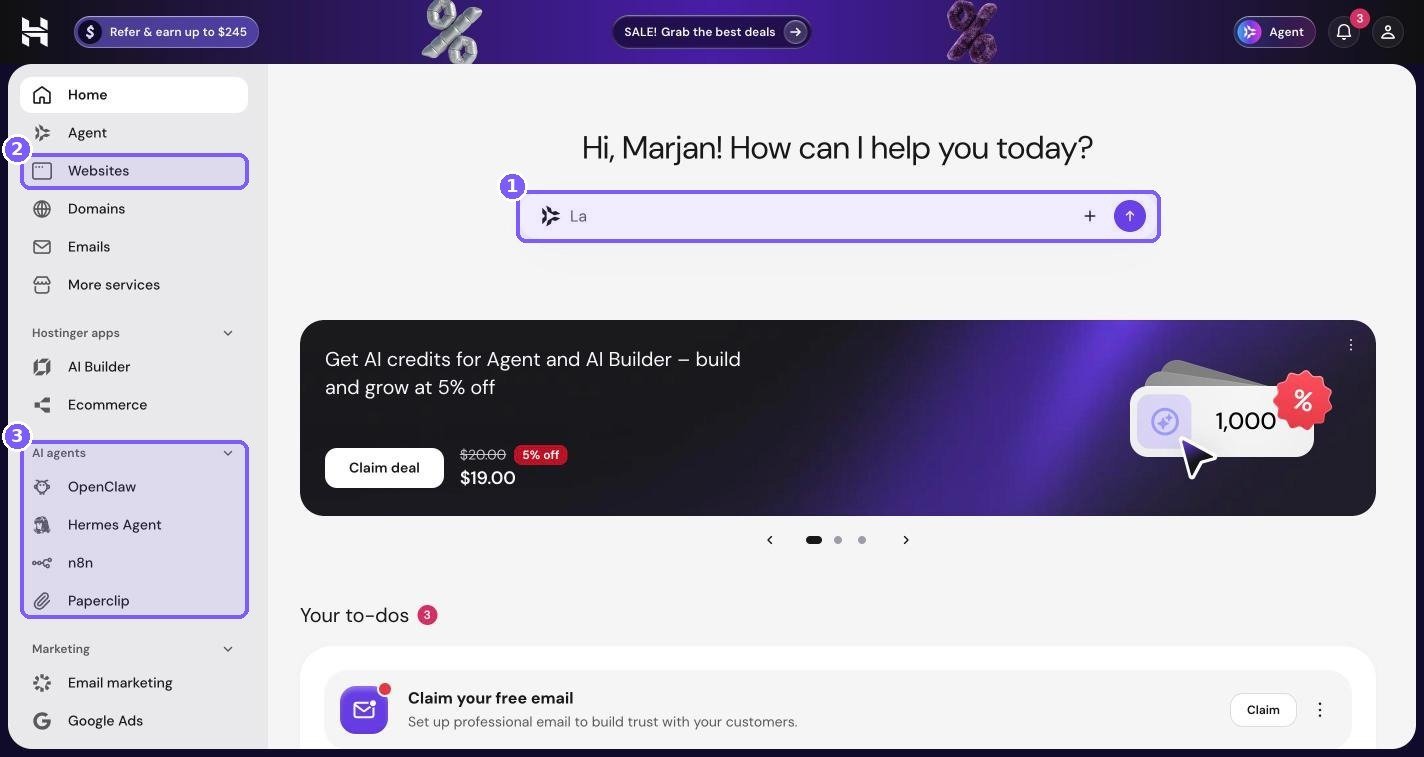
Do not confuse the two kinds of AI here:
- Agent (box 1, and in the sidebar) is Hostinger’s own assistant for managing your account. You ask it to help with hosting tasks.
- AI agents (box 3) are separate apps you run for your own business: an automation platform and three AI agent tools.
Click any of the four names in the AI agents group, and you land on the same page that lists all four tools.
The four tools at a glance
Here is what each tool is, based on the descriptions on its card in hPanel:
| Tool | Type (as labelled in hPanel) | What it is for | Works with ChatGPT subscription (per card) |
|---|---|---|---|
| OpenClaw | AI agent | Chat with an assistant that answers questions, searches the web and handles tasks, across chat and email channels | Yes |
| Hermes Agent | AI agent | An assistant that automates repetitive tasks, builds memory and handles multi-step work | Yes |
| n8n | Workflow automation | Connect apps and automate workflows without code, using a visual editor | Not listed on the card |
| Paperclip | AI agent dashboard | Organise and run teams of AI coding agents with roles, goals and budgets | Yes |
If you are not sure where to start, my short answer is: start with n8n if you want reliable, repeatable automations, and start with OpenClaw if you want an assistant you can message.
OpenClaw and Hermes Agent
The first two cards on the page are the AI agents you talk to.
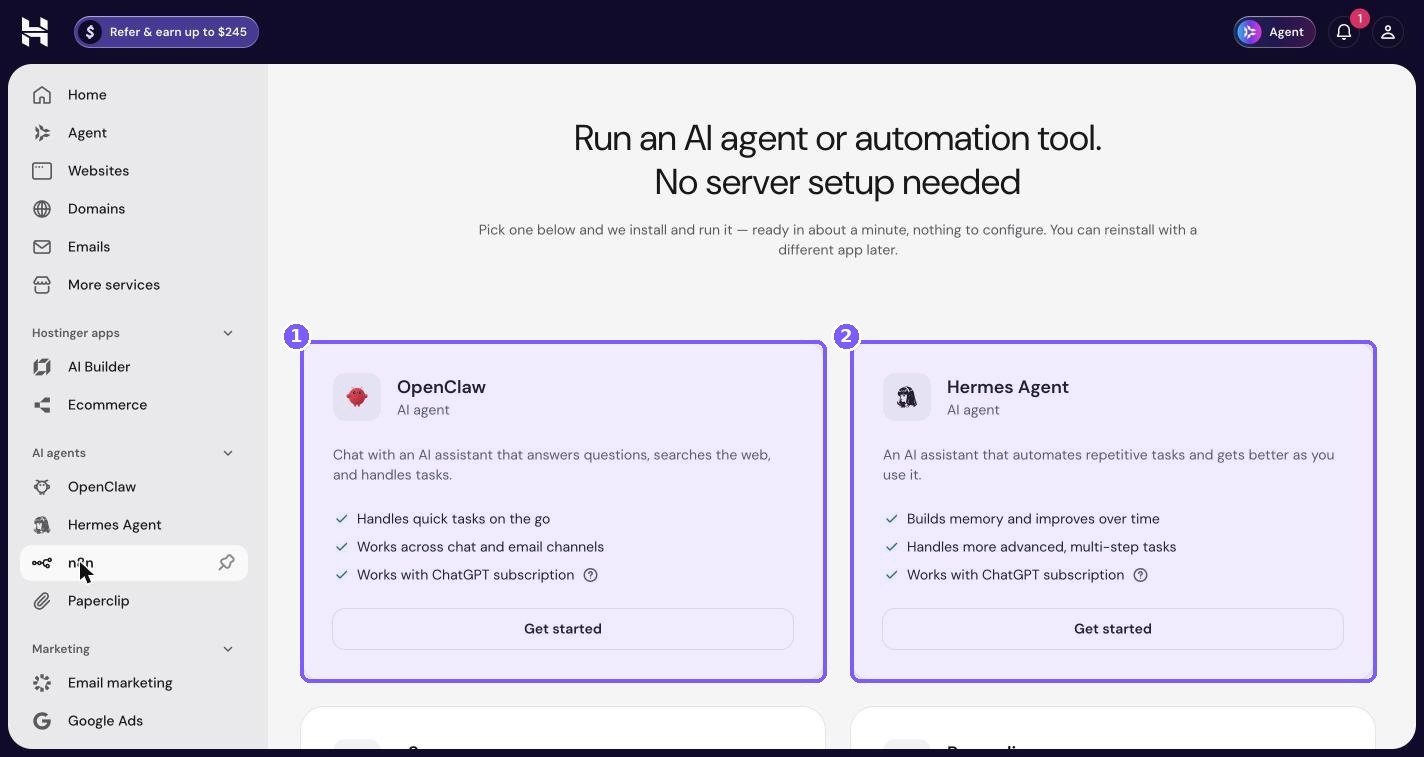
OpenClaw
The OpenClaw card says: “Chat with an AI assistant that answers questions, searches the web, and handles tasks.” It lists three points:
- Handles quick tasks on the go
- Works across chat and email channels
- Works with ChatGPT subscription
Hostinger’s help pages describe OpenClaw as a chat-first assistant that can connect to WhatsApp, Telegram or Hostinger Email, and its OpenClaw announcement says each agent runs in its own isolated container. In practice, this means you message your assistant from your phone the same way you message a person, and it does the job on its own server.
Good first uses for a small business:
- “Summarise the latest news about [your niche] every morning.”
- “Find five competitors selling and list their prices.”
- “Draft a reply to this customer email” (forwarded to it).
- “Research keywords for a blog post about [topic].”
Hermes Agent
The Hermes Agent card says: “An AI assistant that automates repetitive tasks and gets better as you use it.” Its three points are:
- Builds memory and improves over time
- Handles more advanced, multi-step tasks
- Works with ChatGPT subscription
Hermes Agent is an open-source agent from Nous Research. Where OpenClaw is aimed at quick tasks, Hermes is aimed at longer, multi-step work such as research, planning and coding, and it remembers context between conversations. If you find yourself giving an assistant the same background information every time, Hermes is the one to try.
OpenClaw or Hermes?
| If you want… | Choose |
|---|---|
| Quick answers and small tasks from your phone | OpenClaw |
| An assistant you message on chat apps or by email | OpenClaw |
| Longer research or planning jobs with several steps | Hermes Agent |
| An assistant that remembers your business over time | Hermes Agent |
Both are capable. The difference is mostly about the size of task you hand over.
n8n and Paperclip
Scroll down the AI agents page and you will find the other two tools.
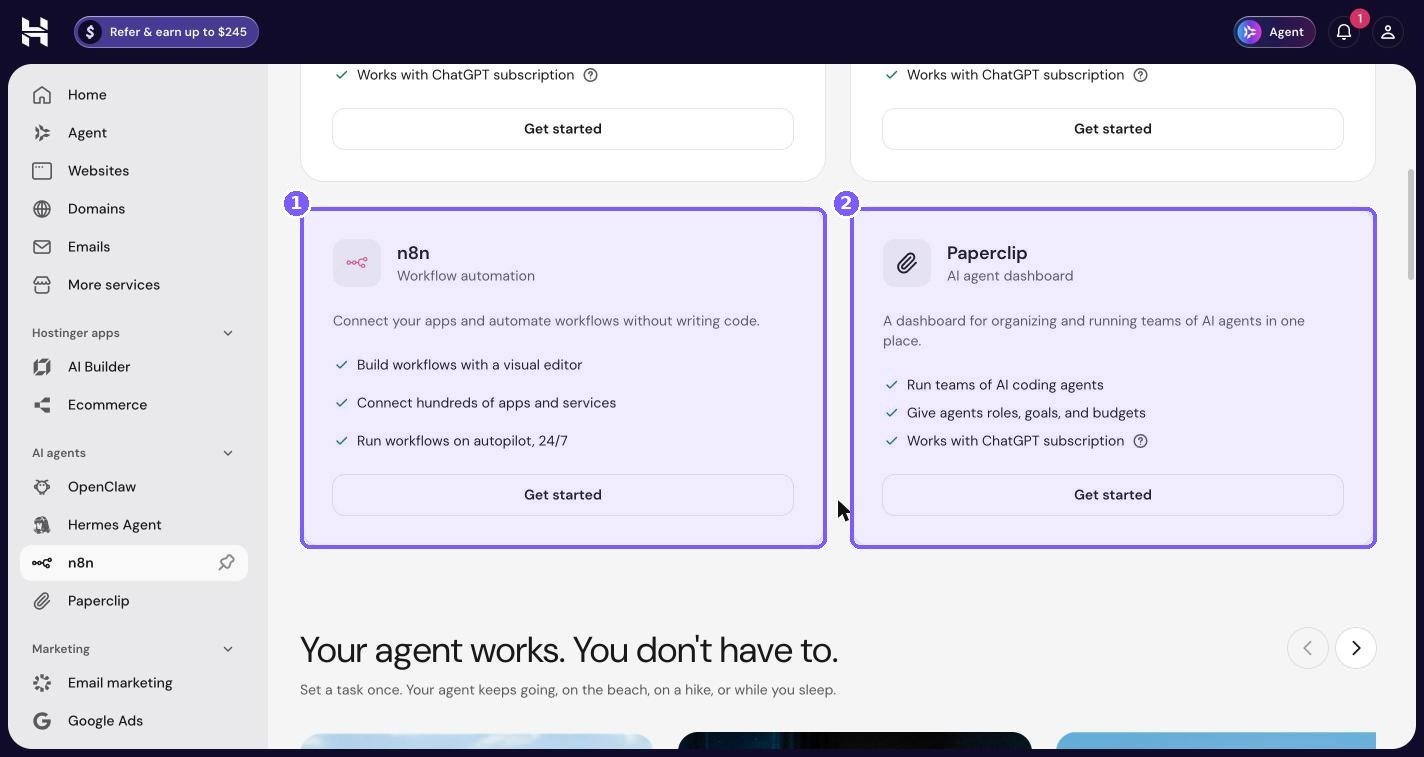
n8n
The n8n card says: “Connect your apps and automate workflows without writing code.” Its three points are:
- Build workflows with a visual editor
- Connect hundreds of apps and services
- Run workflows on autopilot, 24/7
n8n is a popular open-source alternative to Zapier and Make. You build workflows by connecting blocks (called nodes) on a canvas: a trigger, such as “new WooCommerce order,” followed by actions, such as “add a row to Google Sheets” and “send a Slack message.” Because it runs on its own server, you are not paying per task the way you do with many hosted automation tools. Your limits are the resources of your plan.
According to Hostinger’s AI Automation apps overview, the n8n management dashboard in hPanel includes Dashboard, Environment, Backups and Logs sections. The AI provider and channel settings described below apply to the AI agents, not to n8n. Inside n8n itself you can still add AI steps by connecting your own AI provider’s credentials.
Paperclip
The Paperclip card describes “A dashboard for organizing and running teams of AI agents,” with three points:
- Run teams of AI coding agents
- Give agents roles, goals, and budgets
- Works with ChatGPT subscription
Paperclip is the most technical of the four. It is built for people who want several AI coding agents working together on a project, each with a role (for example, one plans, another writes code, another reviews), a goal, and a spending budget. Hostinger’s Paperclip setup guide says agents connect to a “model harness,” with Claude Code and Codex as the defaults and others available in advanced settings.
If you are not a developer, you can skip Paperclip for now. If you are, the budget controls are the feature to look at first, because they stop a team of agents from running up a surprising bill.
How the setup works
The page in hPanel says: “Pick one below and we install and run it — ready in about a minute, nothing to configure. You can reinstall with a different app later.”
Based on what hPanel shows and Hostinger’s help pages, the flow looks like this:
- Open AI agents in the sidebar and click the app you want, or click Get started on its card.
- Choose a plan. Hostinger’s help page says each AI Automation application runs on its own plan, so running two apps means two plans. Pick a plan duration and complete the purchase.
- Start the guided onboarding. Hostinger installs the app in its own container. You do not choose a server, install Docker or configure SSL.
- Connect an AI model (for OpenClaw, Hermes Agent and Paperclip). More on this below.
- Connect channels (for OpenClaw and Hermes Agent), such as a chat app or email.
- Open the app and start using it.
Hostinger’s overview says it handles installation, updates, backups and security for these managed apps. If you change your mind about which app you want, the hPanel page notes you can reinstall with a different app later. Hostinger’s help page describes this as deleting the current instance and setting up the new app on the same plan.
Paperclip setup in more detail
Hostinger’s Paperclip guide lists these steps after you choose Paperclip on your plan:
- Enter an admin email and password. hPanel installs Paperclip and shows a progress bar.
- Choose a model provider and enter its API key, or use your ChatGPT subscription.
- Click Open app and sign in with your admin details.
- In Paperclip’s onboarding, name your organisation and your first agent, and connect a model harness.
- Click Get started. The first agent opens an onboarding task and proposes a plan and team.
Check the guide for the current version, as onboarding screens change.
Connecting an AI model
The AI agents need a large language model to think with. There are three routes, and which ones are available depends on the app.
- ChatGPT subscription. The OpenClaw, Hermes Agent and Paperclip cards in hPanel all say “Works with ChatGPT subscription.” If you already pay for ChatGPT, this may be the simplest route. Hover the small question mark on each card in your own hPanel for the current details.
- Ready-made AI credits. Hostinger’s help pages say you can use nexos.ai credits for ready-to-use models with OpenClaw, Hermes Agent and Paperclip, without setting up separate accounts.
- Your own API key. Hostinger’s help pages list OpenAI, Anthropic, xAI and Gemini as providers you can connect with your own key. This gives you the most control over which model you use and what you pay.
The hPanel Home screen also shows a banner for AI credits for Agent and AI Builder. Those credits are for Hostinger’s own assistant and website builder, so check whether any credits you buy apply to the app you want before purchasing.
Keep costs under control
Whichever route you choose, AI usage costs money somewhere: in credits, in API bills, or in your subscription limits. A few habits help:
- Set a monthly spending limit in your AI provider’s dashboard if you use your own key.
- Use budgets in Paperclip for every agent.
- Start with small tasks and watch usage for a week before handing over anything large.
- Use cheaper models for simple jobs. Summaries and sorting rarely need the most powerful model.
Practical first automations for a small business
Tools are only useful if they save you time. Here are automations that make sense for a small online business, especially one running WordPress and WooCommerce like mine. Most of these are n8n workflows; the last few suit the AI agents.
n8n workflow ideas
- New order to spreadsheet. When a WooCommerce order comes in, add a row to Google Sheets with the product, price and date. You get a live sales log without exporting anything.
- New order to Notion. Same idea, but into a Notion database, so orders sit next to your product planning.
- Contact form to CRM. Send website form entries to your CRM or a Notion board and notify you on Slack or Telegram.
- New blog post to social. When you publish a WordPress post, create draft posts for your social channels.
- Weekly summary email. Every Monday, total last week’s orders and email yourself a short report.
- Abandoned work reminder. Check a task list every morning and message you about anything overdue.
n8n has a WooCommerce node and a WordPress node, and it can also receive webhooks, so most of these can be built without code. Start with one workflow, let it run for a week, then add the next.
AI agent ideas
- Competitor watch (OpenClaw). Ask it weekly to check a short list of competitor stores and report new products or price changes.
- Customer email drafts (OpenClaw). Forward common questions and ask for a reply in your tone. Always read before sending.
- Content research (Hermes Agent). Hand over a topic and ask for an outline with sources. Because Hermes builds memory, it gets better at matching your style.
- Product planning (Hermes Agent). Brainstorm new product ideas based on what your best sellers have in common.
- Site improvements (Paperclip). If you are technical, let a small team of coding agents work on a feature in a separate repository, with a budget cap.
Connecting your AI tools to your WordPress site
Your WordPress site and your AI apps run separately in hPanel. That is a good thing, because a busy automation never slows down your store. To connect them, you use the normal integration routes:
- WordPress REST API with an application password, which n8n’s WordPress node uses to create or update posts.
- WooCommerce REST API keys, created in WooCommerce, Settings, Advanced, REST API, which n8n’s WooCommerce node uses to read orders and products.
- Webhooks, created in WooCommerce, Settings, Advanced, Webhooks, which push events like “order created” to an n8n webhook URL instantly.
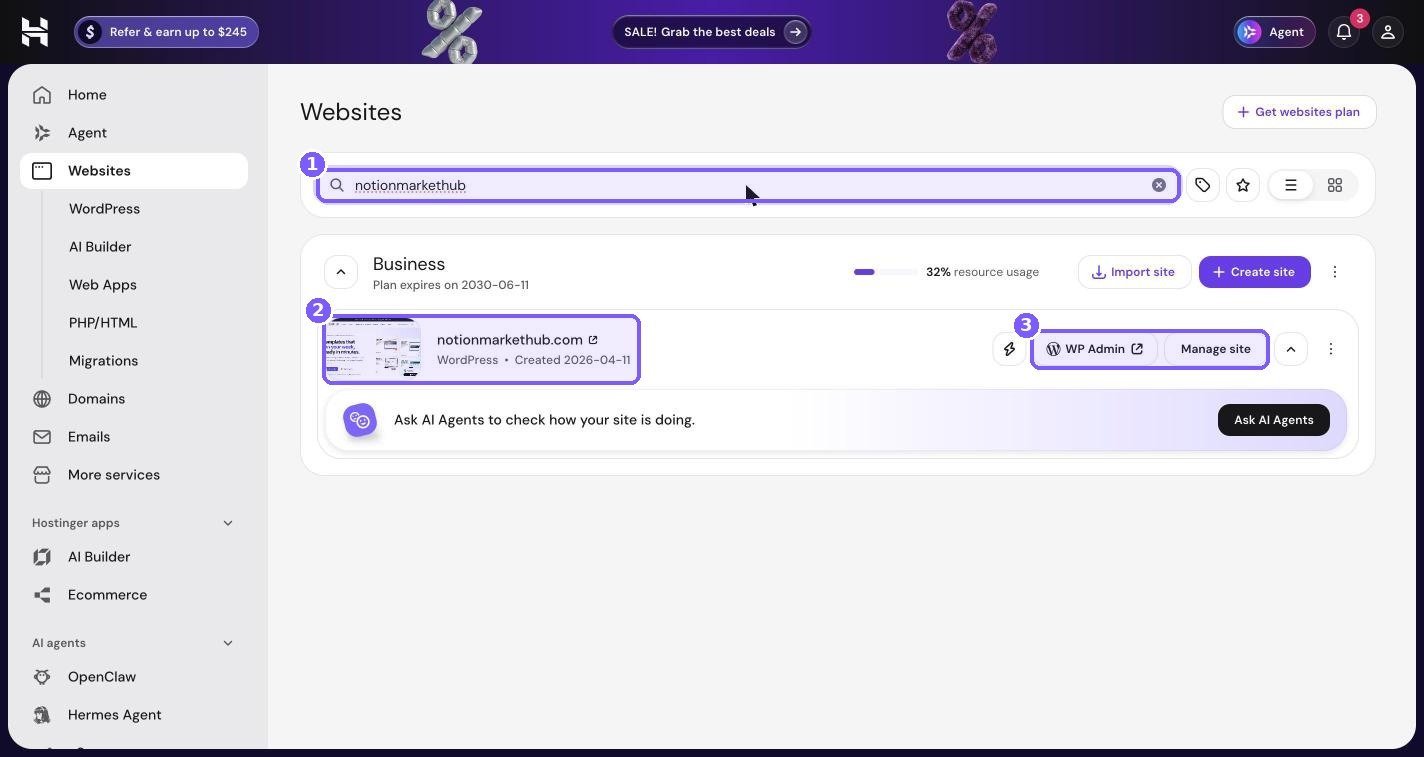
Your site is managed from the Websites list, where WP Admin takes you straight into WordPress to create those keys.
Security basics for API keys
- Give each key the lowest permission it needs. A workflow that only reads orders needs a read-only key.
- Create a separate key for each tool, so you can revoke one without breaking the others.
- Store keys in n8n’s credentials manager, never pasted into workflow notes.
- Delete keys you no longer use.
Worked example: new WooCommerce order to Google Sheets
Here is a complete first workflow you can build in n8n in about 20 minutes. It adds every new WooCommerce order to a Google Sheet, which gives you a simple, live sales log you can sort, filter and share with an accountant. This is general n8n guidance; node names and screens can differ slightly between n8n versions.
What you need
- Your n8n app running on Hostinger and open in your browser.
- A WooCommerce store with admin access.
- A Google account and a new Google Sheet with column headers such as Date, Order ID, Customer, Product, Total.
Build it
- Create a new workflow in n8n and give it a name, such as “Orders to Sheet.”
- Add a WooCommerce Trigger node. Choose the event “order.created.” n8n will ask for WooCommerce credentials: your store URL plus a consumer key and secret, created in WooCommerce, Settings, Advanced, REST API. A read/write key is needed here because the trigger registers a webhook on your store.
- Test the trigger. Place a test order on your store (in payment sandbox mode, or with a 100% coupon). n8n should show the order data arrive.
- Add a Google Sheets node after the trigger, with the operation “Append row.” Connect your Google account when asked, then pick the spreadsheet and sheet.
- Map the fields. Drag values from the order data into your columns: date created, order ID, billing name, line item name, and total.
- Test the whole workflow with another test order and check that the row appears in your sheet.
- Activate the workflow using the toggle at the top. From now on it runs on its own, 24/7.
Make it better later
- Add an IF node to treat orders over a certain value differently, for example sending you a phone notification.
- Add a Slack or Telegram node to ping you on every sale. It is surprisingly motivating.
- Add a Schedule Trigger workflow that reads the sheet every Monday and emails you a weekly total.
Once this first workflow runs reliably for a week, you will start spotting other jobs to automate. That is the real value of n8n: it changes how you look at repetitive work.
Troubleshooting common issues
| Problem | What to check |
|---|---|
| The n8n trigger never fires | Is the workflow activated? Is the webhook listed in WooCommerce, Settings, Advanced, Webhooks with status Active? |
| WooCommerce credentials fail | The store URL must use https, and the API key must have the right permissions. |
| A workflow worked once and then stopped | Open n8n’s executions list and read the error on the failed run. Expired Google or Slack connections are a common cause. |
| The AI agent gives poor answers | Make your instructions more specific, give it an example of a good answer, or switch to a stronger model for that task. |
| AI agent stopped replying | Check your credits, API balance or subscription limits. Hostinger’s Hermes Agent guide notes the agent stops generating responses when Hostinger credits run out. |
| Something looks broken after an update | Check the app’s Logs section in hPanel, then contact Hostinger support with the error message. |
Email as a channel for your agent
The OpenClaw card says it works across chat and email channels, and Hostinger’s help pages mention Hostinger Email as one of the channels. If you want an assistant you can email, set up a dedicated mailbox on your own domain for it, such as assistant@yourdomain.com, so its messages stay separate from your main inbox.
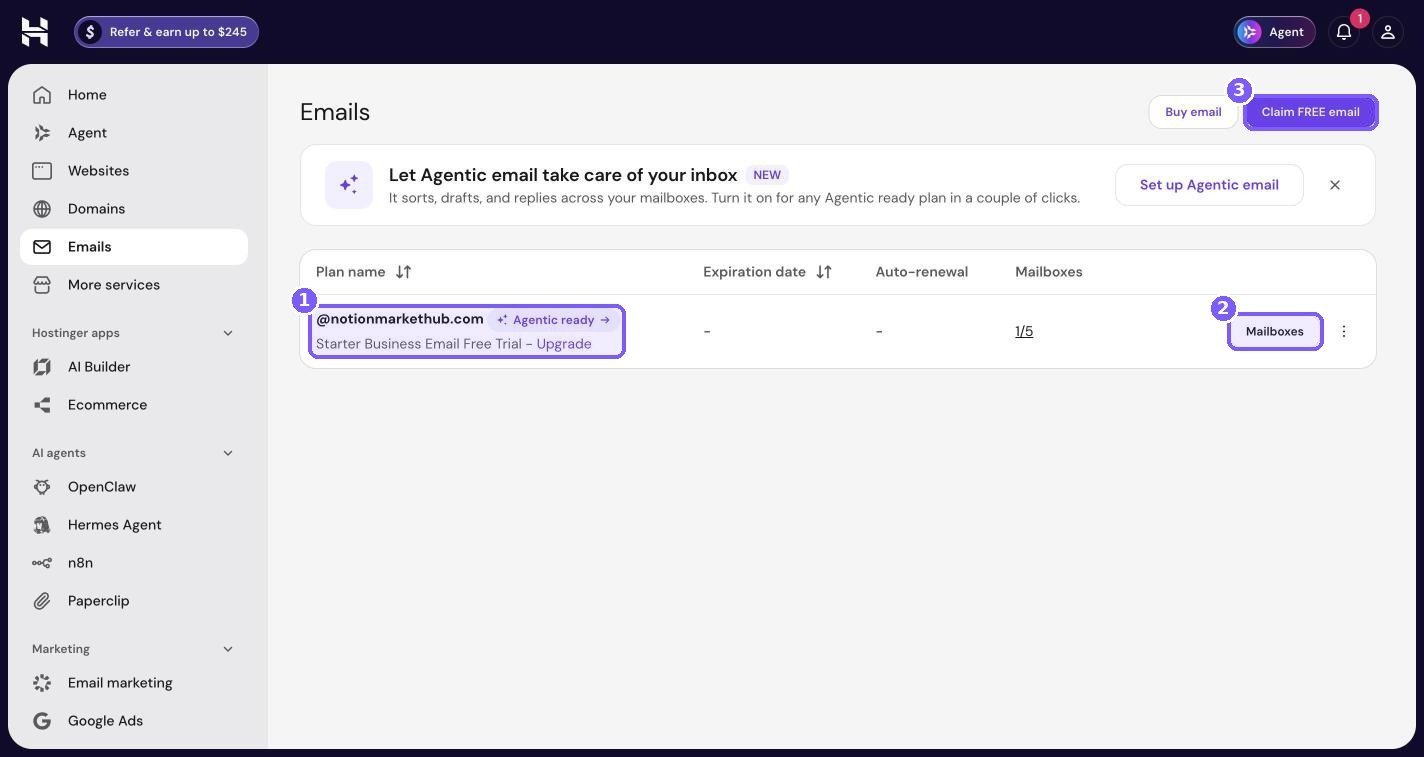
The Emails page also promotes a new feature called Agentic email, which Hostinger says “sorts, drafts, and replies across your mailboxes.” That is a separate feature from the AI agents, built into Hostinger’s email plans. For setting up a mailbox step by step, see my guide on creating a professional email address with your own domain.
Managed apps vs running your own VPS
Hostinger also sells VPS plans with one-click templates for n8n and other tools. Its self-hosted n8n page describes a VPS template with n8n preinstalled, and its help pages describe installing Hermes Agent from a Docker catalog on a VPS. So which should you choose?
| Managed AI agents in hPanel | Your own VPS with a template | |
|---|---|---|
| Server setup | None | Minimal, but you manage the server |
| Updates and backups | Handled by Hostinger, per its help pages | Your responsibility (with tools to help) |
| Flexibility | Limited to what the app dashboard offers | Full root access, custom settings, extra software |
| Best for | Business owners who want it to just work | Developers and heavy users |
My take: start with the managed option. If you outgrow it, or you want to run several tools on the same server with custom settings, move to a VPS later.
Tips for getting real value from AI agents
- Automate a task you already do every week. If you cannot name the task, you are not ready for the tool.
- Write clear instructions. Agents follow instructions literally. “Summarise in five bullet points for a busy shop owner” beats “summarise this.”
- Keep a human in the loop for anything customer-facing or financial. Let the agent draft; you approve.
- Check logs. n8n shows every execution. Look for failures weekly.
- Back up your workflows. Export important n8n workflows as JSON and keep a copy outside the app.
- Review costs monthly across credits, API bills and plans.
Frequently asked questions
Do I need a VPS to run n8n on Hostinger?
Not for the managed option in hPanel. The AI agents page says no server setup is needed: you pick the app and Hostinger installs and runs it. Hostinger also sells VPS plans with n8n templates if you prefer full control.
Is n8n on Hostinger the same as n8n cloud?
It is the same n8n software, but running on Hostinger rather than on n8n’s own cloud service. Features and limits can differ, so check both before deciding.
Can I run all four apps at once?
Hostinger’s help pages say each AI Automation application runs on its own plan, so running several apps means a plan for each.
Do OpenClaw and Hermes Agent need a ChatGPT subscription?
No, that is one option. The cards say they work with a ChatGPT subscription, and Hostinger’s help pages also list ready-made credits or your own API key from providers such as OpenAI, Anthropic, xAI or Gemini.
Can n8n connect to my WooCommerce store?
Yes. n8n has WooCommerce and WordPress nodes and can receive WooCommerce webhooks. You create the API keys or webhooks in your WooCommerce settings.
Is my data safe with these agents?
Hostinger says each app runs in its own container and that it handles security updates for the managed apps. You are still responsible for what you connect: use limited API keys, avoid sharing sensitive customer data with AI models unnecessarily, and review your AI provider’s data policy.
Which tool should a beginner start with?
n8n, for clear, repeatable automations. If you prefer chatting over building workflows, start with OpenClaw.
Get started with AI agents on Hostinger
Running your own automation server used to be a weekend project with plenty of chances to break something. On Hostinger, it is now a menu item. Pick n8n for automations or OpenClaw for an assistant, connect one small task, and grow from there.
If you do not have a Hostinger account yet, you can sign up through my link below. According to Hostinger’s referral popup, friends who sign up through a referral link get 20% off their first purchase.
Want to see the rest of the control panel? Read my complete hPanel tour, learn how I sell digital products from WooCommerce on Hostinger, or make sure your main site is in good shape with my guide to speeding up and securing WordPress on Hostinger. New to Hostinger altogether? Start with my Hostinger review.
Notion systems, spreadsheets and planners with a setup guide. Instant download.