How to Speed Up and Secure WordPress on Hostinger (SSL, CDN, Backups, Staging and Cache)
Most WordPress speed and security guides start by telling you to install five plugins. On Hostinger, you often do not need to. Many of the tools you need are already in hPanel: free SSL, a built-in CDN, server caching, a speed test, backups and staging. You just need to know where they are and how to set them up properly.
This guide goes through each one in the order I would tackle them on a new site, with real screenshots from my own hPanel account. My store runs on WordPress and WooCommerce on Hostinger, so these are the exact settings I use.
This post contains affiliate links. If you buy through them, I may earn a commission at no extra cost to you.
Quick answer: the 8-step Hostinger speed and security checklist
- SSL: Security, then SSL. Make sure every domain shows Active.
- Force HTTPS: WordPress, then Overview. Switch it on.
- LiteSpeed Cache: WordPress, then Overview. Click Install if you see it.
- CDN: Performance, then CDN. Make sure it is Active.
- Speed test: Performance, then Page Speed. Test mobile and desktop.
- Backups: Files, then Backups. Check the schedule and make a manual backup.
- Staging: WordPress, then Staging. Use it before big updates.
- Resources: Hosting Plan, then Plan Details and Resources Usage. Make sure your plan is not maxed out.
Table of contents
- Start with the site dashboard health check
- Step 1: Check SSL
- Step 2: Turn on Force HTTPS
- Step 3: Install and set up LiteSpeed Cache
- Step 4: Check the CDN
- Step 5: Measure with Page Speed
- Step 6: Set up backups
- Step 7: Use staging for risky changes
- Step 8: Check your plan resources and server location
- Extra security habits that make a big difference
- How the caching layers fit together
- Image optimisation in practice
- If your site gets hacked: a recovery plan
- Speed tips for WooCommerce stores
- My monthly speed and security routine
- Tips
- Frequently asked questions
- Wrapping up
Watch the full Hostinger walkthrough
Start with the site dashboard health check
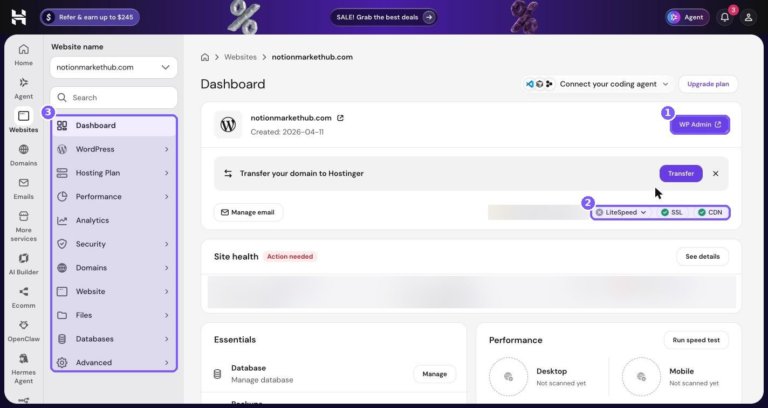
Before changing anything, get a picture of where your site stands. In hPanel, go to Websites, then Manage site next to your site. The dashboard header shows three status chips that summarise your speed and security setup.
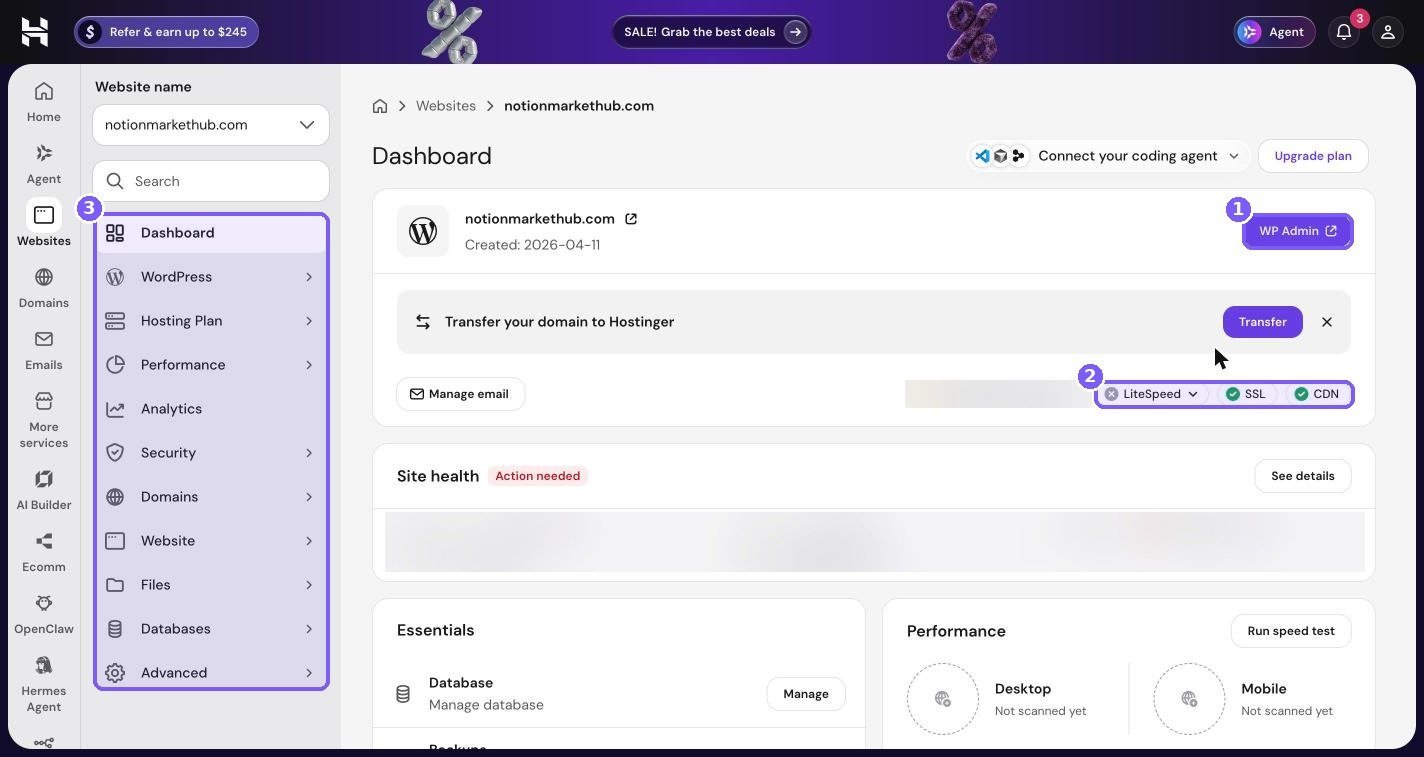
On my site, SSL and CDN show green ticks, while the LiteSpeed chip is grey. That tells me two of the three basics are done and the caching plugin still needs attention. Your chips may look different. Any chip that is not green is your first job.
The site menu on the left (box 3) contains every section this guide uses: WordPress, Hosting Plan, Performance, Security and Files.
Step 1: Check SSL
SSL encrypts the connection between your visitors and your site. Without it, browsers show “Not secure” warnings, Google treats your site less favourably, and payment providers will not work.
Go to Security, then SSL.
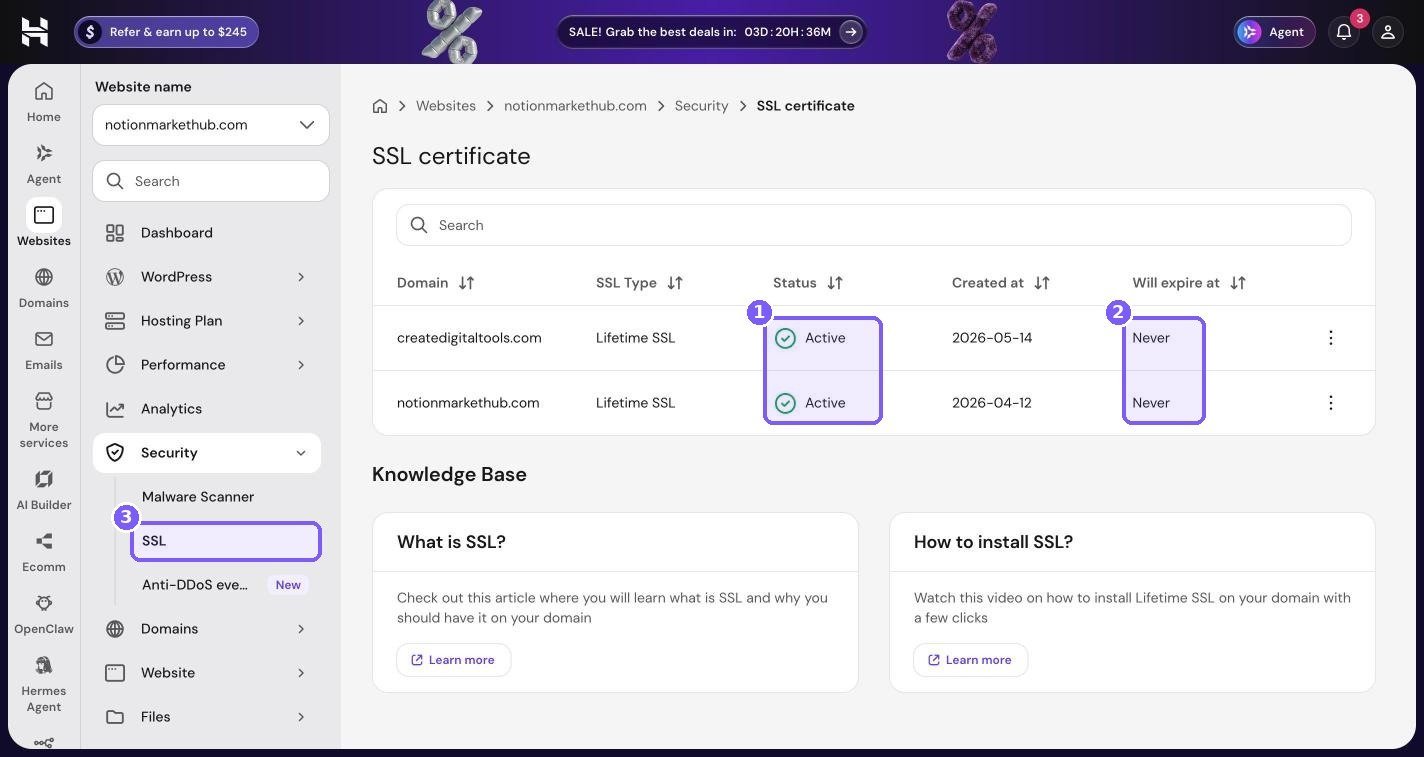
The table lists each domain with its SSL type, status, and expiry. Both my domains use Lifetime SSL with status Active and an expiry of Never, so renewals are handled for me.
If a domain is not Active
- Check the domain points to Hostinger. SSL can only be issued once the domain resolves to your site. If you have just changed DNS or nameservers, give it some time.
- Check every version you use. If you use a subdomain such as shop.yourdomain.com, it needs to be covered too.
- Ask support. If a domain stays inactive after DNS has updated, Hostinger support can reissue the certificate.
Step 2: Turn on Force HTTPS
Having SSL is not enough on its own. If someone types http://yourdomain.com or follows an old link, they could still land on the insecure version. Force HTTPS fixes that by redirecting every request to https.
Go to WordPress, then Overview.
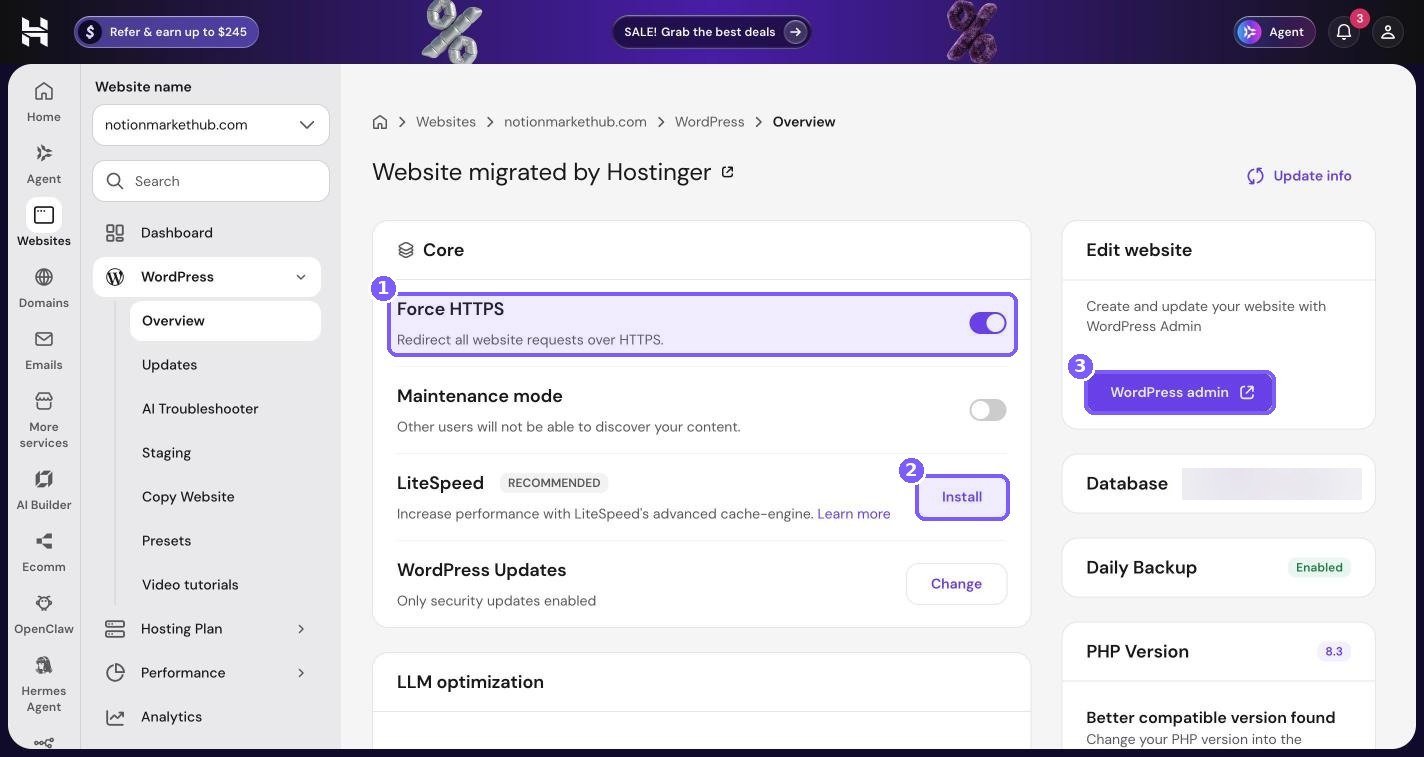
Switch Force HTTPS on (box 1). Then, in WordPress, go to Settings, General and make sure both the WordPress Address and Site Address start with https://.
Fixing mixed content
If the padlock still shows a warning after this, some images, scripts or styles are probably loading over http. The usual causes are hard-coded links in old posts or theme settings. A search-and-replace (from http://yourdomain.com to https://yourdomain.com) in your database fixes most cases. Make a backup first (see Step 6).
The rest of the Core card
While you are on this page, check the other settings:
- Maintenance mode should be off unless you are actively making big changes.
- WordPress Updates shows how core updates are handled. Mine says “Only security updates enabled.” Security updates are the most important to automate; larger version updates are best tested first.
- The right-hand column shows PHP Version (8.3 on my site) with a “Better compatible version found” note. Newer PHP versions are generally faster and more secure, but test a PHP change on staging before switching the live site.
Step 3: Install and set up LiteSpeed Cache
Hostinger uses the LiteSpeed web server, and the free LiteSpeed Cache plugin for WordPress is designed to work with it. It is one of the biggest speed improvements you can make, and it costs nothing.
On the WordPress Overview page, if LiteSpeed shows an Install button tagged Recommended, click it. You can also install it from WP Admin under Plugins, Add New.
Settings to check after installing
LiteSpeed Cache works well with its defaults. A few settings are worth knowing about:
- Cache: make sure page caching is enabled.
- WooCommerce: LiteSpeed Cache recognises WooCommerce and, by default, does not cache cart, checkout and account pages. Leave this as it is.
- Image optimisation: LiteSpeed can compress images and serve WebP versions. Turn this on gradually and check your images look right.
- CSS and JavaScript optimisation: minifying and combining files can help, but can also break layouts. Turn options on one at a time and check your site after each.
- Lazy load images: usually safe and helpful, especially on long pages.
Clearing cache
When you change something and it does not show, clear the cache. On Hostinger there can be three layers:
- LiteSpeed Cache in WordPress – use Purge All from the admin bar.
- Server cache in hPanel – use Clear cache on the site dashboard.
- The CDN – use Flush cache under Performance, then CDN.
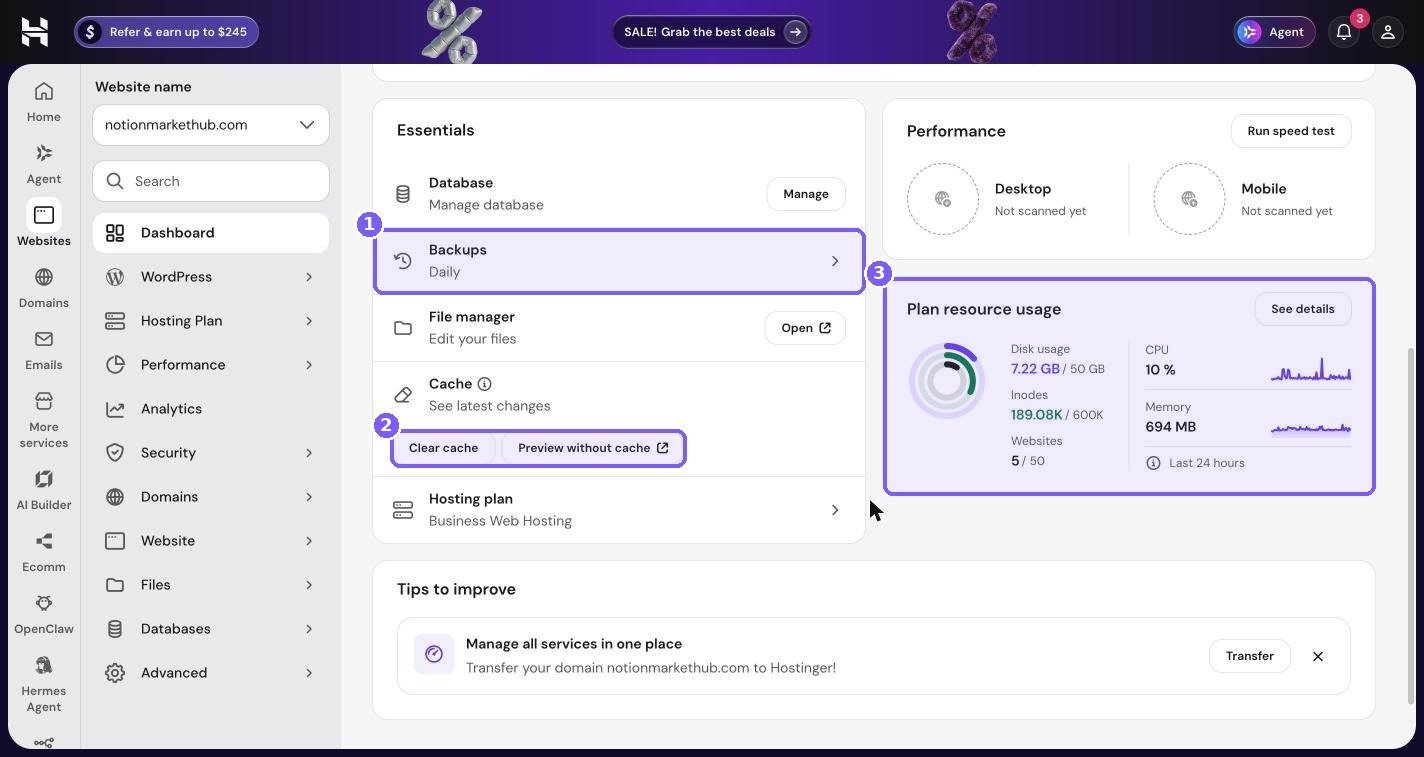
The Preview without cache button (box 2) is the fastest debugging tool. It shows your site with caching bypassed. If your change appears there, you know it saved and only the cache needs clearing.
Step 4: Check the CDN
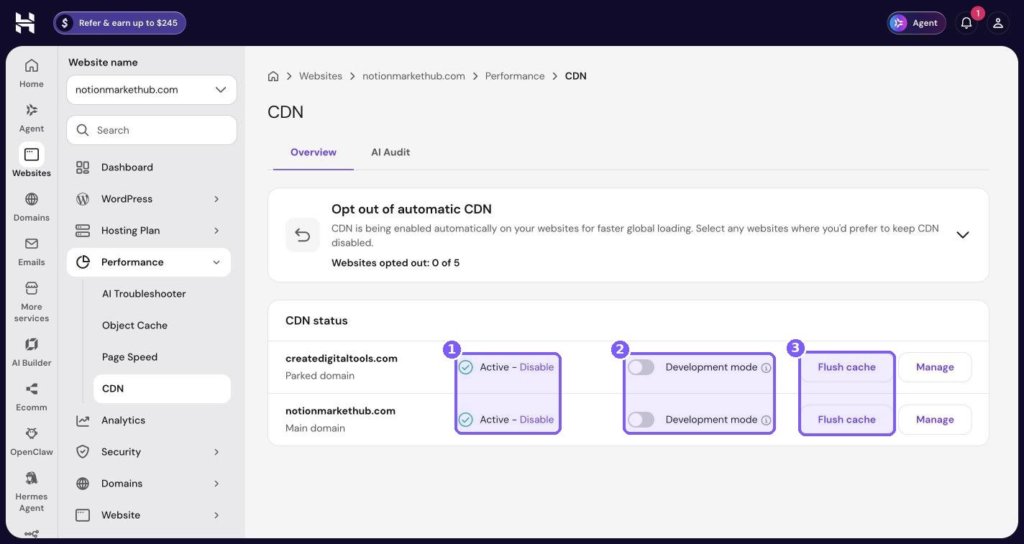
A content delivery network keeps copies of your images, CSS and scripts on servers around the world, so visitors download them from somewhere nearby. Hostinger’s CDN is managed under Performance, then CDN.
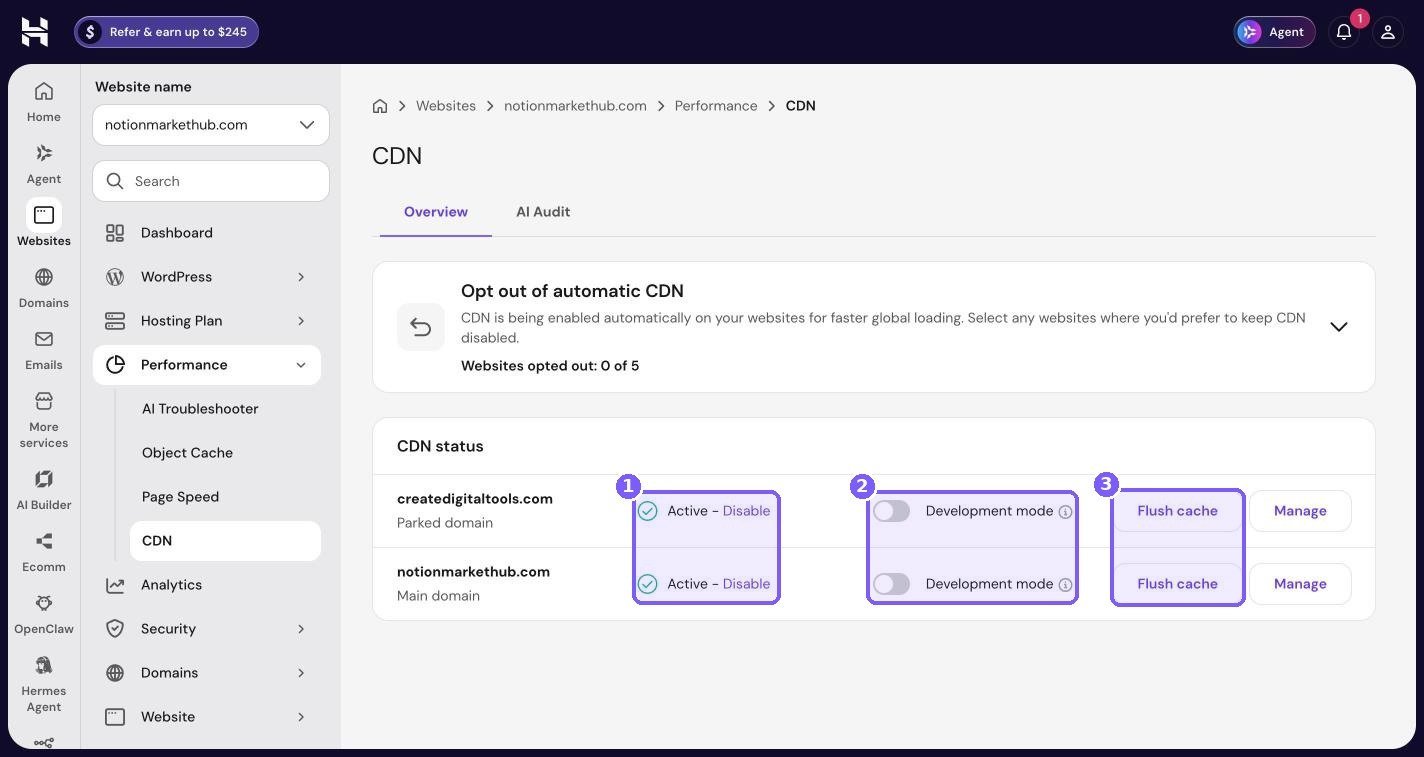
The “Opt out of automatic CDN” card at the top says CDN is being enabled automatically on your websites for faster global loading. On my account, 0 of 5 websites are opted out, and both domains in the CDN status table show Active.
How to use the CDN controls
- Keep it Active (box 1) unless you have a specific reason not to, such as another CDN already in front of your site. Running two CDNs on top of each other usually causes more problems than it solves.
- Development mode (box 2) bypasses the CDN cache temporarily. Turn it on while you are designing or editing CSS, so you see changes instantly, then turn it off again.
- Flush cache (box 3) clears everything the CDN has stored. Use it after a theme change, new CSS, or replacing images that keep the same file name.
There is also a Manage button for each domain and an AI Audit tab at the top of the page if you want to look deeper.
Step 5: Measure with Page Speed
You cannot improve what you do not measure. Hostinger has a speed test built into hPanel under Performance, then Page Speed.
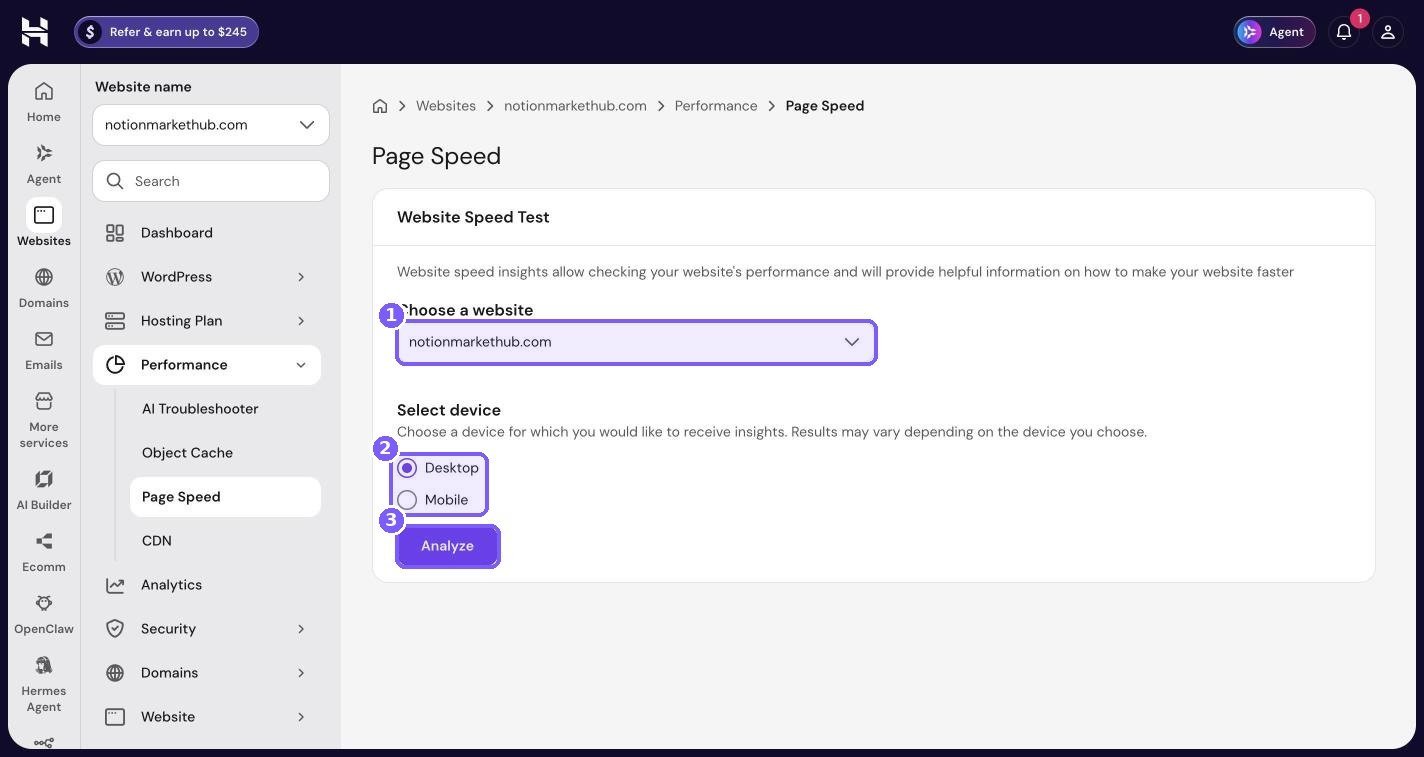
Pick your site, choose a device, and click Analyze. Results also appear on the site dashboard’s Performance card, which shows “Not scanned yet” until you run a test.
How to test properly
- Test before and after each change. Write down the scores so you can compare.
- Test mobile first. Mobile scores are usually lower, and most visitors are on phones.
- Run each test twice. The first run after clearing cache is often slower.
- Test your important pages, such as a popular blog post, a product page, or your shop page, not just the home page.
Common causes of a low score
| Cause | Fix |
|---|---|
| Large images | Compress them, serve WebP, and size them correctly for where they appear. |
| Too many plugins | Remove plugins you do not use. Replace heavy ones with lighter alternatives. |
| Heavy theme or page builder | Choose a lightweight theme. Avoid stacking lots of animation and slider effects. |
| Lots of third-party scripts | Chat widgets, trackers and embeds add up. Keep only those you need. |
| No caching | Install LiteSpeed Cache (Step 3). |
| Distant server | Check your server location (Step 8). |
The Performance menu also includes Object Cache, which stores database query results in memory. It can help busy WordPress and WooCommerce sites with lots of logged-in users. Test it on staging first.
Step 6: Set up backups
Security is not only about stopping attacks. It is also about recovering quickly when something goes wrong, whether it is a bad update, a hacked plugin, or a mistake you made yourself. Backups are how you recover.
Go to Files, then Backups.
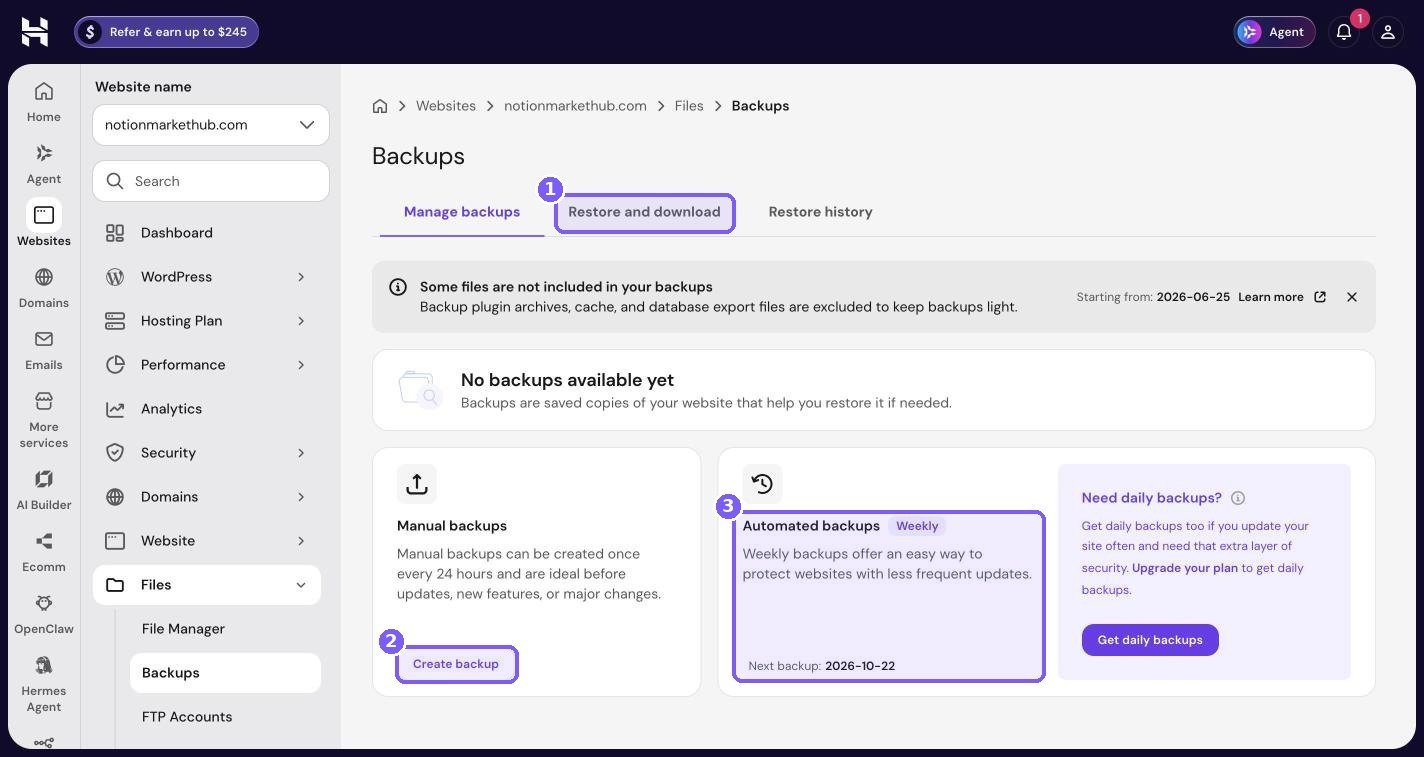
What the Backups page shows
- Manual backups can be created once every 24 hours. Hostinger recommends them before updates, new features or major changes.
- Automated backups run on a schedule. On my account this page shows Weekly, with a “Need daily backups?” panel offering daily backups as an upgrade.
- A note explains that backup plugin archives, cache and database export files are excluded to keep backups light.
- The Restore and download tab lets you restore files, the database, or both, and download a copy.
- Restore history shows previous restores.
On my account, the site dashboard and WordPress Overview both show a Daily backup row as enabled, while this page shows the weekly schedule. Backup options vary by plan, so confirm which schedule applies to your account on this page.
A sensible backup routine
- Before every plugin, theme or WordPress update, click Create backup.
- For sites that change daily, such as stores or busy blogs, make sure you have daily backups.
- Once a month, download a full backup and store it outside your hosting account, for example in cloud storage.
- Test a restore at least once, on staging, so you know how it works before you need it in a hurry.
Step 7: Use staging for risky changes
Staging is a private copy of your site where you can test changes safely. It is the best way to avoid breaking your live site in the first place.
Go to WordPress, then Staging.
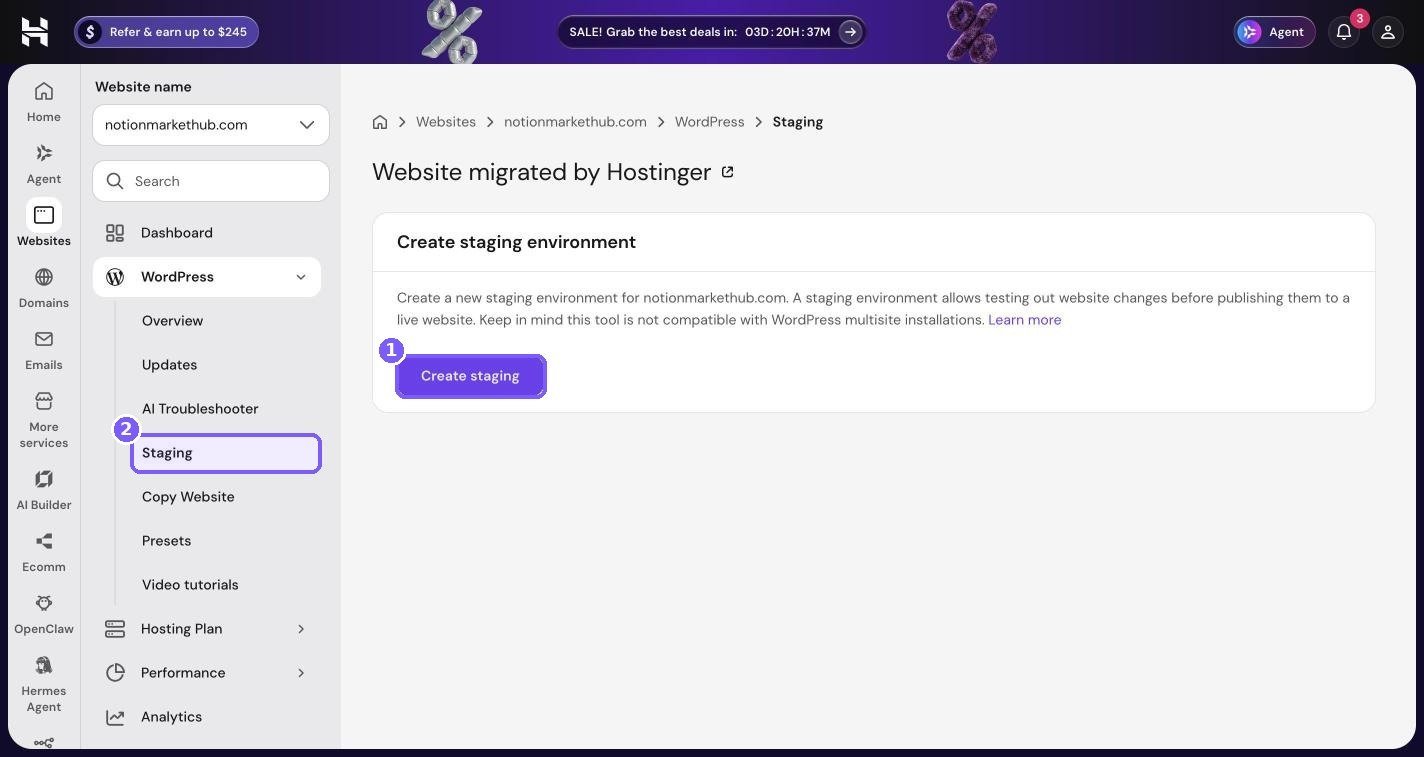
Click Create staging and hPanel builds a copy of your site. Make your changes there, test, and only apply them to the live site when everything works.
Use staging for
- Major plugin updates, especially WooCommerce, page builders and security plugins.
- Theme changes or redesigns.
- PHP version changes.
- Testing new caching, image or CSS optimisation settings.
A note for stores and membership sites
Your live site keeps collecting orders, comments and sign-ups while you test. Pushing an entire staging copy back over the live site can overwrite that new data. For sites like this, use staging to confirm a change works, then repeat the same change on the live site.
Step 8: Check your plan resources and server location
Sometimes a site is slow not because of WordPress, but because the plan has run out of room. Go to Hosting Plan, then Plan Details.
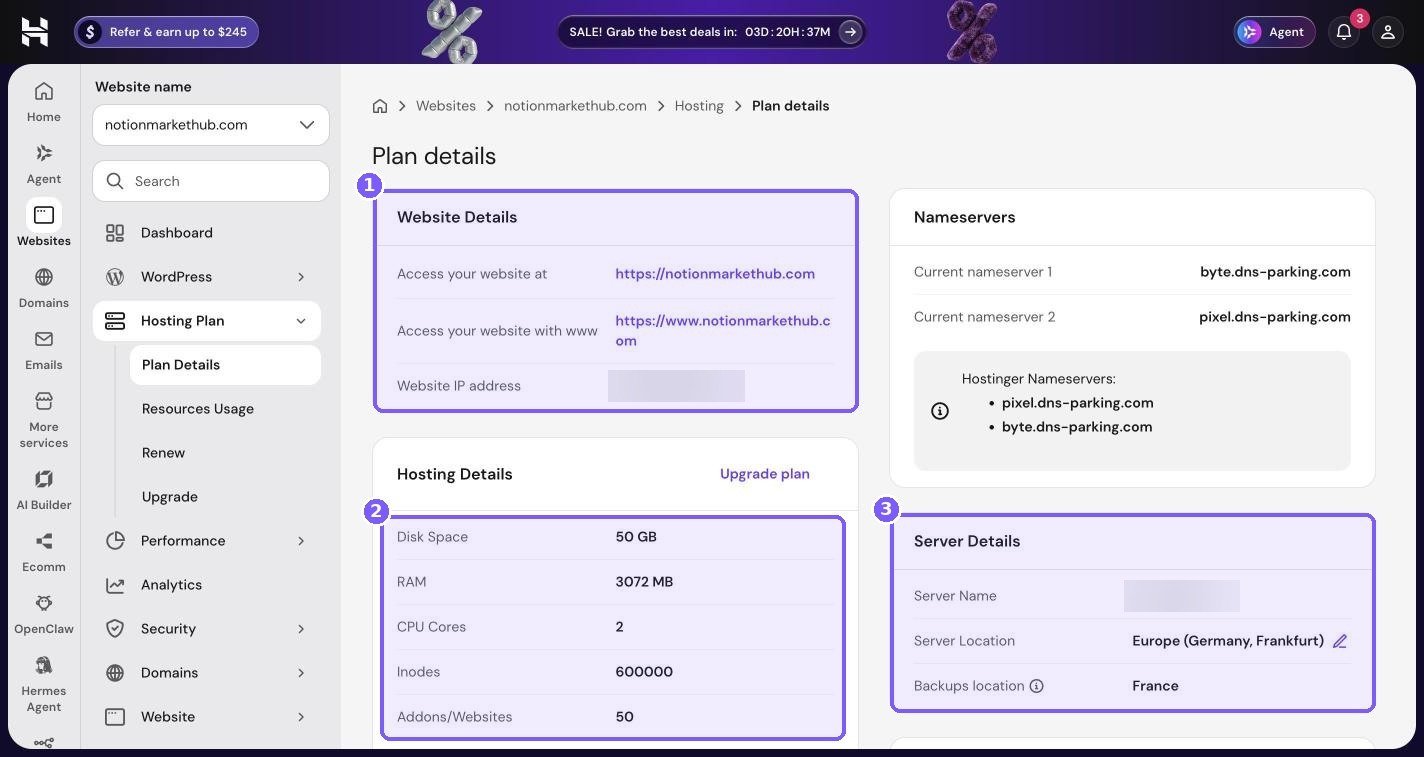
My Business plan shows 50 GB disk space, 3072 MB RAM, 2 CPU cores, 600000 inodes and up to 50 websites. My server is in Europe (Germany, Frankfurt), with backups stored in France.
What to look for
- Disk space and inodes: if either is close to the limit, uploads and backups can fail. Delete old backups stored on the server, unused themes and plugins, and old media.
- RAM and CPU: open Hosting Plan, then Resources Usage to see usage over time. If you regularly hit the limits during busy hours, a plan upgrade or a move to cloud hosting will help more than any plugin.
- Server location: choose a location close to most of your visitors. Every extra thousand miles adds delay to each request. The CDN helps with static files, but pages themselves still come from your server.
On the site dashboard, the Plan resource usage card gives a quick summary. Mine showed 7.22 GB of 50 GB disk, 189.08K of 600K inodes, CPU at 10% and memory at 694 MB over the last 24 hours, which is comfortable.
If you are outgrowing shared hosting, my Hostinger Cloud hosting review explains when the extra resources are worth it, and my Hostinger pricing guide compares the plans.
Extra security habits that make a big difference
hPanel covers the hosting side. These habits cover the WordPress side:
- Use strong, unique passwords for WordPress, hPanel and email, and store them in a password manager.
- Turn on two-factor authentication for your Hostinger account (in your account settings) and for WordPress admin users.
- Keep plugins and themes updated, using the staging and backup routine above for big updates.
- Delete plugins and themes you do not use. Deactivated plugins can still contain vulnerable code.
- Give users the lowest role they need. A writer does not need Administrator access.
- Check the Updates page regularly under WordPress, then Updates in hPanel.
- Use the AI Troubleshooter under WordPress when something breaks. It can save a support ticket for common errors.
How the caching layers fit together
Caching is the single biggest reason a site feels fast, and also the single biggest reason people think their changes “did not save.” It helps to understand how the layers stack up on Hostinger.
| Layer | Where it lives | What it stores | How to clear it |
|---|---|---|---|
| Browser cache | Each visitor’s browser | Images, CSS and scripts they have already downloaded | Visitors refresh; you can test in a private window |
| CDN | Hostinger’s CDN servers | Static files like images, CSS and JavaScript | Performance, then CDN, then Flush cache |
| Page cache | LiteSpeed server, controlled by the LiteSpeed Cache plugin | Ready-made HTML copies of your pages | Purge All in WordPress, or Clear cache on the hPanel dashboard |
| Object cache | Server memory, if enabled | Results of database queries | Performance, then Object Cache |
When a visitor requests a page, the fastest available layer answers. A cached page can be served in a fraction of the time it takes WordPress to build it from scratch. That is why caching matters so much, and why cart, checkout and account pages, which cannot be cached for everyone, are usually the slowest pages on a store.
A clean cache-clearing order
After a big change, clear from the inside out: object cache (if you use it), then page cache, then the CDN. Then check the page in a private browser window. Doing it in this order makes sure each outer layer picks up fresh content from the layer beneath it.
Image optimisation in practice
On most WordPress sites I look at, images are the biggest single cause of slow pages. Fixing them is low risk and gives quick results.
- Resize before uploading. A photo straight from a phone can be thousands of pixels wide. Most blog content areas display images well under 1,500 pixels wide, so resize to roughly that.
- Compress. Use LiteSpeed Cache’s image optimisation or a dedicated compression tool before uploading. The difference in file size is often huge with no visible change.
- Use modern formats. WebP files are usually much smaller than JPEG or PNG at similar quality. LiteSpeed Cache can serve WebP versions automatically.
- Lazy load below the fold. Images further down the page only load as the visitor scrolls. LiteSpeed Cache has an option for this.
- Do not lazy load the first big image. The main image at the top of a page should load straight away, otherwise it can hurt your speed score.
- Keep an eye on inodes. Every image upload creates several resized copies. Cleaning out unused media helps both disk space and inode usage.
If your site gets hacked: a recovery plan
Even well-maintained sites can be compromised, usually through an outdated plugin or a reused password. If it happens, stay calm and work through these steps.
- Change passwords first. Update your hPanel, WordPress admin, database and FTP passwords. Turn on two-factor authentication if it was not already on.
- Restore a clean backup. Go to Files, then Backups, then Restore and download, and restore a backup from before the problem started. This is where off-site and older backups prove their value.
- Update everything. Update WordPress, all plugins and your theme straight after restoring, since the original weakness is probably still there.
- Remove what you do not use. Delete inactive plugins and themes and any admin users you do not recognise.
- Check Force HTTPS and SSL are still in place.
- Contact Hostinger support if you cannot find a clean backup or the problem returns. They can help scan and clean the account.
- Find the cause. Look at which plugin was outdated or which login was used, so it does not happen again.
The best defence is boring: regular updates, strong unique passwords, two-factor authentication, and backups you have tested.
Speed tips for WooCommerce stores
Stores have their own speed challenges because many pages are personal to each shopper. If you run WooCommerce on Hostinger, these make the biggest difference:
- Let LiteSpeed Cache handle WooCommerce exclusions. It knows not to cache the cart, checkout and account pages. Do not override this.
- Keep product images light. Product galleries are image-heavy, so compression and WebP matter even more.
- Limit plugins that load on every page. Some store plugins load their scripts site-wide even when they are only needed on checkout.
- Watch RAM and CPU during sales. A launch or discount can bring a spike. Check Resources Usage afterwards to see whether you came close to your limits.
- Consider Object Cache if you have many logged-in customers.
For the full store setup, see my guide on selling digital products from your own WooCommerce store on Hostinger.
My monthly speed and security routine
This takes me about 20 minutes a month:
- Glance at the dashboard status chips and Plan resource usage.
- Run a mobile speed test on a product page and a blog post.
- Check Security, then SSL for any domain not showing Active.
- Review pending plugin and theme updates, take a manual backup, and update.
- Check Resources Usage for any spikes during the month.
- Download a full backup and store it off-site.
- Remove anything I no longer use: plugins, themes, old media, test pages.
Tips
- Change one thing at a time and re-test. It is the only way to know what helped.
- Do not stack caching plugins. One caching plugin (LiteSpeed Cache on Hostinger) is enough.
- Turn off CDN development mode when you finish editing. It is easy to forget.
- Be careful with “combine CSS/JS” options. They often cause layout issues for little gain.
- Keep your theme lightweight. No amount of caching fully fixes a heavy theme.
- Do not ignore warnings. If hPanel recommends something, look into it.
Frequently asked questions
Does Hostinger include free SSL?
On my account, both domains use Lifetime SSL with status Active and expiry Never under Security, then SSL. Check what your plan includes before you buy.
Do I need a caching plugin on Hostinger?
Yes, LiteSpeed Cache is recommended. hPanel itself shows a LiteSpeed Install button tagged Recommended on the WordPress Overview page when it is not active.
Is Hostinger’s CDN free?
On my account, the CDN is enabled automatically and shows Active for every website. Check your plan details for what is included on your plan.
How do I clear cache on Hostinger?
Purge LiteSpeed Cache in WordPress, click Clear cache on the hPanel site dashboard, and use Flush cache under Performance, then CDN.
How often does Hostinger back up WordPress?
It depends on your plan. On my account the Backups page shows weekly automated backups with an option for daily, and manual backups once every 24 hours.
Should I use staging for every update?
Not for every small update, but always for major plugins (especially WooCommerce), themes, PHP version changes and anything that touches checkout or logins.
Why is my site still slow after all this?
Check your plan resources and server location, test with fewer plugins active on staging, and look at image sizes. If CPU and memory are regularly maxed out, a bigger plan will help more than further tweaks.
Wrapping up
You do not need a stack of premium plugins to have a fast, secure WordPress site on Hostinger. Free SSL with Force HTTPS, LiteSpeed Cache, the built-in CDN, regular backups and staging cover most of what matters, and they are all in hPanel already.
If you are not on Hostinger yet and want these tools built in, you can sign up through my link. According to Hostinger’s referral popup, friends who sign up through a referral link get 20% off their first purchase.
For a guided look at every other part of the control panel, read my complete hPanel tour. If you are moving a site over, start with how to move your WordPress website to Hostinger. And if you sell online, see how to sell digital products from WooCommerce on Hostinger and how to run n8n and AI agents on Hostinger.
Notion systems, spreadsheets and planners with a setup guide. Instant download.