Virtual Assistant Notion Template with Retainer Tracking
Picture a virtual assistant looking after five clients. One has a 10-hour monthly package, another has 20, a third pays a flat fee for inbox and calendar management. Requests arrive by email, Slack and voice note. Some tasks repeat every Monday, others every month-end. On the last day of the month, the question is always the same: who went over their hours, and what do I invoice? A virtual assistant Notion template with retainer maths built in answers that before the month ends, not after.
Below is a practical way to set up a VA workspace in Notion, followed by a walk-through of Virtual Assistant Studio OS, a ready-made template for virtual assistants and online business managers.
Get the Virtual Assistant Studio OS →
Why VA work gets hard to track
VAs and OBMs handle many small tasks for many clients, often on retainers. That combination is where generic tools fall short:
- Retainer hours are tracked after the fact. A time tracker records hours, but it rarely tells you mid-month that a client is nearly at their package limit.
- Requests come from everywhere. Email, chat, voice notes and forms all land in different places, so work gets missed.
- Recurring tasks rely on memory. Weekly reports and monthly clean-ups are easy to forget when nothing reminds you.
- Processes live in your head. Without written SOPs, handing work over or onboarding a subcontractor takes much longer.
- Access is hard to audit. Knowing which tools you have access to, for which client, and who owns the two-factor login matters, especially when a contract ends.
How to build a virtual assistant Notion template yourself
- Start with clients and packages. Create a Packages database (hours per month, monthly fee, overage rate) and relate each client to a package.
- Log time against clients. Each time entry gets a client, date, duration and billable tick. Roll up this month’s hours onto the client.
- Do the retainer maths on the client. Hours remaining = package hours minus hours this month. Percentage used, overage hours and overage fee follow from that. A status label (on track, nearly used, over package) makes it visible at a glance.
- Give tasks a flag. A formula that labels each task Overdue, Today, This week, Later or Done lets you build a “Today” view that is always current.
- Mark recurring tasks. Add a Recurring property (Daily, Weekly, Monthly) and a view that groups by it, so routine work has a home.
- Collect requests in an inbox. A Client Requests database with a channel property and a form view gives every request one landing spot before it becomes a task.
- Write SOPs and link them to tasks. Each SOP lists the tools used and has a review date. Linking tasks to SOPs means the instructions are right there when you do the work.
- Keep an access register, without passwords. Record tool, client, access type, login owner, 2FA owner, date granted and date revoked. Passwords belong in a password manager, not in Notion.
- Invoice from the numbers. At month end, each client already shows the amount to invoice, including any overage.
Inside Virtual Assistant Studio OS
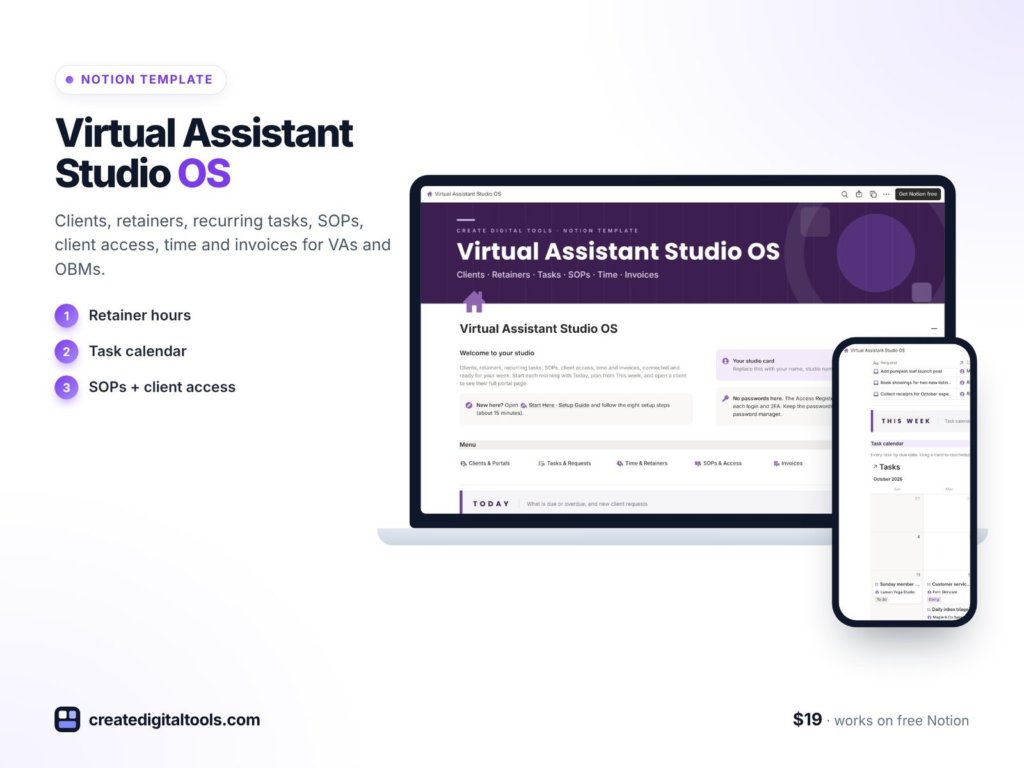
Virtual Assistant Studio OS ($19) is a Notion template for virtual assistants, online business managers and freelancers who manage several clients on retainers. You get a PDF with the Duplicate link, a Start Here setup guide in Notion and an 8-page Setup Guide PDF. Sample data with 5 fictional client businesses means every view works the moment you open it.
Front page dashboard
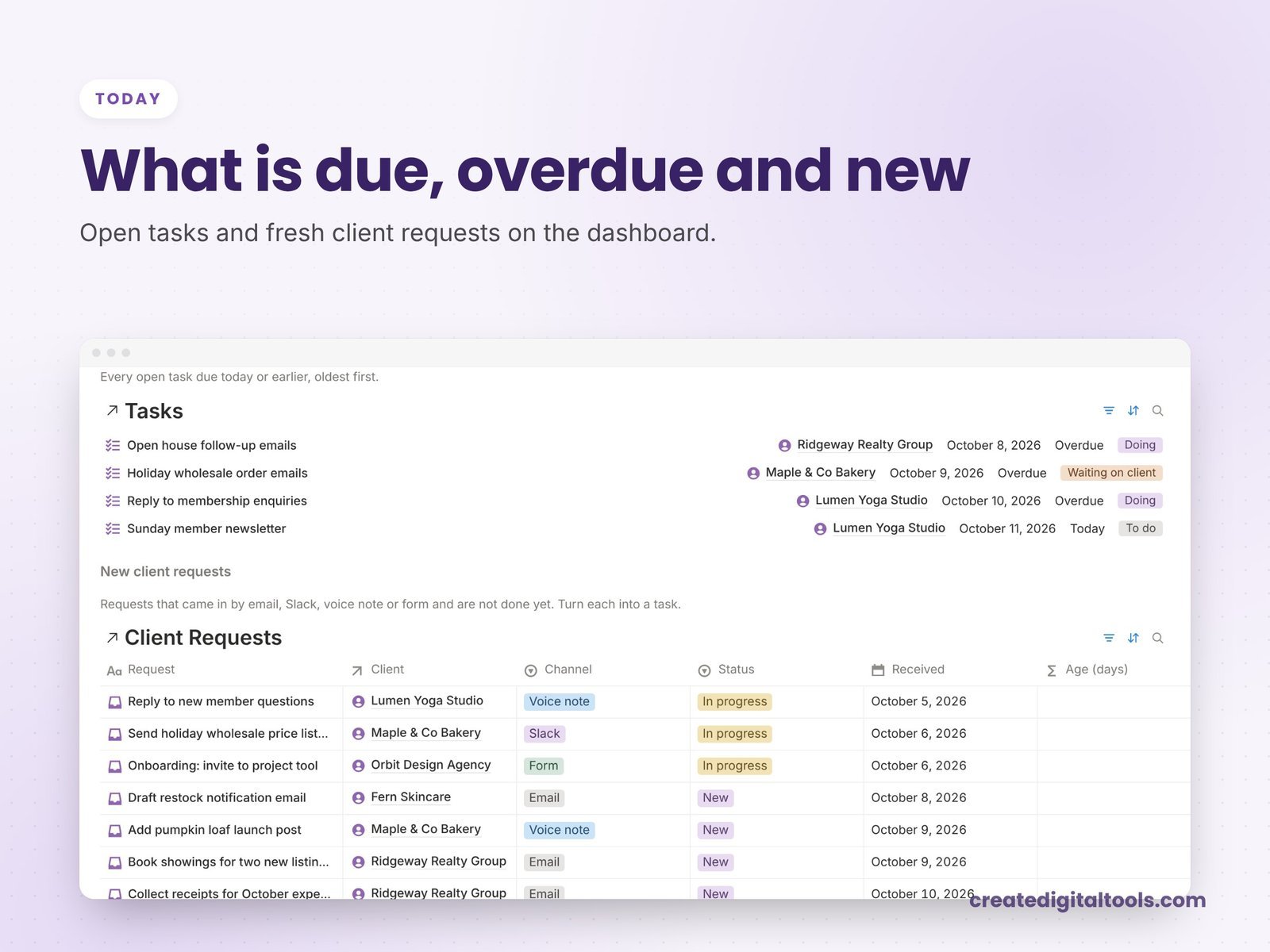
The dashboard is split into Today (due and overdue tasks, new client requests), This week (task calendar, time logged), Clients (portal gallery, status board), Hours and retainers (hours by client chart, retainer tracker, packages), Processes (SOP library, access register), Money (invoiced by month chart, open invoices), a lead pipeline and a weekly routine.
Time and retainers
Every client shows package hours, hours this month, hours remaining, percentage used, overage hours, overage fee and the amount to invoice this month, with an On track, Nearly used or Over package flag. Each package also shows its effective hourly rate (monthly fee divided by monthly hours). The time log values each billable entry at the client’s package rate and links into the monthly invoice.
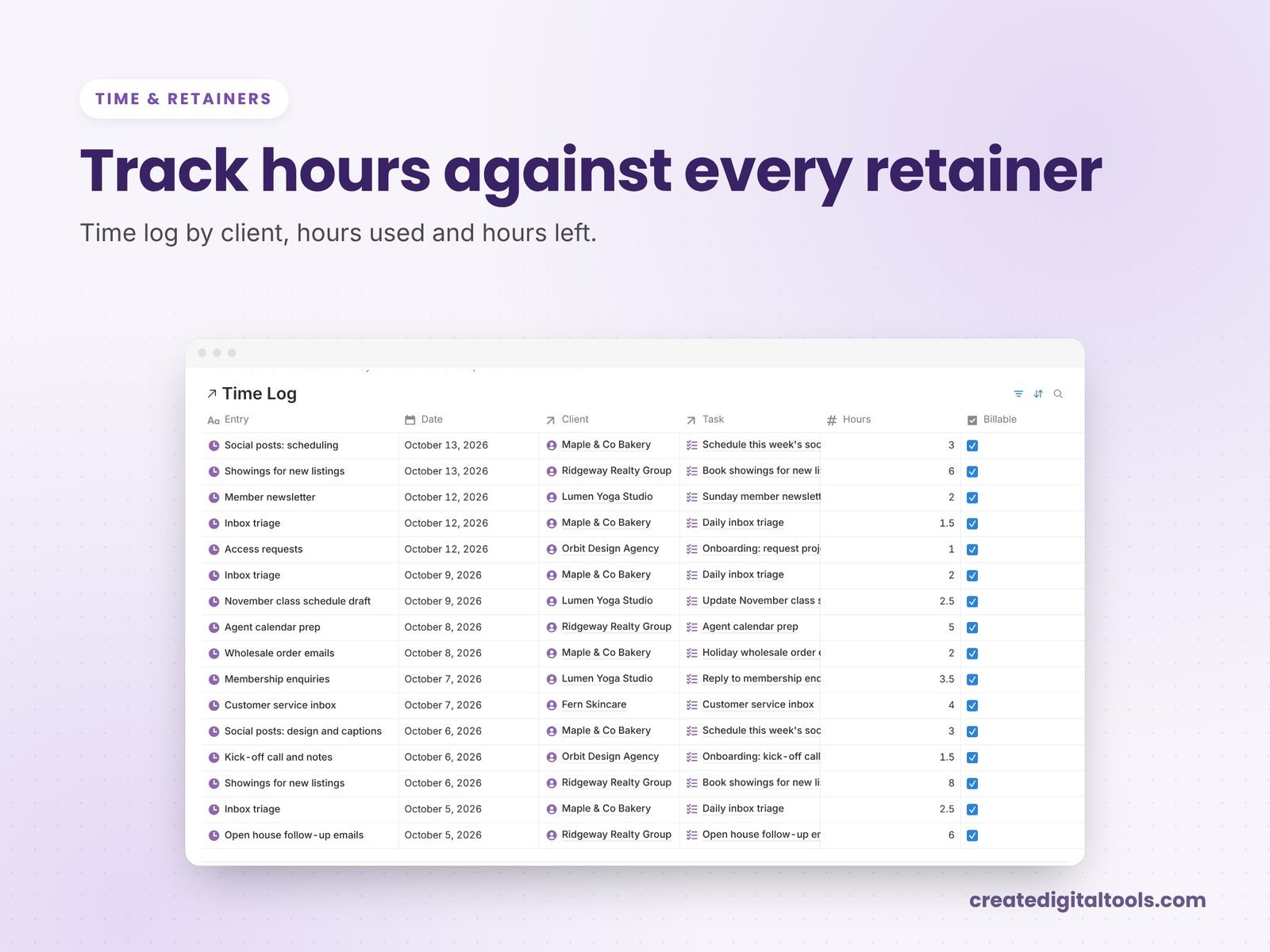
Tasks and requests
Tasks carry a flag formula (Overdue, Today, This week, Later, Done) and a recurring schedule view for Daily, Weekly and Monthly work. The Client Requests inbox sorts requests by channel (Email, Slack, Voice note, Form) and includes a request form view.
Clients and portals
Open any client to see their tasks, requests, time, access and invoices together on a client portal page layout.
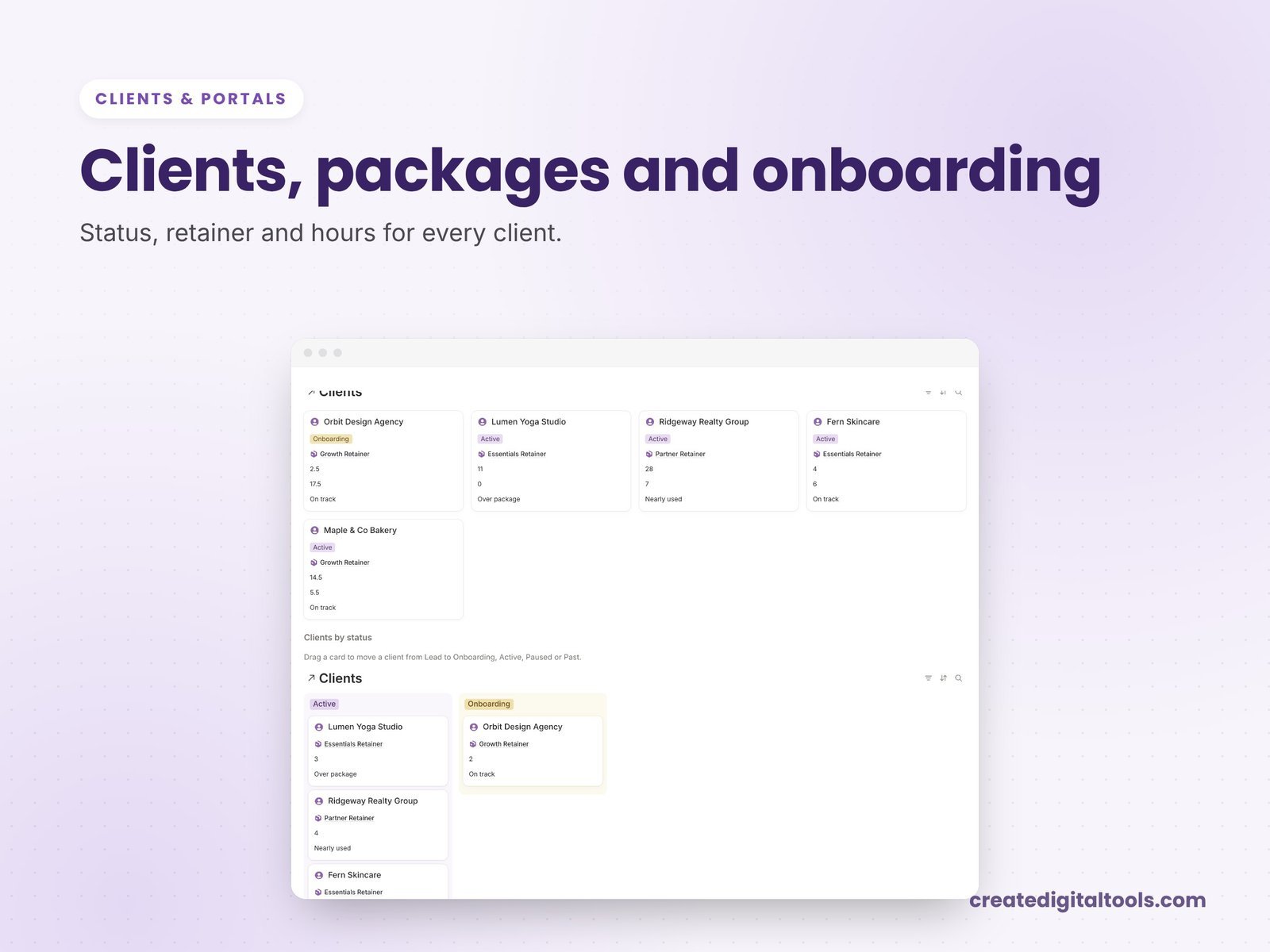
SOPs and access
The SOP library links two-way to tasks, lists tools used and shows a Review due flag after 90 days. The Access Register records tool, client, access type (Delegate, Shared account, Team seat), login owner, 2FA owner, date granted, date revoked and an automatic status. There is no password field by design.
Invoices and leads
An Invoices hub tracks what you have billed, and a Leads & Discovery Calls database holds new prospects. In total there are 9 connected databases: Clients, Packages & Retainers, Tasks, Time Log, SOPs & Processes, Access Register, Invoices, Client Requests, and Leads & Discovery Calls.
Watch the full walkthrough
Here is a tour of the workspace, from the dashboard to the retainer tracker:
Getting started in your first week
- Set up your packages first. Enter hours and monthly fee for each package you sell, so the retainer maths has something to work from.
- Add your clients and link each one to a package. Explore one sample client portal before you build your own.
- Move recurring tasks in. Weekly reports, inbox clean-ups and month-end jobs, each marked Daily, Weekly or Monthly.
- Log time from day one. The hours remaining figures only become useful once time is going in.
- Fill in the Access Register for the tools each client has given you, with login owner and 2FA owner.
- Write your first SOP for the task you do most often. Then delete the sample clients when you are ready.
Who it is for (and who it is not for)
A good fit if you:
- Are a virtual assistant or online business manager with several clients
- Sell hour-based packages or retainers and want to see usage mid-month
- Have recurring tasks and processes you want written down
- Want a clear record of the tool access each client has given you
Probably not a fit if you:
- Need a password vault (keep passwords in a password manager)
- Want clients to log in and submit requests through their own accounts
- Need automatic invoicing and payment collection
Running larger, scoped projects for clients rather than retainers? Consulting Studio OS is built around the statement of work. You can also browse all Notion templates.
FAQ
Does it work on the free Notion plan?
Yes. You need a Notion account, and the free plan works.
How is the template delivered?
You download a PDF with the Duplicate link. Log in to Notion, open the link and click Duplicate, then follow the Start Here page.
Can I change the packages and rates?
Yes. Packages, hours, fees and every property can be edited to match how you sell your services.
Where do client passwords go?
Not in Notion. The Access Register records who owns each login and 2FA, but there is deliberately no password field. Use a password manager for passwords.
Is it an instant download?
Yes. It is a digital product, and nothing physical is shipped.
This is an organising tool, not financial or tax advice.
Get the Virtual Assistant Studio OS →
Notion is a trademark of Notion Labs, Inc. Slack is a trademark of Salesforce, Inc. This is an independent template, not affiliated with or endorsed by Notion or Slack.
Notion systems, spreadsheets and planners with a setup guide. Instant download.