Employee Directory Notion Template (Free) for Teams
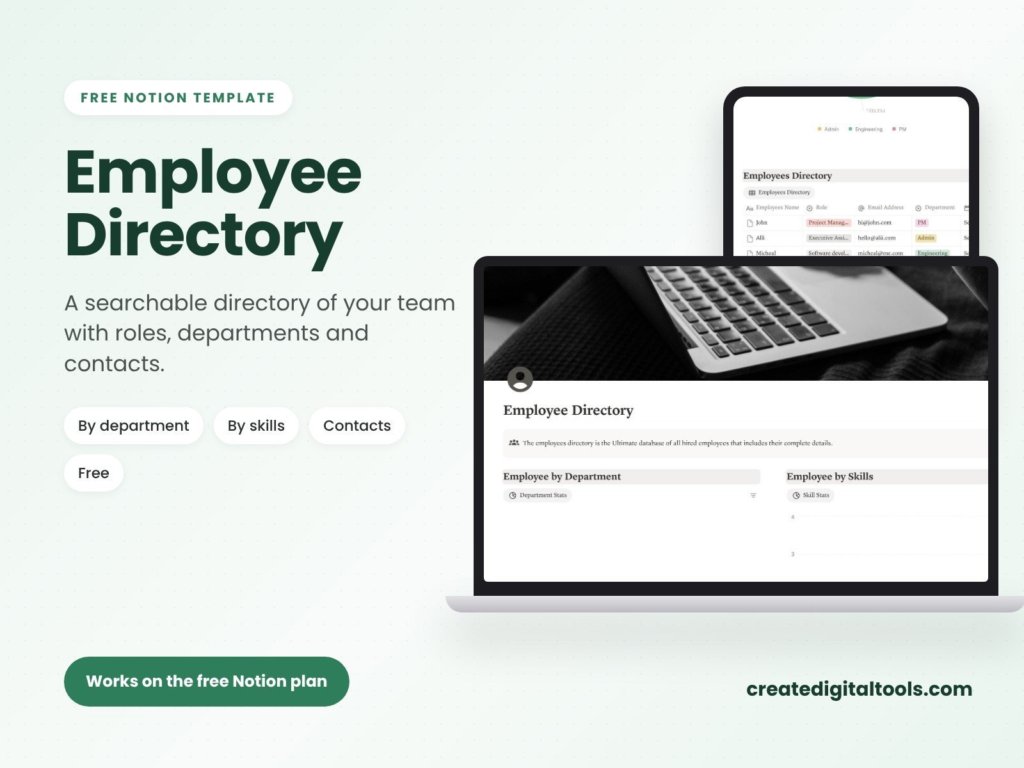
Picture a growing design studio where a client asks for “the person who handles motion graphics,” and nobody in the room is quite sure who that is since the last two hires. Contact details sit in a phone, skills live in people’s heads, and start dates are buried in old emails. An employee directory Notion template puts everyone on the team in a single, searchable database with roles, departments, skills and contact details, so the answer is a quick filter away.
This guide covers how to build a team directory that stays useful, then walks through the free Employee Directory template from Create Digital Tools.
Why team information gets lost
In a small business, information about who does what usually lives in several places at once:
- Contact lists in personal phones. They are never complete, and they leave with the person who kept them.
- Org charts in slide decks. They look tidy on the day they are made and go out of date with the next hire.
- Skills that only managers know. When a project needs someone who speaks a language or knows a tool, the search starts with a group message.
A spreadsheet helps, but it is hard to read on a phone and does not show photos or rich profiles well. A Notion database gives each person a profile page, while views let you see the team by department or by skill.
How to build a team directory that stays current
You can set up a good directory in an afternoon. These steps work in Notion or any database tool.
1. Decide what every profile needs
Keep the required fields short: name, photo, role, department, start date and work contact details. Fewer required fields means profiles actually get filled in.
2. Use select fields for departments
Make department a select property, not free text. “Marketing” and “marketing team” will otherwise show up as two different departments.
3. Add skills as a multi-select
Skills are where a directory becomes more than a phone book. Use a multi-select so each person can have several skills, and agree on a short list of skill names so filters work.
4. Create views for the questions you ask
Build a view grouped by department for “who is in operations?” and a view grouped or filtered by skill for “who knows video editing?”. A gallery view with photos is helpful for new starters putting names to faces.
5. Store work details only
A team directory is shared with everyone, so keep it to work information. Store sensitive personal records in a separate place with restricted access, following the privacy rules that apply to you.
6. Make updates part of onboarding and offboarding
Add “create directory profile” to your onboarding checklist and “archive directory profile” to your offboarding checklist. That habit is what keeps the directory accurate.
Inside the free Employee Directory Notion template
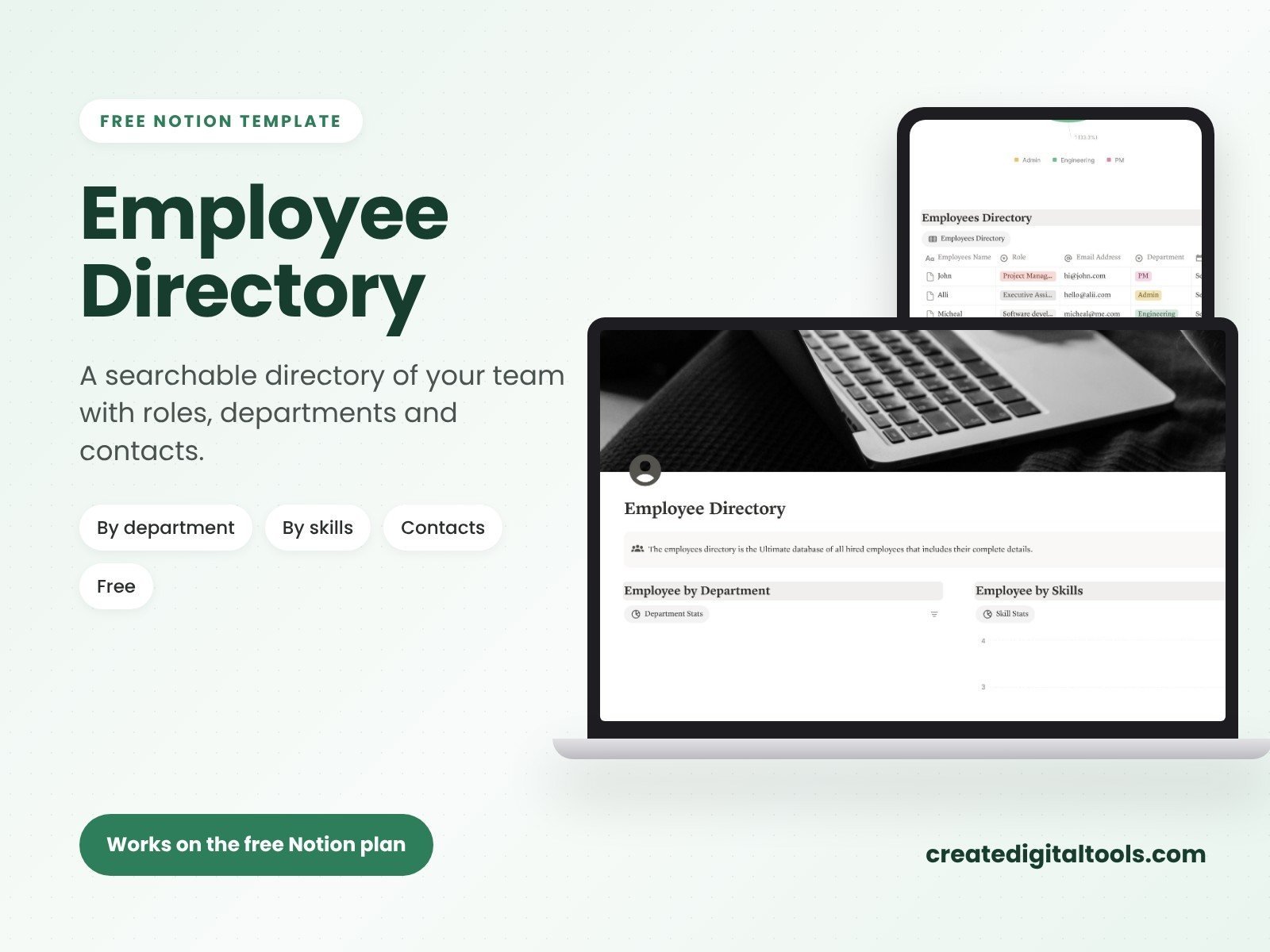
The Employee Directory is a free Notion template for listing everyone on the team with roles, departments, skills and contact details. It works on the free Notion plan and is part of the Small Business Back-Office Kit.
Team profiles
Each person has fields for a photo, role, start date and contact details, so a profile gives a quick picture of who they are and how to reach them.
View by department
See the team grouped by department, useful for new starters and for anyone working across teams.
View by skills
Filter the team by skill when you need to find the right person for a task or project.
What you receive
You get a PDF with your Duplicate link and a 3-step setup guide. The download is instant after checkout, a copy goes to your order email, and you have lifetime access including updates.
Ways to use your directory
- Onboarding: share the department view with new starters on their first day.
- Project staffing: filter by skill before assigning work.
- Anniversaries: sort by start date to see who is approaching a work anniversary.
- Policies alongside people: pair it with our free Company Handbook template so new starters know both who to ask and what the rules are.
Tips for a directory people actually use
- Ask people to fill in their own skills. They know them better than anyone else, and it gets the profiles finished faster.
- Use real photos or a consistent placeholder. Mixed styles make a gallery view harder to scan.
- Keep job titles consistent. Decide whether you write “Designer” or “Graphic Designer” and stick with it.
- Review once a quarter. A quick pass to catch changed roles and departments takes a few minutes.
What to include, and what to leave out
A directory is shared widely, so it pays to be deliberate about what goes into each profile.
Good to include
- Name, preferred name and a photo, if the person is happy to share one.
- Role and department, kept consistent across the team.
- Work email and work phone, plus the best way to reach them during the day.
- Skills and areas they are happy to help with.
- Start date, which also helps with onboarding buddies and work anniversaries.
Better kept elsewhere
- Home addresses, personal phone numbers and dates of birth.
- Salary, contract terms and performance notes.
- Health information or emergency contact details.
Those records belong in a restricted HR file, not a page the whole team can open. Asking each person to check their own profile before it goes live is a simple way to respect their preferences.
Getting started in your first session
Download the PDF, open your Duplicate link while logged in to Notion and add the template to your workspace. Follow the 3-step setup guide, then start with your own profile so you can see how each field looks when it is filled in. Next, agree on the department names and a short list of skills with your team, and set them up as options. Finally, share the page and ask each person to complete or check their own profile. Within a short time you have a directory built by the people it describes, which also makes it more likely to stay accurate.
Who it is for (and who it is not for)
A good fit if you are:
- A small business or team that wants a shared, searchable list of who does what.
- An office manager or operations lead tidying up team information in Notion.
- A remote team that wants profiles with photos so colleagues can put names to faces.
Probably not the right fit if you:
- Need a full HR system with payroll, contracts or leave tracking. For hiring and onboarding, see our HR Management, Recruitment and Onboarding template.
- Need automatic sync with an HR platform or email directory.
- Do not use Notion.
Browse more business templates in our Notion templates collection.
FAQ
Is the Employee Directory free?
Yes, it is listed at $0.00. Add it to your cart, check out and download it instantly.
Does it work on the free Notion plan?
Yes. The product page states it works on the free Notion plan.
Is it a spreadsheet or a Notion template?
It is a Notion template. You receive a PDF with a Duplicate link to copy it into your Notion workspace.
Can I add my own fields?
Yes. Once duplicated you can add properties such as location, time zone or languages, and create new views.
Who can see the directory?
That depends on how you share the page in your Notion workspace. Share it with your team and keep sensitive records elsewhere.
Notion is a trademark of Notion Labs, Inc. This is an independent template, not affiliated with or endorsed by Notion.
Notion systems, spreadsheets and planners with a setup guide. Instant download.