Agency Project Tracker Spreadsheet: Hours, Budget, Approvals
Picture a small design studio with eight active clients. One brand refresh has gone through four rounds of revisions, a website build is quietly eating more hours than the fee covers, and two deliverables have been sitting with clients for a week waiting on sign-off. The account lead knows all of this is happening somewhere, but the details are spread across a time-tracking app, a task board and an inbox. That studio is an illustrative example, yet the pattern is common. An agency project tracker spreadsheet brings clients, hours, budgets and approvals together so you can see which projects are healthy and which need attention.
Below you will find a practical way to structure agency project tracking, plus a walk-through of the Agency Client Project Tracker Spreadsheet for Excel and Google Sheets.
Get the Agency Client Project Tracker Spreadsheet →
Why agency projects drift over budget
Agencies rarely lose money on one big mistake. It is usually a steady leak: an extra revision round here, a quick call there, a deliverable that sits waiting on the client while the deadline stays fixed. The common fixes each cover part of the problem:
- Time-tracking apps record hours well but often do not compare them against the fee for each project.
- Task boards show what is in progress, not whether the project is still profitable.
- Email threads hold approvals, but nobody can see at a glance how many days a deliverable has been waiting.
- Several subscriptions add cost and still leave someone copying numbers between them.
What agencies need is a connection between the work being done, the time it takes, the fee agreed and the client’s side of the process. Without that link, budget problems show up after the project is over, when it is too late to have the conversation.
How to set up an agency project tracker spreadsheet
You can apply these steps whether you build your own tracker or use a template.
1. Create a client record first
For each client, record the main contact, whether they are on a retainer or project fee, and the hourly rate you use internally. Everything else should reference this list.
2. Log time against projects, not just people
Every time entry needs a project, a date, hours and a short note. Multiply hours by the rate to see billable value. Even if you bill a fixed fee, this tells you what the work actually cost.
3. Compare fee with time spent
For each project, set the fee, then compare it with the value of hours logged. Use simple status labels so a quick scan shows which projects are fine and which are slipping.
4. Track approvals as their own list
Record each deliverable, the revision round, its status and the date it was sent. A “days waiting” column makes it easy to spot a stalled project and send a polite nudge.
5. Keep tasks connected to the same projects
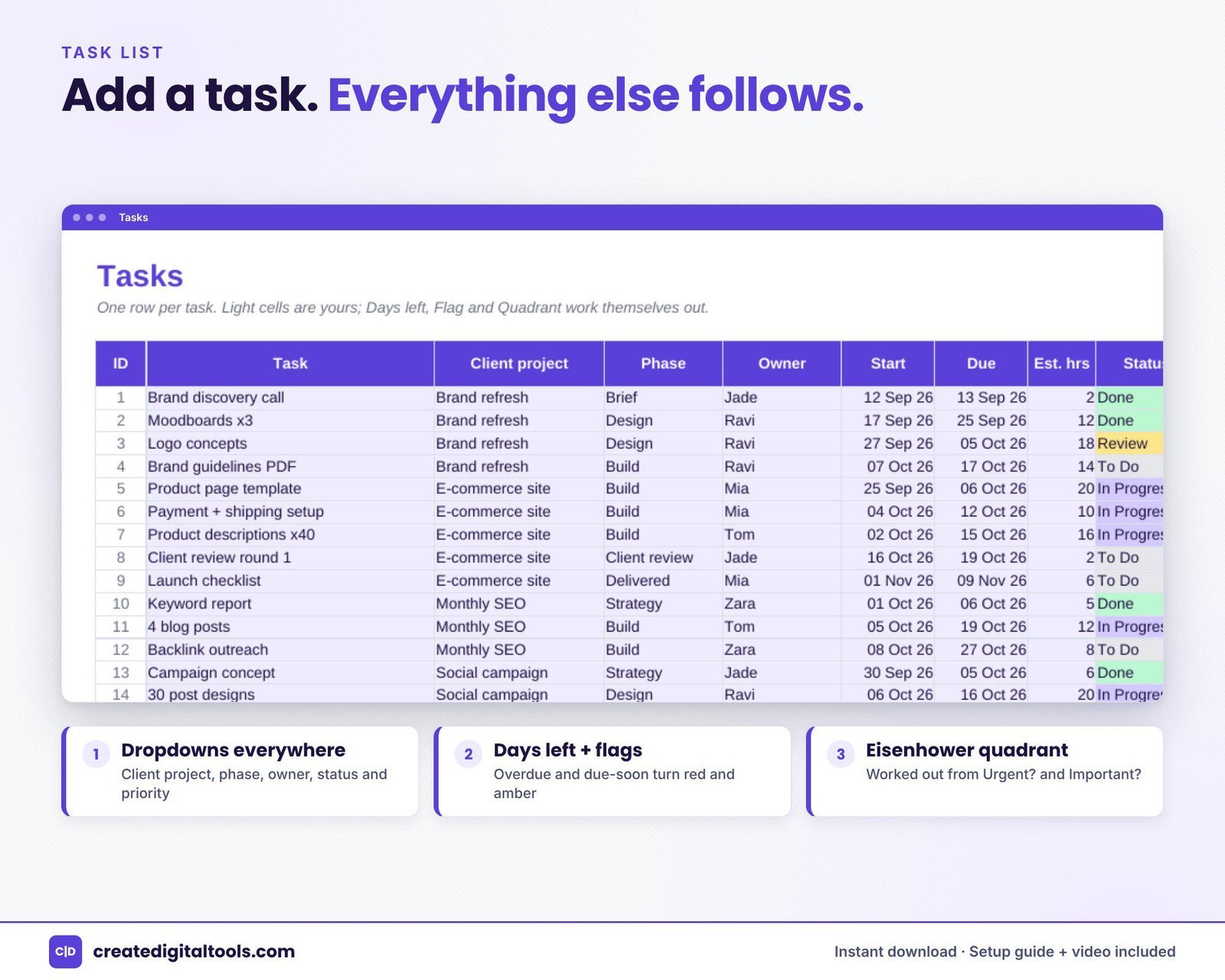
Your task list should use the same client and project names, so a Kanban board, timeline and workload view all reflect reality.
6. Agree the rules for revision rounds up front
Write the number of included rounds into the proposal, then track rounds in the approvals list. When a project goes past the limit, you have the record to discuss a change in scope calmly.
7. Review every week
A short weekly review of budgets and approvals catches problems while you can still fix them.
Inside the Agency Client Project Tracker Spreadsheet
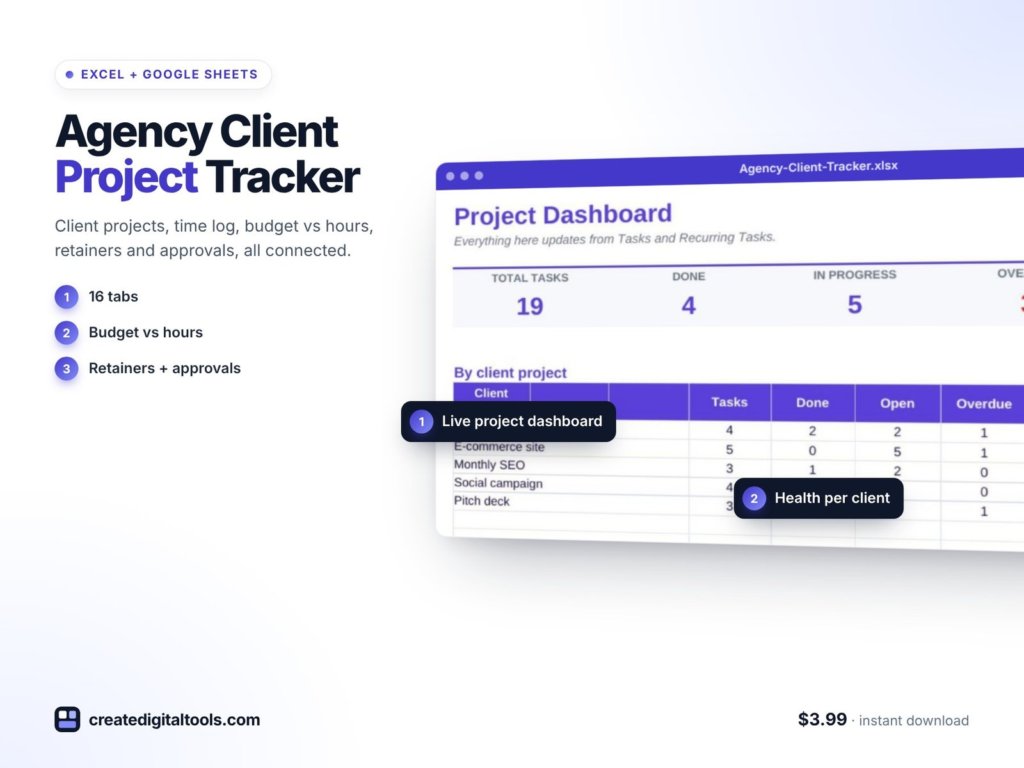
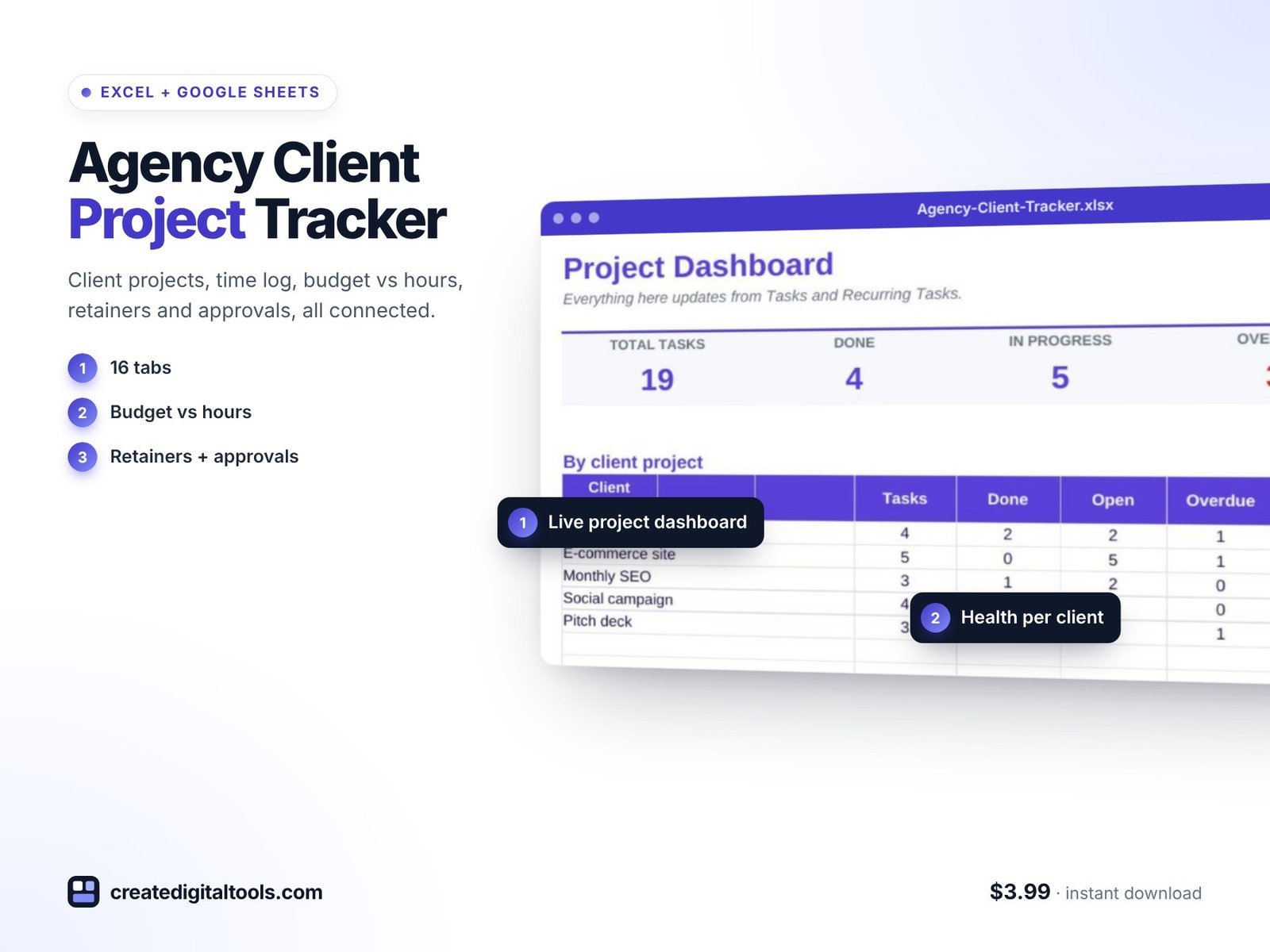
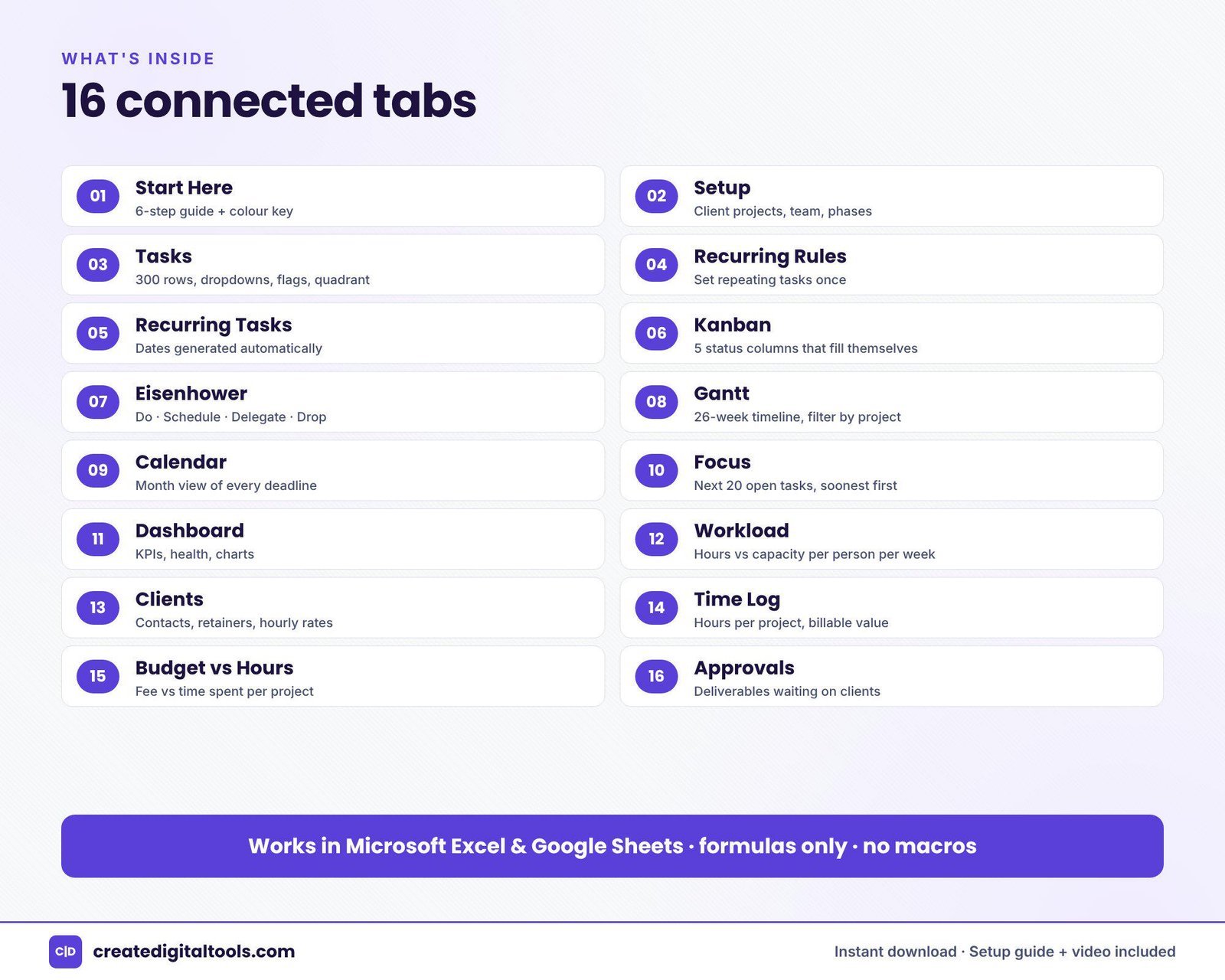
The Agency Client Project Tracker Spreadsheet is a workbook of 16 connected tabs. You add clients, team members and tasks once, and the Kanban board, Gantt chart, Eisenhower matrix, calendar, dashboard and workload view update from there. It works in Excel 2016 or later, Microsoft 365 and Google Sheets, with formulas only: no macros, no add-ons and no subscription.
Project management views
It includes everything from the Team Project Manager workbook: tasks, recurring tasks, Kanban, Eisenhower, Gantt, calendar, focus, dashboard and workload views.
Clients
Store contacts, retainers and hourly rates for each client. This list feeds the rest of the workbook.
Time Log
Record hours per project, with billable value calculated for you.
Budget vs Hours
Compare the fee with the time spent and see each project flagged as Healthy, Watch or Over budget. This is the tab that turns a vague feeling about a project into a clear status.
Approvals
Track deliverables, revision rounds, status and the number of days each item has been waiting on the client.
The download includes a Setup Guide PDF and product and setup videos.
Getting started in your first week
A tracker is only as useful as the data inside it, so start small and build the habit before you fill every tab.
- Day one: add your active clients with their contacts, retainer or fee type and the hourly rate you use internally. Add your team members too.
- Day two: enter each live project with its agreed fee, then add the open tasks you already know about. Do not try to backfill months of history.
- Days three to five: ask everyone to log time daily, even roughly. A rough log that exists is far more useful than a perfect one that does not.
- End of the week: open Budget vs Hours and Approvals together. Note any project marked Watch or Over budget and anything waiting on a client for more than a few days.
From there, a short weekly review keeps the numbers honest. Many agencies find it useful to pick a fixed slot, such as Friday afternoon, and treat it like a client meeting with the business itself. If a project keeps landing in the Over budget column, that is your cue to look at the scope, the number of revision rounds or the fee for the next similar job. The point is not to police the team’s time; it is to give everyone the same clear picture so pricing and planning decisions get easier over time.
See the agency tracker in action
This tour shows the time log, budget and approvals tabs in use:
Who it is for, and who it is not for
A good fit if you are:
- A design, marketing, web or creative agency managing several clients at once
- A studio owner who wants to see project profitability without another subscription
- An account or project manager who needs to know what is waiting on clients
- A team already comfortable working in Excel or Google Sheets
Probably not the right fit if you:
- Need invoicing, payments or accounting built in
- Want a client-facing portal where clients log in and approve work
- Work solo with one or two clients (a lighter freelancer tracker may suit you better)
Frequently asked questions
Does it work in Excel and Google Sheets?
Yes. It works in Excel 2016 or later, Microsoft 365 and Google Sheets.
Do I need any add-ons, macros or a subscription?
No. It is built with formulas only.
Can my team use it together?
If you open it in Google Sheets, you can share the file with your team using normal Google Sheets sharing. In Excel, you can store it somewhere shared such as OneDrive.
How do I get it after buying?
It is an instant digital download, with a Setup Guide PDF and setup videos to help you enter your first clients.
Can I rename the status labels or add columns?
It is a standard spreadsheet, so you can customise it. Keep a backup before changing formula columns.
Working solo rather than with a team? The Freelancer Project Tracker Spreadsheet covers clients, time and invoices for one person. You can also browse all Excel and Google Sheets spreadsheets.
Get the Agency Client Project Tracker Spreadsheet →
Microsoft Excel and OneDrive are trademarks of Microsoft Corporation, and Google Sheets is a trademark of Google LLC. This is an independent template, not affiliated with or endorsed by Microsoft or Google.
Notion systems, spreadsheets and planners with a setup guide. Instant download.