Construction Project Tracker Spreadsheet: Jobs, Costs, Snags
Picture a small renovation contractor with three jobs running at once. A kitchen refit is waiting on an inspection, a loft conversion has two change orders the client signed on site, and a bathroom job has a punch list scribbled on the back of a delivery note. Each job has costs coming in every day, and nobody can say for sure which one is making money. That scenario is illustrative, but most builders will recognise it. A construction project tracker spreadsheet exists to pull those moving parts into a single workbook so the numbers and the to-do lists finally line up.
This guide walks through why job tracking falls apart, how to set up a practical tracker yourself, and what the Construction Project Tracker Spreadsheet for Excel and Google Sheets includes if you would rather start from a ready-made workbook.
Get the Construction Project Tracker Spreadsheet →
Why job tracking breaks down on construction projects
Construction work generates information from every direction. Suppliers send invoices, subcontractors send bills, the client asks for an extra socket run, the inspector books a visit, and the site lead finds a snag on the last day. The usual fixes cover only part of that picture:
- Accounting software records what you paid, but it rarely shows cost against the budget for a specific job while the job is still live.
- Notebooks and phone notes capture snags and changes quickly, then disappear when you need them at handover.
- Generic project apps handle tasks well, but they were not built around change orders, permits or punch lists, so you end up bending them to fit.
- Separate spreadsheets per job work until you have four of them and need to know which crew member is overbooked next week.
The real problem is not a missing tool. It is that cost, schedule, changes and quality checks live in different places, so a decision on one rarely reflects the others. An approved change order that never reaches the budget is how a profitable job quietly turns into a loss.
How to set up a construction project tracker yourself
Whether you build your own or use a template, the structure that works tends to follow the same logic. Here is a practical way to set it up.
1. Start with a jobs list and a crew list
Give every job a short code and keep it consistent everywhere. Do the same for crew members and subcontractors. Every other tab should pick from these lists with dropdowns, so a typo never creates a phantom job.
2. Log every cost against a job and a category
Use a simple cost log: date, job, category (materials, labour, plant, subcontract, other), supplier, amount and whether it has been paid. Resist the urge to summarise by hand. Let formulas total costs by job and category.
3. Keep the budget and the actuals side by side
For each job, record the original contract value and the budgeted cost. Then pull actual costs from the log. The useful numbers are the gap between budget and actual, the revised contract value after changes, and the projected margin.
4. Treat change orders as their own record
Every variation should have a number, a description, a cost impact, a schedule impact and a status. Only approved changes should feed into the revised contract value. This single habit makes final accounts far easier.
5. Track snags by area and trade
A punch list is far more useful when you can filter it. Record the room or area, the trade responsible, the date raised and the target date, then flag anything overdue.
6. Put dates you cannot miss on a watch list
Inspections and permits carry real consequences when they slip. Keep them in a dedicated tab with due dates and expiry dates so they surface before they become a problem.
7. Review weekly, not just at the end
Set aside time each week to update the cost log, review open change orders and clear the punch list. A tracker only helps if the numbers are current.
Inside the Construction Project Tracker Spreadsheet
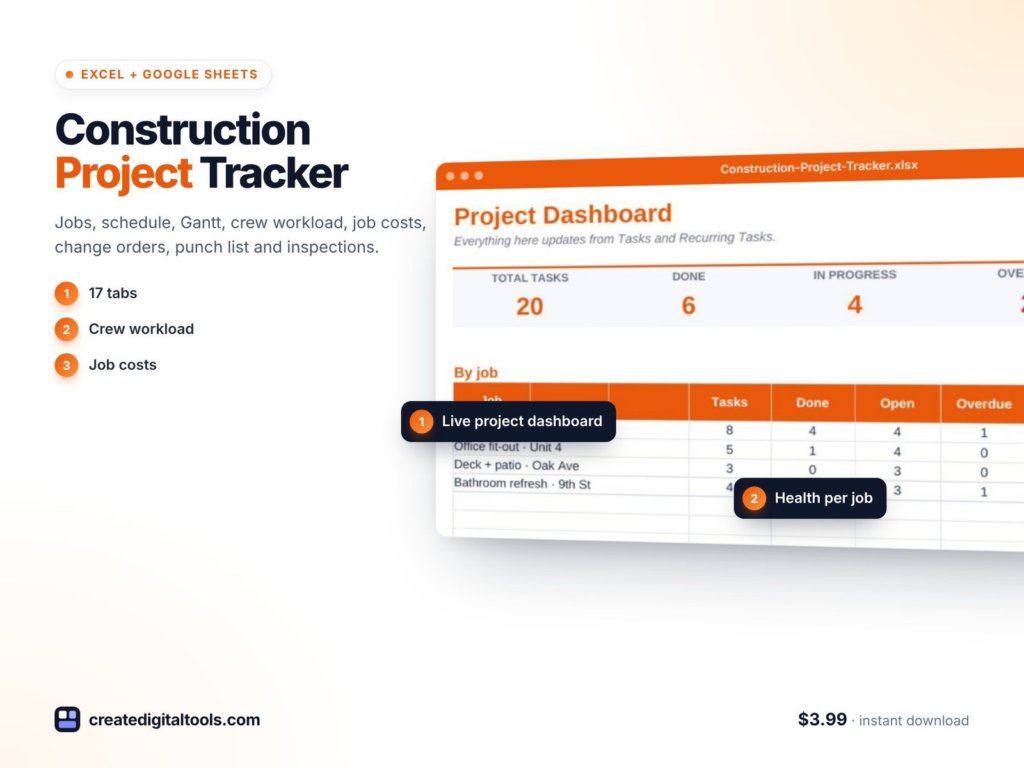
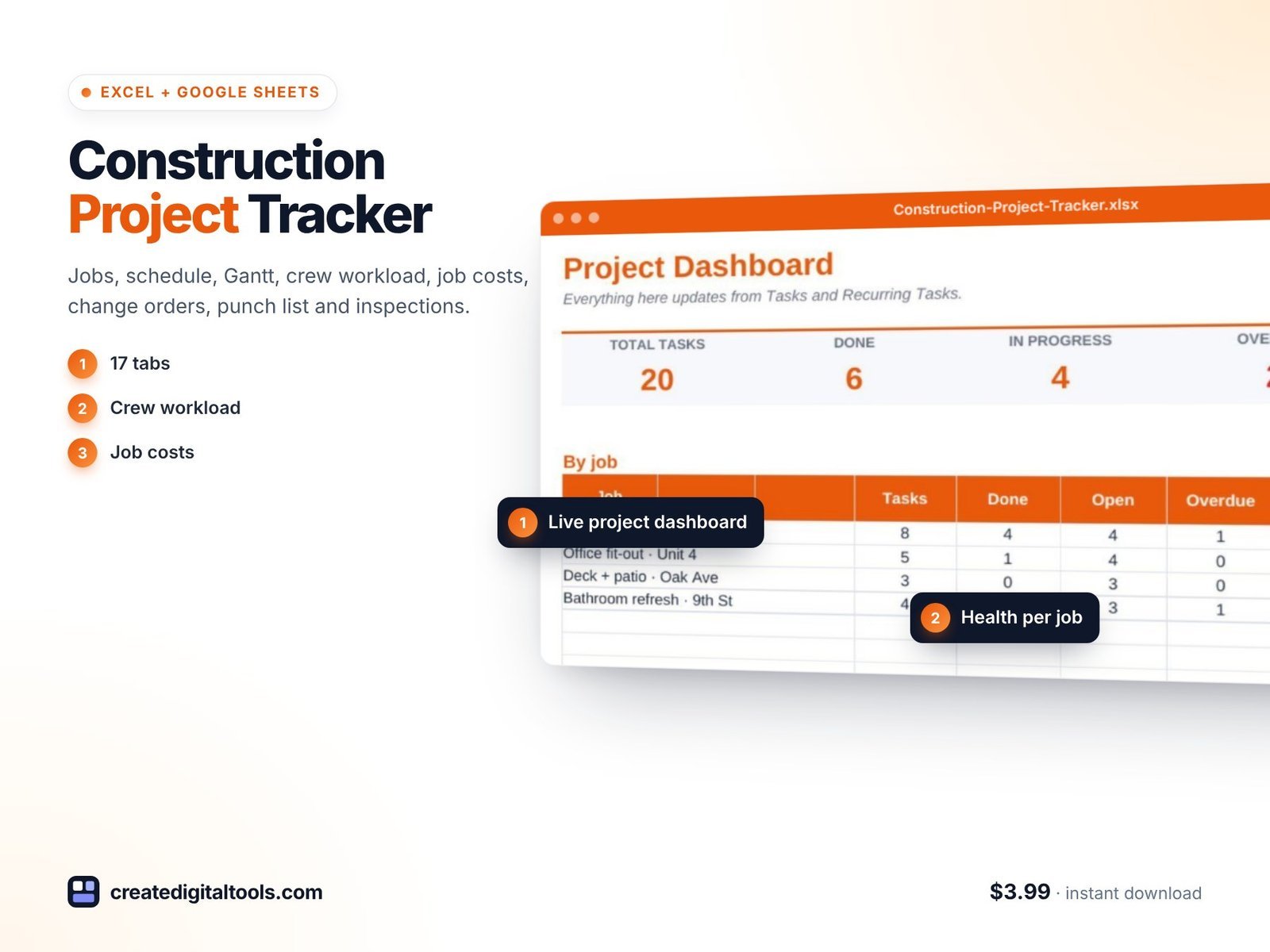
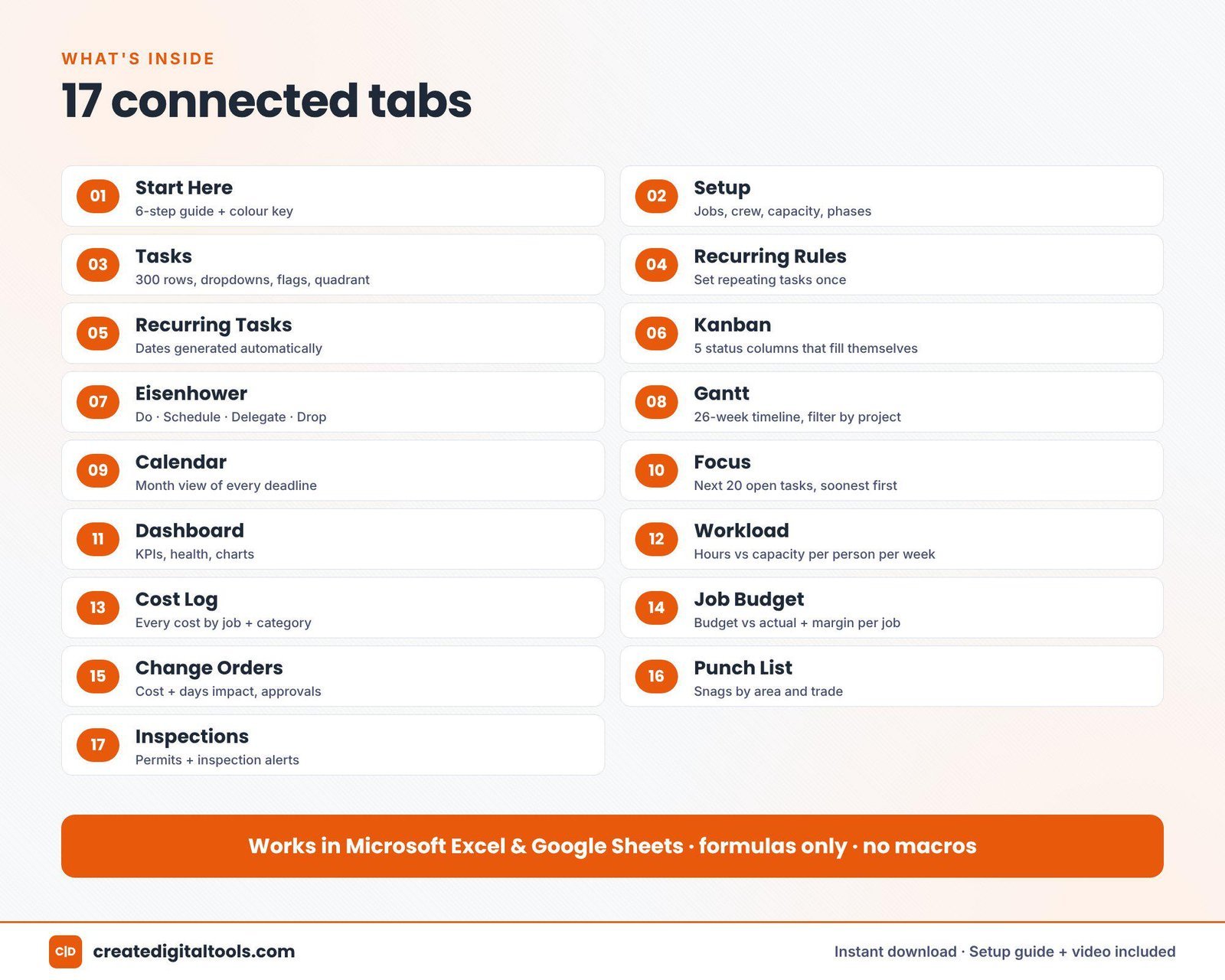
The Construction Project Tracker Spreadsheet follows that same structure in a workbook of 17 connected tabs. You enter your jobs, crew and tasks, and the connected views update from there. It works in Excel 2016 or later, Microsoft 365 and Google Sheets, and it is built with formulas only: no macros, no add-ons and no subscription.
Task and scheduling views
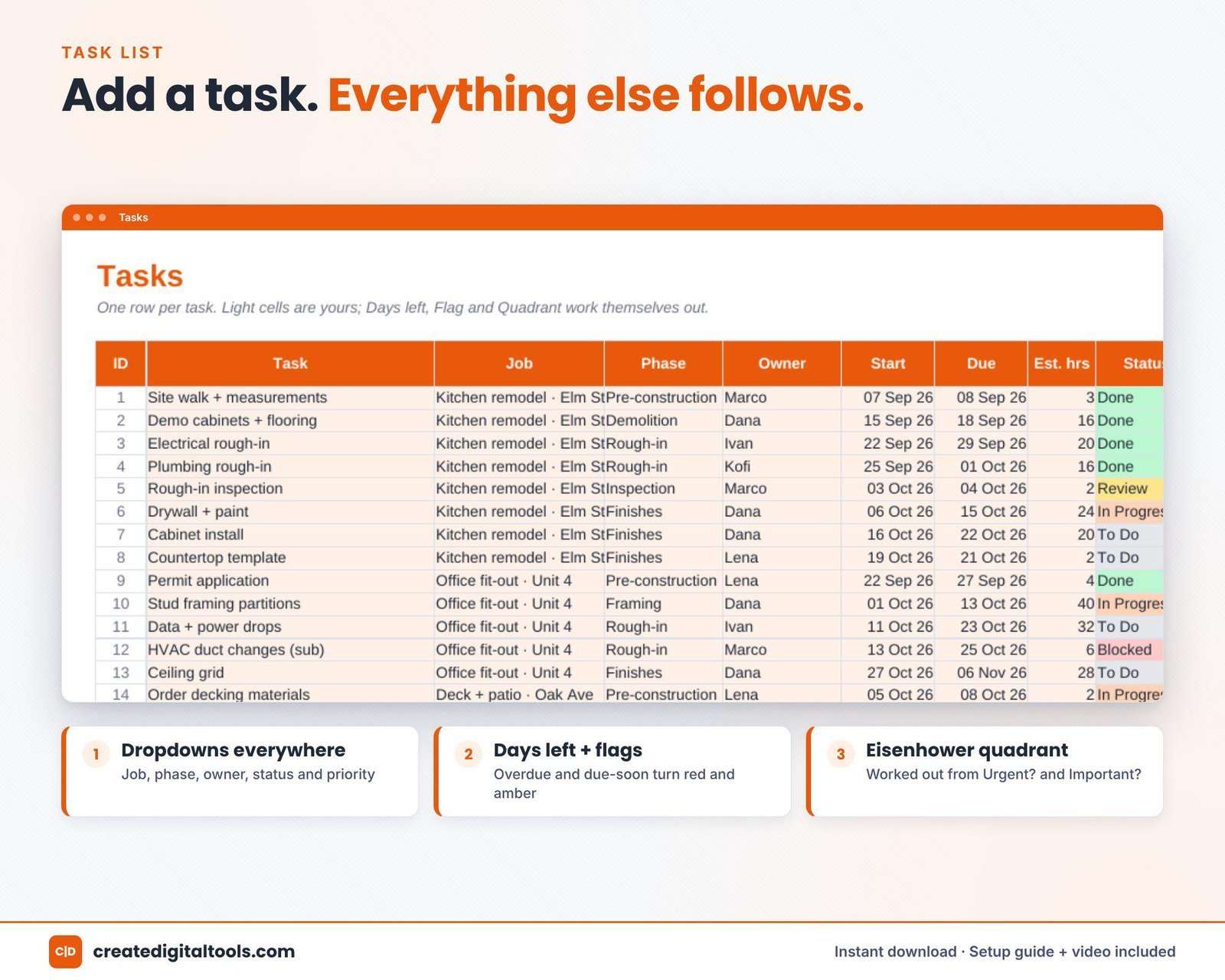
The workbook includes tasks, recurring tasks, a Kanban board, an Eisenhower matrix, a Gantt chart, a calendar, a focus view, a dashboard and a crew workload view. This is where day-to-day planning happens: what is due, who is doing it and where the timeline sits.
Cost Log
Track each cost by job and category. This is the feed for the budget tab, so every entry here shows up in your job numbers.
Job Budget
Compare budget to actual for each job, with the revised contract value, projected margin and unpaid bills shown alongside. It is the tab to open when you want a quick read on whether a job is on track financially.
Change Orders
Record each change with its cost and schedule impact. Approved changes flow into the budget, so the revised contract value stays current without manual copying.
Punch List
Track snags by area and trade, with overdue flags so nothing sits unresolved at handover.
Inspections and Permits
The workbook alerts you to inspections due within 3 days and permits expiring within 30 days, so the dates that can stop a job are always in view.
The download includes a Setup Guide PDF and a product and setup video, so you can get your first job entered without guesswork.
Watch the tracker in action
Here is a short tour and setup walkthrough of the workbook:
Who it is for, and who it is not for
A good fit if you are:
- A builder, renovator or trade contractor running several jobs at the same time
- A small construction business that wants job costing and scheduling without paying for a subscription platform
- A site or project manager who already lives in Excel or Google Sheets
- Anyone who needs change orders, punch lists and permit dates tracked next to the numbers
Probably not the right fit if you:
- Need full accounting, payroll or invoicing (this is a tracking workbook, not accounting software)
- Run large commercial projects that require dedicated construction management software and multi-company access controls
- Prefer a mobile app over a spreadsheet
This is an organising tool, not legal, tax or financial advice.
Frequently asked questions
Does it work in both Excel and Google Sheets?
Yes. The listing states it works in Excel 2016 or later, Microsoft 365 and Google Sheets.
Do I need macros or add-ons?
No. The workbook is built with formulas only, with no macros, no add-ons and no subscription.
Is it an instant download?
Yes. It is a digital download, and it comes with a Setup Guide PDF and a setup video.
Can I change the cost categories and add my own jobs?
It is a standard spreadsheet, so you can enter your own jobs, crew and tasks. If you edit structural columns or formulas, keep a backup copy first so you can always go back.
How many jobs can I track?
The workbook is set up around a jobs list that feeds every tab. If you plan to run a very large number of jobs at once, check the setup guide for how the lists are structured before you start.
If you also manage rental property or want a simple business budget alongside your jobs, the Small Business Budget & Profit Tracker pairs well with this workbook. You can browse more Excel and Google Sheets spreadsheets in the store.
Get the Construction Project Tracker Spreadsheet →
Microsoft Excel is a trademark of Microsoft Corporation and Google Sheets is a trademark of Google LLC. This is an independent template, not affiliated with or endorsed by Microsoft or Google.
Notion systems, spreadsheets and planners with a setup guide. Instant download.